

Construir um formulário online eficaz começa com o básico. Especialmente quando você está coletando informações de usuários reais sob pressão de tempo.
A escolha dos campos essenciais de formulário afeta diretamente a rapidez com que os usuários entendem o que está sendo solicitado. E se eles completam o formulário ou não.
Neste guia, vamos explorar os campos principais de formulário disponíveis no PlatoForms e explicar quando e por que usá-los.
Este guia é especialmente útil se você está:
- Projetando formulários voltados para o cliente
- Convertendo documentos existentes em formulários online
- Tentando reduzir o abandono de formulários sem adicionar complexidade
Neste blog, vamos explorar:
💡 Informação: Se os usuários hesitam ou abandonam seu formulário, o problema muitas vezes não são as perguntas em si. Mas como e quando elas são feitas.
O que são campos essenciais de formulário?
Campos essenciais são a base da maioria dos formulários.
Eles lidam com tipos comuns de entrada e fornecem a estrutura que os usuários confiam para avançar em um formulário com confiança, sem duvidar do que vem a seguir.
Como eles cobrem a maioria dos casos de uso do dia a dia, acertar esses campos muitas vezes importa mais do que adicionar recursos avançados.
✨ Dica: Para uma referência completa, campo a campo, veja os Documentos do PlatoForms:
Visão geral dos tipos de campo
Campos essenciais comuns no PlatoForms
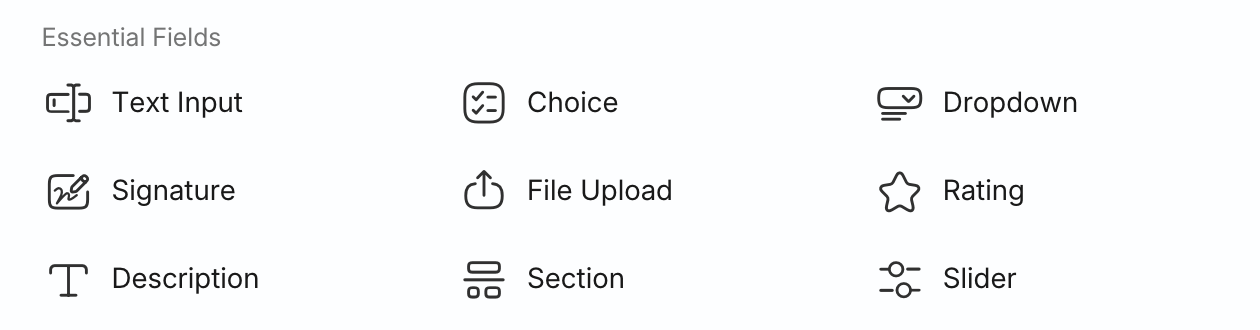
Entrada de Texto
Campos de Entrada de Texto coletam informações em formato livre, como nomes, e-mails, números de telefone, datas ou respostas escritas mais longas.
Casos de uso típicos:
- Formulários de registro e inscrição
- Formulários de contato e consulta
- Formulários de aplicação
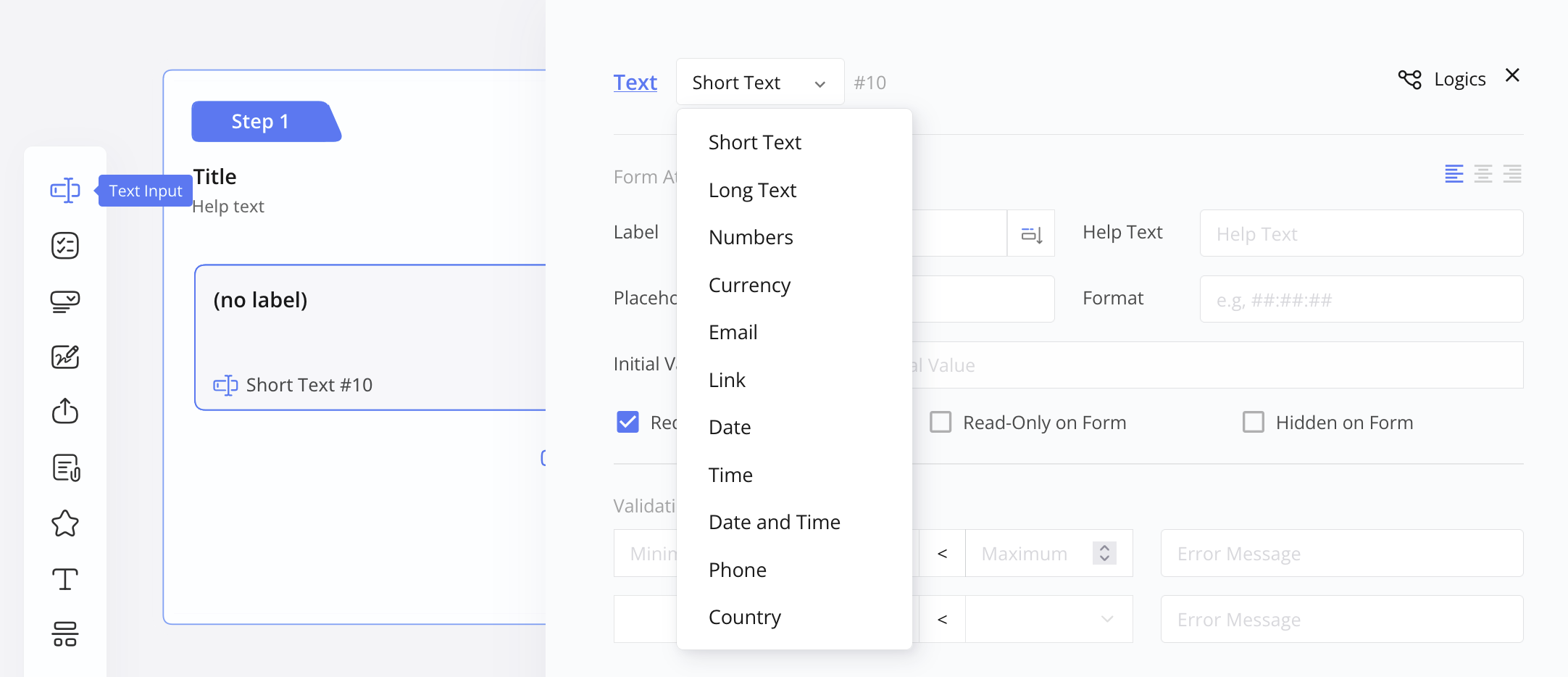
Escolha e Dropdown
Campos de Escolha e Dropdown permitem que os usuários selecionem uma ou mais opções de uma lista predefinida, reduzindo ambiguidades e erros de entrada.
Casos de uso típicos:
- Pesquisas e questionários
- Seleção de preferências
- Perguntas de Sim / Não ou de múltipla escolha
Dropdowns são particularmente úteis quando o espaço é limitado ou quando a lista de opções é longa.
Descrição / Texto Estático
Campos de Descrição adicionam contexto onde os usuários poderiam hesitar ou cometer erros.
Casos de uso típicos:
- Explicando quais informações são necessárias
- Adicionando avisos ou orientações
- Reduzindo confusão em formulários complexos ou sensíveis
Quebra de Seção e Quebra de Página
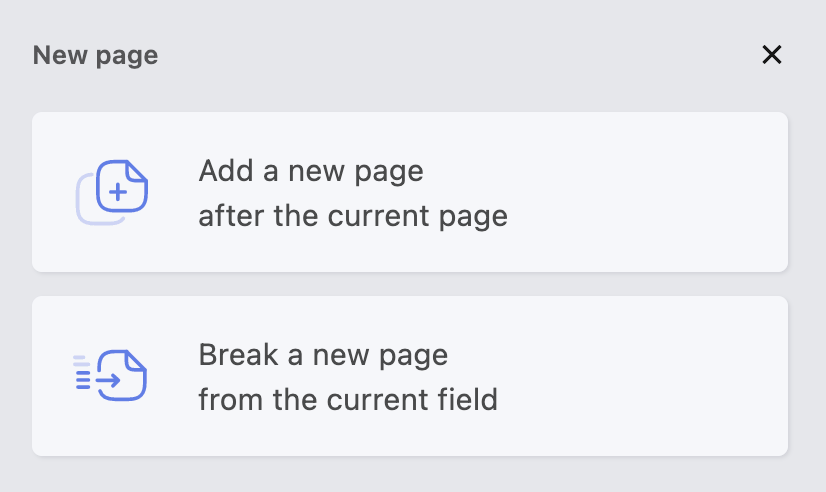
Esses campos ajudam a dividir formulários longos em seções ou etapas claras, tornando o formulário mais fácil de escanear e menos exigente mentalmente.
Casos de uso típicos:
- Formulários de aplicação em várias etapas
- Pesquisas longas
- Formulários com seções condicionais
Formulários bem estruturados reduzem a carga cognitiva e melhoram as taxas de conclusão.
Avaliação e Slider
Campos de Avaliação e Slider são projetados para respostas escalonadas onde a precisão importa menos do que a preferência ou sentimento relativo.

Casos de uso típicos:
- Pesquisas de feedback e satisfação
- Avaliações de produtos ou serviços
Casos de uso comuns e campos recomendados
Diferentes cenários se beneficiam de diferentes combinações de campos essenciais.
Abaixo estão exemplos de como esses campos são comumente usados juntos:
| Caso de uso | Campos recomendados |
|---|---|
| Contato / Consulta | Entrada de Texto (Nome, E-mail), Texto Longo (Mensagem), Escolha ou Dropdown |
| Registro / Inscrição | Entrada de Texto, E-mail, Telefone, Escolha, Quebra de Página |
| Pesquisa / Feedback | Escolha, Avaliação, Slider, Texto Longo |
| Aplicação Básica | Entrada de Texto, Dropdown, Quebra de Seção, Quebra de Página |
| Solicitação Interna | Entrada de Texto, Escolha, Descrição, Quebra de Seção |
Escolher as combinações certas ajuda a manter os formulários focados, legíveis e mais fáceis de completar.
Formulários web vs formulários baseados em PDF
O PlatoForms suporta tanto Formulários Web Online quanto Formulários PDF Online.
A maioria dos campos essenciais funciona em ambos os formatos, permitindo que você colete as mesmas informações principais, independentemente de como o formulário é entregue.
Em geral:
- Formulários baseados em PDF funcionam melhor para fluxos de trabalho orientados a documentos
- Formulários web oferecem mais flexibilidade para experiências interativas e adaptativas
Melhores práticas para campos essenciais
Ao trabalhar com campos essenciais, alguns princípios são muito úteis:
- Mantenha os formulários o mais curtos possível
- Use rótulos claros e textos de ajuda concisos
- Agrupe campos relacionados
- Escolha o campo mais simples que atenda às suas necessidades de dados
Erros comuns a evitar
Mesmo com campos essenciais, os formulários podem se tornar difíceis de completar se forem usados em excesso ou mal estruturados.
Erros comuns incluem:
- Pedir informações muito cedo ou de forma muito agressiva
- Usar campos de texto longo onde escolhas simples funcionariam melhor
- Agrupar perguntas não relacionadas
- Tornar todos os campos obrigatórios
Evitar esses erros geralmente melhora as taxas de conclusão mais do que adicionar novos recursos.
Conclusão
Campos essenciais formam a espinha dorsal de todo formulário eficaz.
Ao focar em uma estrutura clara e na seleção cuidadosa de campos, você pode criar formulários que são mais fáceis de completar, reduzem abandonos e produzem dados mais confiáveis.
A maioria dos formulários complexos falha não porque carecem de recursos avançados. Mas porque os essenciais não foram bem feitos primeiro.
Próximos passos
Depois de se sentir confortável com os campos essenciais, você pode começar a explorar capacidades mais avançadas. Como uploads de arquivos, pagamentos, dados estruturados ou formulários com tempo limitado. Quando seu fluxo de trabalho exigir.
Se você já tem um formulário ou PDF, tente revisá-lo usando os princípios deste guia e identifique quais campos poderiam ser simplificados ou reorganizados.
📖 Leia a seguir: