
Find trending topics and quick answers here
Hi, how can we help?
What are text spacing options in PlatoForms?
Question
What are text spacing options in PlatoForms?
Answer
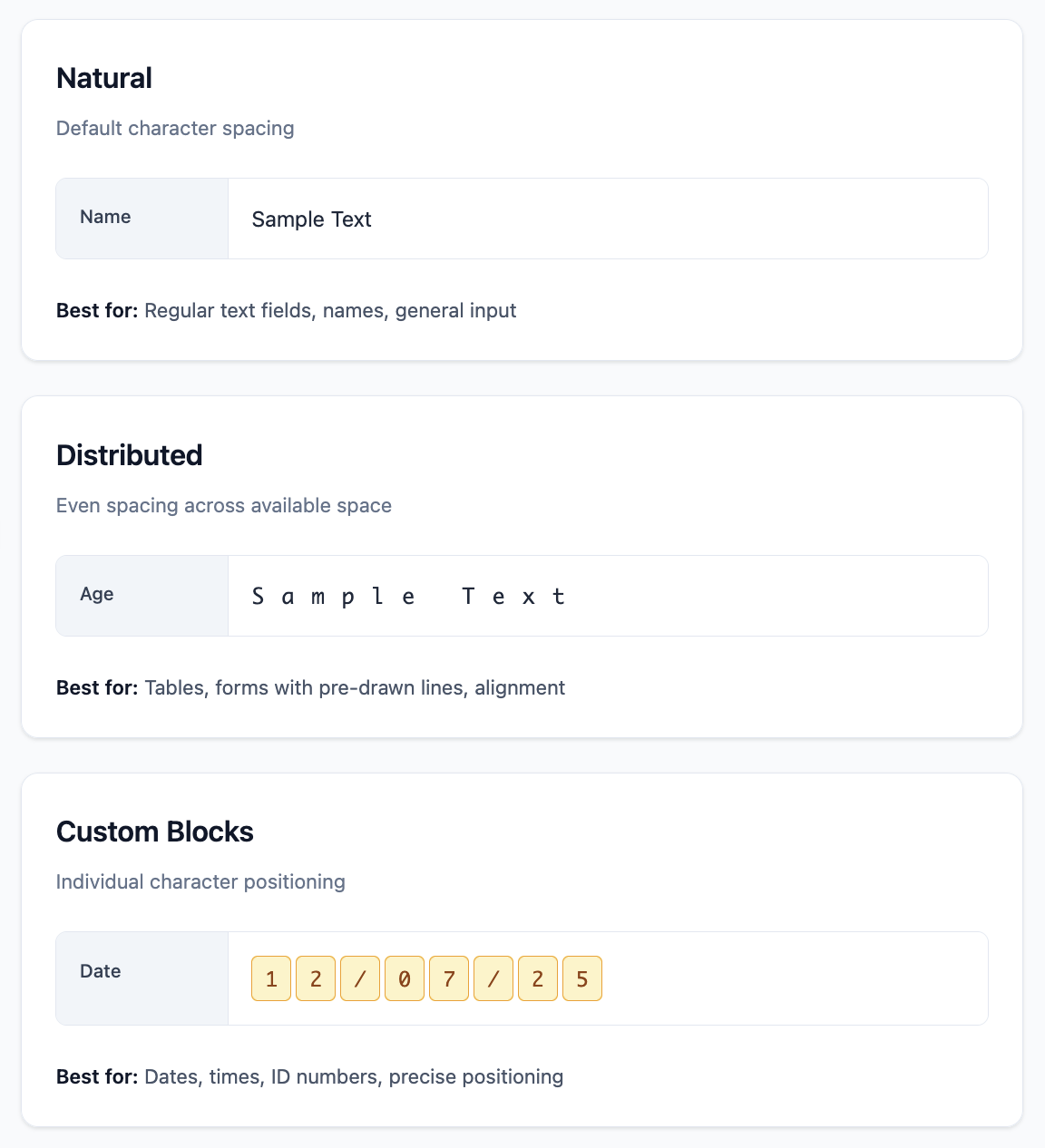
Text spacing options help you control how characters appear in your PDF forms. These new modes make your forms look cleaner and more professional by giving you precise control over text alignment.
Here are the three spacing modes available:
| Spacing Type | Description | Where to find it | Best for |
|---|---|---|---|
| Natural | Regular character spacing (default setting) | PDF Attributes → Text Spacing → Select Natural | Regular text input, names, addresses |
| Distributed | Spreads characters evenly across available space—perfect for aligning with pre-drawn lines | PDF Attributes → Text Spacing → Select Distributed | Table alignment, pre-drawn lines, government forms |
| Custom Blocks | Splits text into individual character blocks for maximum positioning control | PDF Attributes → Text Spacing → Select Custom Blocks | Date fields, ID numbers, structured formats |
You can find these options under PDF Attributes → Text Spacing when editing a text field.
Step-by-step setup
Step 1: Access your form
From your PlatoForms dashboard, click on the PDF form you want to edit.
Step 2: Select a text field
Click on any text field in your PDF form to select it. You’ll see the field properties panel open on the right side.
Step 3: Find PDF Attributes
In the right panel, scroll down to the PDF Attributes section. This is where you’ll find all PDF form-specific formatting options.
Step 4: Locate Text Spacing
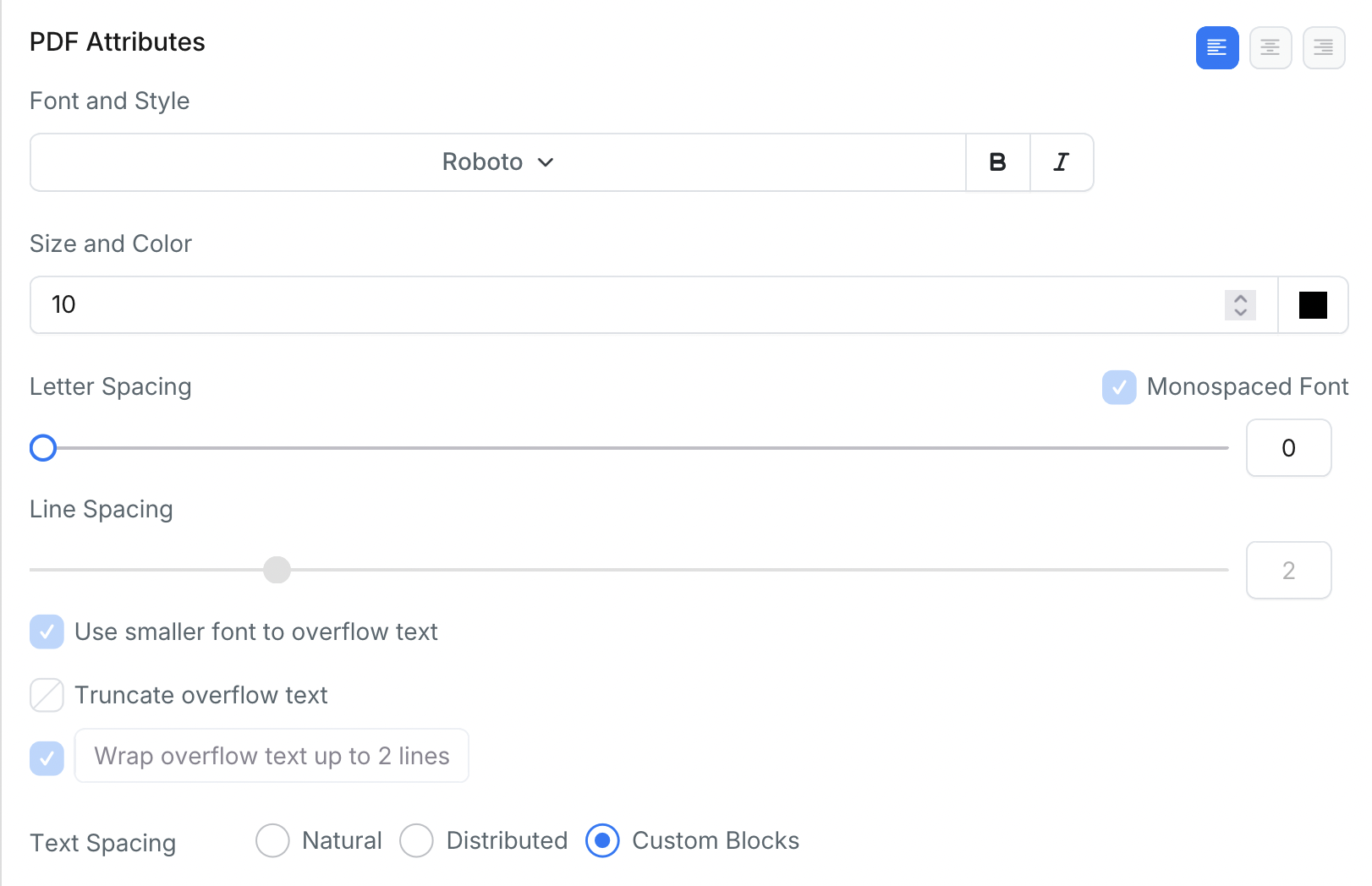
Look for the Text Spacing option in the PDF Attributes panel. You’ll see three radio button options:
⚪ Natural (selected by default)
⚪ Distributed
⚪ Custom Blocks
Step 5: Choose your spacing mode
Select the spacing mode that best fits your needs:
- Choose Natural for regular text input
- Choose Distributed for even character spacing across the field width
- Choose Custom Blocks for individual character control (only available for formatted fields like “Date” or “Time”)
Step 6: Preview your changes
The changes will be applied immediately. You can preview how the text spacing looks in the PDF preview area.
Examples and use cases
Here are real-world scenarios where each spacing mode works best:
| Form Type | Use Case | Natural | Distributed | Custom Blocks |
|---|---|---|---|---|
| Government Forms | Official forms matching printed templates | - | Aligns with pre-printed boxes and lines | - |
| Legal Contracts | Documents with strict formatting | Signature fields and general text | Align with contract template lines | Date fields (MM/DD/YYYY) |
| Corporate HR | Employee onboarding with structured layouts | Names, addresses, general info | Table layouts and fixed-width columns | Employee IDs, start dates, structured data |
| Medical Forms | Patient forms requiring precise data entry | Symptoms, medical history, narratives | Align with medical record templates | Date of birth, medical record numbers, insurance IDs |
Tip: Use Monospaced Fonts for Best Results
What are monospaced fonts?
Monospaced fonts give every character the same width. For example, in a monospaced font, the letter ‘i’ takes up the same space as the letter ‘W’. This is different from regular fonts where characters have different widths.
Monospaced fonts available in PlatoForms:
- Courier New
- Consolas
- Monaco
- Lucida Console
- Andale Mono
Why this matters for text spacing:
- Consistent alignment: Text will look the same across all devices and browsers
- Predictable spacing: Distributed and Custom Blocks modes rely on equal character widths
- Professional appearance: Perfect alignment with form lines and boxes
Visual comparison:
Regular font spacing problems:
Word "Will" → W(wide) i(narrow) l(narrow) l(narrow) = uneven gaps
Word "Time" → T(wide) i(narrow) m(wide) e(medium) = inconsistent spacing

With monospaced fonts:
Every character gets exactly the same width:
W = i = l = T = m = e (all equal width)

When using Distributed mode:
Regular font: W   i l l   →   gaps are uneven
Monospaced:   W   i   l   l   →   perfectly even gaps
Real example you’ll notice:
- Type “Will Smith” with Distributed spacing
- Regular font: looks unbalanced because ‘W’ is wide, ‘i’ is narrow
- Monospaced font: each letter gets equal space, looks perfectly aligned
💡 Pro tip: In your PDF Attributes panel, select one of the monospaced fonts above when using Distributed or Custom Blocks spacing modes.
Need More Help?
Check out our full FAQs page or contact support for assistance.