Turn a PDF into an online form
Keep the PDF layout, add fillable fields, and collect responses online.
Create your first PDF form
 SlackSubmission alerts + PDF
 Google DriveAuto-save completed PDFs
 DropboxUpload completed PDFs to Dropbox
 OneDriveStore in Microsoft cloud
 Google SheetsAdd submissions to a spreadsheet
 CanvaTurn designs into fillable forms
 StripeCard, Apple Pay, Google Pay
 SquareAccept payments in-form or via checkout redirect
 PayPalPayPal, cards, Pay Later
 Text messagesSend SMS with PlatoForms or Twilio
 ZapierConnect 9,000+ apps
 MakeVisual multi-step automation
PlatoForms Learning Center
Find a clear starting point, browse product documentation, or learn through videos and practical guides.
Find a guide
Choose a task to find the most relevant instructions. You do not need to know the PlatoForms product name.
Keep the PDF layout, add fillable fields, and collect responses online.
Create your first PDF formStart with AI, a blank form, or a ready-made template.
Choose how to build your formDesign a document with AI, a blank canvas, or a document template.
Open the creator guidePublish a form, then share it by link, email, QR code, or embed.
Publish and shareReview responses, analyze trends with Insights, and export submission data or completed PDFs.
Manage form submissionsSend submissions to other tools, save files to cloud storage, or connect through an API.
Explore integrationsProduct help
Already know which PlatoForms product or feature you use? Go directly to its documentation.
Useful utilities
Bring an existing form into PlatoForms or prepare a PDF before you build a form.
Move questions, sections, and supported field types into PlatoForms without rebuilding the form.
Merge, split, compress, reorder, and protect PDFs in your browser. No account required, and files are not uploaded to a server.
Watch or read
Use the format that works for you. Each video topic also points to written instructions.
 Video + guide
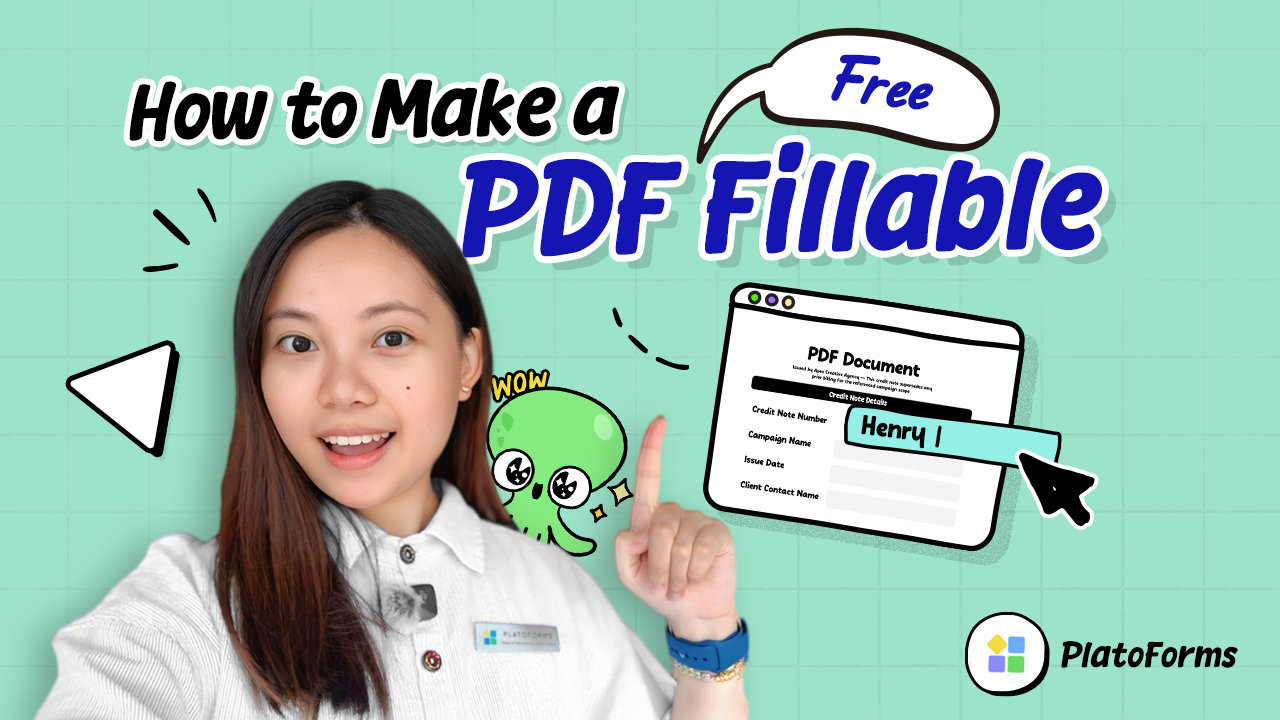
See how to upload a PDF, add fields, and publish it without changing the original design.
Read the guide →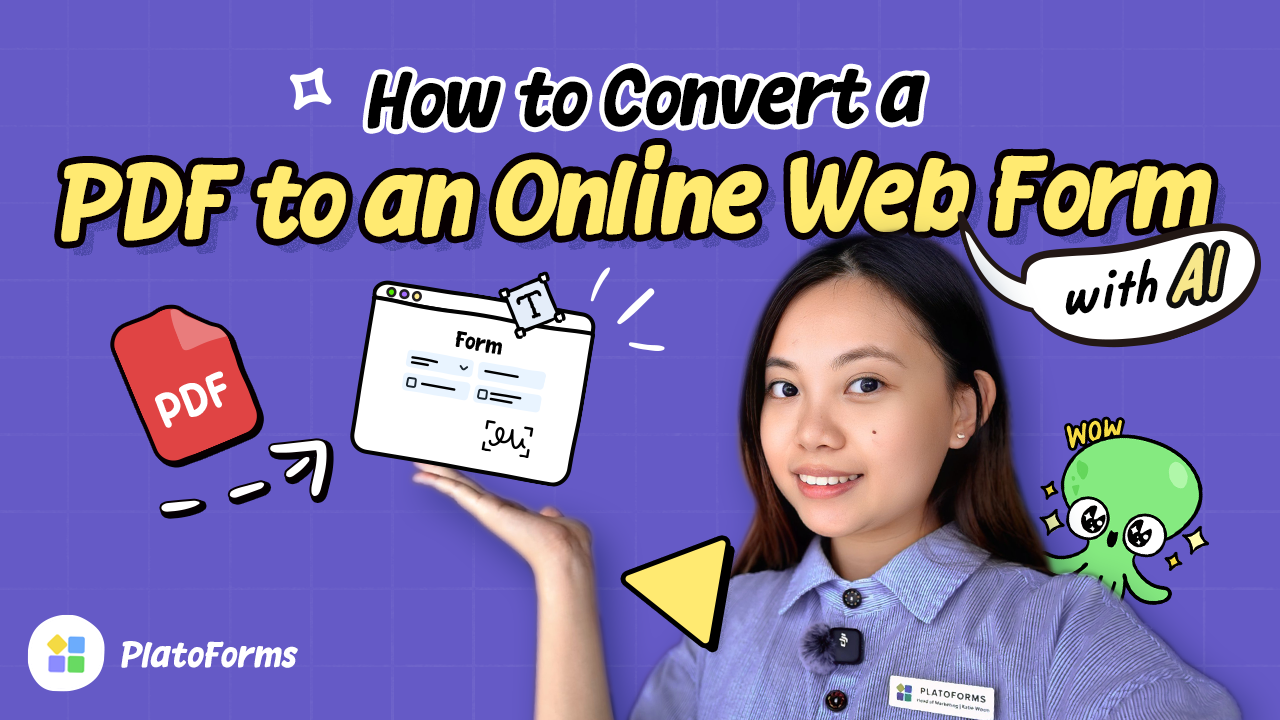 Video + guide
Upload a PDF and let AI turn its fields into a responsive web form that you can customize, preview, and publish online.
Follow the convert guide →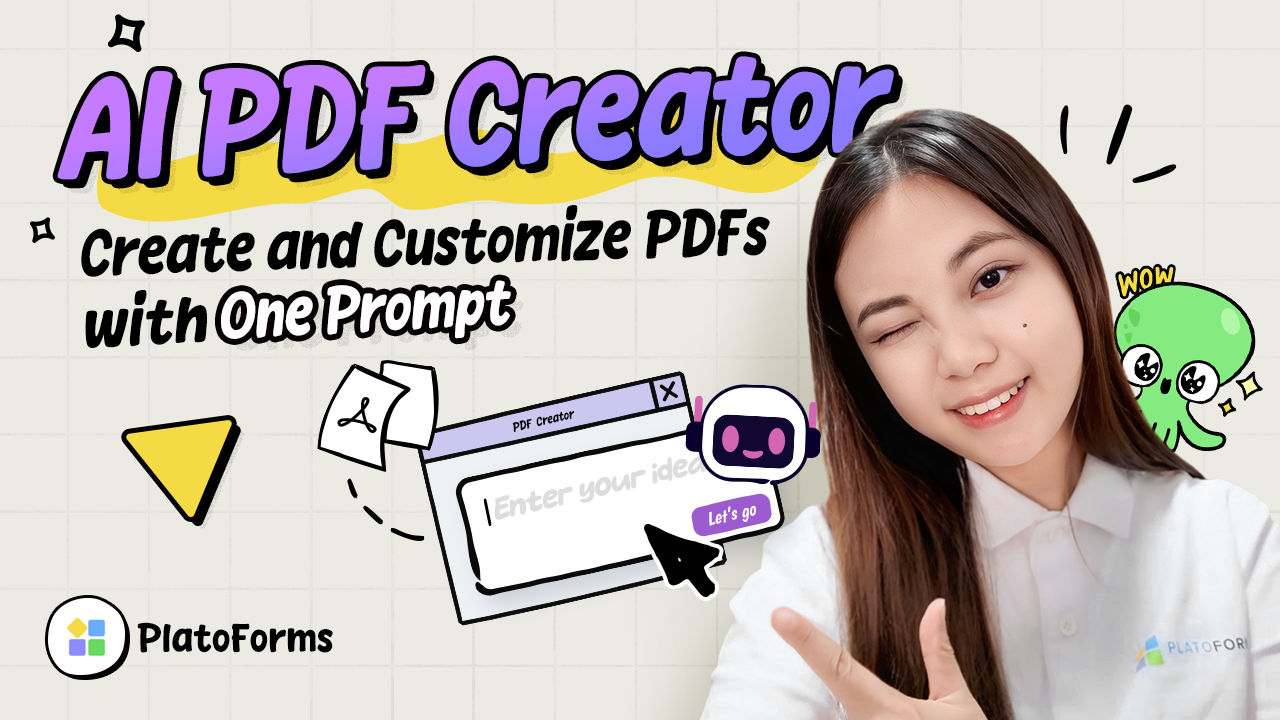 Video + guide
Create an editable document draft, refine the layout, and choose a PDF or online output.
Read the guide → Video + guide
Enable Voice Filling, choose access and languages, answer questions by speaking, then review and edit the answers before submitting.
Learn how to use Voice Filling →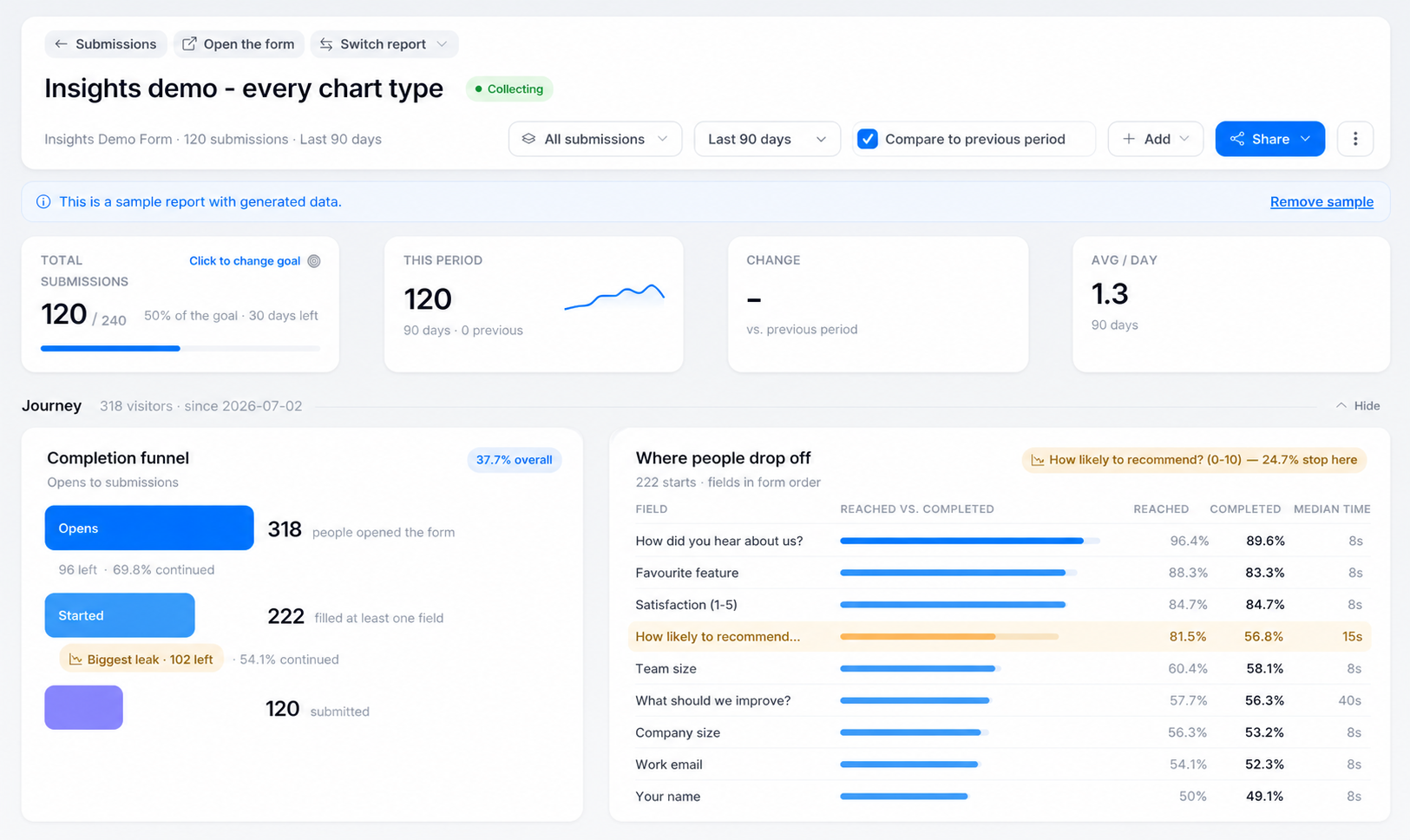 Video + guide
Track completion and drop-offs, visualize responses, check data quality, use AI to find patterns, and share reports.
Explore the Insights guide → Video + guide
Connect PlatoForms to review forms and submissions, create or submit entries, generate PDF links, and see how MCP extends it to other AI assistants.
See what the plugin can do →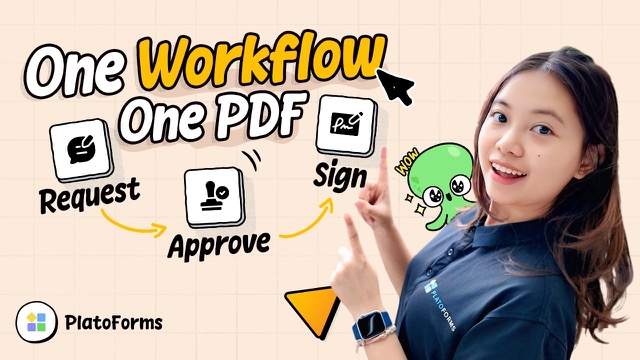 Video + guide
An employee submits a leave request, a manager approves and signs it, and the employee receives the completed PDF and signature certificate.
Read the workflow guide →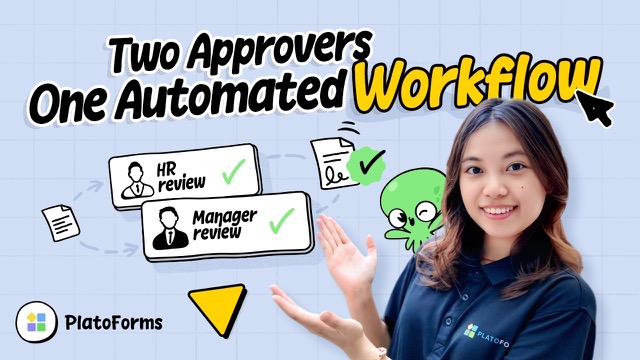 Video + guide
Send a leave request to HR and then the manager, collect their approvals and signatures on one PDF, and nudge or reassign a pending step.
Learn how to track runs →Tutorial articles
These articles explain complete tasks with examples. Use the linked product guides for step-by-step setup.
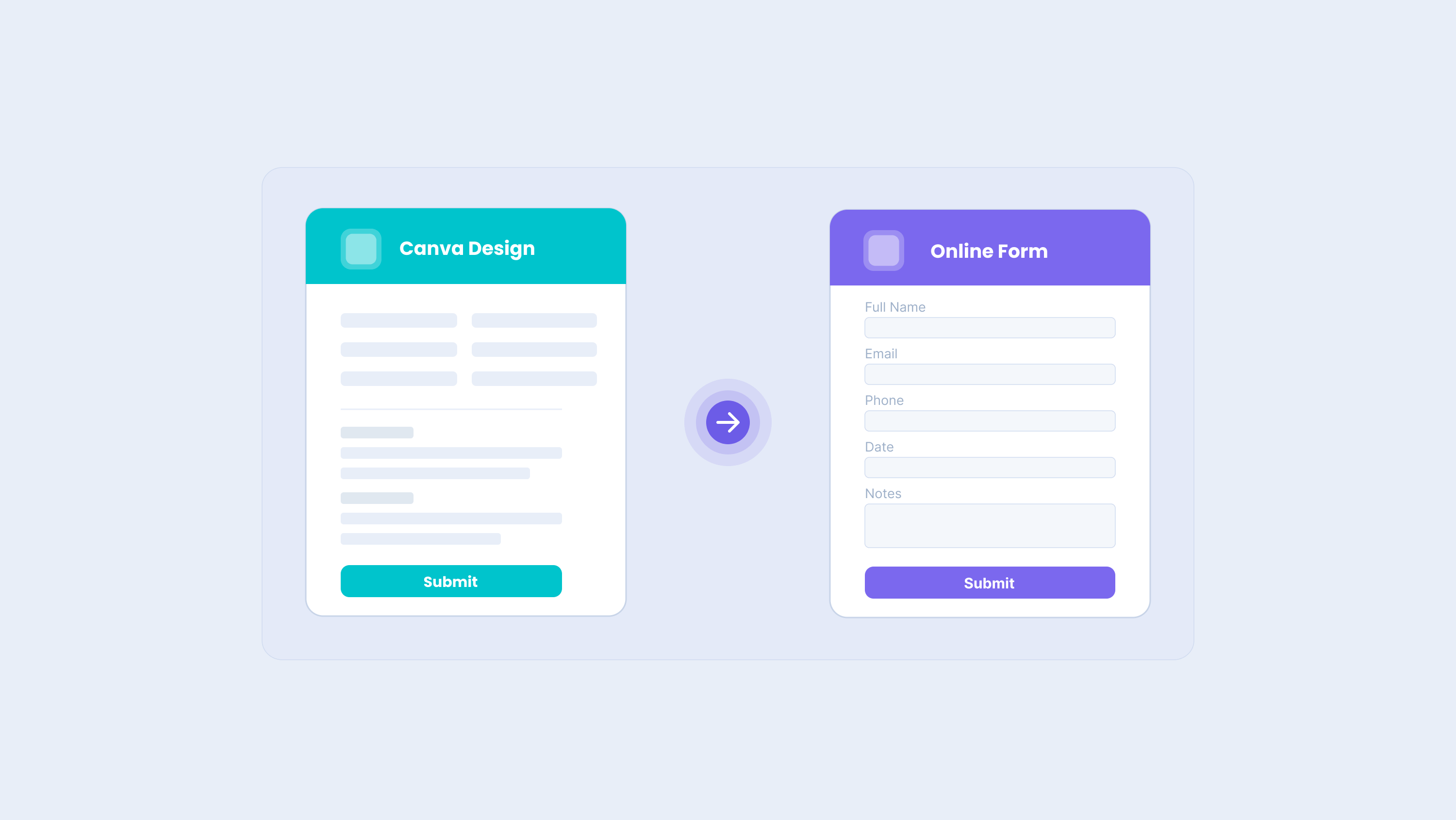
Export the Canva design to PlatoForms, then add fillable fields, collect responses, and generate PDFs.
Read the article →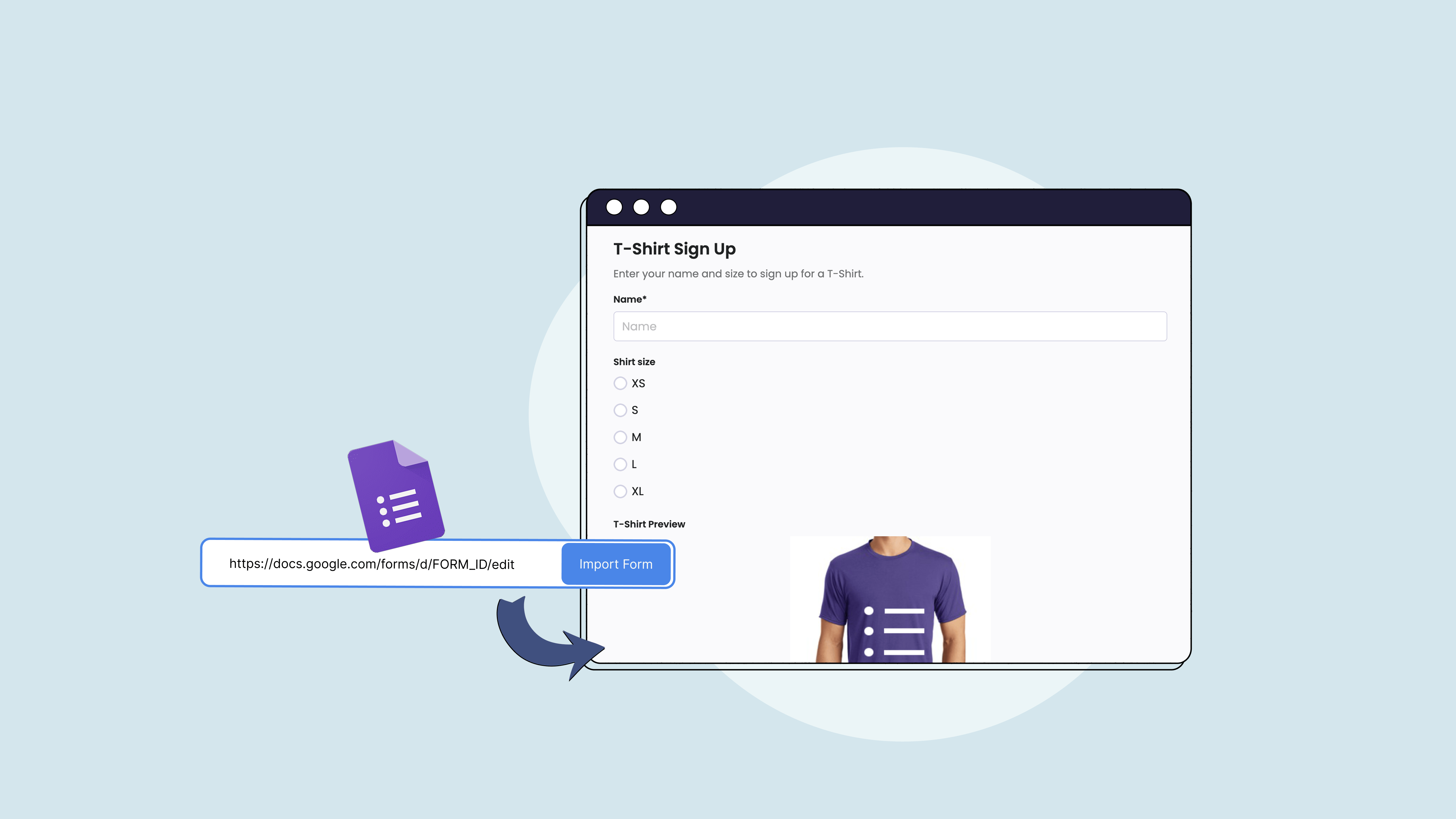
See how to add PDF generation, signatures, payments, and approval steps after importing a Google Form.
Read the article →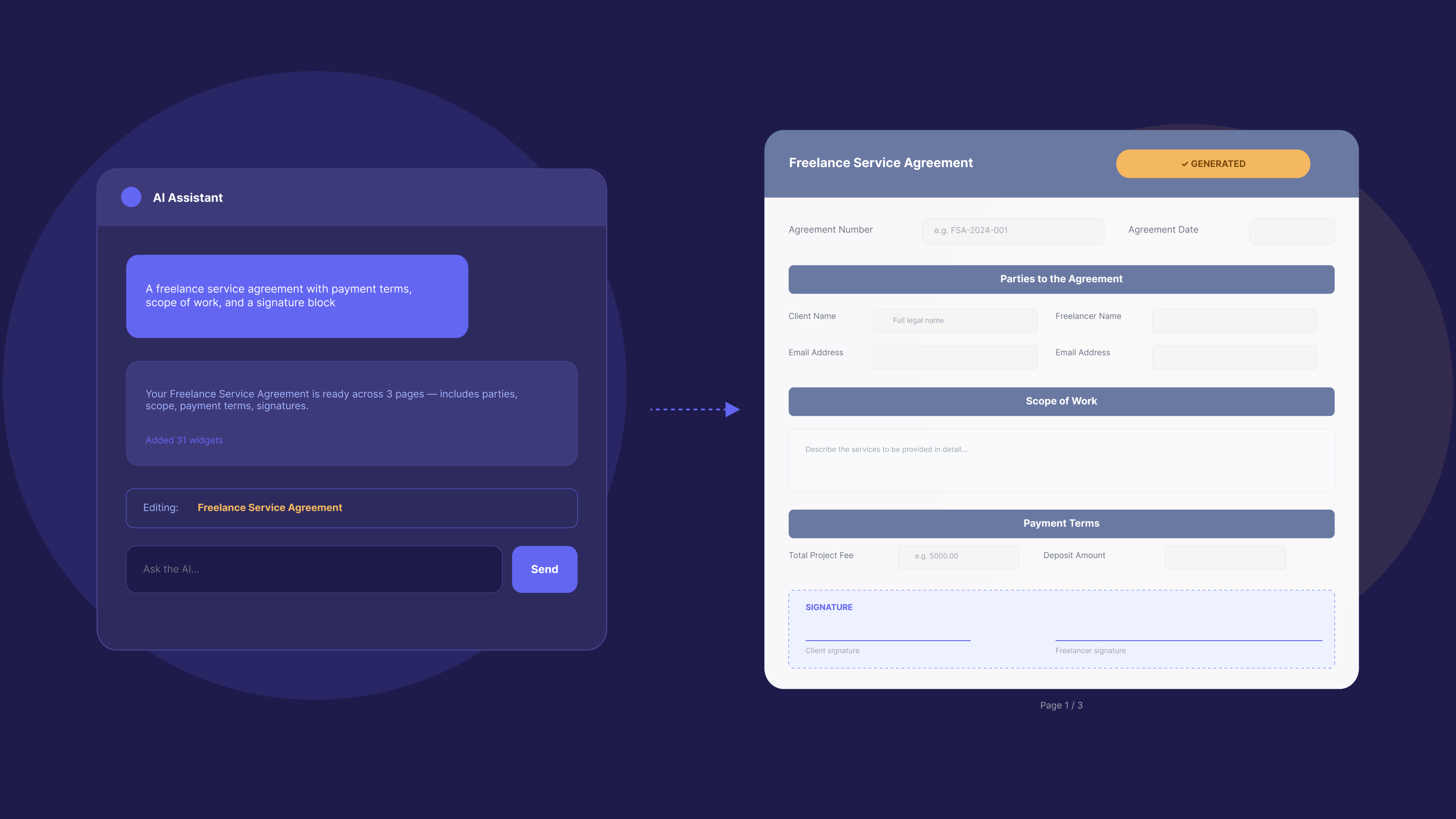
See how a new document moves from its first draft to an online form, signatures, and final PDF output.
Read the article →Quick answers
Yes. Upload the PDF, add fields manually or use AI field detection, then publish it as a PDF Fillable Form or Web PDF Form. Read the guide →
Yes. PDF Document Creator starts with AI, a blank canvas, or a document template. You can download the result or publish the same design online. Read the guide →
Yes. Export the design with the PlatoForms Canva integration, then check the detected fields before publishing the form. Read the guide →
PlatoForms stores the submission and can generate a completed PDF. Your notification, integration, and workflow settings determine what happens next. Read the guide →
Yes, when the form owner enables Voice Filling for a published form and authorizes the user. Answers can be reviewed before submission. Read the guide →
Choose based on what you already have and the filling experience you need: an existing PDF, a web-native form, or a new PDF document. Read the guide →
Prefer a starting point?
Choose a form or PDF document template, then customize it for your own workflow.