


Many people assume that a browser-based tool is a private workspace.
In reality, most online tools process files on remote servers you know nothing about.
When you use a typical online compressor or merger, your files are being shuttled to an external server you’ve never vetted, often managed by companies whose data retention practices are unknown.
The “success” of the operation is visible; the lingering digital footprint is not.
We build PDF tools at PlatoForms, including a set of privacy-focused client-side PDF tools, because we believe productivity shouldn’t require a compromise on privacy. We understand the mechanics of file travel, and more importantly, the risks of the “upload-and-delete” promise.
Here are five specific file types that demand a “zero-upload” approach, along with the client-side alternatives that keep your data exactly where it belongs: on your machine.
Why This Matters More Than You Might Think
When you upload a file to most online tools, it leaves your device and travels to a server you don’t control. What happens next is governed by that service’s security practices and policies — which you have no way to audit.
The problem is systematic. According to Verizon’s 2025 Data Breach Investigations Report, 30% of data breaches in 2025 involved a third party. Secureframe research found that at least 36% of all data breaches in 2024 originated from third-party compromises, up 6.5% year-over-year.
The risk isn’t hypothetical. In 2023, the MOVEit file transfer vulnerability — a flaw in a tool specifically designed to securely transfer files — compromised data from over a thousand organizations including the BBC, British Airways, and multiple US government agencies, affecting an estimated 60 million individuals.
That’s the context. Now here are the five file types where the stakes are highest.
1. Tax Returns and Financial Documents
Common formats: PDF, XLSX, CSV, DOCX
The scenario: You need to compress a scanned tax return before emailing it to your accountant. You use a free online PDF compressor. It works fine — but your file just passed through a server you know nothing about.
Your tax return typically contains your full legal name, home address, Social Security Number (or national ID), annual income, employer details, and bank account information — often all on a single page. That’s everything a bad actor needs to commit identity theft, file a fraudulent return, or facilitate unauthorized financial access.

The risk isn’t limited to malicious operators. Even well-intentioned platforms can expose your data through poor security practices or third-party analytics running silently in the background. According to IBM’s 2025 Cost of a Data Breach Report, the average cost of a data breach is $4.44 million — and breaches involving stolen credentials take an average of 292 days to detect and contain.
💡 What to do instead: Use a client-side PDF tool that processes your file locally in the browser — meaning the document never touches an external server.
2. Medical and Health Records
Common formats: PDF, DICOM, JPG (scans), DOCX
The scenario: You scan a specialist’s report to PDF and want to merge it with your existing medical file before sharing it with a new doctor. You use an online PDF merger. Convenient — but your health records just left your device.
Medical records contain diagnoses, prescriptions, mental health history, surgical records, and insurance information. They are among the most sensitive documents a person possesses, and among the most valuable to data brokers and bad actors.
In many countries, health data is protected by strict regulation — HIPAA in the US, GDPR in the EU. But those laws regulate healthcare providers, not the PDF merger you found via Google.
The scale of what’s at stake is illustrated by the February 2024 cyberattack on Change Healthcare — a medical data processing company — which exposed records from an estimated one in three Americans, making it the largest healthcare breach in US history. The attack originated through a third-party access point.

💡 What to do instead: Look specifically for tools that use client-side processing — the technical term for tools that do all the work inside your browser, without sending your files to any server.
3. Legal Contracts and Business Agreements
Common formats: DOCX, PDF, TXT
The scenario: You need to split a multi-party contract into separate sections to share with different stakeholders. You use a free online PDF splitter. Efficient — but the contract’s contents, pricing, IP clauses, and the identities of all parties are now on a server you’ve never vetted.
Uploading a signed NDA or business agreement to an unvetted tool doesn’t just expose your own data — it exposes your clients, partners, and colleagues, none of whom consented to their information leaving your device.

There’s also a less obvious issue: confidentiality clauses. Many contracts explicitly prohibit sharing document contents with unauthorized third parties. In a legal audit, the cloud hosting provider behind a free online tool is often classified as a third party. By uploading a document, you may technically be “disclosing” sensitive terms to an unvetted entity, potentially triggering a breach of contract before you’ve even signed the final page.
💡 What to do instead: Merge, split, or reorder contract PDFs using a browser-based tool that confirms zero server uploads. Your clients will thank you, even if they never know you did it.
4. Password-Protected or Encrypted Files
Common formats: ZIP, RAR, PDF (with password)
The scenario: You receive a password-protected PDF from a vendor. You need to remove the password so you can annotate it. You search “unlock PDF online,” upload the file, enter the password when prompted, and download the unlocked version.
At that point, you’ve handed both the encrypted file and its decryption key to a server you don’t control.
Even with a trustworthy service, your password may be logged in plain text, retained in access logs, or exposed if that service is later breached. Furthermore, a password isn’t just a one-time key; many people reuse the same credentials across multiple documents or even accounts. Handing it to an unvetted server puts your broader digital identity at risk.
Additionally, tools that advertise “remove PDF passwords” or “crack ZIP encryption” often operate in legal grey areas—making robust data protection or compliance with standards like GDPR almost non-existent.

💡 What to do instead: Use a tool that decrypts and processes the file entirely inside your browser. When using client-side tools, the decryption happens in your local RAM. Not a single byte of your password is ever transmitted over the network, ensuring it never leaves your machine.
5. Personal Photos and Private Media
Common formats: JPG, PNG, MP4, HEIC, RAW
The scenario: You want to convert a photo from HEIC to JPG. You use an online converter. It works instantly — but the photo you uploaded may have carried more information than the image itself.
Every photo taken with a modern smartphone contains EXIF metadata: hidden data that can include the GPS coordinates of where the photo was taken, the device model, and a precise timestamp. This data travels with the file unless it’s explicitly stripped.
This is a documented real-world risk. In 2012, John McAfee was tracked down and arrested in Guatemala after a photo he published online contained GPS coordinates in its EXIF data, pinpointing his exact location to within a few meters. Consumer Reports researchers have also documented how EXIF data in photos shared on resale platforms can expose a seller’s home address to a complete stranger.
According to ISACA’s 2025 analysis, EXIF metadata is increasingly used by threat actors for intelligence gathering — mapping locations, routines, and organizational infrastructure from seemingly innocuous images.
💡 What to do instead: Use your phone’s built-in editing tools or a local desktop application. If you must use an online tool, verify that no data is transmitted to any server — and strip EXIF data locally first if possible.
The Common Thread
Every “what to do instead” above points in the same direction:
The safest online tool is one that never uploads your file in the first place.
To summarize the high stakes we’ve discussed:
| File Type | Primary Risk | The Hidden Exposure |
|---|---|---|
| Financial | Identity Theft | SSN, income, bank details |
| Medical | Permanent profiling | Diagnoses, prescriptions, health history |
| Legal | Breach of contract | Pricing, IP terms, confidentiality clauses |
| Encrypted | Credential theft | Passwords and decryption keys |
| Media | Physical tracking | GPS coordinates and metadata |
Most people assume that because a tool runs in a browser, it must be sending files to a server. That used to be true. But a new generation of tools uses client-side processing — your browser performs all the computation locally, using modern JavaScript and WebAssembly, and your file never leaves your device.
The difference is significant: it’s like handing your passport to a stranger to photocopy versus using your own printer at home.
How to Verify a Tool is Truly Client-Side
Don’t just take a website’s “privacy promise” at face value. You can verify if a tool is processing files locally using these three methods:
-
The “Air-gap” Test: Open the tool’s page, then disconnect your internet (turn off Wi-Fi). If you can still process your file and download the result while offline, the tool is 100% client-side.
-
Network Inspection: Press
F12in your browser, go to the Network tab, and filter for “XHR” or “Fetch.” Upload a file. If you don’t see any large data requests being sent to an external URL, your file isn’t leaving the machine. -
Check for WebAssembly: Look for
.wasmfiles in the network logs when the page loads. This technology allows browsers to run complex processing engines (like PDF manipulation) directly on your device’s CPU.
Comparing Client-Side PDF Tools
Several tools now offer client-side PDF processing, meaning files are handled locally rather than uploaded to a server. The table below compares four commonly used options.
The following comparison is based on publicly available documentation and product pages as of March 2026.
| PlatoForms PDF Toolbox | BentoPDF | PDF24 Creator | LocalPDF | |
|---|---|---|---|---|
| Processing location | Browser (client-side) | Browser (client-side) | Local app (Windows) | Browser extension |
| File processing location | Local browser processing | Local browser processing | Local desktop processing | Local browser processing |
| Installation required | No | No | Yes (Windows only) | Chrome extension |
| Works offline | Partial | Yes | Yes | Yes |
| Signup required | No | No | No | No |
| Merge PDF | Yes | Yes | Yes | Yes |
| Split PDF | Yes | Yes | Yes | Yes |
| Compress PDF | Yes | Yes | Yes | Yes |
| Password protect / remove | Yes | Yes | Yes | Yes |
| Reorder pages | Drag & drop | Yes | Yes | Yes |
| Number of tools | 8 core tools | 100+ | 30+ | ~10 |
| Typical use case | Simple browser-based PDF tasks | Large PDF toolkit with many utilities | Desktop users who prefer local applications | Quick PDF tools from a browser toolbar |
⚠️ Note on PDF24 Online Tools:
The browser version of PDF24 Tools (tools.pdf24.org) processes files on remote servers. According to their documentation, uploaded files are automatically deleted after processing.
Users who prefer fully local processing can use PDF24 Creator, the Windows desktop application, which performs all operations on the local machine.
PlatoForms PDF Toolbox
PlatoForms PDF Toolbox was designed around a simple principle:
your files should never leave your device.
We include it here because it directly addresses the privacy concerns discussed in this article.
All processing happens locally in your browser — merge, split, compress, reorder pages, protect with a password, or remove one. No files leave your device. No account required. No usage limits on core tools.
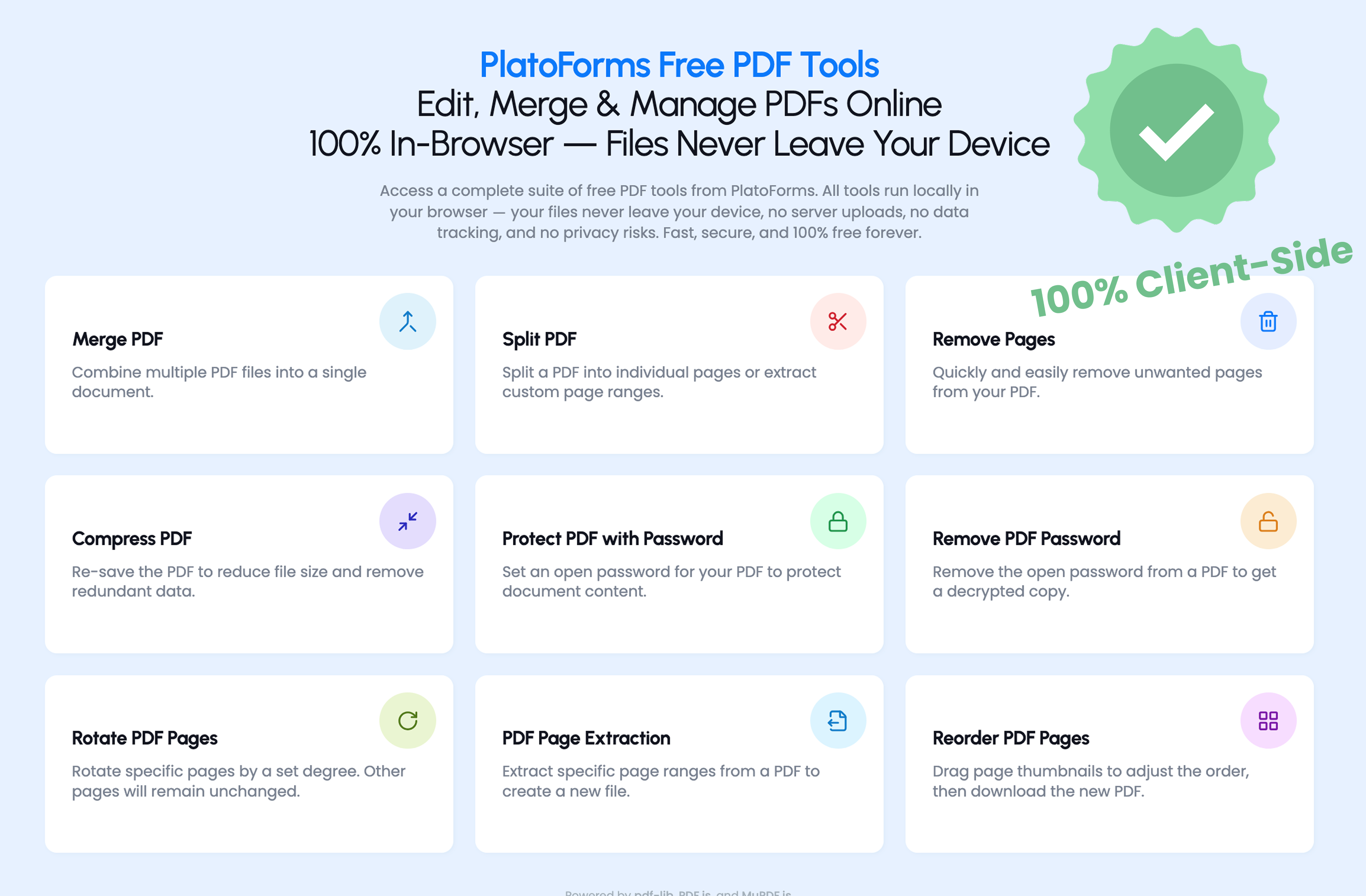
It’s designed for people who regularly handle sensitive documents — contracts, HR forms, client reports, and other confidential files.
The interface is simple: drag in your file, perform the operation, and download the result.
Try PlatoForms PDF Toolbox free →
BentoPDF
BentoPDF is the strongest all-rounder among browser-based client-side options. 100+ PDF tools, no signup, no ads, fully GDPR compliant, and it works offline after the initial page load. Files are held only in browser memory and disappear when you close the tab. Best for users who need an occasional all-purpose toolkit without installing anything.
PDF24 Creator (Desktop — Windows only)
PDF24 Creator is a free Windows desktop application in continuous development since 2006. Because it runs entirely on your PC, files never leave your machine. Supports 30+ operations including merge, split, compress, OCR, password protection, and page editing. The interface is functional rather than modern, and Windows-only — but one of the most comprehensive free local options available.
LocalPDF (Chrome extension)
LocalPDF is a lightweight Chrome extension that brings client-side PDF tools directly into your browser toolbar. Google’s Chrome Web Store data disclosure confirms it does not collect or transmit user files. Covers core operations: merge, split, compress, password protect and remove. Good for quick tasks without navigating to a website.
Quick Checklist Before You Upload Any File
| Question | If the answer is “no” or “unsure”… |
|---|---|
| Would I be comfortable if this file were publicly posted? | Don’t upload it |
| Does this tool explicitly state no server uploads? | Assume files are uploaded |
| Is there a client-side alternative I could use instead? | Use one — they’re widely available |
Convenience is valuable. But some files are worth the extra thirty seconds it takes to use the right tool.
References
- Verizon, 2025 Data Breach Investigations Report, verizon.com/business/resources/reports/dbir
- Secureframe, 110+ Data Breach Statistics, secureframe.com/blog/data-breach-statistics
- IBM, Cost of a Data Breach Report 2025, ibm.com/reports/data-breach
- Panorays, Third-Party Data Breaches in 2023, panorays.com/blog/third-party-data-breaches-in-2023
- Bitsight, Third-Party Data Breach: Definition & 5 Examples, bitsight.com/blog/third-party-data-breach
- Wikipedia, Exif, en.wikipedia.org/wiki/Exif
- ISACA, What to Know About EXIF Data: A More Subtle Cybersecurity Risk, isaca.org, 2025
- Consumer Reports, How a Photo’s Hidden ‘Exif’ Data Exposes Your Personal Information, consumerreports.org
- Cybersecurity Ventures, 2025 Cybersecurity Almanac, cybersecurityventures.com
- Tekpon, PDF24 Tools Reviews 2024, tekpon.com/software/pdf24-tools/reviews
- PDF24, Split PDF tool page, tools.pdf24.org/en/split-pdf
Need to collect sensitive data securely? Turn your PDFs into web forms that handle data with the same enterprise-level security.


