












Browser-based tools do not all process files in the same way. Some send files to a remote server, while others perform the work locally in your browser.
For server-based tools, check how long files are retained, whether data is shared with third parties, and how files are deleted. This distinction matters most when a document contains sensitive information.
The “success” of the operation is visible; the lingering digital footprint is not.
At PlatoForms, we build privacy-focused client-side PDF tools because we believe productivity shouldn’t require a compromise on privacy.
We understand the mechanics of file travel, and more importantly, the risks of the “upload-and-delete” promise.
Here are five file types that deserve extra care and, when practical, a client-side approach that keeps your data on your machine.
Files you should avoid uploading online
Avoid uploading these files to an online tool when you cannot verify how it processes or stores them:
- Tax returns and banking documents
- Medical records and health information
- Contracts and NDAs
- Password-protected files
- Photos that may contain location metadata
When processing is necessary, use a trusted service or a client-side tool that keeps the file on your device.
Why This Matters More Than You Might Think
When you upload a file to a server-based tool, it leaves your device. The service’s security practices and privacy policy then determine how it is handled. Before using the tool, check its processing location, retention period, and deletion policy.
The problem is systematic. Verizon’s 2025 Data Breach Investigations Report found third-party involvement in 30% of the breaches it analyzed, up from about 15% in the previous report.
The risk isn’t hypothetical. In 2023, attackers exploited a vulnerability in MOVEit Transfer to access its databases and steal data. The joint CISA and FBI advisory explains how the vulnerability was exploited and how organizations could mitigate it.
That’s the context. Now here are the five file types where the stakes are highest.
1. Tax Returns and Financial Documents
Common formats: PDF, XLSX, CSV, DOCX
The scenario: You need to compress a scanned tax return before emailing it to your accountant. You use a free online PDF compressor. It works fine — but your file just passed through a server you know nothing about.
Your tax return may contain your full legal name, home address, Social Security Number (or national ID), annual income, employer details, and bank account information. This combination of information can enable identity theft, fraudulent tax filings, and unauthorized financial activity.

The risk isn’t limited to malicious operators. Even well-intentioned platforms can expose data through weak security practices or compromised third-party services. According to IBM’s 2025 Cost of a Data Breach Report, the global average cost of a data breach was $4.44 million.
💡 What to do instead: Use a client-side PDF tool that processes your file locally in the browser — meaning the document never touches an external server.
2. Medical and Health Records
Common formats: PDF, DICOM, JPG (scans), DOCX
The scenario: You scan a specialist’s report to PDF and want to merge it with your existing medical file before sharing it with a new doctor. You use an online PDF merger. Convenient — but your health records just left your device.
Medical records may contain diagnoses, prescriptions, mental health history, surgical records, and insurance information. They are highly sensitive because they can expose long-term health, insurance, and identity information.
Health data is protected by laws and regulations in many jurisdictions, including HIPAA in the US and GDPR in the EU. Their scope and the responsibilities of a service provider depend on the circumstances. When handling medical information, verify the required agreements, administrative controls, and security measures rather than relying on a general claim that a tool is “secure.”
The scale of what’s at stake is illustrated by the February 2024 Change Healthcare ransomware attack, which became the largest reported healthcare data breach in US history. According to UnitedHealth Group CEO Andrew Witty’s congressional testimony, attackers used compromised credentials to access a Citrix remote-access portal that did not have multi-factor authentication.

💡 What to do instead: Look specifically for tools that use client-side processing — the technical term for tools that do all the work inside your browser, without sending your files to any server. If you need to collect patient data through online forms (not just process files locally), review the platform’s safeguards and Business Associate Agreement requirements. See the PlatoForms HIPAA compliance documentation for supported controls and account setup.
3. Legal Contracts and Business Agreements
Common formats: DOCX, PDF, TXT
The scenario: You need to split a multi-party contract into separate sections to share with different stakeholders. You use a free online PDF splitter. Efficient — but the contract’s contents, pricing, IP clauses, and the identities of all parties are now on a server you’ve never vetted.
Uploading a signed NDA or business agreement to an unvetted tool doesn’t just expose your own data — it exposes your clients, partners, and colleagues, none of whom consented to their information leaving your device.

There’s also a less obvious issue: confidentiality clauses. Contracts may restrict how their contents can be shared or which service providers can process them. Depending on the agreement, uploading a contract to an unapproved service may conflict with confidentiality or vendor-handling requirements.
💡 What to do instead: Merge, split, or reorder contract PDFs using a browser-based tool that confirms zero server uploads. Your clients will thank you, even if they never know you did it.
4. Password-Protected or Encrypted Files
Common formats: ZIP, RAR, PDF (with password)
The scenario: You receive a password-protected PDF from a vendor. You need to remove the password so you can annotate it. You search “unlock PDF online,” upload the file, enter the password when prompted, and download the unlocked version.
At that point, you’ve handed both the encrypted file and its decryption key to a server you don’t control.
A server-side password-removal service must receive both the encrypted file and the password needed to open it. How safely they are handled then depends on the service’s security, logging, retention, and deletion practices. Reusing the same password for other files or accounts can increase the impact if it is exposed.
Before using a password-removal tool, confirm that you are authorized to modify the file. Also check how the service handles the password and the decrypted document.

💡 What to do instead: With a verified client-side tool, the file and password are processed on your device rather than sent to a remote processing server.
If your goal is to restrict who can open an online form rather than remove a PDF password, see how to protect access to an online form.
5. Personal Photos and Private Media
Common formats: JPG, PNG, MP4, HEIC, RAW
The scenario: You want to convert a photo from HEIC to JPG. You use an online converter. It works instantly — but the photo you uploaded may have carried more information than the image itself.
Photos taken with a smartphone may contain EXIF metadata. Depending on the device settings and app, this can include GPS coordinates, the device model, and the time the photo was taken. If the metadata remains in the file, it may be shared with the image.
This is a documented real-world risk. In 2012, VICE accidentally published a photo of John McAfee with GPS coordinates still embedded in its EXIF metadata. The data revealed that he was in Guatemala, where he was later detained for entering the country illegally. Consumer Reports also explains how EXIF data can reveal when, where, and how a photo was taken.
According to ISACA’s 2025 analysis, EXIF metadata is increasingly used by threat actors for intelligence gathering — mapping locations, routines, and organizational infrastructure from seemingly innocuous images.
💡 What to do instead: Use your phone’s built-in editing tools or a local desktop application. If you must use an online tool, verify that no data is transmitted to any server — and strip EXIF data locally first if possible.
The Common Thread
Every “what to do instead” above points in the same direction:
For sensitive files, a verified client-side tool can reduce exposure by keeping the file on your device.
To summarize the high stakes we’ve discussed:
| File Type | Primary Risk | The Hidden Exposure |
|---|---|---|
| Financial | Identity Theft | SSN, income, bank details |
| Medical | Permanent profiling | Diagnoses, prescriptions, health history |
| Legal | Breach of contract | Pricing, IP terms, confidentiality clauses |
| Encrypted | Credential theft | Passwords and decryption keys |
| Media | Physical tracking | GPS coordinates and metadata |
Many browser-based tools upload files to a server, but modern JavaScript and WebAssembly also make client-side processing possible. With a verified client-side tool, your browser performs the file operation locally and the file stays on your device.
The difference is significant: it’s like handing your passport to a stranger to photocopy versus using your own printer at home.
How to Verify a Tool is Truly Client-Side
Don’t just take a website’s “privacy promise” at face value. You can verify if a tool is processing files locally using these three methods:
-
Test it offline: Open the tool, then disconnect from the internet. If processing continues offline, that is a useful sign that the work is happening locally. It does not, by itself, prove how the entire service handles data.
-
Inspect network activity: Open the browser’s Network panel and watch the requests made during processing. The absence of a large upload is useful evidence, but it is not conclusive proof that every part of the process is local.
-
Read the service documentation: Check the privacy policy and product documentation for a clear statement that files are not sent to a server. The presence of WebAssembly or another browser technology does not prove that the entire process is local.
To see which local PDF operations are available and how to use them, read the in-browser PDF tools guide.
Client-side processing reduces exposure to remote servers, but it cannot protect a compromised computer. Keep your browser and operating system updated, review installed browser extensions, and avoid processing sensitive files on a shared or public device.
Comparing Client-Side PDF Tools
Several tools now offer client-side PDF processing, meaning files are handled locally rather than uploaded to a server. The table below compares four commonly used options.
The following comparison is based on publicly available documentation and product pages as of March 2026.
| PlatoForms PDF Toolbox | BentoPDF | PDF24 Creator | LocalPDF | |
|---|---|---|---|---|
| Processing location | Browser (client-side) | Browser (client-side) | Local app (Windows) | Browser extension |
| File processing location | Local browser processing | Local browser processing | Local desktop processing | Local browser processing |
| Installation required | No | No | Yes (Windows only) | Chrome extension |
| Signup required | No | No | No | No |
| Merge PDF | Yes | Yes | Yes | Yes |
| Split PDF | Yes | Yes | Yes | Yes |
| Compress PDF | Yes | Yes | Yes | Yes |
| Password protect / remove | Yes | Yes | Yes | Yes |
| Reorder pages | Drag & drop | Yes | Yes | Yes |
| Typical use case | Simple browser-based PDF tasks with local processing | Large PDF toolkit with many utilities | Desktop users who prefer local applications | Quick PDF tools from a browser toolbar |
⚠️ Note on PDF24 Online Tools:
The browser version of PDF24 Tools (tools.pdf24.org) processes files on remote servers. According to its documentation, uploaded files and results are normally deleted within one hour.
Users who prefer fully local processing can use PDF24 Creator, the Windows desktop application, which performs all operations on the local machine.
PlatoForms PDF Toolbox
PlatoForms PDF Toolbox was designed around a simple principle:
your files should never leave your device.
We include it here because it directly addresses the privacy concerns discussed in this article.
All processing happens locally in your browser — merge, split, compress, reorder pages, protect with a password, or remove one. No files leave your device, and no account is required.
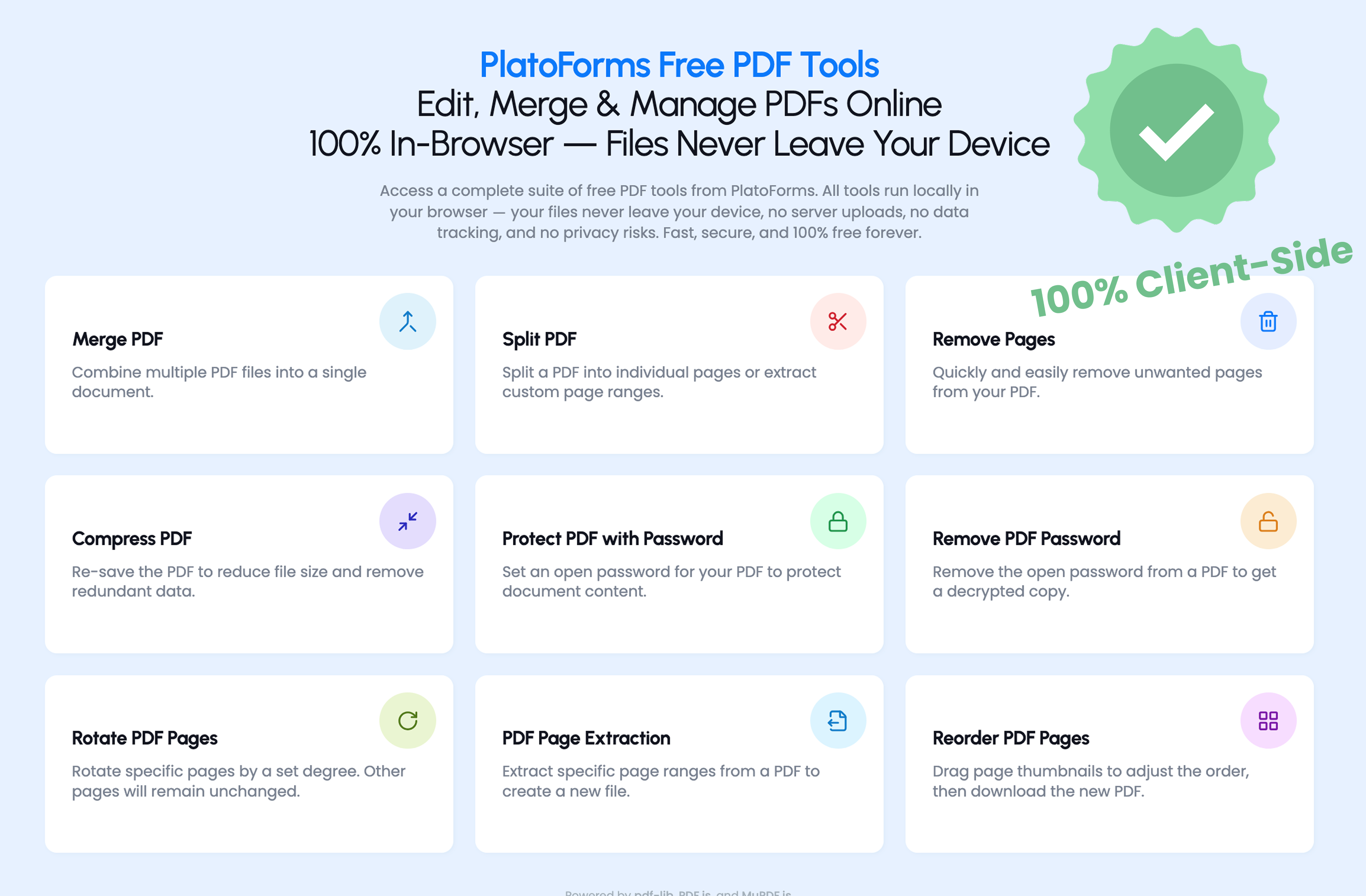
These tools can be useful when working with sensitive PDFs such as contracts, financial documents, ID documents, and other confidential files.
The interface is simple: drag in your file, perform the operation, and download the result.
The toolbox is for files you keep. When you choose an online workflow so other people can fill in and return a PDF, the trade-off is different: you can turn a PDF into a fillable form and limit who can open it with a form passcode or an invitation password.
BentoPDF
BentoPDF is a browser-based product that offers a large collection of PDF operations. Before using it, check its official website for its current features, offline support, and file-processing details.
PDF24 Creator (Desktop — Windows only)
PDF24 Creator is a free Windows desktop application in continuous development since 2006. It processes files locally and works offline. Its tools include merge, split, compress, OCR, password protection, and page editing.
LocalPDF (Chrome extension)
LocalPDF is a Chrome extension offering PDF merging, splitting, compression, and password-related operations. The Chrome Web Store displays the developer’s data-handling disclosures. Review the latest disclosures and requested permissions before installing it.
Quick Checklist Before You Upload Any File
Before processing a file, make a copy and keep the original unchanged until you have opened and checked the result. Compression, splitting, password removal, and page reordering can change the file or its structure.
| Question | If the answer is “no” or “unsure”… |
|---|---|
| Would I be comfortable if this file were publicly posted? | Don’t upload it |
| Does the tool clearly explain where processing happens? | Check its documentation first |
| Can I use a verified client-side alternative? | Prefer it for sensitive files |
| Am I working on a backup copy? | Preserve the original first |
| Is the device trusted and up to date? | Don’t process the file yet |
| Do I have a secure way to share the result? | Choose the delivery method first |
Convenience is valuable. But some files are worth the extra thirty seconds it takes to use the right tool.
Remember that local processing does not make the next delivery method secure. Before sharing the result, confirm the recipient and access settings. If the file is password-protected, consider sending the password through a separate communication channel.
References
- Verizon, 2025 Data Breach Investigations Report, verizon.com/business/resources/reports/dbir
- IBM, Cost of a Data Breach Report 2025, ibm.com/reports/data-breach
- CISA and FBI, #StopRansomware: CL0P Ransomware Gang Exploits MOVEit Vulnerability, cisa.gov
- Andrew Witty, Testimony on the Change Healthcare Cyberattack, congress.gov, 2024
- Wired, John McAfee Detained by Guatemala Police, wired.com
- ISACA, What to Know About EXIF Data: A More Subtle Cybersecurity Risk, isaca.org, 2025
- Consumer Reports, How a Photo’s Hidden ‘Exif’ Data Exposes Your Personal Information, consumerreports.org
- BentoPDF, Official documentation, bentopdf.com/docs
- PDF24, Questions and answers about PDF24 Tools, tools.pdf24.org/en/faq
- Chrome Web Store, LocalPDF — Private PDF Companion, chromewebstore.google.com
Process PDFs without uploading them
Merge, split, compress, reorder, or protect a PDF directly in your browser. No account is required.
Collecting sensitive information through online forms? Review the PlatoForms Trust Center and learn how the Team Admin can configure submission data retention.


