


Collecting addresses sounds simple—until users have to type everything by hand.
Street names, unit numbers, cities, states, postal codes. On mobile, it’s slow. On desktop, it’s error-prone. And for teams reviewing submissions, messy address data creates extra work downstream.
That’s where Address autocomplete in PlatoForms helps.
By using Google Maps-powered suggestions, users can select a verified address instead of typing every field manually—resulting in faster form completion and cleaner data.
In this blog, we’ll explore:
How address autocomplete works
Address autocomplete suggests real, verified addresses as users type into the Address field.
Once an address is selected, PlatoForms automatically fills related sub-fields when available, such as:
- Street address
- City
- State / Province
- Postal code
- Country
This happens instantly and works with your existing Address field—no form redesign required.
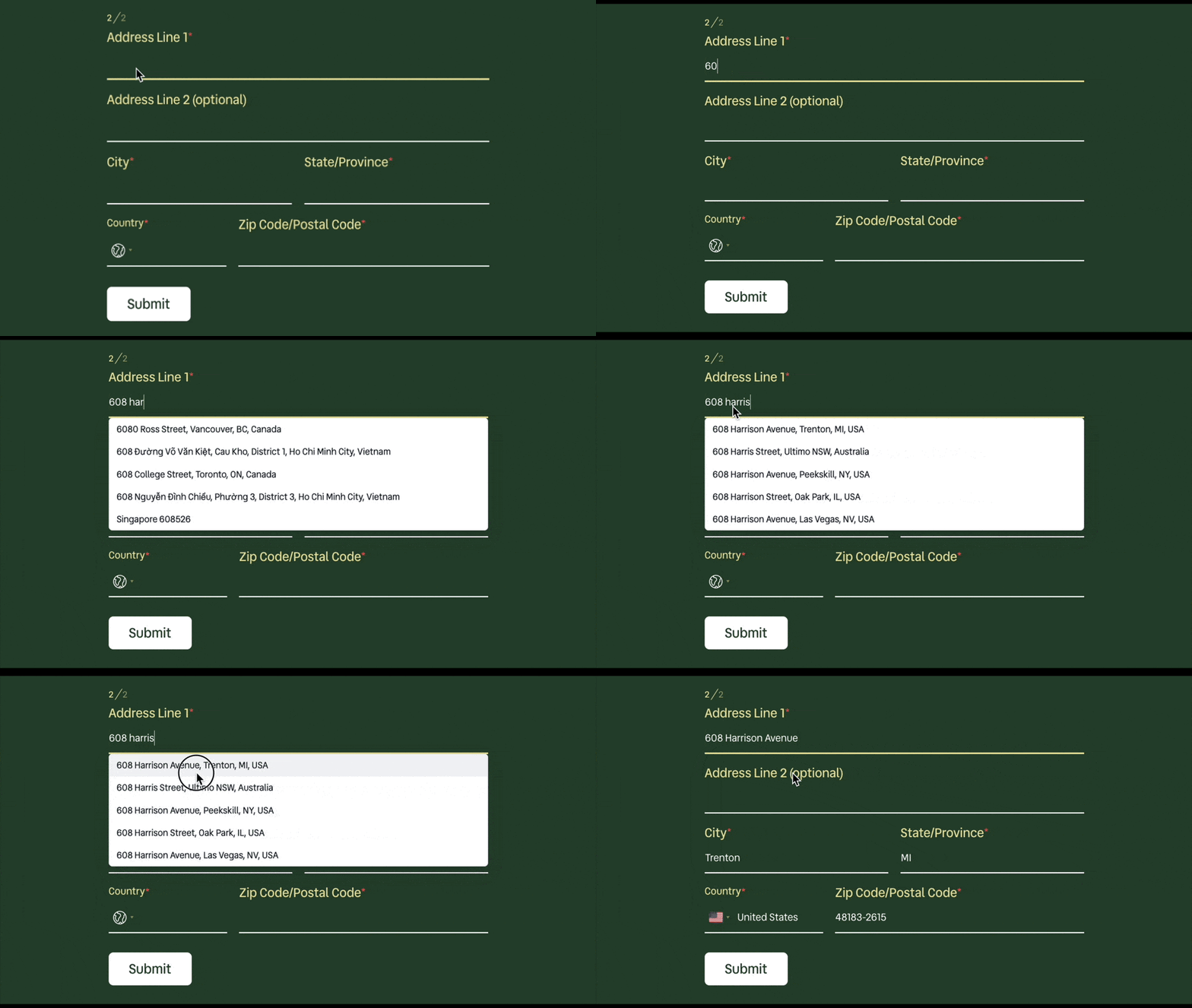
Before vs After: Address autocomplete in action
| ❌ Without address autocomplete | ✅ With address autocomplete | |
|---|---|---|
| What users do | Type the full address by hand | Pick an address from suggestions |
| Typing effort | Lots of typing across multiple fields | Just a few keystrokes |
| Common issues | Typos, missing unit numbers, wrong postal codes | Addresses come from verified Google Maps data |
| Mobile experience | Slow and frustrating | Fast and smooth |
| What you receive | Inconsistent, messy address data | Clean, standardized addresses |
| Overall feeling | “This takes too long” | “That was easy” |
Address autocomplete removes friction from address entry without changing what you collect—only how easy it is for users to complete the form. The result? No more shipping errors, failed deliveries, or wasted time correcting manual data.
Why your business needs address autocomplete for online forms
Address autocomplete is especially useful in workflows where address accuracy matters.
Common examples include:
- Registration and signup forms
- Checkout and shipping flows
- Contact and inquiry forms
- Applications that require physical addresses
- Internal workflows that rely on clean location data
If users need to enter an address, autocomplete almost always improves the experience.
Setup options and decision guide
PlatoForms supports two ways to enable address autocomplete.
The right choice depends mainly on whether you’re using a custom domain and how much control you need.
Quick decision guide
| Your situation | Recommended option |
|---|---|
Using the default PlatoForms domain (forms.platoforms.com) |
Use PlatoForms’ Google Maps key |
| Publishing forms on a custom domain | Use your own Google Maps API key (required) |
| Want control over API usage or billing | Use your own Google Maps API key |
| Just want autocomplete to work with no setup | Use PlatoForms’ Google Maps key |
Option 1: Use PlatoForms’ Google Maps key (default)
This is the fastest way to get started.
- PlatoForms handles Google Maps API calls for you
- No Google Cloud setup required
- Enable autocomplete with one click
It means you only need to enable Address Autocomplete in the field settings. No API key, billing setup, or Google Cloud configuration is required.

Best for:
- Default PlatoForms domains
- Low-friction onboarding
- Teams that want things to “just work”
Option 2: Use your own Google Maps API key
Pro tip: Concerned about Google Maps costs? Google Cloud currently offers a $200 monthly free credit. For most small to mid-sized teams, this covers thousands of address requests per month, meaning you likely won’t pay anything unless you have extremely high traffic.
This option gives you more control and is required for custom domains.
- You create and manage your own API key
- You control billing, usage limits, and domain restrictions
- Required if your form is published on a custom domain
👉 For step-by-step setup instructions, API requirements, and screenshots, see:
Set address autocomplete
That guide walks through the full setup flow, including:
- Enabling autocomplete for an existing Address field
- Choosing between PlatoForms’ key or your own
- Creating a Google Maps API key and enabling required APIs
- Applying domain restrictions and understanding billing requirements
If your form uses a custom domain, reviewing the setup guide in advance is strongly recommended. Most issues come from missing billing, disabled APIs, or incorrect domain restrictions.
Why use your own Google Maps API key?
If you’re deciding whether to use your own API key, here’s what you gain:
-
Clear ownership of usage and billing
You can see exactly how much autocomplete traffic your forms generate. -
Required security for custom domains
Google requires API keys to be restricted to your domain. -
Better reliability for production forms
Your forms won’t be affected by shared platform limits. -
Easier compliance and IT approval
Many organizations require API keys to be owned and managed internally.
In short: PlatoForms’ key is great for getting started. Your own key is better for scale, security, and long-term use.
Final thoughts
Address autocomplete doesn’t change what data you collect—it changes how easily users provide it.
By turning a multi-field typing task into a simple selection, you reduce friction for users and improve data quality for your team.
If your forms include addresses, autocomplete is one of the simplest upgrades with the biggest UX payoff.


