


🎉 We’ve made PlatoForms more welcoming for teams around the world. 🎉
We’re excited to announce that PlatoForms has taken a major step toward becoming a more globally accessible platform. The dashboard and form templates library are now available in 8 languages, and system-level form UI can automatically localize based on your language settings.
Combined with our built-in AI translation tools, this update reduces the need for repetitive manual work—so you can focus on building forms in your preferred language without repeatedly translating buttons, error messages, or interface text.
🌍 Now Available in 8 Languages
PlatoForms now supports full platform localization (Dashboard, Templates, and System UI) in the following languages:
- 🇺🇸 English
- 🇩🇪 Deutsch (German)
- 🇪🇸 Español (Spanish)
- 🇫🇷 Français (French)
- 🇧🇷 Português (Portuguese)
- 🇯🇵 日本語 (Japanese)
- 🇨🇳 简体中文 (Simplified Chinese)
- 🇹🇼 繁體中文 (Traditional Chinese)
This means menus, navigation, template categories, and system messages in your workspace appear in the language you select.
✨ What’s New in This Update
Website → Dashboard & Templates Continuity
When you select a language on platoforms.com, your dashboard and template library can automatically default to that language—especially during your first login experience.

This ensures a smooth, localized experience from the moment you browse for a template to the final form design, without requiring additional setup.
💡 Pro Tip: You can always change your preferred language later from your profile settings.
Dashboard Language Setting (Per User)
Each user can choose their preferred dashboard language from:

Profile → Settings → Language
- Changes apply immediately
- The setting is tied to your user account
- Team members can each use a different language
This makes PlatoForms easier to use for distributed and multilingual teams.
System-Level Form UI Is Auto-Localized
When you create a new form, system-generated UI elements follow your current dashboard language by default.
This includes:
- Submit / Next / Previous buttons
- Navigation labels
- Required-field and validation messages (e.g., “This field is required”)
- Date and time pickers
- File upload messages
- System feedback and status messages

🔍 Q&A: If I change my dashboard to Traditional Chinese, will my field labels be translated?
No. To ensure you have full control over your form design, PlatoForms only localizes system-level UI (such as buttons and error prompts).
Your custom field labels (e.g., “Phone”), descriptions, and placeholder text remain exactly as you entered them—unless you choose to use AI Translation.
Bonus: AI-Powered Translation for Form Content
While system-level UI follows your dashboard language by default, you remain in full control of your Form Text (labels and descriptions). To support multilingual form creation, PlatoForms includes built-in AI Translation within the multi-language settings.
-
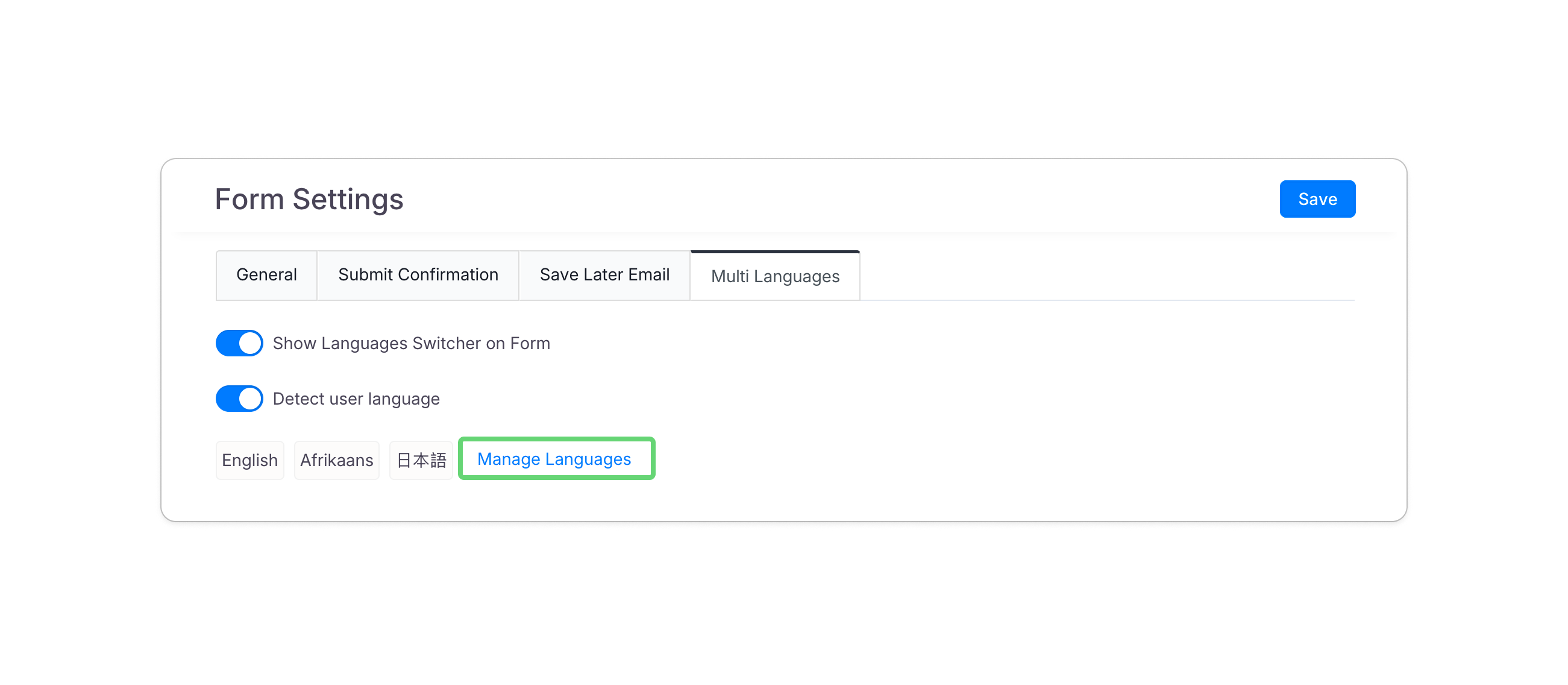
Go to Form Settings > Multi Languages > Manage Languages.
-
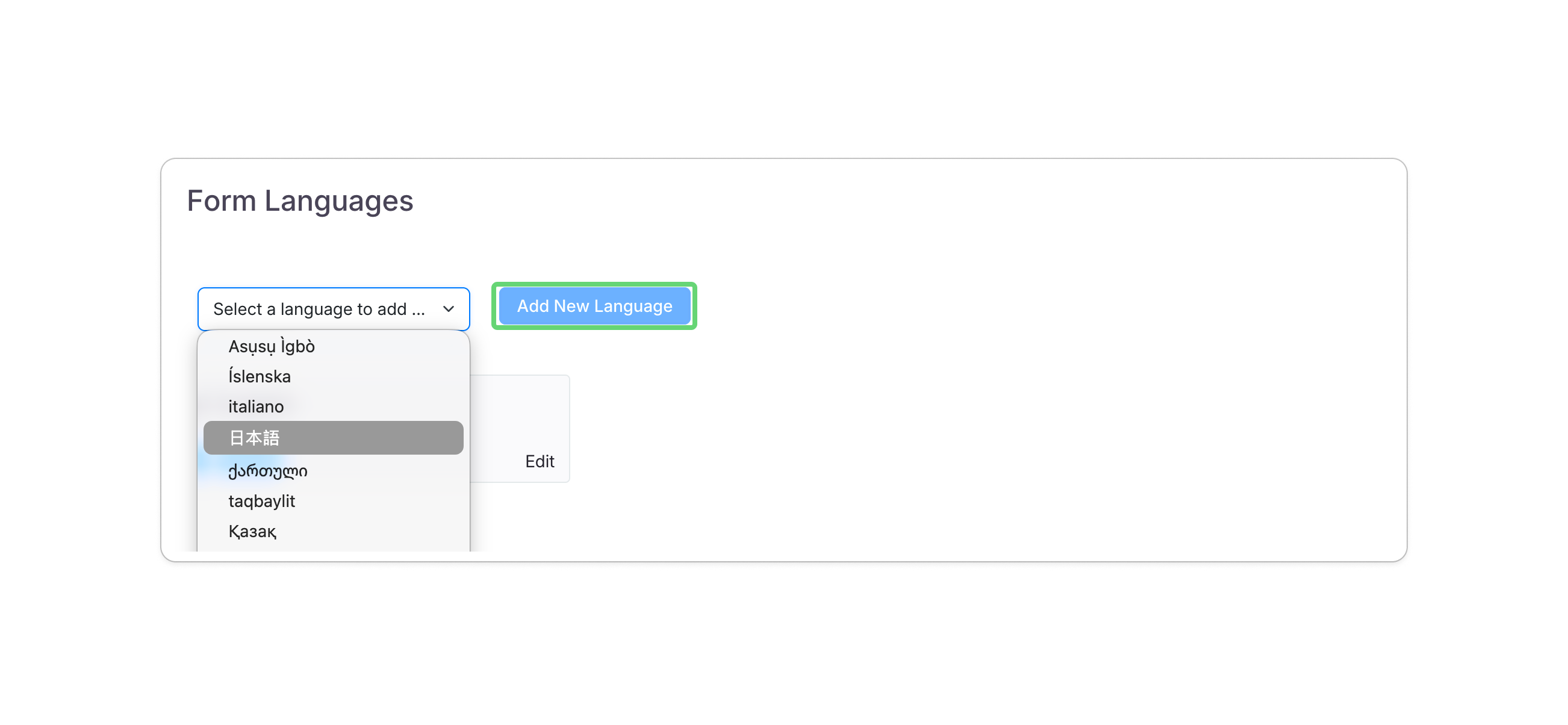
Select a language from the dropdown and click Add New Language.
-
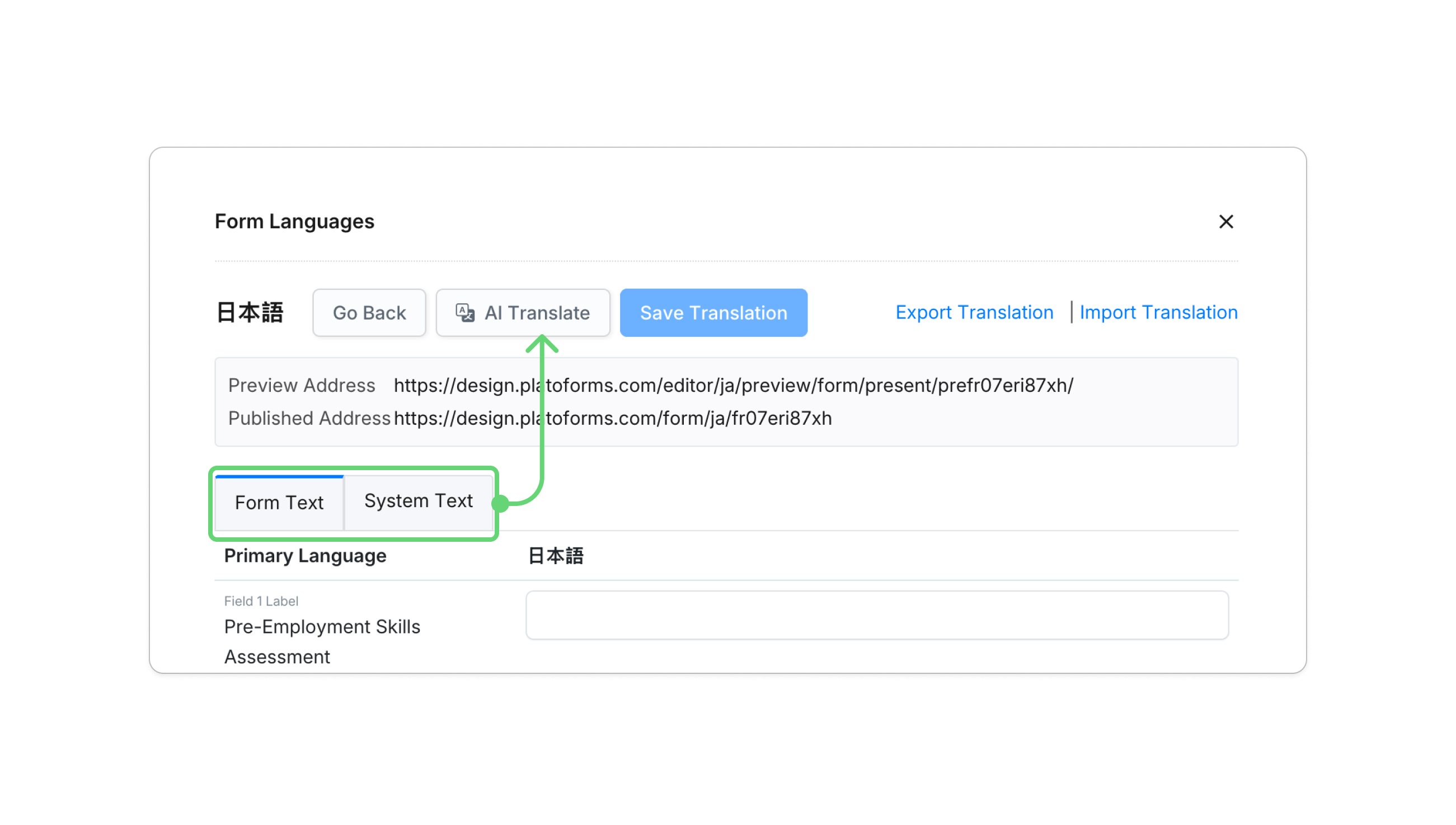
In the expanded window, switch between Form Text and System Text. Click AI Translate to generate suggested translations for field labels and instructions.


💰 Availability: AI Translation is available to users on a paid plan.
✨ Good to know: You can still export and import Excel files if you prefer to review translations with a professional human translator.
🚀 The Transformation: Before vs. After
Previously, localizing a form often required manual input or repeated Excel exports just to adjust basic interface text. Now, PlatoForms provides smart defaults and integrated AI tools to simplify the process.

| Feature | Before (Traditional Workflow) | After (Smart & AI Workflow) |
|---|---|---|
| System UI | Buttons and error messages defaulted to English and required manual updates. | Smart Defaults: System UI follows your dashboard language for new forms. |
| Form Content | Manual typing or Excel Export/Import for each label. | AI Translation: Generate suggested translations for labels and help text in one step. |
| Setup Entry | Multi-step process to locate and translate individual system strings. | Pre-filled Settings: Language options are already available when configuring forms. |
| Efficiency | High repetitive effort for global teams. | Faster setup: Launch localized forms with fewer manual steps. |
🆚 PlatoForms vs. Others: What’s the Difference?
While many form builders offer translation features, PlatoForms focuses on improving the creator experience alongside the respondent experience—especially for document-based workflows.
| Feature | Google Forms / Typeform | PlatoForms |
|---|---|---|
| Dashboard UI | Language support is limited or tied to browser or account settings. | Native Support: Switch between 8 dashboard languages directly within the product. |
| System UI (Buttons/Errors) | Often requires manual labels or browser-level translation. | Auto-Localized: System UI follows your selected dashboard language. |
| PDF Workflow | PDFs are typically simple data exports. | PDF-First: Forms generate professional PDFs aligned with your document structure. |
| AI Translation | Limited or dependent on external tools. | Built-In Tools: AI assists with translating configurable form and system text. |
❓ Why others fall short?
Many form builders are primarily data-first, prioritizing the respondent experience while overlooking the creator’s environment. If your team works in Berlin or Tokyo, navigating an English-only dashboard can slow things down.PlatoForms helps bridge this gap: we localize the tool, so you can localize the work.
🎯 Why This Matters
- ⚡ Work Faster in Your Own Language: Spend less time adjusting interface details.
- 🌍 Better for Global Teams: Team members can work in their preferred language within the same workspace.
- ✅ Clearer Forms: System messages shown in the respondent’s language improve clarity and trust.
🔄 Multi-Language Forms Still Work as Before
This update enhances the creator experience and does not replace existing multi-language form features. You can continue to offer multiple languages to respondents, manage translations per language, and preview them at any time. Dashboard language settings now work more naturally alongside these tools.
👉 Learn more about multi-language forms
👥 Team-Friendly by Design
- Each team member can choose their own dashboard language.
- Language settings do not affect permissions, sharing, or existing forms.
- This makes PlatoForms well suited for international teams.
🚀 Getting Started
New Users
- Visit platoforms.com and select your preferred language.
- Sign up and log in—your dashboard opens in that language by default.
Existing Users
- Log into your dashboard and click your profile avatar.
- Go to Settings → Language and choose your language.
❓ Frequently Asked Questions
Does this cost extra?
No. Dashboard multi-language support is included in all plans. AI Translation for form content is available on paid plans.
Can I switch languages anytime?
Yes. You can change your dashboard language at any time from your profile settings.
Will existing forms change language?
No. Existing forms remain unchanged. New forms use your current dashboard language for system UI by default.
Does this affect API responses or data?
No. This update only affects the user interface. APIs and data formats remain unchanged.
🌱 What’s Next
We’re continuing to improve localization and explore additional language support.
Have feedback or requests? Email us at support@platoforms.com.
🎉 Try It Today
Experience PlatoForms in your language:
No credit card required. Language support is available directly in your dashboard.


