

Many businesses start with Google Forms because it’s free, familiar, and genuinely useful for simple data collection. As your team and processes grow, though, you may start noticing a familiar friction point: the “all-or-nothing” notification.
When every submission goes to everyone on the list, your Sales team gets buried in HR inquiries, and your Support desk gets distracted by new leads. The result is a cluttered inbox—and important messages that fall through the cracks.
We built Logic-based Email Notifications at PlatoForms to address exactly this. A professional form shouldn’t just collect data—it should act as an intelligent dispatcher for your entire organization.
How Google Forms Handles Email Routing (And Why It’s a Detour)
If you’ve ever tried to send Google Form notifications to more than one address—let alone different addresses based on what someone submitted—you’ve likely ended up in a community forum looking for answers.
This question, “How do I set a Google Form to email response notifications to multiple addresses?”, is one of the most frequently asked topics in the Google Docs Editors Community. The replies are telling. Community volunteers offered three completely different workarounds:
“I would suggest that you try the add-on Form Mule. This is a pretty straightforward email merging add-on that will use a linked Sheet to send a notification to whomever you wish.”
— Adam, Diamond PE Docs Volunteer
“I faced the same problem with Form Notifications recently. Found a better add-on called Mailrecipe to do the trick.”
— Latha, Community Volunteer
“I’ve simply used the process of linking a Google Sheet to the Google Form. Then turned on the notification feature of the Google Sheet.”
— Ms. Drasby, Volunteer Support
Three people, three different tools, zero native solution.
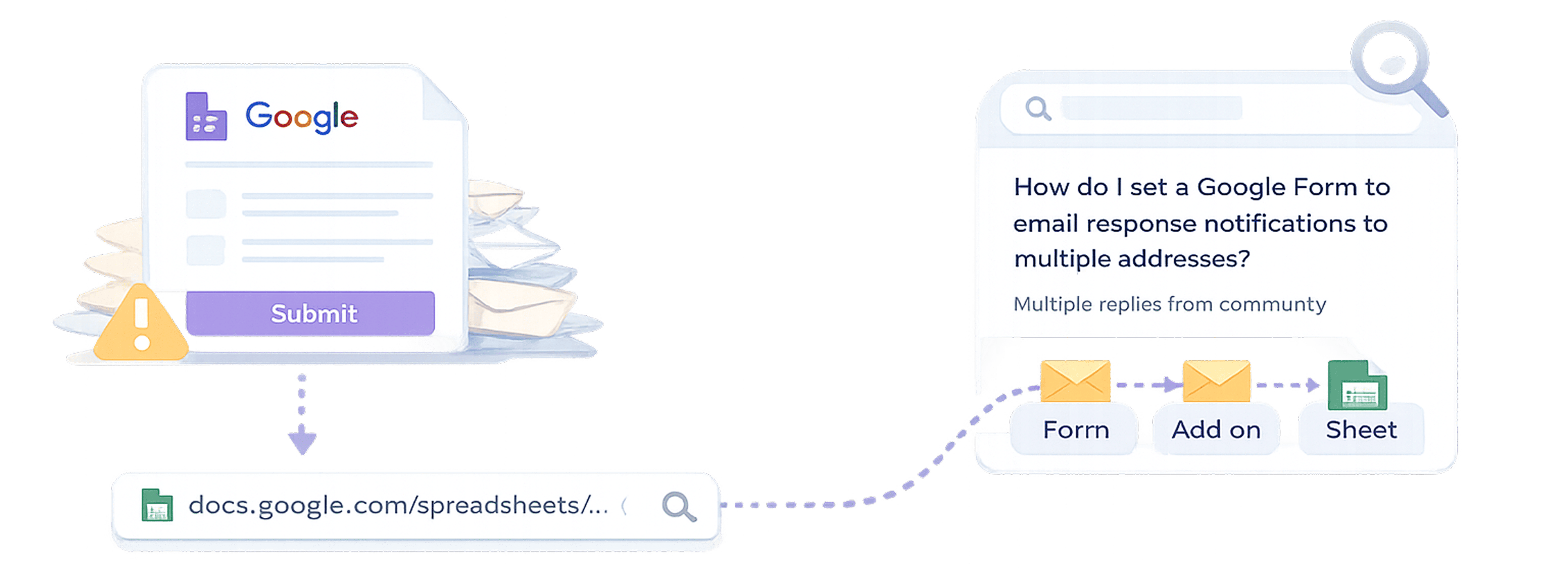
To be fair, Google Forms can route emails conditionally—but it’s never been a native feature. It requires you to layer on external tools and, in some cases, custom code. Here are the four main approaches:
Method 1 — Native Notifications (No Routing)
The simplest option: go to the Responses tab and enable “Get email notifications for new responses.” This sends every submission directly to the form owner only. There’s no filtering, no routing, no conditions—and critically, no way to notify multiple different recipients based on the content of the form. One inbox. Everyone’s submissions.
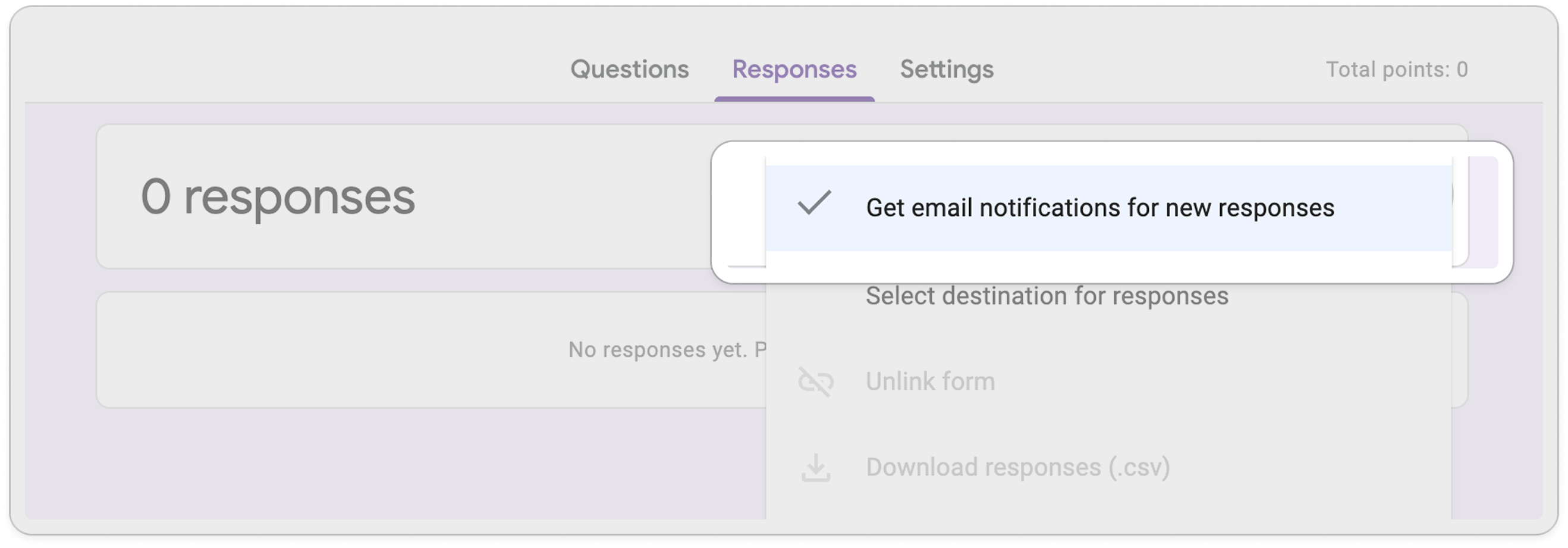
Method 2 — Add-ons like “Email Notifications for Google Forms”
This is the most accessible workaround. The setup looks like this:
- In your form, go to Responses → Link to Sheets to connect a spreadsheet.
- Go to Get add-ons and install “Email Notifications for Google Forms.”
- Open the add-on and create a new rule (e.g., “Support Requests”).
- Set a condition: if “Request Type” equals “Support,” send to support@company.com.
- Customize the email subject and body using form field variables.
It works—but it means your routing logic lives inside a third-party add-on, not inside your form. If the add-on changes its pricing, breaks after a Google Workspace update, or the person who set it up leaves the team, you’re back to square one.
Method 3 — Form Mule
Form Mule is a more powerful add-on that supports custom email templates and multi-path routing based on dropdown selections. It’s popular for more complex workflows, but comes with a steeper learning curve and similar third-party dependency risks.
Method 4 — Google Apps Script (Maximum Control, Maximum Effort)
For teams with developer resources, Apps Script offers fully custom routing logic. A typical script looks something like this:
function onFormSubmit(e) {
  var response = e.values[2]; // "Department" field
  if (response === "Sales") {
    MailApp.sendEmail("sales@company.com", "New Lead", "Details: " + e.values);
  } else if (response === "Support") {
    MailApp.sendEmail("support@company.com", "New Ticket", "Details: " + e.values);
  }
}
It’s powerful—but it creates a dependency. Every time you rename a form field, add a new department, or change a recipient, the script needs to be updated by whoever wrote it. In fact, even a simple drag-and-drop to reorder questions in the Google Forms editor can silently break your production script, leading to missing data or failed notifications without any warning.
The PlatoForms Approach: Routing as a Native Feature
Here’s how the same workflow looks in PlatoForms—no add-ons, no scripts, no spreadsheet linking required.
Step 1 — Create Dedicated Target Tabs
Instead of one general notification setting, you can add up to 3 additional custom tabs. Name them “Sales Team,” “HR Dept,” or “Urgent Support.” Each tab acts as a unique template with its own recipients and message content.
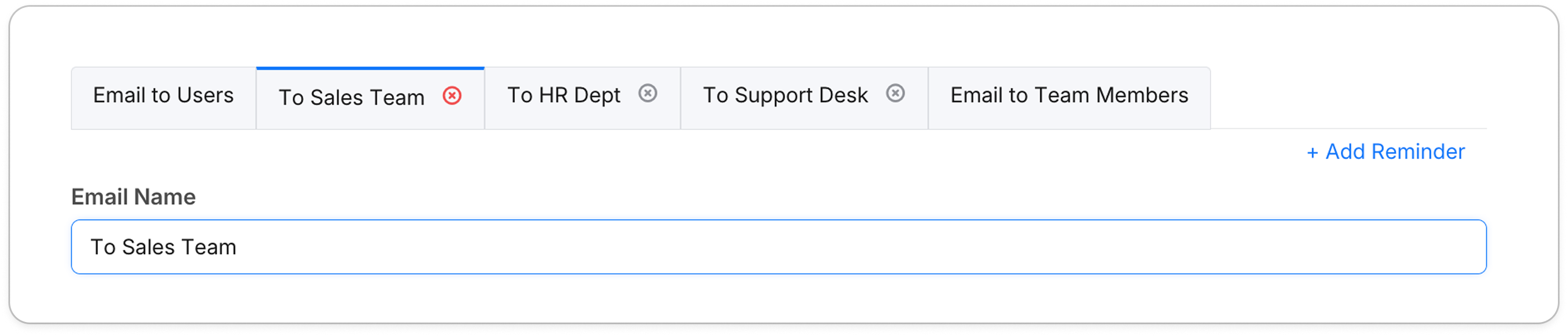
Step 2 — Connect the Logic (The “Brain”)
Once your tabs are ready, head to the Logic panel and set a rule:
“If Department is equal to Sales, then Send Email to Sales Tab.”
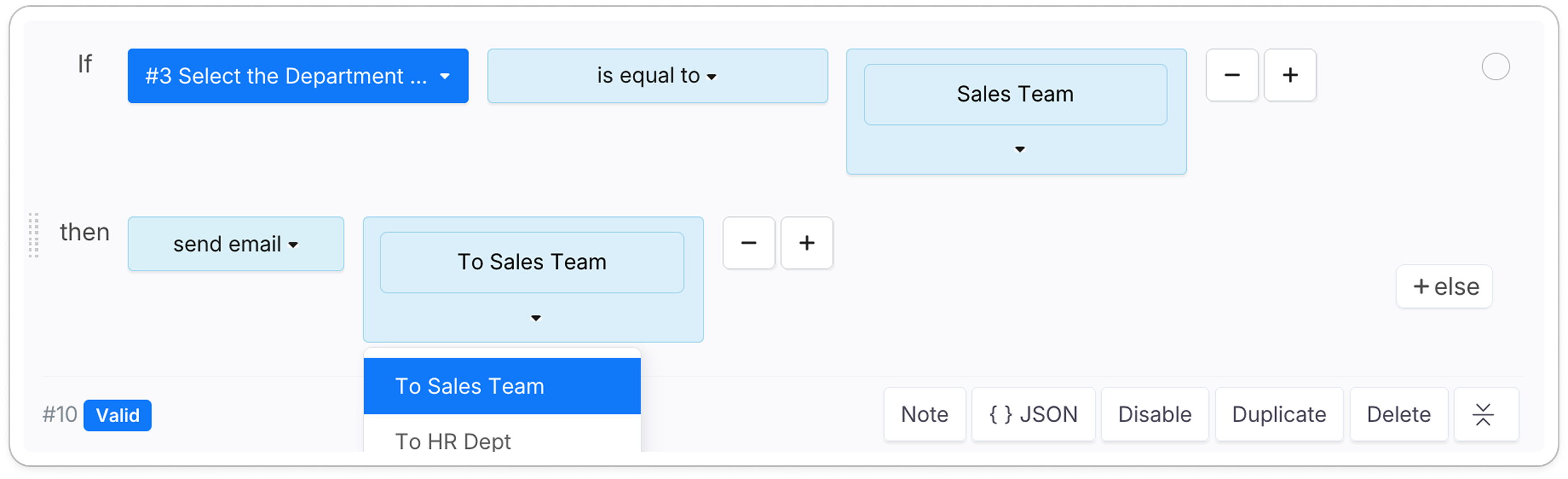
That’s it. No code, no script editor, no semicolons.
Step 3 — AI-Powered Rule Building
Don’t want to click through multiple rules manually? The AI Logic Generator lets you describe what you want in plain language, and it builds the rule for you.
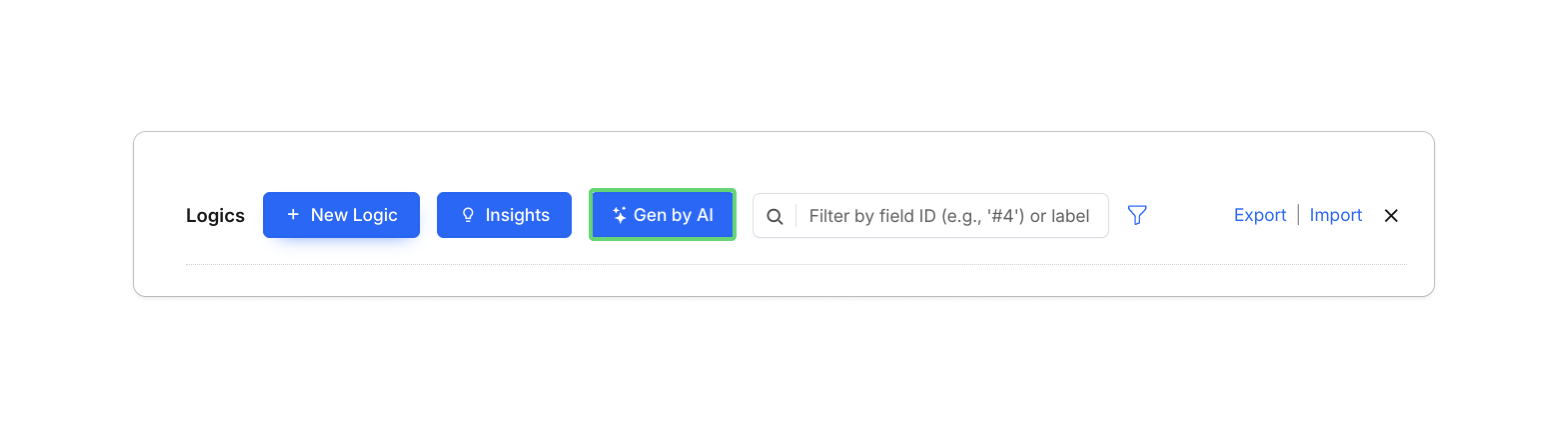
For example, imagine you run a hiring form with a “Position Type” field. You simply type:
“Send a notification to the HR team only when the applicant selects ‘Full-time’. For ‘Internship’ applications, notify the team lead instead.”
The AI parses your intent and generates both routing rules instantly—correct tab assignments, conditions, and all. What would take several minutes of clicking (or a script) is done in seconds. This is especially useful when onboarding new team members to manage forms, since the logic is self-documenting and easy to adjust later.
Side-by-Side: How They Compare
Worth noting: Google did introduce Gemini AI into Google Forms in mid-2025, which helps users generate form questions from natural language prompts. That’s a genuine improvement for form creation. But Gemini’s AI features are focused on form creation, not notification delivery—email routing still requires one of the manual approaches below.
| Google Forms (Add-on) | Google Forms (Apps Script) | PlatoForms | |
|---|---|---|---|
| Routing Method | Third-party add-on | Custom JavaScript | Native, built-in |
| Requires Coding | No | Yes | No |
| Setup Time | 15–30 min | 30–60+ min | ~5 min |
| Maintenance | Add-on updates may break rules | Script must be updated manually | Update rules with a few clicks |
| Custom Templates | Limited | Fully custom (in code) | Fully custom (visual editor) |
| AI for Routing Logic | None | None | ✓ AI Logic Generator |
| Third-party Dependency | Yes | No | No |
A Pro-Tip for a Seamless Transition
If you’re moving from a basic setup to a logic-based one, there’s one common mistake to avoid: The Double Email.
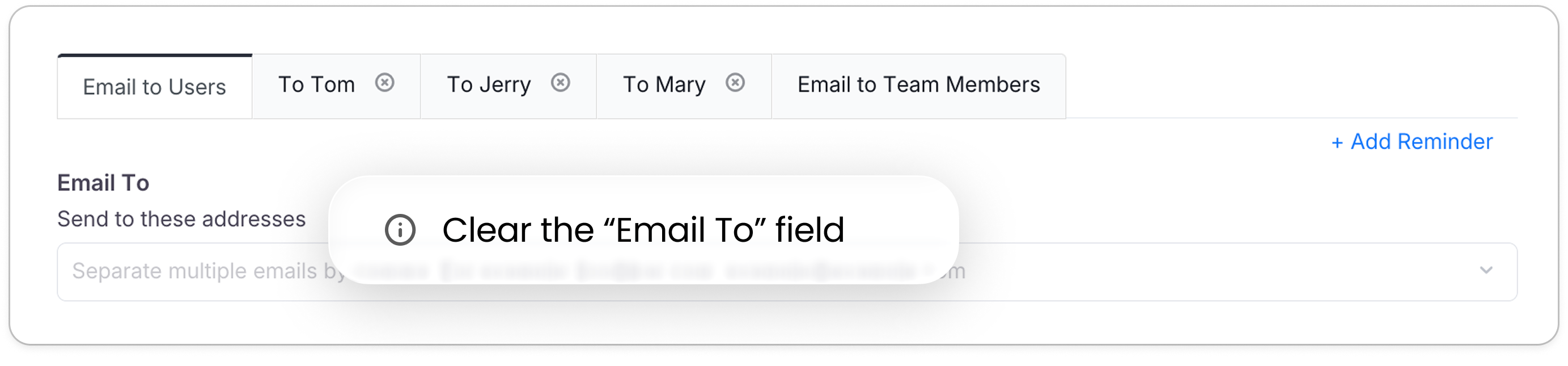
💡 The “Blank Default” Rule: To ensure your emails are routed only by logic, remember to clear the “Email To” field in your first “Email to Users” tab. If you leave your email there, the system will send the default notification plus your logic-based one—meaning some recipients will receive two emails for every single submission. Check our FAQ for more details.
Why This Matters for Your Productivity
Teams that automate internal notification routing typically reclaim meaningful time previously spent on manual forwarding and inbox triage. In a Q1 2026 review of PlatoForms business accounts handling 100+ monthly submissions, admins reported saving a median of 3–4 hours per week previously spent on manual sorting and forwarding. Individual results vary depending on form volume and team size, but the direction is consistent: less noise, faster response.
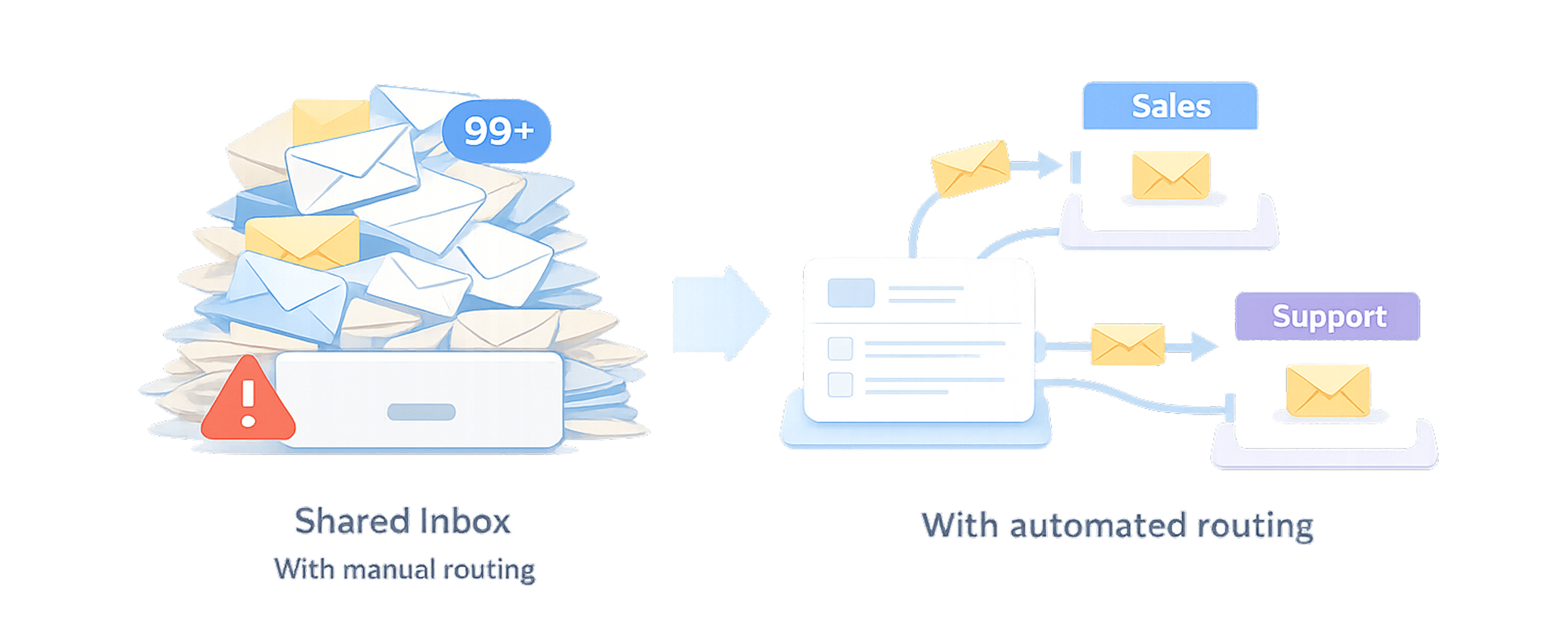
The difference is tangible: instead of one giant pile of mixed messages landing in a shared inbox, each department receives only what’s relevant to them.
| Routing Scenario | Benefit |
|---|---|
| Sales Leads | Faster response times to potential clients. |
| Support Tickets | Issues go directly to the tech team, not the manager. |
| HR Applications | Keeps candidate data confidential and organized. |
| Finance Requests | Sensitive data (invoices, approvals) reaches only authorized recipients. |
Is This the Right Fit for You?
Logic-based routing works best for teams who need to send submissions to 2–3 key departments—Sales, Support, HR, Finance—without writing a single line of code. If you’re currently maintaining a Google Apps Script or a third-party add-on and find yourself dreading every form update, this is likely the upgrade you’re looking for. It’s also a meaningful step forward for anyone handling sensitive data: when salary details, medical records, or contract terms are involved, controlling exactly who receives what isn’t just convenient—it’s necessary.
That said, it has a natural ceiling of three routing destinations. For organizations with more complex needs—such as routing to many departments or triggering downstream systems—feel free to contact us to discuss your specific requirements.
In short: This solution is built for teams who need smart routing without the maintenance overhead—and honest about where it stops.
Try Logic-based Notifications →
Ready to Take the Next Step?
Google Forms works well for many use cases. When your forms start handling sensitive contracts, high-value leads, or complex internal requests, though, precision routing becomes a real operational advantage—and it shouldn’t require a developer to set up.
Turn your forms into an automated dispatch center and ensure the right information reaches the right person—every single time.
Explore Logic-based Notifications on your Dashboard →
References & Documentation
- PlatoForms Documentation, Configure Form Notifications
- PlatoForms FAQ, How to Fix Duplicate Emails
- Google Workspace, Get email notifications for new responses, support.google.com
New to PlatoForms? Convert your PDFs into smart web forms and start automating your business today.