


Google Forms AI uses Gemini to create a new form or quiz from a prompt, suggest questions for an existing single-section form, and summarize open-text responses. It can also use Google Drive files—including PDFs—as source material.
Gemini speeds up the first draft, but it does not generate multiple sections or preserve the visual layout of a source PDF. This guide explains what works now, how to use it, and what still requires another tool or manual setup.
TL;DR
- Best for: Drafting forms and quizzes, expanding an existing form, and summarizing written responses.
- Current boundaries: Eligible plan required; desktop only for form creation; language availability varies by feature; no automatic multi-section form creation.
- PDF distinction: Gemini can read a PDF for context, but it does not preserve that document’s layout or generate a completed copy from every submission.
When Gemini Came to Google Forms
Google introduced Gemini AI capabilities in Google Forms in 2025 and continued expanding them in 2026, as announced on the official Google Workspace Updates blog:

June 10, 2025 – Response Summarization
The first AI feature launched, allowing users to automatically generate summaries of open-ended form responses using Gemini’s context analysis.
June 11, 2025 – “Help me create” Form Generation
This feature enables users to describe their desired form in natural language or reference existing Google Docs, Sheets, Slides, or PDFs—and Gemini generates a complete draft form structure.
August 6, 2025 – AI Question Suggestions
A later 2025 update helped users expand existing forms by suggesting 2-4 relevant questions based on current form content.
February 24, 2026 – Theme Percentages for Text Responses
Google added an option to group text responses into themes and open percentage and count results in Google Sheets for further analysis.
July 30, 2026 – Quiz Generation
Google expanded Help me create so it can generate quizzes with answer keys and point values from a prompt or referenced Drive files.
Availability depends on an eligible Google Workspace or Google AI plan, and features may roll out gradually.
Core Gemini AI Features in Google Forms
1. Response Summarization
What it does:
Analyzes short-answer and paragraph responses to identify key themes and takeaways.
How it works:
Gemini uses the form’s title, description, question text, and eligible written responses to generate a summary. Google currently documents response-count and question-type limits, so the feature does not apply to every response or form.
For eligible text responses, you can also select See theme percentages. Gemini groups responses into themes, and Google Sheets shows the percentage and count associated with each theme. Google documents separate response limits for this deeper analysis, so availability depends on the number of responses.
Best for:
- Customer feedback analysis
- Post-event surveys
- Employee satisfaction checks
- Any form with open-ended questions generating substantial text responses
Example use case:
After running a customer satisfaction survey with responses to “What could we improve?”, review the Gemini summary for recurring themes such as “shipping speed,” “product packaging,” or “customer service response time.” Google currently supports summaries for eligible written-response questions with 3-200 responses; quiz responses and some questions that directly request personal information are excluded.
2. “Help Me Create” – AI Form Generation
What it does:
Generates a complete draft form from a text prompt or by analyzing referenced documents.
How it works:
You provide either:
- A text description: “Create a customer feedback survey for an online store”
- Referenced files: “Create a registration form based on this PDF application”
Gemini then generates:
- Appropriate question types (multiple choice, checkboxes, short answer, etc.)
- Question text and answer options
- Basic form structure ready for customization
Practical examples from Google’s documentation:
Simple prompt:
“Create a simple RSVP form for a neighborhood potluck, collecting name, allergy info, and what dish they’ll bring.”
Detailed prompt:
“Create an event planning form for a weekend yoga retreat. Include options for accommodation preferences (shared or private room), dietary restrictions, and interest in optional add-on activities. Make sure you have one question which asks which weekend in April 2025 works best for potential attendees.”
Current limitations:
- It does not create forms with multiple sections
- Generating again replaces the current draft rather than editing it in place
- Availability requires an eligible plan and may roll out gradually
- Form generation is currently available on desktop
3. AI Question Suggestions
What it does:
Suggests 2-4 new relevant questions based on existing form content.
How it works:
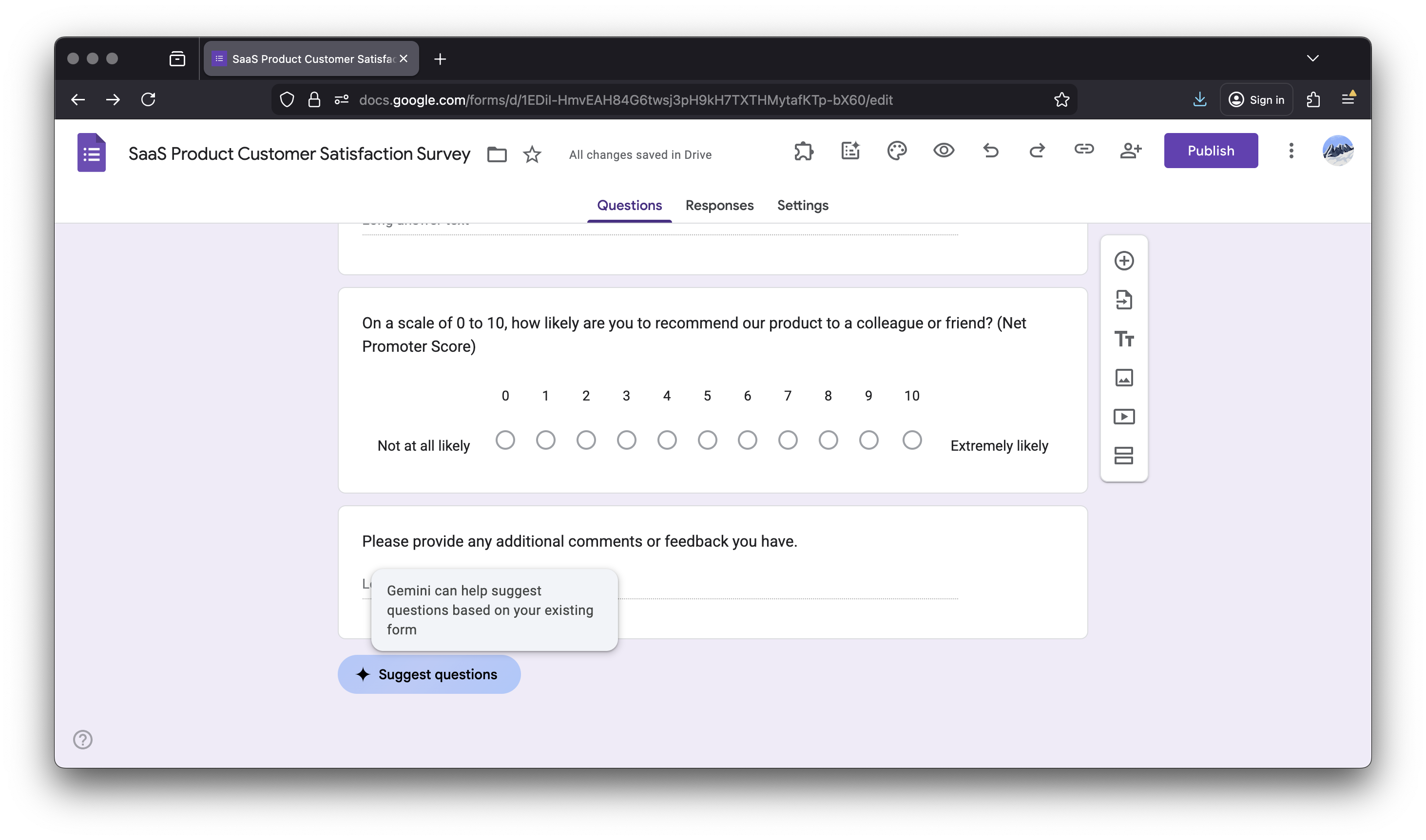
Once your form has at least two questions, the “Suggest questions” button appears at the bottom. Click it, and Gemini analyzes your current questions to generate contextually relevant additions with appropriate question types and answer options.
When it’s useful:
- You’ve started a form but feel something is missing
- Ensuring comprehensive coverage of a topic
- Getting unstuck when you’re not sure what to ask next
- Discovering angles you hadn’t considered
Example:
You create a simple event registration form asking for name and email. Gemini might suggest:
- “Do you have any dietary restrictions?” (Short answer)
- “How did you hear about this event?” (Multiple choice with options)
- “Will you need parking?” (Multiple choice: Yes/No)
Current limitations:
- It requires a form title and at least two existing questions
- It is available on desktop; supported languages vary and may change
- It supports only single-section forms and quizzes
- Work and school accounts may require an administrator to enable Gemini Beta
How to Use Google Forms AI: Step-by-Step
Creating a Form with “Help me create”
Before you begin: Confirm that your account has an eligible Google Workspace or Google AI plan. Google says availability may roll out gradually, so the feature may not appear immediately on every eligible account.
-
Go to forms.google.com.
-
Click Blank form.

-
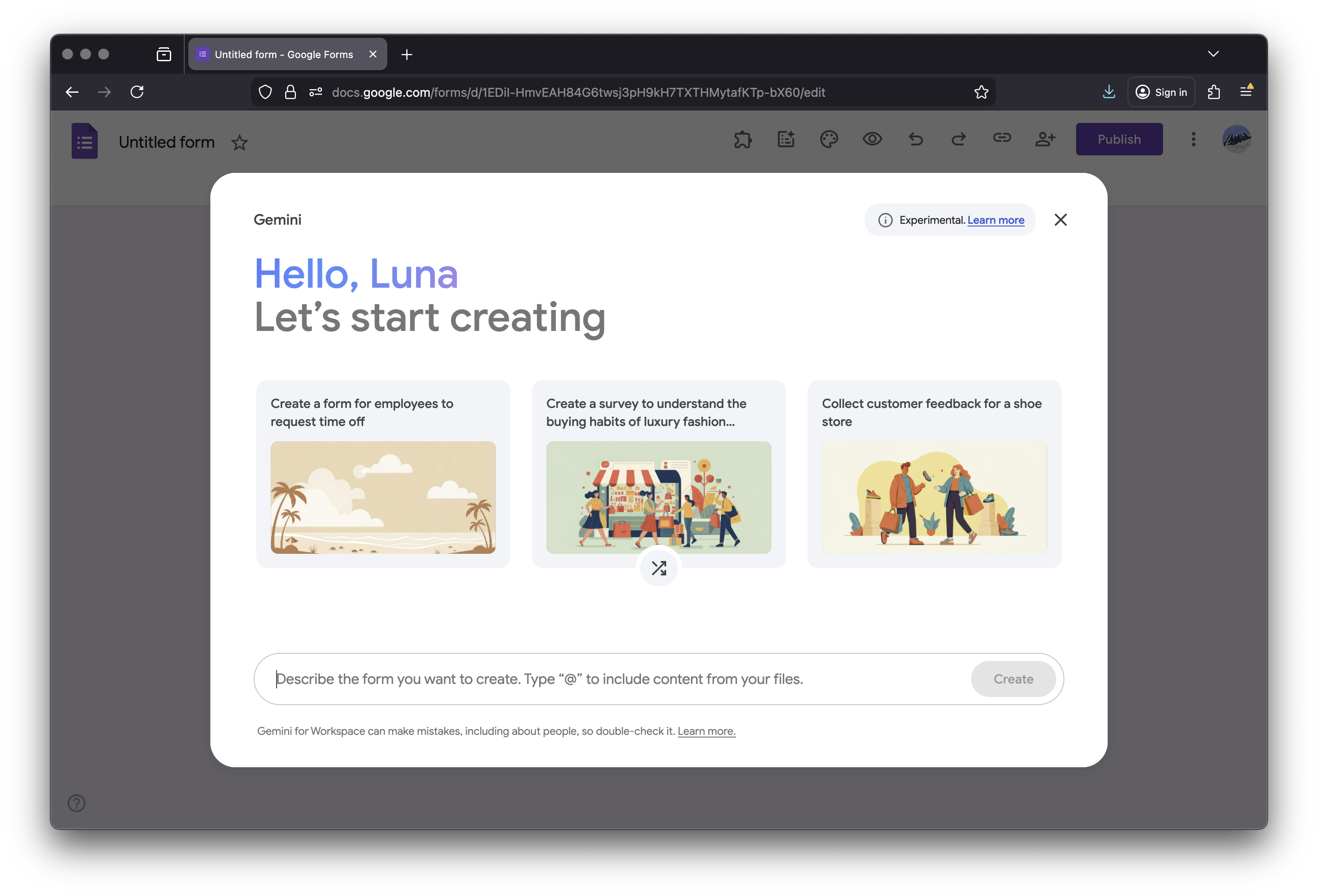
In the pop-up (which may open automatically on a blank form), enter your prompt describing the form you need.
-
Click Create > Create form.
-
Review the generated form.
-
Edit, remove, or reorder questions as needed.


Pro tip: More detailed prompts yield better results. Instead of “customer survey”, try “customer satisfaction survey for SaaS product covering ease of use, support experience, feature requests, and likelihood to recommend.”
Getting Question Suggestions
-
Open an existing form with at least 2 questions.
-
Scroll to the bottom of the form.
-
Click “Suggest questions”.
-
Review the 2-4 generated suggestions.
-
Select the ones you want to add.
-
Click to insert them into your form.

Summarizing Responses
-
Open a form that has received responses.
-
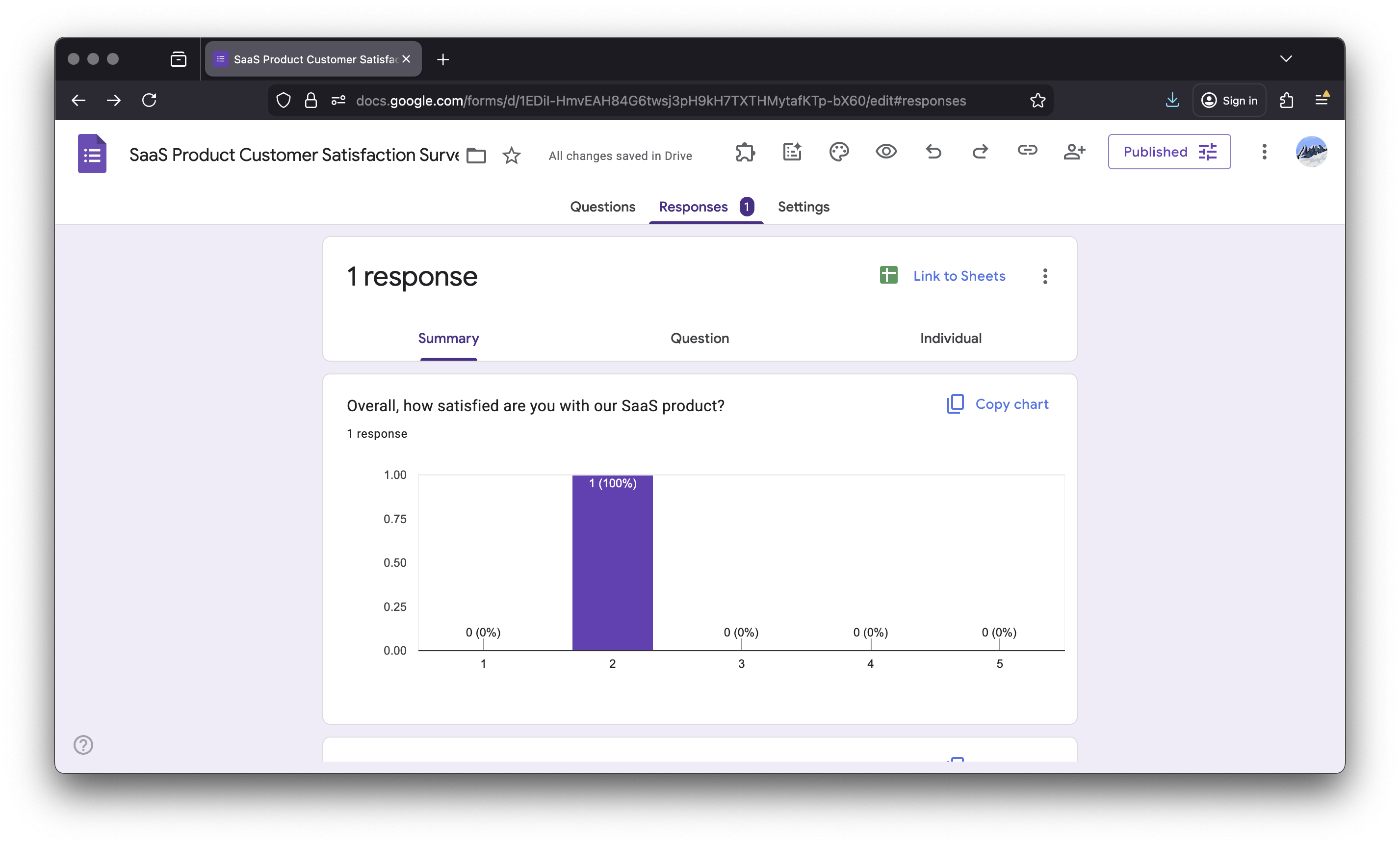
Go to the “Responses” tab.
-
For an eligible short-answer or paragraph question, find the Gemini-generated summary below the response chart.
-
Review the key themes and takeaways, or retry the summary if that option is available.

Practical Tips for Better Results with Gemini
Based on Google’s documentation and user experience:
-
Be specific in prompts – Instead of “event form,” say “corporate conference registration form collecting attendee name, company, job title, dietary restrictions, session preferences, and t-shirt size”
-
Reference relevant files – If you have an outline, agenda, or previous form in Drive, reference it for better context
-
Expect to iterate – Use the generated form as a draft, not a finished product. Plan to refine questions, adjust wording, and add logic
-
Leverage question suggestions – Even if you don’t use all suggestions, they can spark ideas you hadn’t considered
-
Provide feedback – Google explicitly asks users to rate generated forms with thumbs up/down to improve the system
Understanding Gemini’s Approach: What Makes It Work
According to Google’s official announcement, Gemini’s form generation capability is designed to help users “get started with creating high quality forms much faster and save valuable time.”
Gemini uses:
- Context from your prompt – The more specific you are, the better the output
- Referenced document content – Can analyze PDFs, Docs, Sheets, and Slides to understand requirements
- Supported question types – Selects question formats and arranges a draft based on your request
The generated structure is a starting point, not a guarantee of ideal question wording or flow, so review it before publishing.
However, as noted in the official documentation, “Google Workspace with Gemini is constantly learning and may not be able to support your request.” This means results can vary, and you may need to click “Retry” to get different suggestions.
Limitations of Google Forms AI
1. Limited Layout and Design Control
Google Forms AI focuses on content generation, not presentation.
What Gemini does not generate:
- Complex layouts beyond linear question sequences
- Brand-specific styling (color schemes, fonts, logos beyond basic theming)
- Multi-column arrangements
- Document-like layouts that match existing paper forms
- Advanced conditional logic during initial generation
For organizations needing forms that match official documents, maintain specific branding, or provide complex user experiences, the AI-generated structure is just a starting point requiring additional manual setup.
2. Availability varies by feature
Google currently documents different requirements for different Gemini features:
- Help me create requires an eligible plan, is available on desktop, and may roll out gradually
- Question generation works on desktop and with single-section forms or quizzes; supported languages vary by feature
- Work and school administrators may need to enable Gemini Beta before question-generation controls appear
Check Google’s current help pages before planning a team-wide rollout because eligibility and availability can change.
3. Generated quizzes still need review
Gemini can generate quizzes, mark correct answers, and assign points. You should still review every question, answer key, and score before publishing, then manually configure any additional quiz settings your assessment requires.
4. Complex Conditional Logic Not Generated
While Google Forms supports conditional branching (“Go to section X based on answer”), Gemini doesn’t create this logic automatically. You’ll need to:
- Organize questions into sections and configure section-based routing manually
- Design multi-path experiences yourself
This means long, complex forms with different paths for different users still require additional manual setup.
5. No Support for Existing PDF Layouts
This distinction matters for organizations whose workflow depends on an existing document layout.
Real-world forms often exist as approved PDFs:
- Government forms with specific regulatory layouts
- Legal agreements requiring exact formatting
- HR documents with signature blocks and specific sections
- Medical intake forms with precise field placement
- Tax documents with mandated structures
Google Forms AI cannot:
- Use a PDF while preserving its original layout
- Maintain specific field positioning
- Replicate signature blocks or legal text placement
If your organization has approved PDF forms that cannot be redesigned, a PDF-focused form builder can convert the actual document into a fillable online version while keeping the approved layout intact.
6. Documented Scope Is Limited
Google’s documented Gemini features for Forms focus on generating forms and quizzes, suggesting questions, summarizing eligible written responses, and analyzing response themes in Google Sheets. Google does not document organization-specific learning or CRM prepopulation as part of these Forms features. Check your wider Workspace setup separately if your process depends on those capabilities.
Where AI-Assisted Forms Are Heading
Google’s Gemini features and recent PlatoForms updates point to a broader shift: AI is moving beyond drafting questions. It is beginning to help create documents, generate conditional logic, translate content, and connect forms with the tools that process the results.
PlatoForms is moving in this direction through AI-generated form logic, form and PDF translation, PDF Document Creator, and assistant access through Model Context Protocol (MCP). These features do not replace human review, but they extend AI support from the first draft into more of the document workflow. You can follow these releases in the PlatoForms changelog.
Google Forms with Gemini remains useful for creating and expanding forms inside Workspace. PlatoForms focuses on workflows where the form must also produce a document, preserve a PDF, collect signatures or payments, or move through connected systems.
When Your Form Needs to Go Beyond AI Drafting
Three Common Scenarios
Scenario 1: You Have an Approved PDF That Cannot Change
Many organizations face this: official forms with legal, compliance, or branding requirements that mandate the exact layout, formatting, and structure remain intact.
Solution needed: Convert the PDF itself into an interactive, fillable online form without redesigning it. This keeps the approved layout intact while adding online data collection and configurable field validation.
Scenario 2: You Need Professional, Branded User Experiences
AI-generated forms may be enough for straightforward internal use, but external-facing forms often need:
- Custom branding that matches your website
- Mobile-optimized layouts for better completion rates
- Progress indicators for multi-step processes
- Integration with payment processing or scheduling systems
Solution needed: Custom web forms built from scratch with design flexibility and advanced functionality.
Scenario 3: You Want to Start Quickly Without Writing Prompts
For common use cases such as events, registrations, HR processes, or customer feedback, starting from a ready-made template may be faster than drafting a detailed prompt.
Solution needed: Template libraries with ready-made form structures you can customize.
Summary Table
| Need / Scenario | Google Forms AI | PlatoForms |
|---|---|---|
| Preserve PDF layout | No | Yes |
| Branding and layout | Theme colors, fonts, and header images | More layout and branding controls |
| Complex workflows | Multi-page setup is manual | Multi-step workflow builder |
| Templates for fast setup | Built-in Google Forms template gallery | 2,000+ templates |
| Signature fields on PDFs | Cannot preserve them in a source PDF | Native signature fields |
| Conditional logic | Manual section-based routing | Visual logic builder |
| Payment collection | No native payment field | Stripe, PayPal, and Square on supported web forms |
🚀 Already using Google Forms? Import its questions, sections, and supported field types into an editable PlatoForms form—without rebuilding the structure from scratch. Existing responses remain in Google Forms. See what transfers, or import your form now.
Choosing the Right Tool for Your Workflow
Google Forms with Gemini is useful for fast drafting in a familiar Workspace environment. PlatoForms serves workflows that also depend on an existing PDF, custom document output, signatures, payments, or multi-step processing.
For preserving official documents:
Convert existing PDFs into fillable online forms while keeping their original layout and design intact. Learn more about fillable PDF forms.

For custom, professional experiences:
Build custom web forms with more control over branding, layout, conditional logic, payments, and the mobile experience. Explore custom web forms.
For rapid deployment:
Browse ready-to-use templates for events, surveys, HR, registrations, and more—no prompt writing required. View template gallery.

Use Google Forms AI when:
- Creating simple internal surveys
- Brainstorming form structure quickly
- Working with small teams on informal data collection
- Fast drafting matters more than extensive layout control
- You’re comfortable with basic Google Forms styling
Consider a specialized form builder when:
- You have existing PDF forms that must maintain their layout
- External users need professional, branded experiences
- You need advanced conditional logic configured automatically
- Compliance or legal requirements mandate specific formatting
- You need native payment integrations or connections to CRM and calendar tools through Zapier, Make, or APIs
- Multi-language support is essential
Not sure which starting point fits? Compare PlatoForms form types, or start free and choose your path in the builder.
Final Thoughts
Google Forms AI lowers the barrier to creating forms and accelerates the initial drafting process. Google introduced response summaries, form generation, and question suggestions in 2025, then added deeper response analysis and quiz generation in 2026.
But real-world forms aren’t just questions—they’re documents, workflows, and records that often carry legal, compliance, or branding requirements beyond what generation alone can handle.
For quick surveys and familiar Workspace collaboration, Gemini in Google Forms is genuinely useful. For workflows that depend on PDF layout, document output, branding, payments, signatures, or multi-step processing, a specialized form platform may be a better fit.
Whether you continue with AI-generated Google Forms or need more advanced solutions, the key is choosing tools that match your actual requirements—not just what’s easiest to create.
Additional Resources
Official Google Documentation:
- Create a form with Gemini in Google Forms – Official help guide
- Google Workspace Updates Blog – Latest feature announcements
- Gemini for Google Workspace plans – Pricing and availability
Related PlatoForms Options:
- Import a Google Form – See what transfers and how the import works
- Compare PlatoForms form types – Choose between a PDF-based form, web form, or new PDF document
- Start building – Create a free account and choose your starting point
Last updated: August 22, 2026, based on current Google Docs Editors Help and Google Workspace announcements.
Try PlatoForms with Your Own Form
Turn an existing PDF into an online form, or create a new form for your team.
Create your free PlatoForms account →


