

Google Forms conditional logic sends respondents to different sections based on an answer. Create at least two sections, use a multiple-choice or dropdown question, then choose More (⋮) → Go to section based on answer and select a destination for each option.
That works well for basic branching. This guide shows the complete setup, the limits of section-based routing, and what to use when you need to show or hide individual questions instead.
TL;DR
- Google Forms supports section-based branching: Multiple-choice and dropdown answers can send respondents to another section or submit the form.
- It does not provide question-level, or field-level, show/hide rules: Conditional questions need to be organized into separate sections.
- Use a different logic model when needed: PlatoForms supports field-level rules, page routing, calculations, AI-generated logic, and PDF-related actions.
What is conditional logic?
Conditional logic (also called branching or skip logic) changes what happens next based on a previous answer. Depending on the form builder, that may mean showing or hiding an individual question, skipping a page, or routing the respondent to another section.
Here’s a simple example. You’re planning a team event and need to know:
- whether someone is attending
- their dietary restrictions (if they are attending)
- whether they need transportation, and
- a pickup location (only if transportation is needed)
Without conditional logic, your form would look like this:
Example
🟦 1. Will you attend the team event?
⚪ Yes
⚪ No
🟦 2. What are your dietary restrictions?
✏️ [Text field]🟦 3. Do you need transportation?
⚪ Yes
⚪ No🟦 4. Pickup location
✏️ [Text field]
Everyone sees all four questions, even if they answered “No” to attending. Someone who can’t come still has to scroll past questions about dietary restrictions and transportation that don’t apply to them.
With question-level conditional logic, the form can respond to each answer and adjust the visible questions as the user moves forward:
Example
🟦 1. Will you attend the team event?
⚪ Yes
⚪ No
🔀 If Yes is selected, questions 2–3 appear
🟦 2. What are your dietary restrictions?
✏️ [Text field]🟦 3. Do you need transportation?
⚪ Yes
⚪ No🔀 If Yes is selected, question 4 appears
🟦 4. Pickup location
✏️ [Text field]
Now, respondents who select “No” for attendance skip the rest of the form entirely. Those who don’t need transportation never see the pickup location question. Google Forms can create a similar outcome by placing these questions in separate sections and routing respondents between them; it does not show and hide individual questions on the same page.
Conditional logic helps keep forms short, relevant, and easier to complete—especially when a form has several conditions. Respondents answer fewer unnecessary questions, and you collect cleaner, more applicable data.
How to add conditional logic in Google Forms
Conditional logic isn’t available as a standard question type in Google Forms. Instead, you’ll need to split your form into sections and use Google’s documented Go to section based on answer routing.
💡 New to Google Forms? Check out this guide to getting started with Google Forms to learn the basics.
1. Create your form
Start by creating a new blank form in Google Forms or choose from one of their templates. For this example, we’ll create a post-purchase customer feedback survey for an online store.
💡 Pro Tip: To get started quickly, you can create a form by prompts with Google Forms AI (Gemini).
Without routing, every customer would see the same list of questions:
Example
🟦 Section 1: Purchase Status
🟦 1. Did you make a purchase?
⚪ Yes
⚪ No🟦 Section 2: Order Details
🟦 2. Order number
✏️ [Text field]🟦 3. Order total
✏️ [Short answer with number validation]🟦 Section 3: Satisfaction Rating
🟦 4. How satisfied were you?
⚪ Very satisfied
⚪ Satisfied
⚪ Neutral
⚪ Dissatisfied
⚪ Very dissatisfied🟦 Section 4: Positive Feedback
(Shown to satisfied customers)🟦 5. What did you love about your experience?
📝 [Text area]🟦 Section 5: Issue Details
(Shown to dissatisfied customers)🟦 6. What went wrong?
☑️ Wrong item received
☑️ Item damaged
☑️ Late delivery
☑️ Poor quality
☑️ Poor customer service
☑️ Other🟦 7. Would you like us to contact you about this?
⚪ Yes, please contact me
⚪ No, just wanted to share feedback
Without routing, respondents may see questions that do not apply to them:
- People who didn’t purchase still see order-related questions
- Happy customers see questions about “what went wrong”
- Unhappy customers see questions about “what they loved”
2. Create and label your sections
Click the Add section button (looks like two stacked rectangles) in the toolbar on the right. This divides your form into sections that you can label and rearrange.

For our customer feedback survey, we need to know:
- Whether they made a purchase
- What they bought (if applicable)
- Their satisfaction level
- Details about their experience
We’ll create 5 sections: Purchase Status, Order Details, Satisfaction Rating, Positive Feedback, and Issue Details. To add a title to each section, click inside the section and type your heading.

3. Add your questions
Select a section and click Add question from the right-hand toolbar. Choose from multiple choice, checkboxes, dropdown, short answer, paragraph, and other question types.
For our survey, we’ll use the same question structure shown above, organized into sections for purchase status, order details, satisfaction, and feedback.
4. Add conditional logic
Start with the first trigger question, “Did you make a purchase?”
Click the three-dot menu at the bottom right of the question and select Go to section based on answer. A dropdown menu will appear next to each answer option.

For “No” answers, select Submit form from the dropdown - they don’t need to answer questions about an order they didn’t place.
For “Yes” answers, select Go to section 2 (Order Details) so you can gather more information about their purchase.

At the bottom of Section 2 (Order Details), keep Continue to next section so respondents move to Section 3 (Satisfaction Rating).
Next, set up branching for the satisfaction question. For the “How satisfied were you?” question:
- “Very satisfied” or “Satisfied” → Go to Section 4 (Positive Feedback)
- “Neutral” → Skip to Submit form
- “Dissatisfied” or “Very dissatisfied” → Go to Section 5 (Issue Details)
At the bottom of Section 4 (Positive Feedback), change the next destination from Continue to next section to Submit form. Otherwise, satisfied respondents will continue into Section 5 (Issue Details). Section 5 is the final section, so it can submit the form when completed.
5. Test your form
Before going live, click Preview (the eye icon) at the top right. The preview opens in a new window. Test the logic by trying different answer combinations to make sure respondents are routed to the correct sections.

Six limits of section-based logic in Google Forms
Google Forms branching is useful when a small number of answers lead to clearly defined sections. These limits matter when the form needs field-level behavior or many interconnected rules.
1. Section-based rather than question-level logic
Google Forms logic works at the section level. You cannot show or hide a single question on the same page based on a previous answer. Instead, conditional questions must be grouped into sections that respondents enter or skip.
As the number of conditional paths grows, the form may need more sections and become harder to review as one complete flow.
PlatoForms can apply a rule to a single field instead, so follow-up questions can stay on the same page. See the jump question example.
2. No single visual logic overview
Google Forms does not provide a separate visual map or consolidated list of every routing rule.
You need to review the relevant questions and section destinations individually, then preview each path to check for incorrect routes or routes that do not reach the intended section or submission.
PlatoForms keeps all rules in one Logics panel, where you can show only the rules for one field or search them by keyword.
3. No combined branching conditions in the native editor
Each native routing decision is based on the selected answer to one multiple-choice or dropdown question. The editor does not combine answers from multiple questions into one branching rule.
Example: You cannot create one native rule that routes respondents to a discount section only when they are both first-time buyers and have spent more than $100.
4. Branching is limited to two question types
Google documents Multiple choice and Dropdown as the question types that support Go to section based on answer. Other question types can use features such as response validation, but they cannot act as native section-routing triggers:
-
Short Answer/Text: No branching based on keywords.
-
Checkboxes: No logic based on multiple selections.
-
Dates & Numbers: You cannot show questions based on age thresholds or date ranges.
PlatoForms conditions can compare a date or number field, for example a registration date less than or equal to an early-bird deadline. See the set value example.
5. No blank-answer or inverse branching rule
Google Forms routes from the answer option a respondent selects. It does not provide a native rule such as “route here when this question is unanswered” or a general inverse condition.
You can sometimes represent the opposite case with an explicit answer option, but more general negative conditions require a different logic model.
PlatoForms conditions include is answered and is not answered, so a rule can run when a field is left blank.
6. Each route requires manual setup and testing
Each conditional route must be configured on its trigger question and tested in preview. This is manageable for a few branches but takes more coordination as the number of routes increases.
If section-based routing already matches your form, Google Forms may be sufficient.
Google Forms and PlatoForms use different logic models
Google Forms routes respondents between sections. PlatoForms can also apply rules to individual fields, pages, values, and generated PDF content. The right model depends on what the form needs to do.
| Feature | Google Forms | PlatoForms |
|---|---|---|
| Logic scope | Route to another section or submit | Show or hide fields, skip pages, and control values |
| Branching triggers | Multiple choice and dropdown | Text, number, date, choice, and other supported fields |
| Rule setup | Configure destinations on each trigger question | Manual logic panel, AI generation, or JSON editor |
| Calculated or reused values | Not part of section routing | Set, calculate, clear, or reuse supported field values |
| Generated PDF logic | No native filled-PDF output rules | Show or hide fields in generated PDFs |
How to set up field-level logic in PlatoForms
PlatoForms offers manual rules, AI generation, and JSON editing in the same Logic panel. For a basic manual rule, follow these steps from the form logic documentation:
-
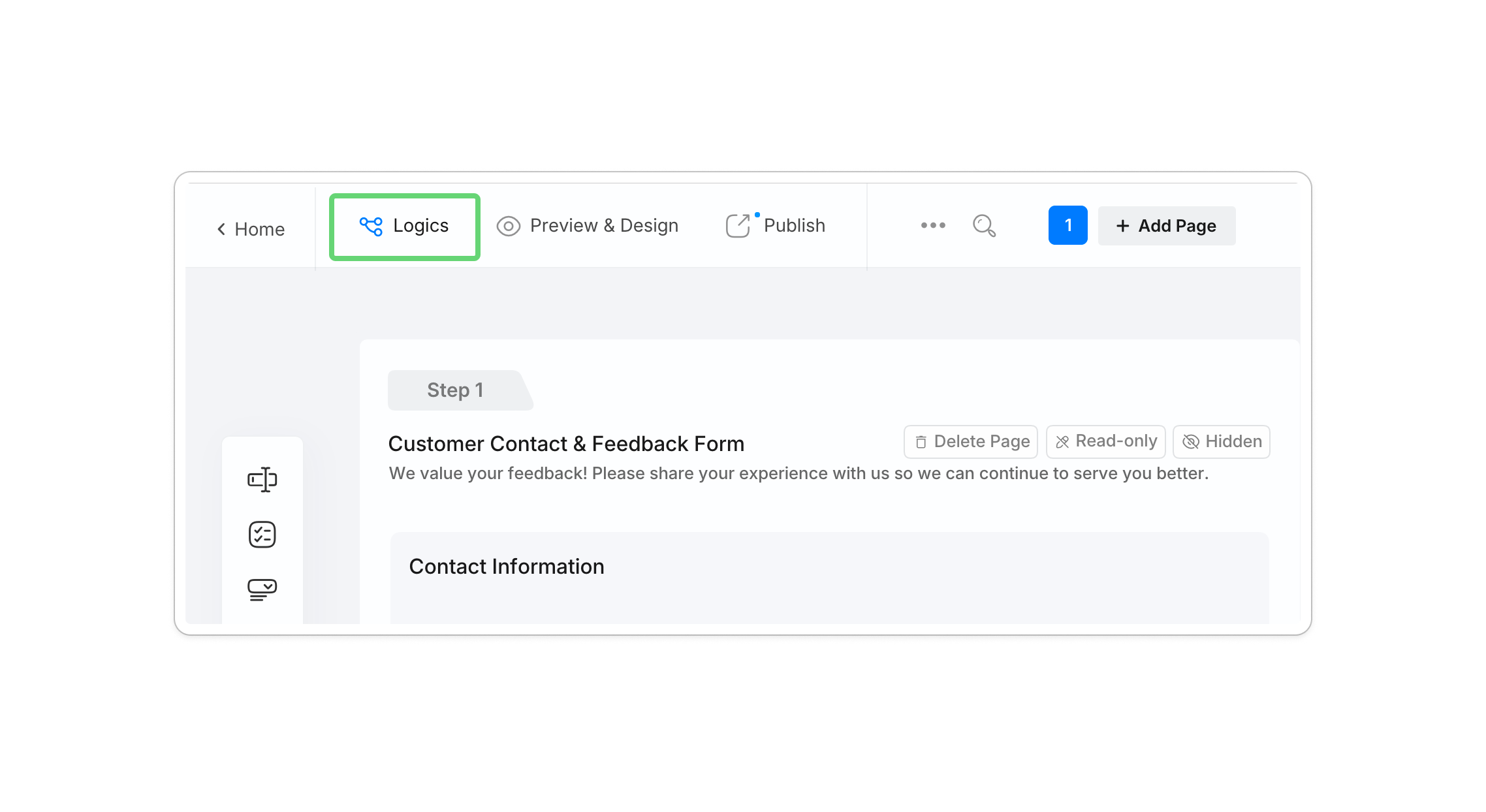
Open the Logics Panel: Click the Logics button in the top-left corner of the form builder.
-
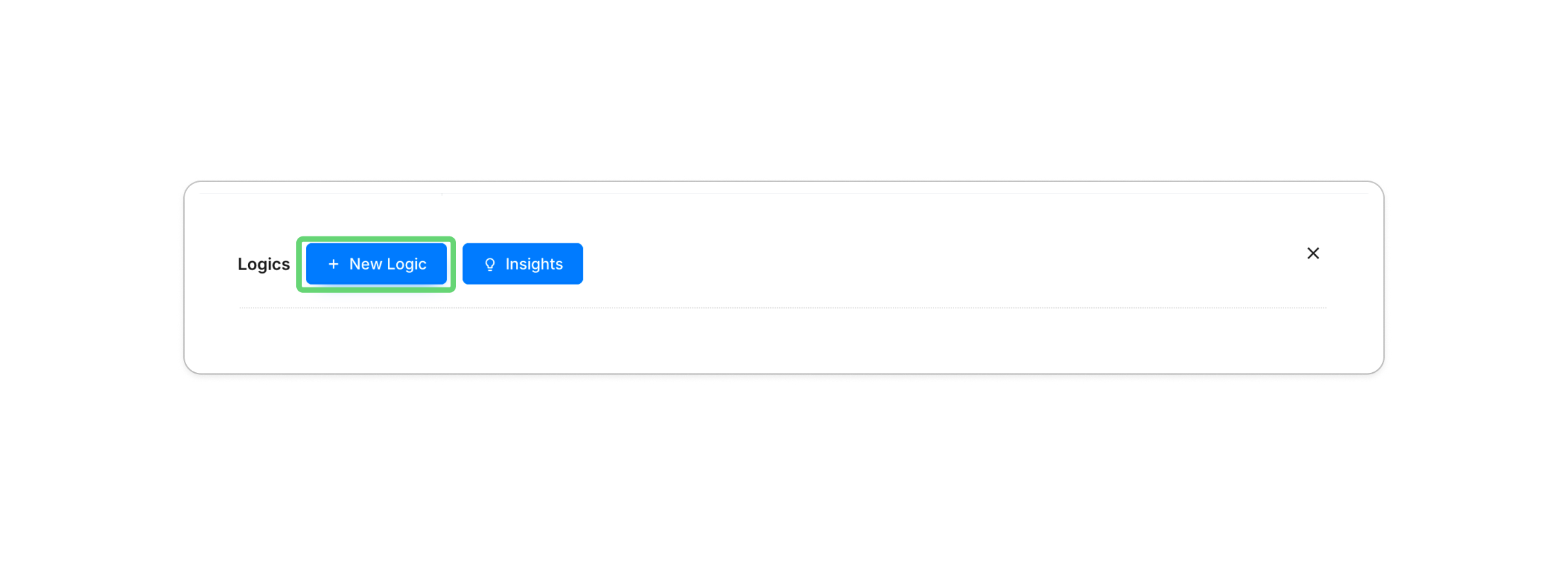
Create New Logic: Click + New Logic.
-
Define the Trigger (IF): Select your field and criteria (e.g.,
If #Coffee or Tea? is equal to Coffee). -
Set the Action (THEN): Define what happens (e.g.,
Then Show #Cream or Sugar?). -
Preview & Test: Use the preview mode to ensure your branching paths flow correctly.


If you prefer, choose Gen by AI and describe the rule in plain language, or open the JSON editor for direct control. Review and test generated or edited rules before publishing.
Common logic scenarios
| Logic scenario | What it does | Example | Best for |
|---|---|---|---|
| Jump question | Shows a question only when needed. | Show “Enter Discount Code” only if the user selects “Yes.” Jump Question logic |
Short surveys, lead forms |
| Skip page | Sends users to different pages. | Route users to “Speaker” or “Participant.” Skip Page setup |
Role-based forms, events |
| Branching logic | Changes questions based on answers. | 5★ → “What did you love?” 1★ → “How can we improve?” |
Feedback, NPS, support |
| Set value | Fills fields automatically. | Apply $100 Early Bird before a deadline. Set Value logic |
Pricing, registrations |
| Calculations | Calculates values in real time. | Price × Quantity = Total CostCalculations logic |
Orders, invoices |
| Reuse fields | Copies values between fields. | Copy Signature #1 → Signature #2 Reuse fields |
Contracts, PDFs |
Building a survey or feedback form? See how to design Likert scales that work on mobile before setting up your branching logic.
Building a waiver or consent form? See how to set up conditional fields in a real waiver workflow — from pre-existing injury disclosures to routing submissions to the right coordinator.
Managing complex logic at scale
When your form has dozens of rules, you need a clear way to find each one:
- Filter by Field: Click Logics in the attributes panel of any specific field to see only the rules affecting that question.
- Search by ID: Use the filter bar in the Logic Panel to search for specific Field IDs or labels.
Extend logic beyond the questions
Form logic can also control what happens after or around data collection:
- Conditional email routing: Send different notifications based on form answers.
- Conditional PDF output: Include or omit fields in the generated document according to a rule.
- Multi-person processes: Use Workflow when different people need to complete or approve separate steps. A workflow is different from page routing inside one form.
Watch the conditional logic tutorial
When you need more than section-based routing
If your Google Form already works, keep it. If section-based routing has become difficult to maintain, you can see what transfers during a Google Forms import, then import the form and add question-level logic without rebuilding its structure. You can also begin with a ready-made survey template and customize its fields and rules.
Before building, you can also review the form logic guide.
Try PlatoForms with Your Own Form
Turn an existing PDF into an online form, or create a new form for your team.
Create your free PlatoForms account →