


To create a Likert scale in Google Forms, add a Linear scale question for a single rating, or a Multiple choice grid when several statements share the same scale. Set the range (1-5 is a common choice), label the endpoints, make the question required, and test the form on a phone before you send it.
Imagine you ask a friend, “Do you like the new office coffee?”
If they only have two choices—Yes or No—they might struggle to answer. What if the coffee is “just okay”? Or what if they absolutely hate it?
This is where a Likert scale comes in. Instead of a simple yes/no, it gives respondents a range of options to express how much they agree or disagree with a statement. It turns vague “feelings” into numbers you can actually measure.
However, as more users move to mobile, the way we design these scales in Google Forms needs to evolve. A grid that looks tidy on your laptop can be hard to complete on a smartphone—a problem we call the “Mobile Trap.”
What Is a Likert Scale? (Simply Put)
A Likert scale measures attitudes or opinions with a set of related rating questions. Each question on its own is a Likert item, and it typically looks like this 5-point example:
Standard Example
🟦 The interface is easy to navigate.
⚪ 1 - Strongly Disagree
⚪ 2 - Disagree
⚪ 3 - Neutral
⚪ 4 - Agree
⚪ 5 - Strongly Agree
By giving people more than two options, you capture the nuance of their experience.
How to Build It in Google Forms
Google Forms offers two primary ways to create these scales. Both have significant trade-offs.
Method 1: The Linear Scale (Best for Single Ratings)
This is the fastest way to create a rating system, but it has a labeling limitation.
- Add a Question: Click the plus (+) icon in the floating menu to create a new question.
- Select the Type: Open the question type dropdown menu (which usually defaults to “Multiple choice”) and select Linear scale.

- Define the Range: Choose your scale boundaries using the dropdown menus. You can start at 0 or 1 and end on any whole number from 2 to 10 (a 1-5 scale is a common choice).
- Label the Endpoints: In the Label fields, enter descriptions for the lowest and highest values (e.g., “1 - Very dissatisfied” and “5 - Very satisfied”).
The Catch: The intermediate numbers (2, 3, and 4) still appear, but only the two endpoints can have text labels. That can leave more room for respondents to interpret the intermediate values differently.
Method 2: Multiple Choice Grid (The “Mobile Trap”)
This method is used when you have multiple statements that share the same Likert scale. While it looks organized on a desktop, it can become harder to complete on a narrow mobile screen, which is what we call the “Mobile Trap.”
- Add a Question: Create a new question and select Multiple choice grid from the dropdown menu.
- Define the Rows: Enter the statements or questions you want respondents to rate in the Rows section.
- Define the Columns: Enter your scale points (e.g., 1 to 5, or “Disagree” to “Agree”) in the Columns section.

- Enable Requirements: Toggle on “Require a response in each row” to ensure you don’t receive incomplete data.
The Catch: This is where the “Mobile Trap” can appear. On narrow screens, a grid with several columns can become compressed or require horizontal scrolling, which makes each option harder to read and tap.

The Psychology of “Neutral” (5 vs. 7 Points)
Should you use a 5-point or a 7-point scale?
- 5-Point Scales: Provide fewer choices and may be easier to scan, especially for broad audiences.
- 7-Point Scales: Provide finer response granularity, but that extra precision is not necessary for every survey.
- Validated instruments: When you use an established research questionnaire, keep its original response scale unless you have a justified reason to change it.
- The “Neutral” option: Use an odd-numbered scale when respondents need a genuine neutral or undecided option. Use an even-numbered scale only when a forced directional choice is intentional and methodologically justified.
What PlatoForms Adds for Likert Surveys
Google Forms provides straightforward linear scales and grids, which work well for many surveys. PlatoForms adds responsive Rating fields, conditional follow-ups, conversational presentation, and built-in response analysis.
1. Responsive Rating Fields
PlatoForms Web Forms use a responsive browser layout instead of placing every response inside a fixed PDF page. Build each statement with a Rating field, split a longer survey with page breaks, or switch a supported form to Conversational mode so respondents answer one question at a time. Preview the form on phone, tablet, and desktop before publishing.
2. AI-Powered Conditional Logic
Google Forms routes respondents by section. PlatoForms lets you set rules on individual fields and can draft them for you:
-
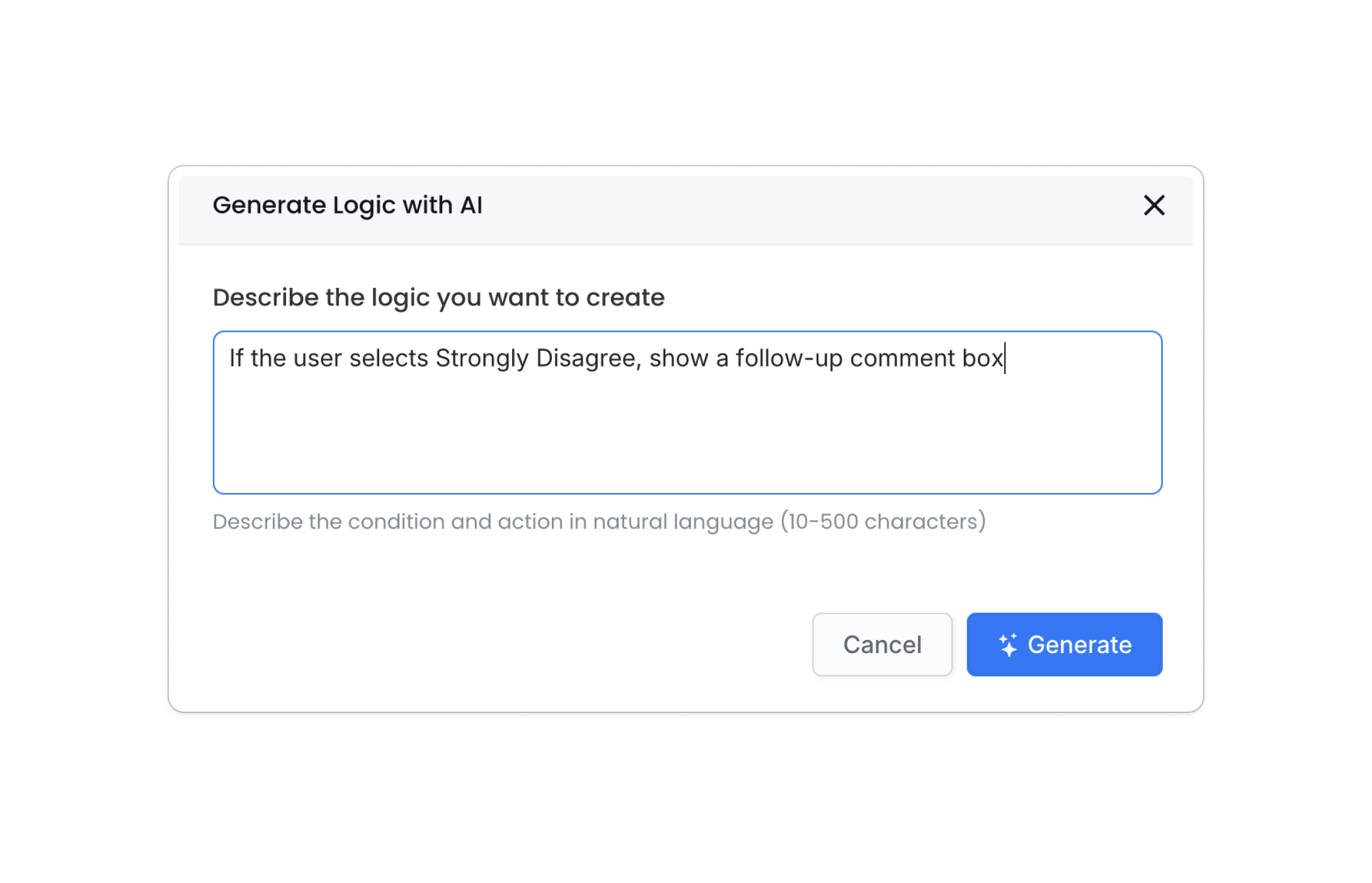
Natural Language Setup: Use our AI to generate logic from plain text. Simply type “If the user selects Strongly Disagree, show a follow-up comment box,” and PlatoForms drafts the rule for you to review.
-
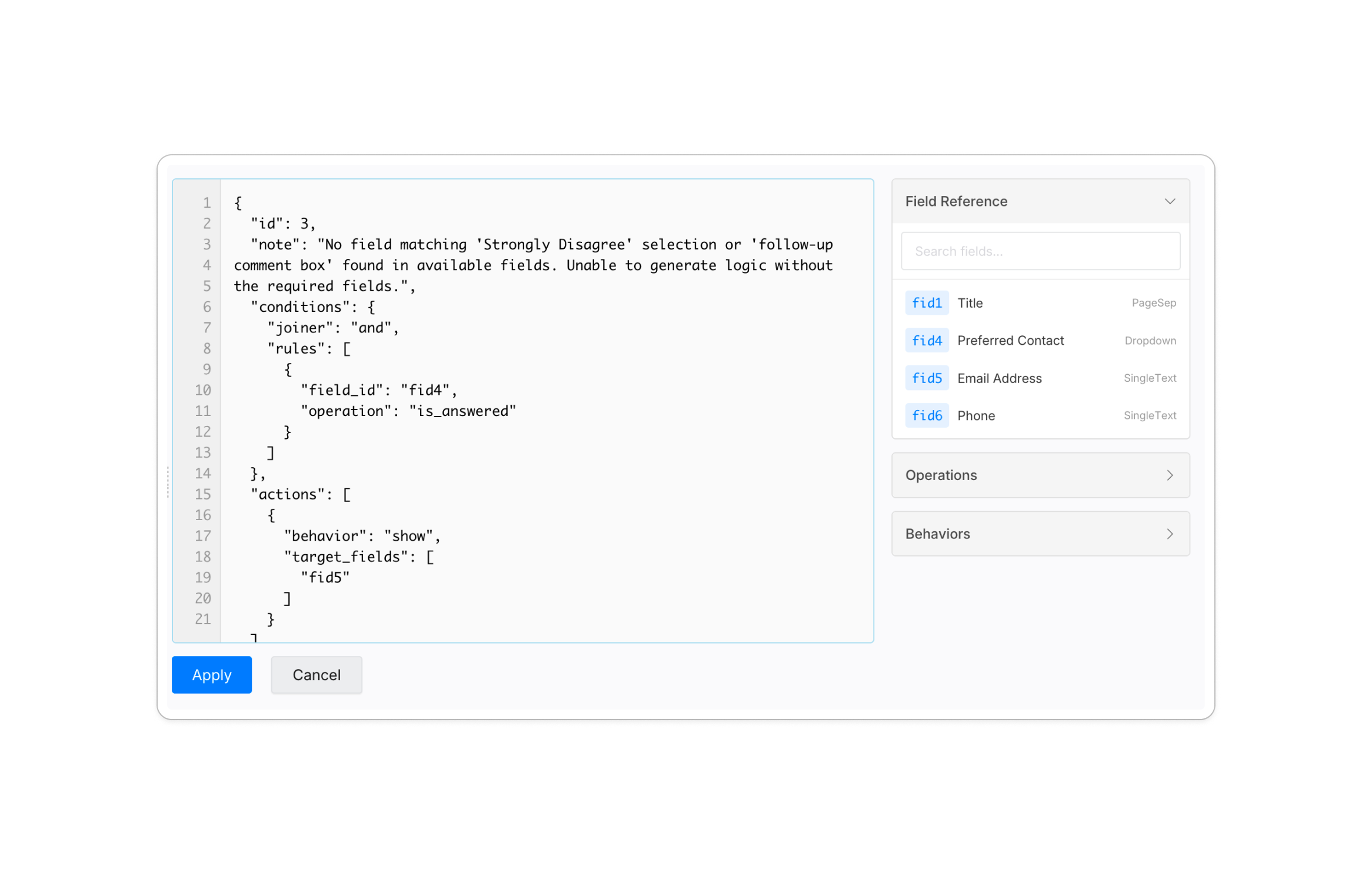
JSON Editor for Power Users: Use the JSON editor for direct control over field references and complex rule definitions.
-
Bulk Import/Export: Export rule sets as JSON for backup or reuse, and import a logic configuration into another form. Importing replaces all existing logic in the target form, so export it first.


📖 Deep Dive: Check out our step-by-step guide on setting up form logic or see the full release notes for the AI Logic update.
3. Analyze Likert Responses Without Building a Spreadsheet First
Every form includes an Insights report that can chart supported answers and show how responses change over time. For Rating fields, the statistics view includes the median, mean, standard deviation, percentiles, minimum, maximum, and a distribution strip. This gives you more context than a single average score.
You can also:
- Compare a rating with another question, such as department, plan, or customer type
- Filter the report to study a specific audience or time period
- See where visitors leave the form, which helps identify a long or confusing survey question (older forms need to be re-published before field-level journey data is collected)
- Use AI to group written follow-up answers by theme and sentiment and generate a written summary
- Share a read-only report, export it as a PDF, or download chart totals as CSV
Breakdowns by another question and report share links require a paid plan.
For example, the same mean score can hide two very different response patterns. A narrow distribution suggests broad agreement, while a wide distribution may mean that different customer groups had very different experiences. Insights exposes that spread so you can investigate before acting on the average.
How to Analyze Your Data (A Real Example)
Let’s say you surveyed 100 people about your support quality.
Step 1: The Raw Counts
- Strongly Agree (5): 40 people
- Agree (4): 30 people
- Neutral (3): 20 people
- Disagree (2): 5 people
- Strongly Disagree (1): 5 people
Step 2: The “Top-Two Box” Score
Combine the two most positive categories to find your overall “Positive Sentiment.”
40% (Strongly Agree) + 30% (Agree) = 70% Positive Score.
Step 3: Calculating the Mean Score (The Average)
Assign a numerical value to each response to find your weighted average grade:
- (40 × 5) + (30 × 4) + (20 × 3) + (5 × 2) + (5 × 1) = 395 total points
- 395 / 100 respondents = 3.95 Mean Score
Step 4: Interpretation & Action
A mean of 3.95 indicates that responses lean positive, but the 20% “Neutral” group may deserve further investigation. In your next survey, ask anyone who picks Neutral a follow-up question such as “What was missing from your experience today?” In Google Forms, branching only works from Multiple choice or Dropdown questions to a section, so ask the rating as a Multiple choice question and send Neutral to a follow-up section. In PlatoForms, a logic rule on the rating field can show the follow-up field directly — and route their responses to the right team automatically.
Best Practices for 2026
- Label Every Point: Give 2, 3 and 4 words as well as 1 and 5. A Google Forms linear scale only labels the endpoints, so when the middle values need words, use a multiple choice question with one labeled option per point.
- Keep statements short: Each statement should be clear enough to understand without rereading.
- Ask a follow-up when it matters: Show a comment field only after a low or neutral score instead of asking everyone for more detail. In Google Forms this means a Multiple choice rating question with section branching; a Linear scale cannot branch.
- Look beyond the mean: Review the median and distribution before concluding that respondents broadly agree.
- Leverage AI carefully: Use AI to draft logic and organize written feedback, then review the rules and summaries before publishing or sharing them.
FAQ
Is there a Likert scale in Google Forms?
Not as a separate question type. In Google Forms you build a Likert question with a Linear scale for a single statement, or with a Multiple choice grid when several statements share the same answer options.
How do I put a rating scale in Google Forms?
Use a Linear scale for a numbered scale that starts at 0 or 1 and ends at a whole number from 2 to 10, with text labels on the two ends. For stars, hearts or thumbs up, use the Rating question type, which can have 3 to 10 levels.
How do I make a Likert scale in Google Forms?
Add a Linear scale question, set the range, for example 1 to 5, and label the lowest and highest values. For several statements on the same scale, add a Multiple choice grid with the statements as rows and the scale points as columns, and turn on Require a response in each row.
How do I make a 5-point Likert scale?
Set a Linear scale from 1 to 5, or add a Multiple choice question with five options: Strongly disagree, Disagree, Neutral, Agree and Strongly agree. The multiple choice version lets you label every point, while a linear scale only labels the two ends.
Conclusion
Likert scales are the bridge between human emotion and actionable data. While Google Forms is a solid starting point, PlatoForms supports responsive survey layouts, conditional follow-ups, and built-in analysis.
Already built the survey in Google Forms? Import your Google Form. PlatoForms creates a separate editable copy, while your original form and its existing responses stay in Google.


