












To make a Google Form multi-page, divide it into sections. Each section starts on a new page. Respondents use Next to move between sections, and the final section ends with Submit. You can also show a progress bar and route multiple-choice or dropdown answers to different sections.
Google calls these pages sections. They are also commonly described as steps in a multi-step form.
How to make a Google Form multi-page
- Open your form and click Add section in the right-hand toolbar.
- Give the new section a short title and move the relevant questions into it.
- Repeat until each step contains a manageable group of questions.
- Open Settings, expand Presentation, and turn on Show progress bar.
- Preview the form and test it on desktop and mobile before publishing.
If respondents should follow different paths, select a multiple-choice or dropdown question, open More (⋮), and choose Go to section based on answer. Assign a destination section—or Submit form—to each answer. Google Forms does not offer this routing option for checkboxes, short-answer questions—including answers validated as numbers—dates, or scales.
For a short survey or RSVP, that may be all you need. The following limitations matter when the form becomes a longer onboarding, payment, application, or approval workflow.
1. Limited progress visibility
The scenario: Your form has six sections. The progress bar shows that the respondent is moving forward, but you want numbered steps or navigation that matches the form design.
What Google Forms offers:
Google Forms provides a progress bar option in Settings > Presentation. It shows overall progress, but it does not provide numbered steps or controls for changing the bar’s style.

How PlatoForms handles it differently:
In PlatoForms, you divide a form into pages: use Add Page in the Web Form builder, or insert a page break in a Web PDF Form or Master Form.
Turn on the Navigation Bar to add a top menu that lets respondents move between pages, and choose one of four Navbar Style options to match the form’s design.
Pages define the steps, while the navigation bar controls how respondents move between them.

For more details, refer to Customize the form design.
2. Branching works only with specific field types
The scenario: You’re building a job application form. You ask “How many years of experience do you have?” using a number field for cleaner spreadsheet data. You want to route applicants based on their numeric answer.
What you discover in Google Forms:
Branching logic works only with multiple-choice and dropdown questions. It doesn’t support number fields, short text, dates, or scales as triggers. To enable routing, you may need to convert your numeric question into predefined ranges such as “0–1 years” or “2–3 years.”
This workaround enables branching, but your spreadsheet now contains text labels instead of numeric values. That can make sorting and filtering more cumbersome later.
PlatoForms supports conditions based on fields such as text, number, date, checkbox, and choice fields. These conditions can decide which field or page appears next.
-
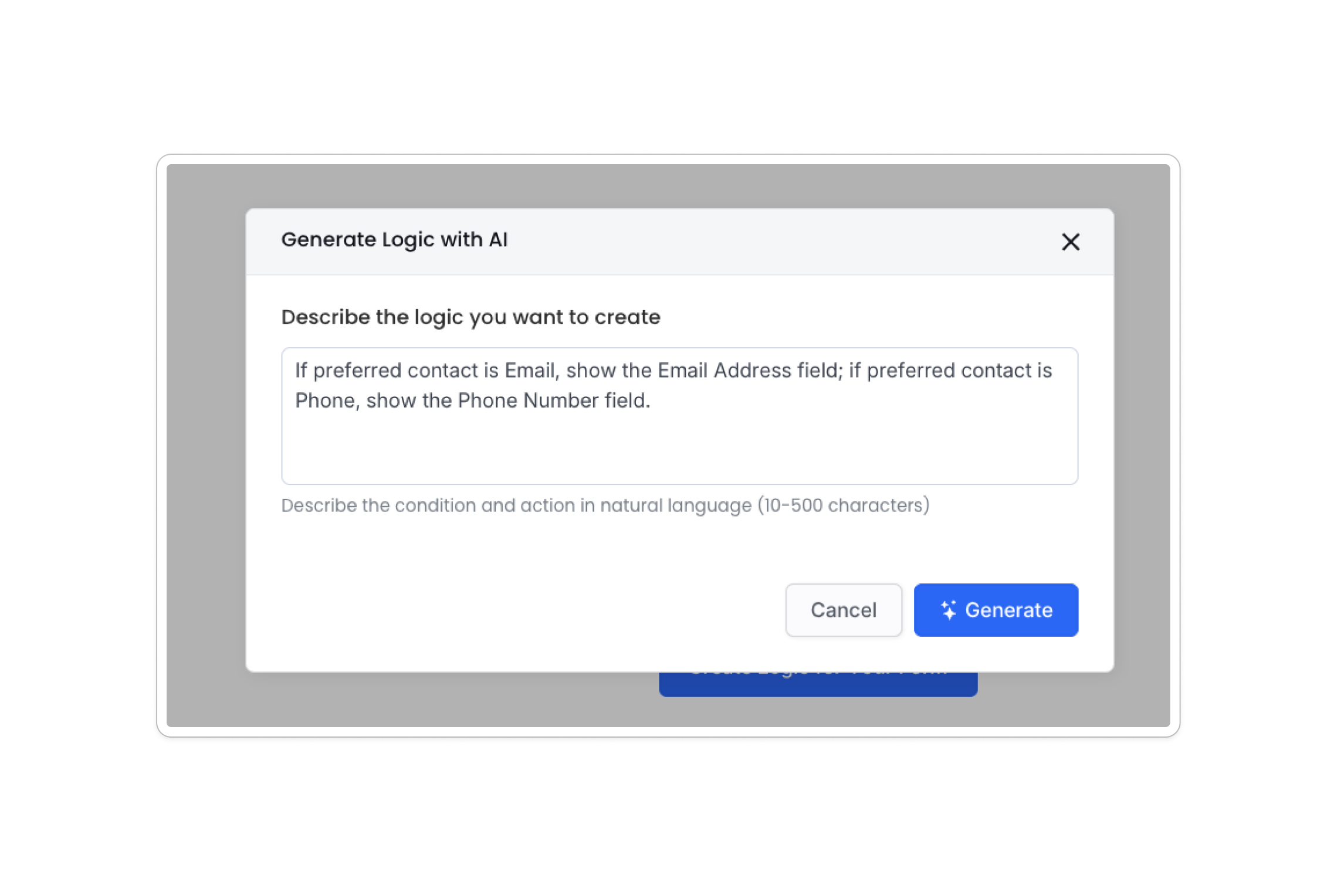
Generate logic with AI: Describe the rule in plain language, and PlatoForms creates the corresponding conditions and actions for you to review.
-
Edit logic as JSON: Technical users can review or edit a rule as JSON and import or export larger sets of rules.

Read More: How to Add Conditional Logic to Google Forms (And Its Limitations)
3. Save and resume depends on a Google account
The scenario: A new hire pauses an onboarding form to look up some information. You want them to return later without losing their answers, even if they do not have a Google account.
What you look for in Google Forms:
Google Forms automatically saves draft responses for 30 days when the respondent is signed in to a Google account. The respondent can reopen the same form with that account and continue, including on another device. Form owners can also disable draft autosaving.
This works well when respondents can sign in. For public forms or forms shared with customers, you may need a resume option that does not depend on a Google account.
PlatoForms provides two ways for respondents to resume supported forms:
-
Auto-save for invitations: When you send the form as a tracked invitation with Form is saved automatically on, each recipient’s progress is saved and comes back when they reopen their own invitation link.
-
Save for Later: A dedicated button gives the respondent a link to return and finish the form within the time you choose (60 days by default; 1 to 180 days, or never).


4. No native payment collection inside the form flow
The scenario: You run paid workshops. Your Google Form collects registration details and then directs users to an external payment link. Some complete the form but forget to pay. Others pay but don’t submit the form.
What you find in Google Forms:
Google Forms does not include a native payment field or Stripe integration. You can use a payment link or a third-party add-on. Add-on features, checkout behavior, payment tracking, and pricing vary by provider.
With a payment link, you may need to manually match form responses to payment records. Some add-ons can connect them, but Google Forms does not provide that connection natively.
On supported PlatoForms web forms, you can connect a submission to one Stripe, PayPal, or Square payment method. Embedded payment fields keep the payment step inside the form, while Stripe and Square also offer hosted checkout options. Stripe can show Apple Pay and Google Pay on supported browsers and devices: automatically with Stripe Checkout, and after a one-time domain setup with the embedded field.
Read more: How to Collect Payments with Google Forms: 3 Methods
5. Limited design flexibility between sections
The scenario: You’re building a quote request form and want a branded welcome step, a feature-selection step, and a clean contact step. In Google Forms, all sections share the same layout and theme.
What you see in Google Forms:
You can customize a header image, theme color, background color, and font styles in Theme settings. These apply across the form. Section-specific layout adjustments aren’t supported.
This may not meet workflows that need a different layout for each step.
Supported PlatoForms web forms offer Classic and Conversational display modes. In Conversational mode, you can also add a separate welcome screen.

For more details, see Switch to Conversational Form.
Quick comparison
| Feature | Google Forms | PlatoForms |
|---|---|---|
| Multi-page structure | Sections, with each section starting on a new page | Pages (Add Page), or page breaks in Web PDF Forms and Master Forms |
| Progress display | Optional progress bar with limited styling | Navigation bar with four styles |
| Branching conditions | Multiple-choice and dropdown questions | Conditions using supported text, number, date, checkbox, choice, and other fields |
| Save and resume | 30-day drafts for signed-in Google users; the owner can disable autosave | Auto-save for tracked invitations and a Save for Later link (60 days by default) |
| Payments | No native payment field; links and third-party add-ons are available | Stripe, PayPal, and Square on supported web forms |
| Layout options | One theme across the form | Classic and conversational layouts on supported web forms |
When Google Forms is the right tool
Google Forms is excellent for quick surveys, internal feedback, simple RSVPs, and short forms that require minimal branching. It’s fast, free, and tightly integrated with Google Workspace.
The differences above become more relevant when forms grow into multi-step lead qualification, payment, onboarding, or customer workflows.
What to consider in a Google Forms alternative
If you have encountered any of the scenarios above, a web form builder with the following features may be a better fit:
- Clear progress visibility
- Conditional logic across the field types your workflow uses
- Save and resume functionality
- Integrated payment collection
- Flexible design controls
Already using Google Forms? PlatoForms can import its questions, sections, and field types while leaving the original Google Form unchanged. Existing responses remain in Google Forms or Google Sheets.
Import your Google Form into PlatoForms for free, then add the navigation, logic, save options, or payment method your workflow needs.
Starting from scratch? Customize a client onboarding form template or start with a blank form.
Try PlatoForms with Your Own Form
Turn an existing PDF into an online form, or create a new form for your team.
Create your free PlatoForms account →


