

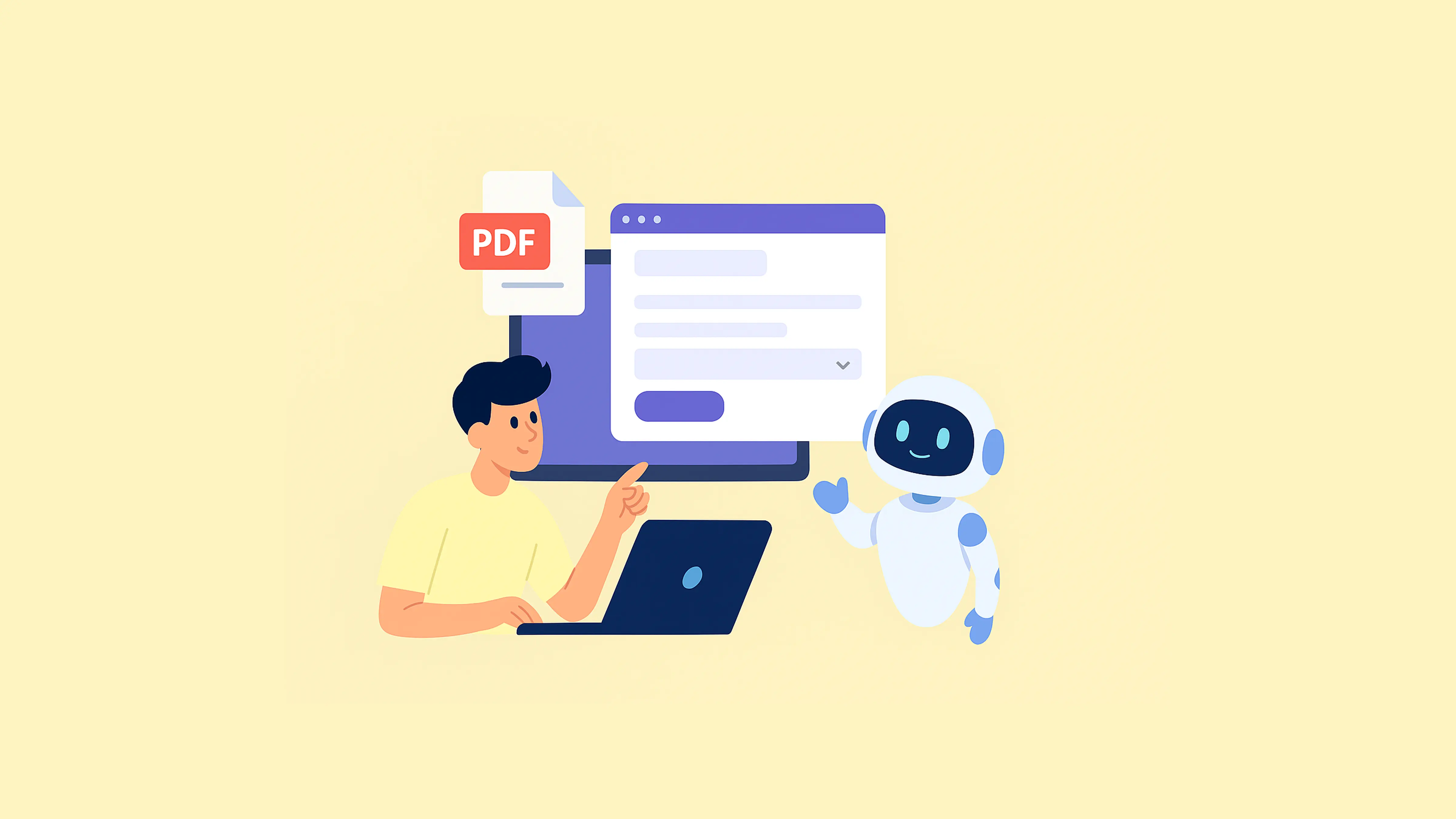
Turning a PDF into a form by hand feels like kerning every letter in a logo manually—painstaking, pixel-by-pixel, and totally unnecessary in 2025.
But we’ve got something better: AI Form Recognition in PlatoForms.
Upload your PDF. Click a button. Take a sip of water. Your form will be ready when you get back.
Want to skip the reading and see it for yourself? Upload a PDF here — no login needed.
In this blog:
What is AI form recognition?
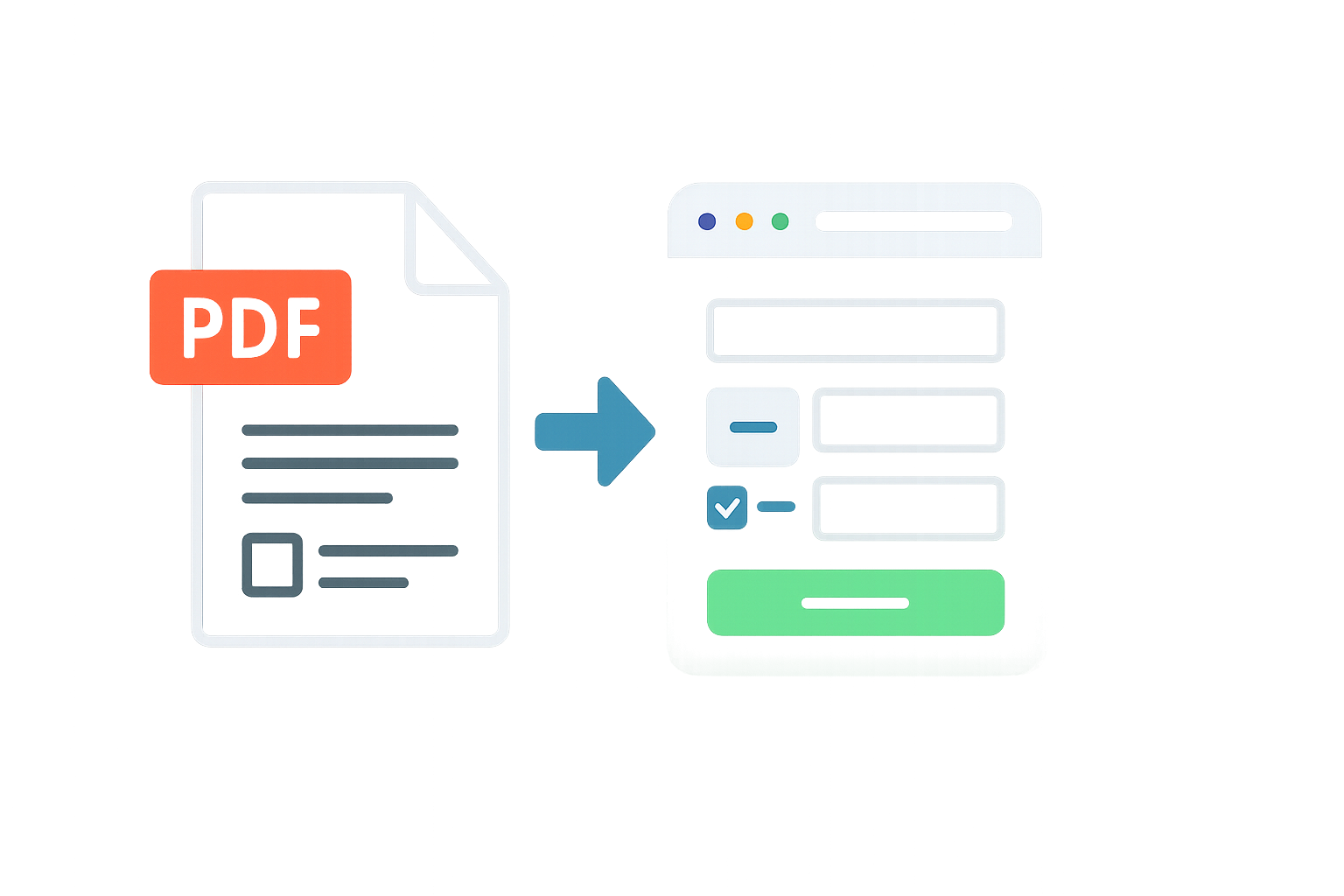
Here’s the scoop: our AI reads your PDF like it’s decoding a treasure map, then magically places all the form fields in the right spots. It figures out what’s a name field, what’s a checkbox, what’s a sad little line waiting to be a dropdown—and gives it life.
We’re talking:
- Text inputs? Done.
- Grouped choices? You got it.
- Labels and help text? It’s on it.
- Header sections? Even those.
It’s not a robot uprising—it’s a robot assistant. One that actually helps.
When should you use AI detection?
AI field detection is perfect when:
- You’ve got a short to mid-sized PDF form (under 10 pages)
- The layout isn’t a complete dumpster fire
- You just want to get stuff online quickly and move on with your day
It’s not ideal when:
- Your form is 47 pages long and includes a personality quiz, tax tables, and ancient scrolls.
- You’re doing heavy custom logic that’ll need full manual love anyway.
Let AI get you 80% there—you bring the finishing flair.
Step-by-step guide
Let’s go step-by-step. It’s easy, promise.
- Click “+ Start to build” on the PlatoForms Dashboard.
- Upload your PDF (new or old—it won’t judge).
- Choose your flavor:
- PDF Fillable Form = keeps the original layout
- Web PDF Form = rebuilds it with a fresh web look
- Click “Start Now” on the AI Recognition Bar. It’s big. It’s blue. It’s begging to be clicked.
- Load the form, make your tweaks, and boom—you’re in business.

Can’t find the bar? Click the ••• menu and hit AI Recognition Form. It’s hiding. Seek it.
Before vs. After: The glow-up
| Manual setup | AI-powered magic | |
|---|---|---|
| Time spent | 30-60 minutes | 30-60 seconds |
| Field matching | Hope and guesswork | Actually matched, somehow |
| Grouped choices | What group? | Smartly grouped, thank you AI |
| Help text | You typed it, again | AI already picked it up |
| Mood | 😤 | 😎 |
Pro tips to make AI love your PDFs
Want smoother results? Give AI some help up front:
- Use real labels. Not “____” or “———”. Like, actually write “Email”.
- Avoid messy formatting. If your PDF looks like spaghetti, AI might get confused.
- Small batches win. Break giant forms into smaller sections if possible.
- Review your work. AI’s good, but you’re the director.
Messed something up? Use Version History to go back in time. No time machines needed.
You’re still the boss
AI might be doing the field-detecting thing, but you’re still in control:
- Want to change a text field to a dropdown? Do it.
- Want to rearrange everything? Absolutely.
- Want to delete half the fields and start over? Go wild.
- Want to revert back? We got History for that.
AI helps you skip the boring part—not the creative part.
Wanna see it?
Watch our short demo video and witness the magic happen:
It’s short, sweet, and weirdly satisfying.
Why this actually matters
Think about all the time you’ve spent building forms. Like, really think about it.
Now imagine:
- Not doing that anymore
- Spending that time on stuff that matters
- Never dragging a single field again unless you want to
That’s what AI form recognition is about. It’s not just faster—it’s freeing.
You upload. AI builds. You tweak. Done.
Try it now — No login required
For real. Drag in a PDF and watch the magic.
Still not convinced? That’s fair. But don’t take our word for it—try it yourself.
Wanna get the big-picture breakdown of how AI forms are changing work? Read AI Is Everywhere—So Why Aren’t We Using AI for Forms?
4 things You might be wondering about AI recognition
Let’s wrap things up with a few smart questions we hear all the time—stuff that isn’t obvious unless you’ve tried it.
- Does the AI get everything right the first time?
Almost! It’s great at detecting the basics—name fields, emails, checkboxes, etc.—and usually gets the layout too. But a quick review never hurts. Think of it as a smart assistant, not a mind reader.
- Which kinds of PDFs work best with this?
Keep it clean and clear. Short forms (under 10 pages) with labeled fields are ideal. If your PDF looks like it was built in 2003 with Comic Sans and invisible lines… maybe don’t expect miracles.
- What if I don’t like the result? Can I undo it?
Yup! We’ve got Version History. You can undo, redo, or totally reset your form without breaking a sweat. No worries if AI over-enthusiastically drops a few too many fields.
- Can I test this without creating an account?
Absolutely. Head to our homepage, upload a PDF, click that shiny blue button, and boom—you’re in. No sign-up. No commitment. Just you and your robot intern.


