
Find trending topics and quick answers here
Hi, how can we help?
What are the different form types in PlatoForms?
Question
What are the different form types in PlatoForms?
Answer
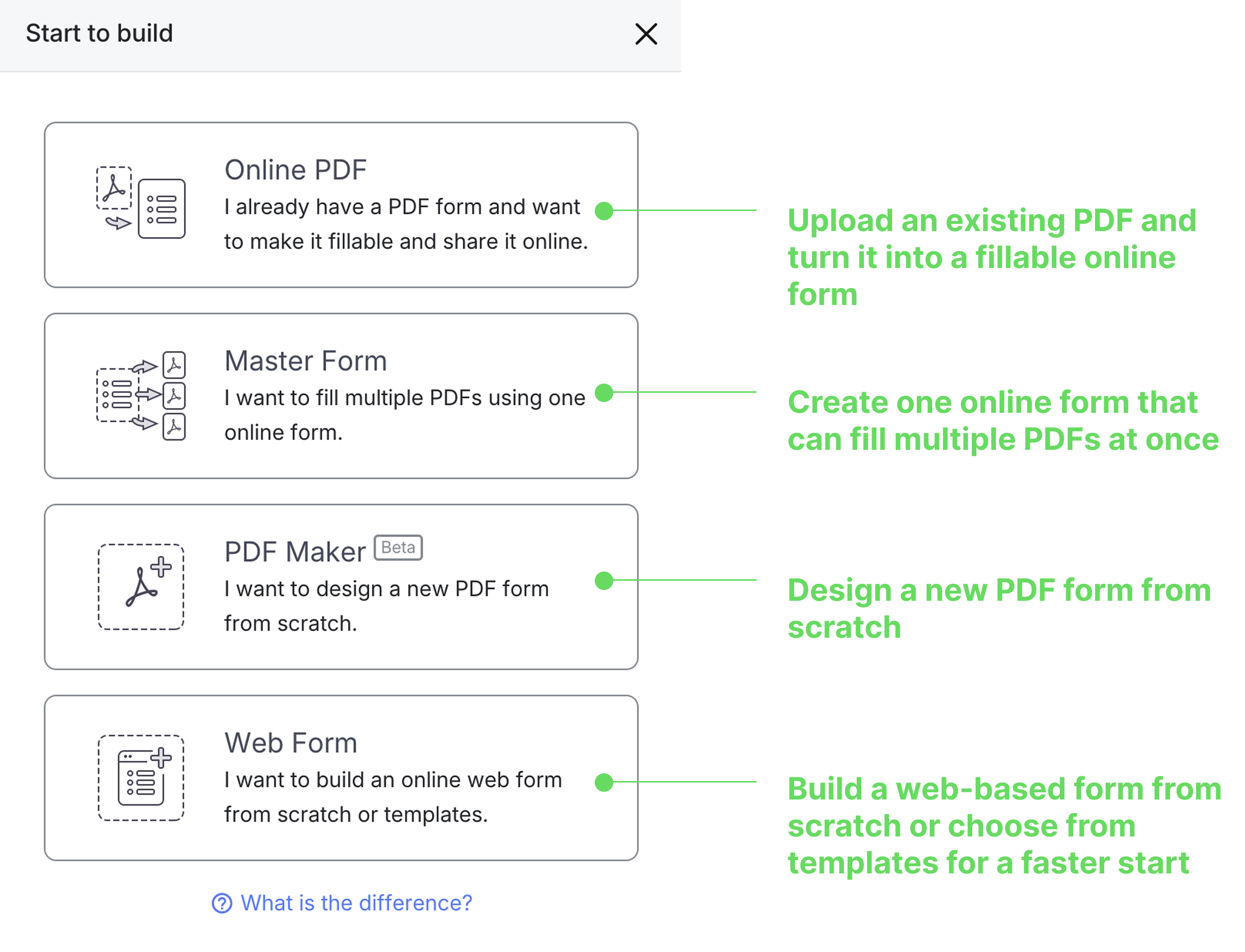
PlatoForms offers 4 form types when you click “Start to build” in your dashboard.
| Form Type | When to Use | Best For |
|---|---|---|
| Create Online Form for an existing PDF | You have a PDF to convert | Preserving exact PDF layout |
| Create Master Form for multiple PDFs | You need to reuse data across multiple forms | Managing similar forms efficiently |
| Create PDF Form from scratch | You want to design a new PDF | Custom PDF creation |
| Create Web Form from scratch | You want a modern web form | Mobile-friendly, responsive design |
Quick selection guide
-
Have an existing PDF? → Choose “Create Online Form for an existing PDF”
-
Need multiple similar forms? → Choose “Create Master Form for multiple PDFs”
-
Want mobile-optimized forms? → Choose “Create Web Form from scratch”
-
Need a custom PDF design? → Choose “Create PDF Form from scratch”
Speed up PDF conversion with AI
If you’re working with existing PDFs (the first two options above), PlatoForms can automatically detect and set up your form fields using AI recognition.
Here’s what happens:
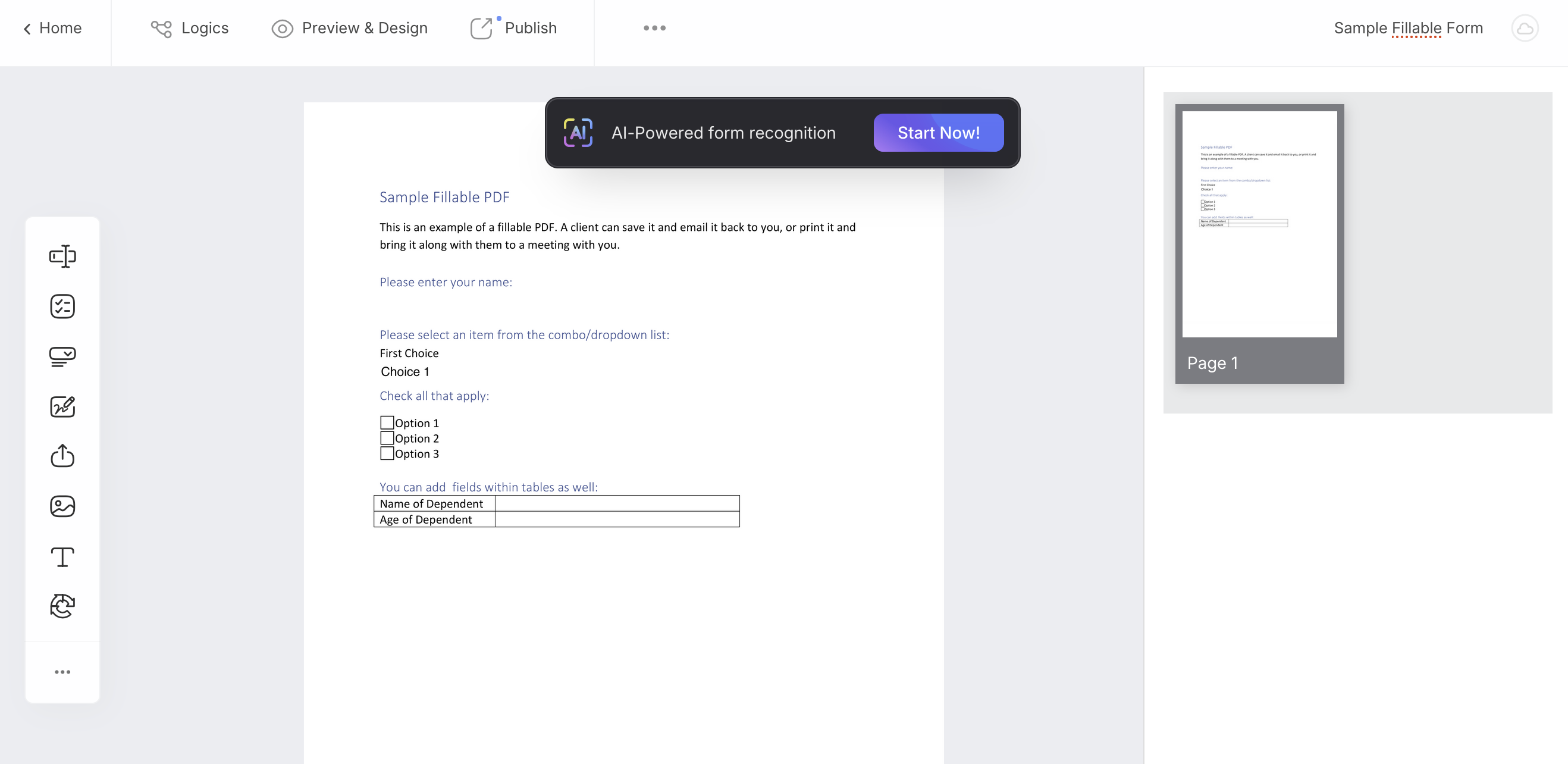
After uploading your PDF, you’ll see an “AI-Powered form recognition” bar. Click “Start Now” and watch as PlatoForms intelligently identifies your fields, matches labels, and even detects headers and help text.
The difference is pretty impressive:
-
Without AI: Basic field detection, mismatched labels, manual grouping required
-
With AI: Smart field recognition, proper grouping, accurate labels automatically
Works best for: Small to medium forms. For very large forms (10+ pages), you might want to do some manual fine-tuning.
Missed the AI bar? No problem—find “AI Recognition Form” in the ••• menu anytime.
Examples with AI recommendations
| Your Need | Choose This | AI Tip |
|---|---|---|
| Convert government application PDF | Create Online Form for an existing PDF | ✅ Try AI first—saves tons of time |
| Employee onboarding with multiple forms | Create Master Form for multiple PDFs | ✅ AI handles repetitive field detection |
| Customer survey for mobile users | Create Web Form from scratch | Build from scratch instead |
| Design new contract form | Create PDF Form from scratch | Design your layout first |
Where to find these options
-
Click the blue “Start to build” button in your dashboard.
-
Select from the 4 options shown.
-
For PDF conversions, look for the AI recognition bar after upload.
💡 Pro tip: AI recognition can turn a 30-minute setup into a 5-minute task. Always worth trying on PDF forms!
Need More Help?
Check out our full FAQs page or contact support for assistance.