

Google Forms has long been known for its simplicity.
In mid-2025, Google took a major step forward by integrating Gemini AI, allowing users to generate forms using natural language prompts.
For quick surveys or internal questionnaires, this can be a real time-saver.
But like most AI-assisted tools, it works best within certain boundaries.
In this article, we’ll cover:
- What Google Forms AI (Gemini) does and when it was released
- The three core AI features now available
- How to use each feature with practical examples
- Key limitations based on real-world usage
- And what to consider when AI-generated forms aren’t enough
TL;DR
- Google Forms with Gemini AI excels at: Quick surveys, internal forms, and rapid prototyping through natural language prompts.
- Works within constraints: Generates content-focused forms in Google’s standard format—not designed for PDF layout preservation, advanced branding, or complex multi-step workflows.
- Best approach: Use Google Forms AI for speed and simplicity. For specialized needs (PDF conversion, custom design, workflow automation), consider purpose-built tools.
- This guide covers: How Gemini in Google Forms works, access requirements, practical examples, current scope, and how to evaluate if it fits your use case.
What Is Google Forms AI (Gemini)?
Official Timeline: When Gemini Came to Google Forms
Google rolled out Gemini AI capabilities to Google Forms in a phased release throughout 2025, as announced on the official Google Workspace Updates blog:

June 10, 2025 – Response Summarization
The first AI feature launched, allowing users to automatically generate summaries of open-ended form responses using Gemini’s context analysis.
June 11, 2025 – “Help me create” Form Generation
This feature enables users to describe their desired form in natural language or reference existing Google Docs, Sheets, Slides, or PDFs—and Gemini generates a complete draft form structure.
August 5, 2025 – AI Question Suggestions
The newest feature helps users expand existing forms by suggesting 2-4 relevant questions based on current form content.
These features are available to Google Workspace users with eligible plans including Gemini Business, Gemini Enterprise, Gemini Education, and Google One AI Premium subscribers (as detailed in Google’s official help documentation).
The Three Core Gemini AI Features in Google Forms
1. Response Summarization
What it does:
Analyzes short-answer and paragraph responses to identify key themes and takeaways.
How it works:
Gemini uses the form’s title, description, question text, and all submitted responses to generate a coherent summary—eliminating the need to manually review hundreds of open-ended answers.
Best for:
- Customer feedback analysis
- Post-event surveys
- Employee satisfaction checks
- Any form with open-ended questions generating substantial text responses
Example use case:
After running a customer satisfaction survey with 200 responses to “What could we improve?”, click the summarize button to get an instant overview of recurring themes like “shipping speed,” “product packaging,” or “customer service response time.”
2. “Help Me Create” – AI Form Generation
What it does:
Generates a complete draft form from a text prompt or by analyzing referenced documents.
How it works:
You provide either:
- A text description: “Create a customer feedback survey for an online store”
- Referenced files: “Create a registration form based on this PDF application”
Gemini then generates:
- Appropriate question types (multiple choice, checkboxes, short answer, etc.)
- Question text and answer options
- Multi-section forms when complexity requires it
- Basic form structure ready for customization
Practical examples from Google’s documentation:
Simple prompt:
“Create a simple RSVP form for a neighborhood potluck, collecting name, allergy info, and what dish they’ll bring.”
Detailed prompt:
“Create an event planning form for a weekend yoga retreat. Include options for accommodation preferences (shared or private room), dietary restrictions, and interest in optional add-on activities. Make sure you have one question which asks which weekend in April 2025 works best for potential attendees.”
Current limitations:
- Quiz-specific settings are not yet generated automatically
- Multi-section forms may require manual restructuring
- The feature is currently available only in English
- Available only on desktop (not mobile)
3. AI Question Suggestions
What it does:
Suggests 2-4 new relevant questions based on existing form content.
How it works:
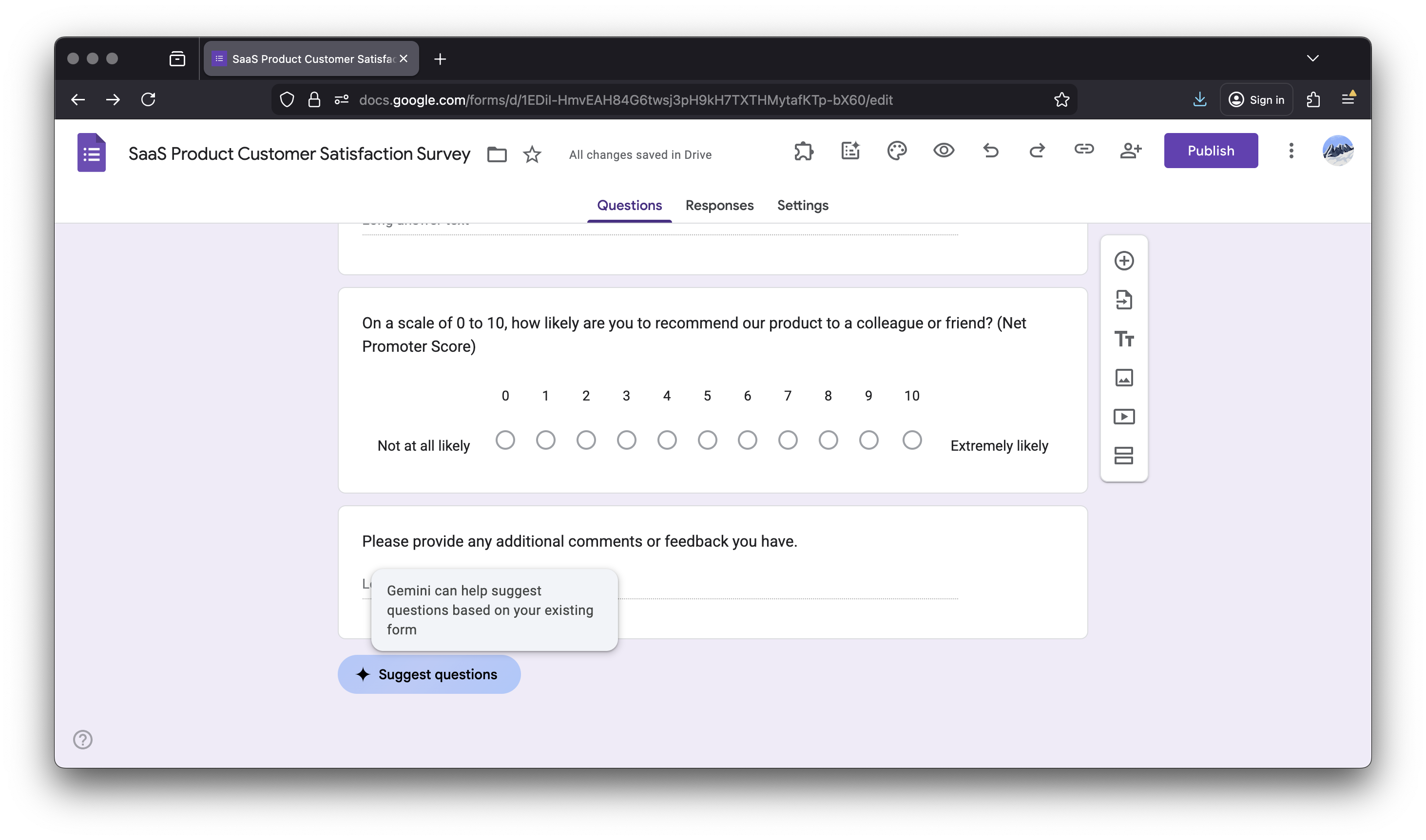
Once your form has at least two questions, the “Suggest questions” button appears at the bottom. Click it, and Gemini analyzes your current questions to generate contextually relevant additions with appropriate question types and answer options.
When it’s useful:
- You’ve started a form but feel something is missing
- Ensuring comprehensive coverage of a topic
- Getting unstuck when you’re not sure what to ask next
- Discovering angles you hadn’t considered
Example:
You create a simple event registration form asking for name and email. Gemini might suggest:
- “Do you have any dietary restrictions?” (Short answer)
- “How did you hear about this event?” (Multiple choice with options)
- “Will you need parking?” (Multiple choice: Yes/No)
Current limitations:
- Only generates 2-4 suggestions at a time
- Doesn’t work on forms with fewer than 2 questions
- Quiz-specific settings aren’t included in suggestions
- Multi-section forms not fully supported
How to Use Google Forms AI: Step-by-Step
Creating a Form with “Help me create”
Before you begin: You’ll need to join the Google Workspace Labs program with a personal Gmail account and set your account language to English (US) to use AI in Google Forms.
-
Go to forms.google.com.
-
Click Blank form.

-
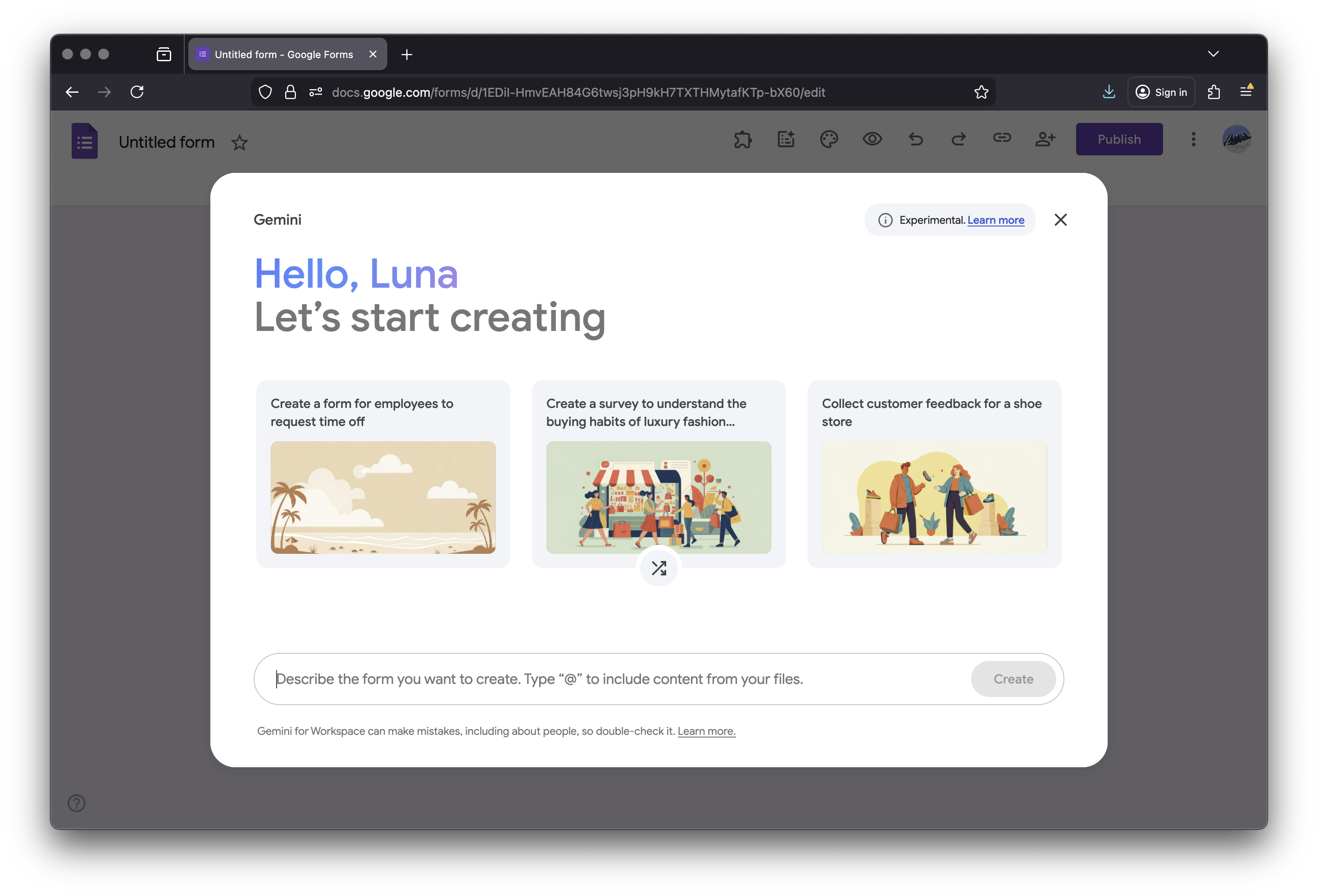
In the pop-up (which may open automatically on a blank form), enter your prompt describing the form you need.
-
Click Create > Create form.
-
Review the generated form.
-
Edit, remove, or reorder questions as needed.


Pro tip: More detailed prompts yield better results. Instead of “customer survey”, try “customer satisfaction survey for SaaS product covering ease of use, support experience, feature requests, and likelihood to recommend.”
Getting Question Suggestions
-
Open an existing form with at least 2 questions.
-
Scroll to the bottom of the form.
-
Click “Suggest questions”.
-
Review the 2-4 generated suggestions.
-
Select the ones you want to add.
-
Click to insert them into your form.

Summarizing Responses
-
Open a form that has received responses.
-
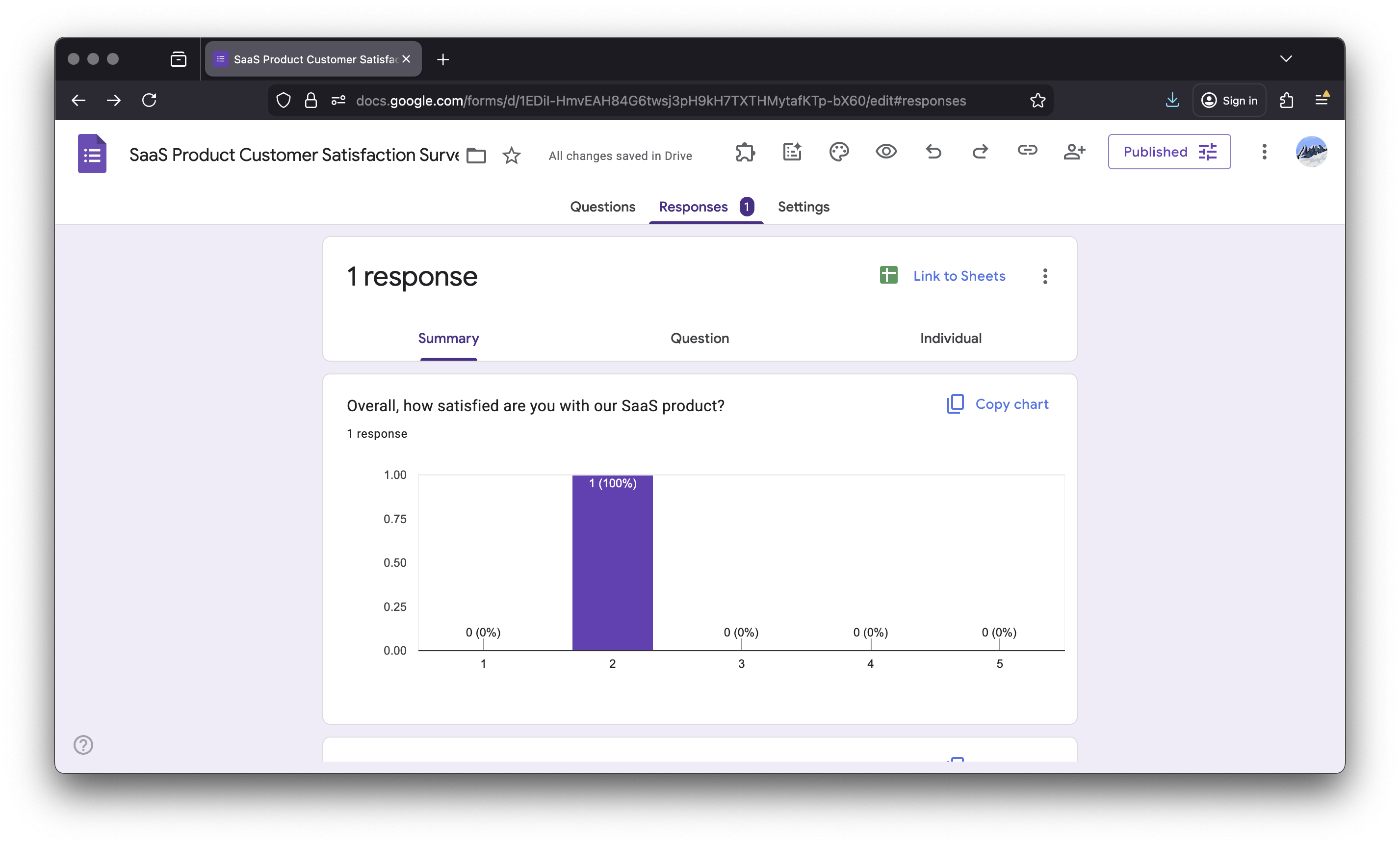
Go to the “Responses” tab.
-
For short-answer or paragraph questions, look for the summarize option.
-
Click to generate an AI summary.
-
Review key themes and takeaways.

Understanding Gemini’s Approach: What Makes It Work
According to Google’s official announcement, Gemini’s form generation capability is designed to help users “get started with creating high quality forms much faster and save valuable time.”
The AI considers:
- Context from your prompt – The more specific you are, the better the output
- Referenced document content – Can analyze PDFs, Docs, Sheets, and Slides to understand requirements
- Form best practices – Uses appropriate question types for different data collection needs
- Logical question flow – Attempts to order questions in a natural sequence
However, as noted in the official documentation, “Google Workspace with Gemini is constantly learning and may not be able to support your request.” This means results can vary, and you may need to click “Retry” to get different suggestions.
Limitations of Google Forms AI
1. Limited Layout and Design Control
Google Forms AI focuses on content generation, not presentation.
What you can’t control:
- Complex layouts beyond linear question sequences
- Brand-specific styling (color schemes, fonts, logos beyond basic theming)
- Multi-column arrangements
- Document-like layouts that match existing paper forms
- Advanced conditional logic during initial generation
For organizations needing forms that match official documents, maintain specific branding, or provide complex user experiences, the AI-generated structure is just a starting point requiring significant manual work.
2. English-Only and Desktop-Only
As explicitly stated in Google’s announcements:
- All Gemini features in Google Forms are currently available only in English
- “Help me create” is available only on desktop, not mobile devices
- This limits accessibility for international teams and users who primarily work on tablets or phones
3. Quiz and Assessment Limitations
Gemini doesn’t currently handle:
- Quiz-specific settings (answer keys, point values, feedback)
- Automatic grading configuration
- Question banks or randomization
- Advanced quiz features
Teachers and trainers need to manually configure these after generation.
4. Complex Conditional Logic Not Generated
While Google Forms supports conditional branching (“Go to section X based on answer”), Gemini doesn’t create this logic automatically. You’ll need to:
- Manually set up section routing
- Configure question visibility rules
- Design multi-path experiences yourself
This means long, complex forms with different paths for different users still require significant manual setup.
5. No Support for Existing PDF Layouts
This represents a critical gap for many organizations.
Real-world forms often exist as approved PDFs:
- Government forms with specific regulatory layouts
- Legal agreements requiring exact formatting
- HR documents with signature blocks and specific sections
- Medical intake forms with precise field placement
- Tax documents with mandated structures
Google Forms AI cannot:
- Import a PDF and preserve its layout
- Maintain specific field positioning
- Replicate signature blocks or legal text placement
- Convert PDF checkboxes to functionally equivalent form elements
If your organization has approved PDF forms that cannot be redesigned, you need a different solution that can convert the actual PDF into a fillable online version while maintaining compliance with the original document.
6. Limited Context Understanding
While Gemini can reference Drive files, it has limitations:
- May not fully understand complex organizational requirements
- Doesn’t access your form usage history or analytics
- Can’t learn your team’s specific naming conventions or question patterns
- Doesn’t integrate with external databases or CRM systems for prepopulation
When Google Forms AI Is No Longer Enough
Three Common Scenarios
Scenario 1: You Have an Approved PDF That Cannot Change
Many organizations face this: official forms with legal, compliance, or branding requirements that mandate the exact layout, formatting, and structure remain intact.
Solution needed: Convert the PDF itself into an interactive, fillable online form without redesigning it. This maintains compliance while gaining digital benefits like automatic data collection and validation.
Scenario 2: You Need Professional, Branded User Experiences
AI-generated forms work for internal use, but external-facing forms often need:
- Custom branding that matches your website
- Mobile-optimized layouts for better completion rates
- Progress indicators for multi-step processes
- Integration with payment processing or scheduling systems
Solution needed: Custom web forms built from scratch with design flexibility and advanced functionality.
Scenario 3: You Want to Start Quickly Without Writing Prompts
Sometimes writing the perfect AI prompt takes as long as building the form itself. For common use cases like events, registrations, HR processes, or customer feedback, pre-built templates can be faster than AI generation.
Solution needed: Template libraries with proven form structures you can customize.
Summary Table
| Need / Scenario | Google Forms AI | PlatoForms |
|---|---|---|
| Preserve PDF layout | ❌ No | ✅ Yes |
| Branded, professional UI | ❌ Limited | ✅ Full control + conversational |
| Complex workflows | ❌ Not generated by AI | ✅ Multi-step workflow builder |
| Templates for fast setup | ❌ Basic | ✅ 1,000+ templates |
| Signature fields on PDFs | ❌ Cannot preserve | ✅ Native |
| Conditional logic | ❌ Manual only | ✅ Visual builder |
| Payment collection | ❌ Not built-in | ✅ Stripe/Other third-party tools |
How PlatoForms Addresses These Gaps
While Google Forms AI excels at quick generation of simple surveys, PlatoForms is designed for scenarios where generation alone isn’t sufficient.
For preserving official documents:
Convert existing PDFs into fillable online forms without altering their layout or design—maintaining compliance while gaining digital benefits. Learn more about fillable PDF forms.

For custom, professional experiences:
Build fully customized web forms with complete design control, advanced logic, payment integration, and mobile optimization. Explore custom web forms.
For rapid deployment:
Browse ready-to-use templates for events, surveys, HR, registrations, and more—no prompt writing required. View template gallery.

Making the Right Choice for Your Needs
Use Google Forms AI when:
- Creating simple internal surveys
- Brainstorming form structure quickly
- Working with small teams on informal data collection
- Time is more important than appearance
- You’re comfortable with basic Google Forms styling
Consider alternatives when:
- You have existing PDF forms that must maintain their layout
- External users need professional, branded experiences
- You need advanced conditional logic configured automatically
- Compliance or legal requirements mandate specific formatting
- Integration with other systems (payment, CRM, calendars) is required
- Multi-language support is essential
Practical Tips for Better Results with Gemini
Based on Google’s documentation and user experience:
-
Be specific in prompts – Instead of “event form,” say “corporate conference registration form collecting attendee name, company, job title, dietary restrictions, session preferences, and t-shirt size”
-
Reference relevant files – If you have an outline, agenda, or previous form in Drive, reference it for better context
-
Expect to iterate – Use the generated form as a draft, not a finished product. Plan to refine questions, adjust wording, and add logic
-
Leverage question suggestions – Even if you don’t use all suggestions, they can spark ideas you hadn’t considered
-
Provide feedback – Google explicitly asks users to rate generated forms with thumbs up/down to improve the system
Looking Forward: The Evolution of AI-Assisted Forms
Google’s integration of Gemini into Forms represents a broader trend: AI handling initial creation to accelerate workflows.
As noted in recent Google AI announcements, the company is rapidly expanding Gemini’s capabilities across all Workspace apps. Future updates to Forms may include:
- Multi-language support for AI features
- More sophisticated conditional logic generation
- Better understanding of organizational context
- Integration with other Gemini-powered tools for end-to-end workflows
However, as AI handles more of the initial creation, the gap widens between “generated” and “production-ready.” Organizations increasingly need tools that bridge this gap—whether through better templates, PDF conversion capabilities, or fully custom form builders.
Final Thoughts
Google Forms AI lowers the barrier to creating forms and accelerates the initial drafting process. The phased rollout of response summarization, form generation, and question suggestions throughout 2025 demonstrates Google’s commitment to integrating AI throughout the form creation workflow.
But real-world forms aren’t just questions—they’re documents, workflows, and records that often carry legal, compliance, or branding requirements beyond what generation alone can handle.
For simple surveys and internal data collection, Gemini in Google Forms is genuinely useful. For everything else, it’s worth understanding what comes next: preserving official layouts, designing professional experiences, or deploying proven templates.
Whether you continue with AI-generated Google Forms or need more advanced solutions, the key is choosing tools that match your actual requirements—not just what’s easiest to create.
Additional Resources
Official Google Documentation:
- Create a form with Gemini in Google Forms – Official help guide
- Google Workspace Updates Blog – Latest feature announcements
- Gemini for Google Workspace plans – Pricing and availability
Alternative Solutions:
- PlatoForms Feature Overview – Including AI form tools, PDF-to-web conversion, AI field recognition, Conversational forms, multi-step workflows, Master Forms, templates, integrations, and advanced submission management.
- Create Fillable PDF Forms Online – For preserving existing document layouts
- Custom Web Form Builder – For designing professional, branded forms
- Template Gallery – Ready-to-use form templates
Last updated: January 2025 based on official Google Workspace announcements through December 2025.