

You’ve built your form. Now you need to collect payment. Simple enough—except you’re staring at a list of payment options and wondering: do I need all of these? Will my users even have Apple Pay? Is a credit card form enough?
But choosing the right payment method isn’t always straightforward—it depends on who’s filling out your form and where.
This guide breaks down the real differences between Apple Pay, Google Pay, and traditional credit card fields—and helps you decide which combination makes sense for your specific use case.
A Quick Overview of Each Option
Apple Pay, Google Pay, and traditional credit card payments are three of the most common online payment methods used in forms and checkout pages today.
Digital wallets let users pay using stored card credentials on their devices, while credit card payments require manually entering card details into a payment form.
Each option involves trade-offs in convenience, security, and compatibility.
Before looking at specific use cases, let’s quickly break down how each payment method works.
Apple Pay lets users pay using the card stored in their iPhone, Mac, or iPad—authenticated with Face ID, Touch ID, or a passcode. It works on Apple devices in Safari and other WebKit-based browsers such as Chrome on iOS. Under the hood, Apple uses tokenization: when a card is added, the device contacts the issuing bank directly and receives a unique device-specific token (called a Device Account Number) stored on a secure chip. Apple’s servers never see your card details, and Apple doesn’t track individual transactions.
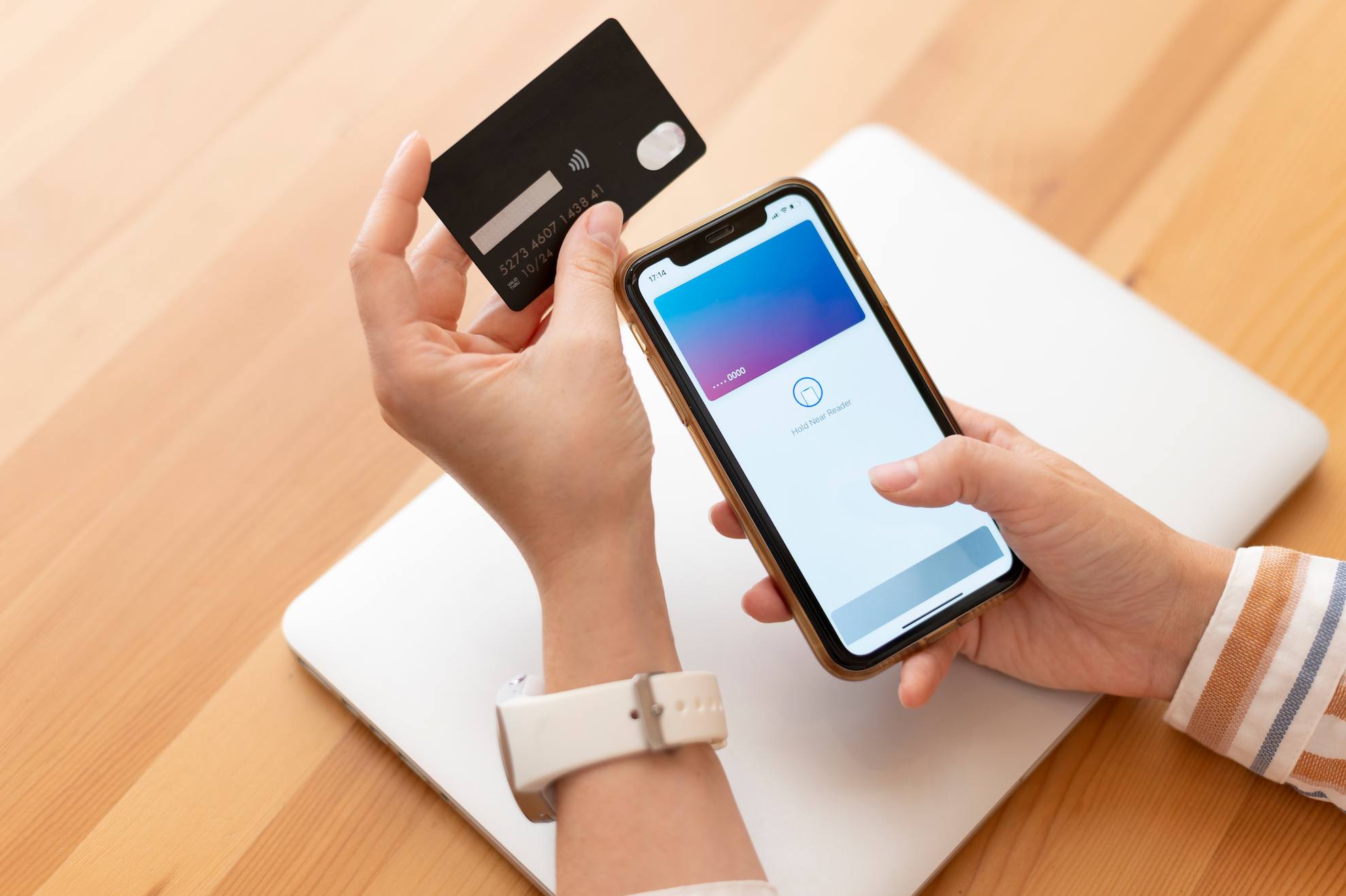
Google Pay works across Android devices and Chrome browsers for online payments, and also supports NFC for in-store transactions. Users pay with cards saved to their Google account, confirmed with a fingerprint or PIN. Unlike Apple, Google acts as an intermediary—it stores card details on its own servers and issues a virtual card to your device. The vendor only ever sees that virtual card number, never your real card. Google may use aggregated transaction signals to improve services, but payment details are not shared with merchants or advertisers.
How the security flow actually works, side by side:
| Apple Pay | Google Pay | |
|---|---|---|
| Step 1 | User adds card → device contacts issuing bank | User adds card → card info sent to Google servers |
| Step 2 | Bank issues a Device Account Number (DAN) stored on a secure chip | Google securely stores card credentials and provides a tokenized card number for transactions |
| Step 3 | At checkout, the DAN is passed to the merchant | At checkout, the virtual card number is passed to the merchant |
| Step 4 | Bank authorizes the DAN directly | Merchant charges the tokenized card number → processed through the card network → issuing bank authorizes |
| Who sees your real card? | Only your bank | Google or the card network (depending on tokenization method) |
| Does the platform track transactions? | No | Yes (aggregated data used to improve services) |
(For a visual diagram of this flow, ByteByteGo has a clear side-by-side illustration worth bookmarking—though note their content is licensed for non-commercial use only.)
One thing all three have in common for your users: none of them charge consumers a fee to pay. Apple Pay earns from issuing banks; Google Pay earns from vendors and ad revenue. Your users pay nothing extra for using a wallet over a credit card.
Note on Google Pay P2P: As of June 2024, Google discontinued peer-to-peer payments via Google Pay in the U.S. This doesn’t affect its use as an online checkout method—it still works fine in forms—but it’s worth knowing if your users expect to send money to each other through it.
Credit card (via Stripe) is the classic option: a form with fields for card number, expiry date, CVV, and sometimes a billing address. It works on every device, in every browser, for every user who has a card. Platforms like PlatoForms allow businesses to accept Apple Pay, Google Pay, and credit cards directly in online forms through Stripe. Stripe processes over $1 trillion in payments annually and powers payments for businesses ranging from startups to Fortune 500 companies. For online form builders, it has become the de facto standard.
The Core Trade-Off: Convenience vs. Universality
Apple Pay and Google Pay are faster, while credit cards remain the most universally supported payment method.
Digital wallets like Apple Pay and Google Pay win on speed and low friction. A user on their iPhone can complete payment in two taps—no typing, no squinting at a tiny card number field.
Studies consistently show that reducing checkout steps has a direct impact on your bottom line. The Baymard Institute found that 18% of users abandon checkout specifically because the process is too long or complex.
But there’s a catch: Apple Pay primarily works on Apple devices in Safari. Google Pay has broader reach but still requires the user to have set it up. If someone hasn’t linked a card to their wallet—or if they’re on a desktop browser that doesn’t support it—they’ll need to fall back to manual card entry.
Credit cards, on the other hand, work universally. They’re slower and require more effort, but they don’t exclude anyone.
When to Prioritize Apple Pay and Google Pay
Offer digital wallets as your primary or featured payment option when:
- Your audience is mobile-first. If most of your form submissions come from phones (check your analytics), digital wallets dramatically reduce drop-off. Mobile users hate typing in 16-digit card numbers.
- The transaction is small or impulse-driven. Event registrations, donations, one-time fees—anything where a frictionless experience matters. The easier you make it to pay, the more people will follow through.
- You’re collecting payment at the end of a long form. If someone just spent five minutes filling out a registration form, the last thing they want is to hunt for their wallet. A one-tap checkout is a relief.
- Your brand skews toward tech-savvy or younger demographics. These users are far more likely to have Apple Pay or Google Pay already configured.
👉 See how PlatoForms enables Apple Pay and Google Pay on your forms
When to Prioritize Credit Card
Make credit card your primary or only option when:
- Your audience includes older demographics or non-technical users. Many people simply haven’t set up digital wallets and would be confused or frustrated if that’s all you offered.
- Transaction amounts are large. For enterprise invoices, multi-hundred-dollar registrations, or anything where users want a paper trail and explicit control, credit card feels more trustworthy. Users want to see exactly what they’re authorizing.
- You need billing address or detailed receipt information. Digital wallets don’t always surface this. If your accounting team needs full billing details, credit card forms give you that data reliably.
- Your form is embedded on desktop-first platforms. If your audience is primarily on Windows machines using Chrome or Firefox, Apple Pay won’t even appear for most of them.
- You’re in a B2B context. Business purchasers often use corporate cards that aren’t stored in personal wallets, and may need to enter specific billing details that match their company accounts.
👉 Build a payment form with credit card support
Apple Pay vs Google Pay vs Credit Card: Quick Comparison
| Feature | Apple Pay | Google Pay | Credit Card |
|---|---|---|---|
| Speed | Very fast | Very fast | Slower |
| Setup required | Apple device | Google account | None |
| Device compatibility | Apple only | Android + Chrome | Universal |
| Best for | iPhone users | Android users | Everyone |
The Case for Offering All Three
The good news: you don’t have to choose. But if you’re deciding how to prioritize payment methods, the following framework can help.
PlatoForms supports Apple Pay, Google Pay, and credit card through Stripe—and you can enable all of them simultaneously. When you do, your payment field automatically shows the options that work for each user’s device and browser. An iPhone user in Safari sees Apple Pay at the top. An Android user sees Google Pay. A desktop user on Firefox just sees the credit card form.
This approach—sometimes called a “smart payment” setup—means you’re never leaving conversions on the table. You’re not forcing a mobile user to type a card number when they could tap to pay, and you’re not excluding desktop users who don’t have a wallet configured.
The only time you’d want to limit options is if simplicity matters more than coverage—for example, a very specific internal form where you know exactly who’s submitting and want to reduce visual clutter.
A Practical Decision Framework
| Your Situation | Recommended Setup |
|---|---|
| Mobile-first audience, small transactions | Apple Pay + Google Pay as primary, credit card as fallback |
| Mixed audience, general use | All three (let the platform detect what’s available) |
| Desktop-first, B2B, or large amounts | Credit card primary, wallets as optional |
| Internal forms, known audience | Credit card only (simplest) |
| Donation or event registration forms | All three—maximize completion rate |
👉 Start building your payment form — free 15-day trial
How PlatoForms Handles This
PlatoForms uses a single Stripe Payment widget that manages all three payment methods in one field. A few things worth knowing about how it works in practice:
All three methods, one widget. Drag the Stripe Payment widget onto your form, connect your Stripe account, and you’re done. Apple Pay and Google Pay appear automatically for users whose device and browser support them. Everyone else sees the credit card fields. No conditional logic required. For full setup instructions, see the PlatoForms Stripe integration guide.
No extra transaction fees. PlatoForms doesn’t charge any additional fees on top of Stripe’s standard rates. You pay Stripe’s processing fee—nothing more.
Security handled by Stripe. Card data never touches PlatoForms’ servers. All payment information is processed directly through Stripe’s PCI-compliant infrastructure, the same security layer used by Amazon, Uber, and Reddit.
Dynamic pricing. If your form calculates a total based on user selections—different ticket tiers, add-ons, variable quantities—you can link the payment widget directly to a calculation field. The amount updates in real time as users fill out the form, and the {{pricing}} tag in your payment label reflects the live total. No hardcoded prices, no risk of charging the wrong amount.
Automatic receipt emails. Connect the widget to your form’s email field and payment confirmations go out automatically on every submission. No manual follow-up, no “did my payment go through?” messages from respondents.
Test mode before going live. The widget has two separate Stripe connections—one for live payments, one for test mode. You can run through the entire checkout flow with simulated transactions before your form is published, without touching real card data.
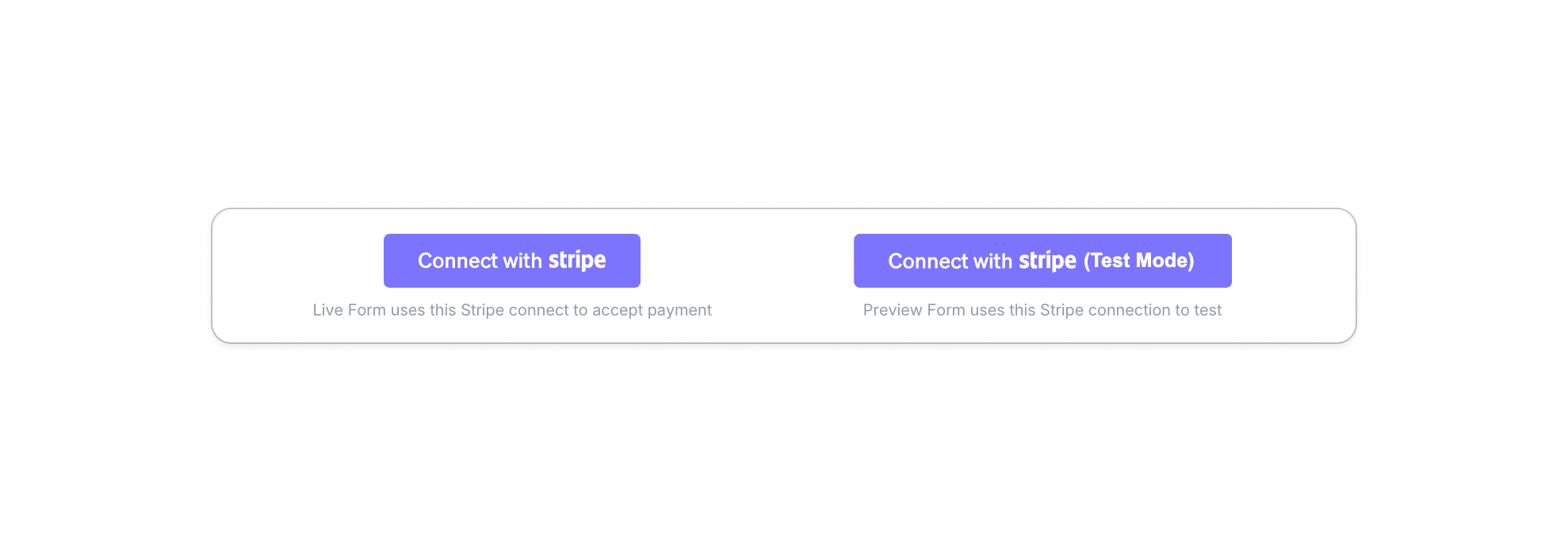
Apple Pay domain setup. Google Pay works as soon as your Stripe account is connected. Apple Pay requires a one-time step: add your form’s domain to your Stripe dashboard under Settings > Payment methods > Payment method domains. Once done, Apple Pay appears automatically on Safari and iOS—no code required.
If you’re building a registration form, order form, donation page, or any form where money changes hands, that flexibility matters. You spent time building a great form—don’t let payment friction undo it at the last step.
The Bottom Line
- Apple Pay and Google Pay are best for mobile users and low-friction transactions. They boost completion rates when your audience has them set up.
- Credit card is universal and essential. Never remove it entirely.
- Offering all three is usually the smartest default—modern form builders like PlatoForms make this easy, and there’s no good reason to limit your options.
When in doubt, enable all three and let your users choose. The payment method someone trusts is always the one they’ll use.
New to payment forms altogether? Read our guide on how to collect payments with Google Forms—and why it’s harder than it looks.
Ready to add payment collection to your forms? Try PlatoForms free and set up Apple Pay, Google Pay, and credit card in minutes.