

Imagine you ask a friend, “Do you like the new office coffee?”
If they only have two choices—Yes or No—they might struggle to answer. What if the coffee is “just okay”? Or what if they absolutely hate it?
This is where a Likert scale comes in. Instead of a simple yes/no, it gives respondents a range of options to express how much they agree or disagree with a statement. It turns vague “feelings” into numbers you can actually measure.
However, as more users move to mobile, the way we design these scales in Google Forms needs to evolve. A grid that looks perfect on your laptop might become an unusable mess on a smartphone—a phenomenon we call the “Mobile Trap.”
What Is a Likert Scale? (Simply Put)
A Likert scale is a rating system used to measure attitudes or opinions. Typically, it looks like a 5-point scale:
Standard Example
🟦 The interface is easy to navigate.
⚪ 1 - Strongly Disagree
⚪ 2 - Disagree
⚪ 3 - Neutral
⚪ 4 - Agree
⚪ 5 - Strongly Agree
By giving people more than two options, you capture the nuance of their experience.
How to Build It in Google Forms
Google Forms offers two primary ways to create these scales. Both have significant trade-offs.
Method 1: The Linear Scale (Best for Single Ratings)
This is the fastest way to create a rating system, but it suffers from a significant “labeling” problem that can confuse respondents.
- Add a Question: Click the plus (+) icon in the floating menu to create a new question.
- Select the Type: Open the question type dropdown menu (which usually defaults to “Multiple choice”) and select Linear scale.

- Define the Range: Choose your scale boundaries using the dropdown menus. You can start at 0 or 1 and end on any whole number from 2 to 10 (a 1-5 scale is the industry standard).
- Label the Endpoints: In the Label fields, enter descriptions for the lowest and highest values (e.g., “1 - Very dissatisfied” and “5 - Very satisfied”).
The Catch: Google Forms only displays text labels at the two extreme ends of the scale. The middle numbers (2, 3, and 4) remain blank. Respondents are forced to “guess” the specific weight of the middle options, which often leads to inconsistent data and lower-quality insights.
Method 2: Multiple Choice Grid (The “Mobile Trap”)
This method is used when you have multiple statements that share the same Likert scale. While it looks organized on a desktop, it is the primary cause of the “Mobile Trap.”
- Add a Question: Create a new question and select Multiple choice grid from the dropdown menu.
- Define the Rows: Enter the statements or questions you want respondents to rate in the Rows section.
- Define the Columns: Enter your scale points (e.g., 1 to 5, or “Disagree” to “Agree”) in the Columns section.

- Enable Requirements: Toggle on “Require a response in each row” to ensure you don’t receive incomplete data.
The Catch: This is where the “Mobile Trap” happens. Unlike modern responsive form builders, Google Forms preserves the horizontal grid layout on mobile. Instead of adapting to small screens, the table simply shrinks — forcing users to scroll sideways to see all options. This design decision creates unnecessary cognitive friction.

The Psychology of “Neutral” (5 vs. 7 Points)
Should you use a 5-point or a 7-point scale?
- 5-Point Scales: Ideal for consumer surveys and high-volume feedback collection. They reduce decision fatigue and perform better on mobile.
- 7-Point Scales: More suitable for academic research, product testing, or when finer statistical variance is required.
- The “Neutral” Rule: Always use an odd number (5, 7, or 9). This provides a middle ground for people who truly don’t have a preference. Removing the middle (forced choice) can frustrate respondents.
Why Professional Teams Switch to PlatoForms
Google Forms was built for simplicity — not for research-grade UX precision. For casual surveys, it works. For high-stakes data collection, its structural limitations become harder to ignore.
Where Google Forms provides the basics, PlatoForms is designed for high-stakes professional surveys with modern efficiency.
1. No More Horizontal Scrolling
PlatoForms uses responsive design. Instead of a fixed table that forces horizontal scrolling, our Rating fields automatically reformat into easy-to-tap vertical or stacked buttons on smartphones.
2. AI-Powered Conditional Logic
Unlike the manual branching in Google Forms, PlatoForms makes complex rules effortless:
-
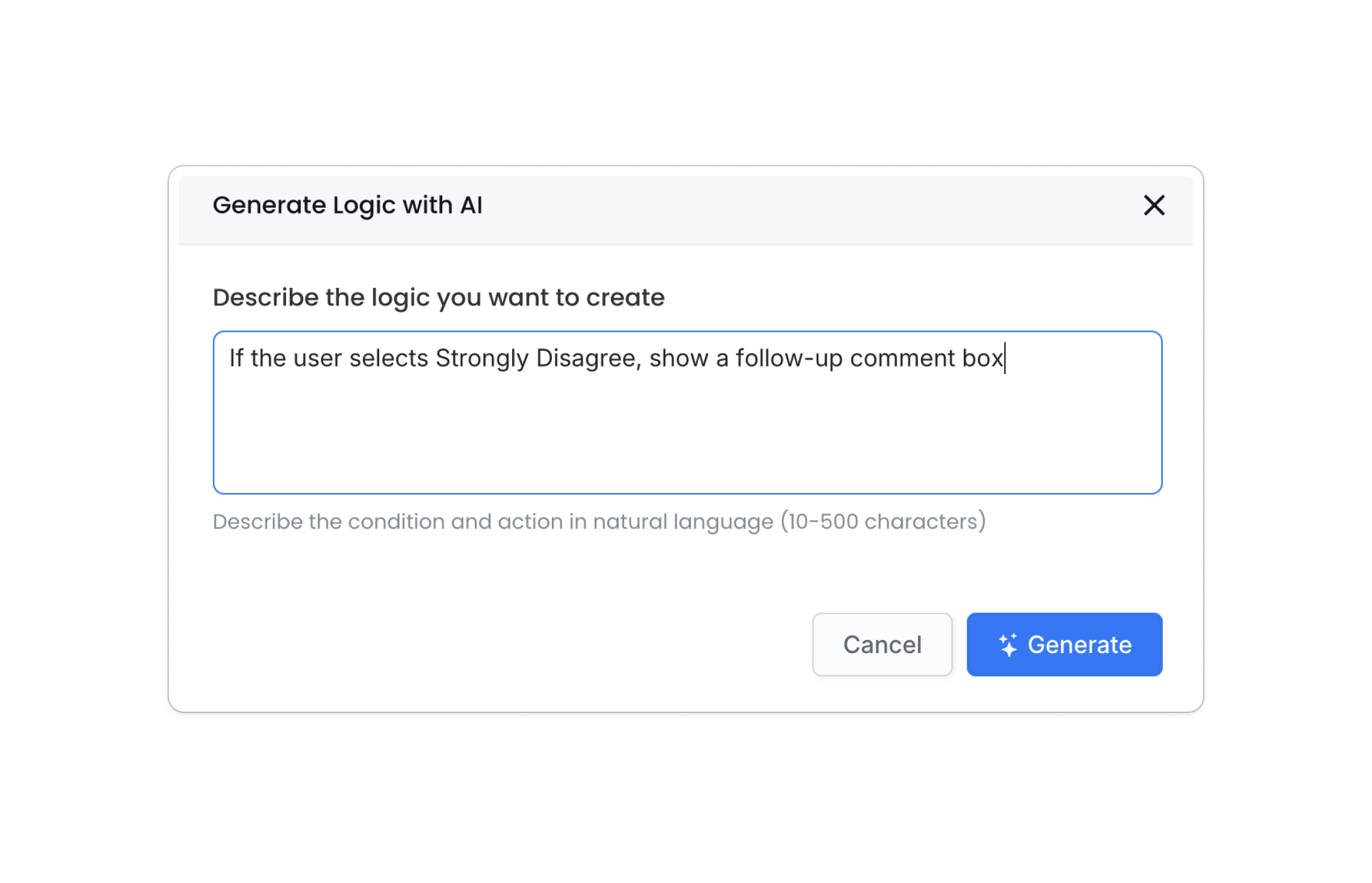
Natural Language Setup: Use our AI to generate logic from plain text. Simply type “If the user selects Strongly Disagree, show a follow-up comment box,” and the system builds it for you.
-
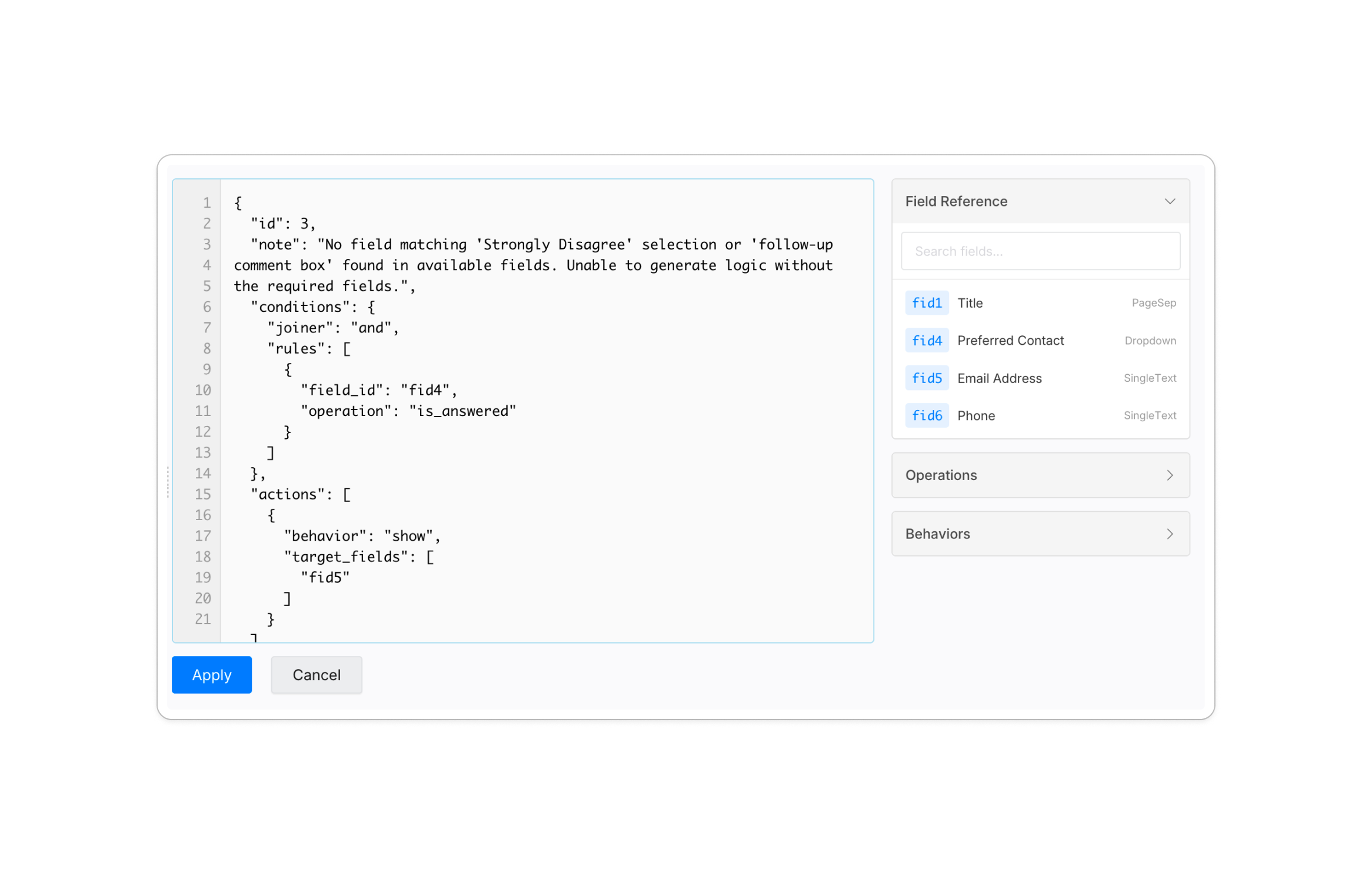
JSON Editor for Power Users: Need pixel-perfect control? Use the professional JSON editor to manage field references and complex dependencies directly.
-
Bulk Import/Export: Moving logic between forms is now instant. Export your rule sets as a file and import them into any other form to save hours of setup time.


📖 Deep Dive: Check out our step-by-step guide on setting up form logic or see the full release notes for the AI Logic update.
How to Analyze Your Data (A Real Example)
Let’s say you surveyed 100 people about your support quality.
Step 1: The Raw Counts
- Strongly Agree (5): 40 people
- Agree (4): 30 people
- Neutral (3): 20 people
- Disagree (2): 5 people
- Strongly Disagree (1): 5 people
Step 2: The “Top-Two Box” Score
Combine the two most positive categories to find your overall “Positive Sentiment.”
40% (Strongly Agree) + 30% (Agree) = 70% Positive Score.
Step 3: Calculating the Mean Score (The Average)
Assign a numerical value to each response to find your weighted average grade:
- (40 × 5) + (30 × 4) + (20 × 3) + (5 × 2) + (5 × 1) = 395 total points
- 395 / 100 respondents = 3.95 Mean Score
Step 4: Interpretation & Action
A 3.95 is a solid result, but your “Neutral” group (20%) is your biggest opportunity. Professional teams use Conditional Logic to ask these specific 20 people: “What was missing from your experience today?”
Best Practices for 2026
- Label Every Point: Don’t just label 1 and 5. Clearly label 2, 3, and 4 to remove guesswork.
- The 3-Second Rule: A respondent should be able to read the question and tap an answer in 3 seconds.
- Leverage AI: Use AI generation to quickly draft your logic rules and then refine them with bulk editing tools.
Conclusion
Likert scales are the bridge between human emotion and actionable data. While Google Forms is a solid starting point, professional platforms like PlatoForms ensure your survey is mobile-friendly, logically smart with AI, and ready for 2026.
Ready to collect better data?
Start your 15-day free trial with PlatoForms
Professional tools. AI-driven logic. No credit card charged during trial.
Why choose PlatoForms?
- Flexible Plans: From our “Free Forever” tier to professional Gold plans, scale as you grow.
- Yearly Savings: Get 2 Months FREE when you choose an annual subscription.
- Zero Risk: Upgrade, downgrade, or cancel anytime. HIPAA compliance included at no extra cost on Silver and Gold plans.