












Ready to build? Start from a template or create your summer event form in minutes — try PlatoForms free →
Summer and early fall are the busiest seasons for outdoor events: 5K runs, boot camps, sports leagues, music festivals, community fairs, and youth camps. Every one of them needs a registration form—and most of those forms fail at the same things.
Prices that don’t adjust for early sign-ups. Group registrations that require manual math. Addresses that autocorrect to the wrong city. Forms that break on a phone screen at the trailhead.
This guide covers how to set up summer event registration forms that handle all of it automatically.
The four things every summer event form needs to get right
Before diving into setup details, here’s the short list of what separates a registration form that works from one that generates support emails:
- Dynamic pricing — early-bird rates and group discounts calculated automatically
- Accurate address collection — no typos, no delivery failures
- Mobile-first design — most outdoor registrants sign up on their phones
- Integrated liability waivers — collected at the same time as registration, not as a separate step
Each one is covered below.
1. Dynamic pricing: early-bird rates and group discounts
The single most requested feature for event registration forms is pricing that adjusts automatically—without you manually reviewing each submission and issuing refunds or invoices after the fact.
Early-bird pricing by registration date
PlatoForms uses conditional set-value logic to assign a fee based on when someone registers.
Use a Text Input field set to Today’s Date as the initial value and mark it as Read-only—this captures the date the form is opened and prevents manual editing. The logic looks like this:
- If Registration Date is before June 15 → set Registration Fee to
$45 - If Registration Date is on or after June 15 → set Registration Fee to
$65
The fee field is disabled for editing, so registrants see their price but can’t change it. The Stripe Payment widget then reads that field directly and charges the exact calculated amount.
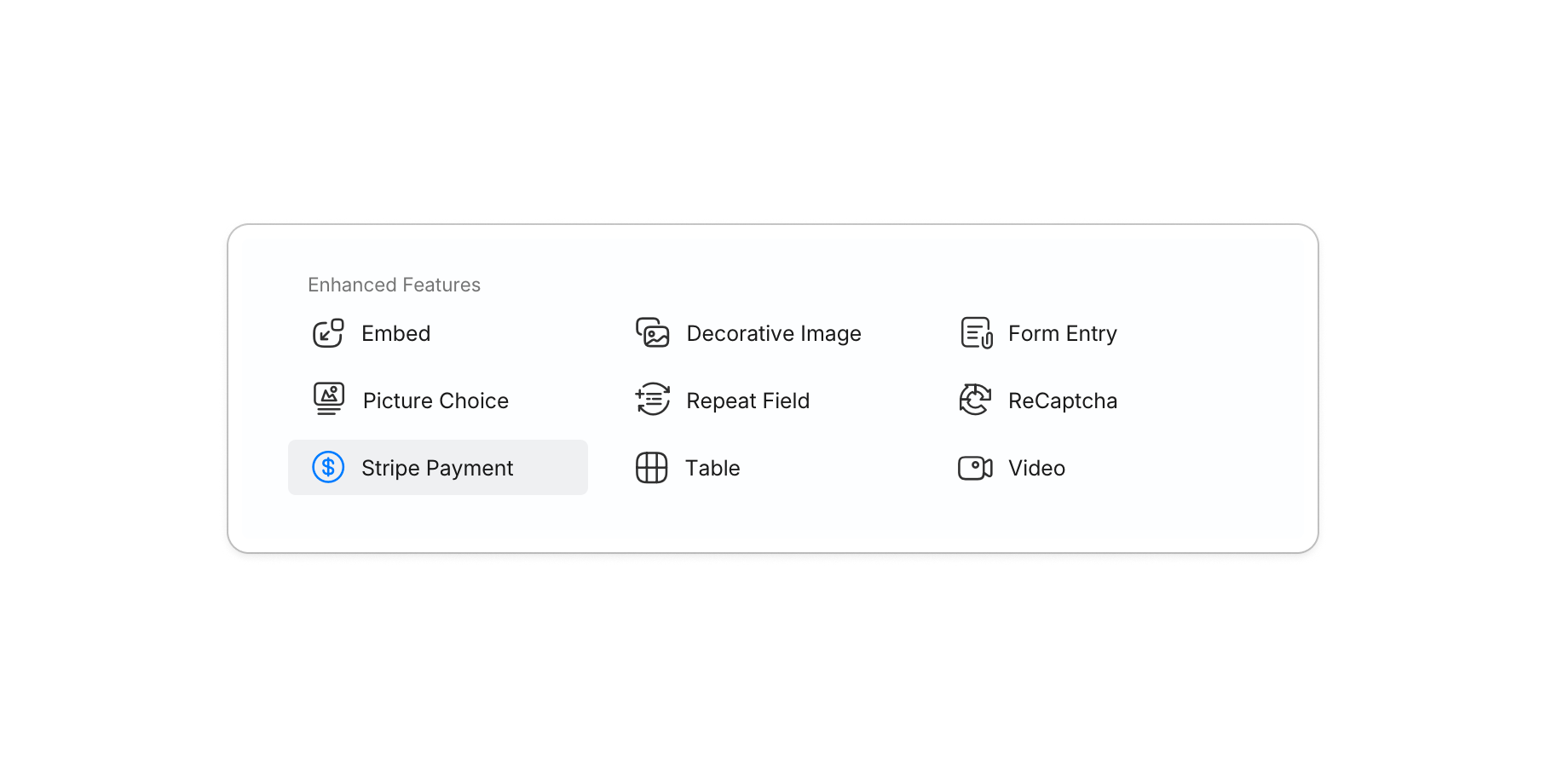
Add {{pricing}} to the payment widget label and registrants see their live total update as they fill in the form—no confusion about which tier they’re in.
Group discount pricing by participant count
The same logic handles group discounts:
- If Number of Participants is 1–4 → fee =
$65 per person - If Number of Participants is 5–9 → fee =
$55 per person - If Number of Participants is 10 or more → fee =
$45 per person
Use a calculation action to multiply the per-person rate by participant count, then feed that total into the Stripe widget.
💡 Set the fee field to Disabled so registrants can see their total but can’t manually edit it. This prevents accidental overrides.
Payment options: Stripe, PayPal, Square, Apple Pay, Google Pay
PlatoForms supports three payment providers. Use the one that fits your audience:
Stripe Payment widget — accepts credit/debit cards, Apple Pay, and Google Pay inline. No redirect to a separate checkout page. Registrants on mobile can pay with Face ID or fingerprint without typing card details.
PayPal Payment widget — accepts PayPal, credit/debit cards, and Pay Later in one widget. If your registrants expect PayPal as a checkout option, add this widget alongside or instead of Stripe.
Square Checkout — redirects registrants to a Square-hosted payment page after form submission. A good fit if your event already uses Square for on-site sales, since payments consolidate in the same Square account. Square Checkout also sends an email receipt automatically.
To let registrants choose between Stripe and PayPal, add a Choice field with “Credit Card” and “PayPal” as options, then use conditional logic to show the corresponding widget. Both support dynamic pricing via Amount from a form field, so the calculated registration fee flows through correctly. If you’re using Square Checkout instead, no inline widget is needed — the registrant completes the form and is redirected to Square to pay.

👉 Read more: Dynamic Stripe Pricing FAQ · How to Add PayPal Payment to an Online Form · Stripe vs. Square vs. PayPal
Security: All form data is transmitted using 256-bit SSL encryption. Payment processing is handled directly by Stripe (PCI DSS Level 1 certified), PayPal, and Square—PlatoForms never stores card details. See the PlatoForms Trust Center for full security documentation.
2. Address autocomplete: eliminate typos before they cause problems
Outdoor events often send physical items to participants—race packets, t-shirts, wristbands, parking passes. A wrong address on registration means a returned package and an awkward follow-up email.
Address autocomplete, powered by Google Maps, suggests verified addresses as registrants type. Once they select their address from the dropdown, the street, city, state, and postal code fields fill in automatically—no manual entry, no autocorrect disasters.

Setup: Enable it with one click in your Address field settings. No configuration required for standard use. If you’re publishing on a custom domain, you can add your own Google Maps API key.
Where it matters most for summer events:
- Race packet mailing for 5K/10K events
- Camp gear drop-off instructions
- Festival VIP package delivery
- Staff and volunteer credential mailing
3. Mobile-first design: because nobody registers from a desktop at a trailhead
The majority of outdoor event registrations happen on mobile—often at the event itself, or via a link shared in a group chat. A form that requires pinch-to-zoom or has fields that overflow the screen will lose you registrations.
PlatoForms forms are mobile-responsive by default. Every field, layout, and button adapts to screen size automatically. No separate mobile version to maintain.
For summer event forms specifically, two layout options work especially well:
Classic layout — all fields on one page, good for short forms (name, email, t-shirt size, payment). Registrants can scroll through quickly.
Conversational layout — one question at a time, like a chat. Works well for longer forms with branching paths (e.g., “Are you registering as an individual or a team?” leads to different questions). Completion rates are higher for mobile users because the form never feels overwhelming.

You can switch between Classic and Conversational with one click in Preview & Design—no rebuilding required.
4. Liability waivers: collect them at registration, not as an afterthought
The standard approach—email a separate waiver PDF after registration—creates two problems: people don’t sign it, and you end up chasing signatures the day before the event.
The better approach: include a signature field directly in your registration form. Registrants sign during the same session as registration, payment, and address entry. You get a timestamped electronic signature with every submission.
For events with minors, add a Parent/Guardian Name field with its own signature, shown conditionally only when the registrant’s age indicates they’re under 18.
Signature data is encrypted in transit and at rest, and stored in your PlatoForms account with a timestamp on each submission.
Ready-to-use templates for summer events
Start from a template instead of building from scratch. All templates are editable—add pricing logic, address autocomplete, and payment fields after opening in the builder.
Registration forms
- Summer Camp Registration Form — includes participant details, emergency contacts, dietary needs, and session selection
- Boot Camp Registration Form — covers fitness level, schedule preference, and equipment needs
- Art Workshop Registration Form — adaptable for any skill-based outdoor workshop or class
RSVP forms
- Graduation Party RSVP Card — works for any June celebration with guest count and meal preferences
- Corporate Event RSVP Form — for team outings, company picnics, and client events
- Fundraising Gala RSVP Form — adaptable for charity walks, runs, and outdoor fundraisers
Waiver forms
- Event Participation Release Form — general liability release for outdoor events
- Youth Sports Participation Waiver — for youth leagues, camps, and clinics with parent/guardian signature
- Adventure Activity Waiver — for high-activity events: obstacle courses, hiking, cycling, water sports
- General Liability Waiver Form — broad-use waiver for community events and festivals
Volunteer forms
- Event Volunteer Sign-Up Sheet — collect availability, role preferences, and t-shirt sizes
- Nonprofit Volunteer Application Form — for larger events coordinating multiple volunteer teams
Putting it together: a complete summer event registration setup
Here’s how the pieces connect for a typical outdoor event—say, a 5K charity run:
Registration form fields:
- Name, email, phone
- T-shirt size (dropdown)
- Registration category: Individual / Team
- Team name (shown conditionally if Team selected)
- Number of participants (shown for Team; drives group discount calculation)
- Registration date (set to Today’s Date initial value, Read-only, drives early-bird logic)
- Registration fee (disabled field, auto-calculated)
- Mailing address (with autocomplete, for race packet)
- Emergency contact name and phone
- Medical conditions (optional)
- Liability waiver signature
- Payment method (Choice field: Credit Card / PayPal)
- Stripe Payment widget (shown conditionally if Credit Card selected)
- PayPal Payment widget (shown conditionally if PayPal selected)
Automation after submission:
- Registrant gets a confirmation email with event details and their bib number
- Team captain gets a separate email with roster instructions (via logic-based email notifications)
- Form auto-closes when participant cap is reached (submission limit)
- All submissions export to CSV or sync to Google Sheets via Zapier
FAQs: Summer event registration forms
Q: How do I set up early-bird pricing that changes automatically after a cutoff date?
A: Use set-value logic with a Text Input field set to Today’s Date as the initial value (marked Read-only) and a disabled Number field for the fee. Set two rules: one that assigns the early-bird price if the date is before your cutoff, and one that assigns the regular price otherwise. The Stripe Payment widget or PayPal Payment widget then charges whatever amount is in that field.
Q: Can the form calculate a group discount based on how many people are registering?
A: Yes. Use a Number field for participant count, then use calculation logic to multiply by the appropriate per-person rate (with tiered conditions for group size). Feed the result into the payment widget via Amount from a form field. The dynamic pricing FAQ walks through the exact setup.
Q: Does PlatoForms support Apple Pay and Google Pay for event payments?
A: Yes. The Stripe Payment widget supports Apple Pay and Google Pay inline. Google Pay works automatically; Apple Pay requires adding your form domain to your Stripe account under Settings → Payment methods → Payment method domains. Domains to add: form.platoforms.com (live), design.platoforms.com (preview), and your custom domain if applicable.
Q: Can registrants pay with PayPal instead of a credit card?
A: Yes, but not on the same form — each form supports only one payment method. Create a separate form with the PayPal Payment widget and link to it alongside your Stripe form, so registrants can choose at the entry point. Both widgets support dynamic pricing via Payment Amount Field, so the early-bird or group discount logic works the same way in either form. See How to Add PayPal Payment to an Online Form for setup details.
Q: How do I make sure the form closes when my event sells out?
A: Use the submission limit feature. Set a max submission count and the form automatically unpublishes when that number is reached—showing a custom “sold out” message instead of taking more registrations.
Q: Can I collect a liability waiver at the same time as registration?
A: Yes—add a signature field to your registration form. The waiver text goes in a paragraph field above it. For minor participants, use conditional logic to show a second parent/guardian signature field when the registrant’s age is under 18.
Q: How do I handle address collection for mailing race packets or camp materials?
A: Enable Address autocomplete on your Address field. Registrants type the start of their address and select from Google Maps-verified suggestions—street, city, state, and postal code fill in automatically, eliminating typos.
Start building
Most summer event registration forms take 15–20 minutes to set up from a template. The dynamic pricing logic adds another 10 minutes. Payment integration takes about 5 minutes once your Stripe or PayPal account is connected.
- Browse all registration templates → templates.platoforms.com/form/list/types/registration-form
- Browse waiver templates → templates.platoforms.com/form/list/types/waiver-forms
- Set up dynamic pricing → Dynamic pricing guide
- Add address autocomplete → Address autocomplete setup
- Add PayPal payment → PayPal integration guide


