
Find trending topics and quick answers here
Hi, how can we help?
How to set up signature certificates for Workflow Steps?
Question
How can I create signature certificates for the steps within my Workflow?
Answer
Every step in the Workflow can create a signature certificate, but the setup process differs for the first and subsequent steps.
-
First Step: Use the Invitation button at the top right of the workflow to set up the signature certificate. It must be linked with email settings for proper identification.
-
Subsequent Steps: Go to the specific step’s Settings button and enable Create Signature Certificate. These steps use the workflow’s internal signature process, not email linkage.
For multiple steps with signatures, a comprehensive signature certificate will be automatically generated at the final step, containing all collected signatures. This process requires the following conditions to be met:
-
Signature Collection: Only workflow steps that have
Signature certification enabledwill have their signatures collected. You can disable this option for any middle steps if needed. -
PDF Consistency: The PDF must remain identical from the previous step to the final step. If any step produces a non-identical PDF, the signature merging process will stop at that step.
-
Data Combination: The
Combine data across stepsoption must be enabled from the first step through to the current step.
Tip: To create a comprehensive signature certificate, you must enable the
Combine data across stepsoption. A well-designed workflow typically includes this option, allowing different roles to input distinct content at various stages. The workflow will then merge these inputs automatically.If you need to disable this option, it may indicate that the form in each step contains duplicated content. Please note that even if the 2nd step has the same fields as the 1st step, you can copy the content from the 1st step and then configure the 2nd step to not print these fields in the PDF. In this case, you can still turn on the “Combine Steps” option.
Enable signature certificate for the first step
-
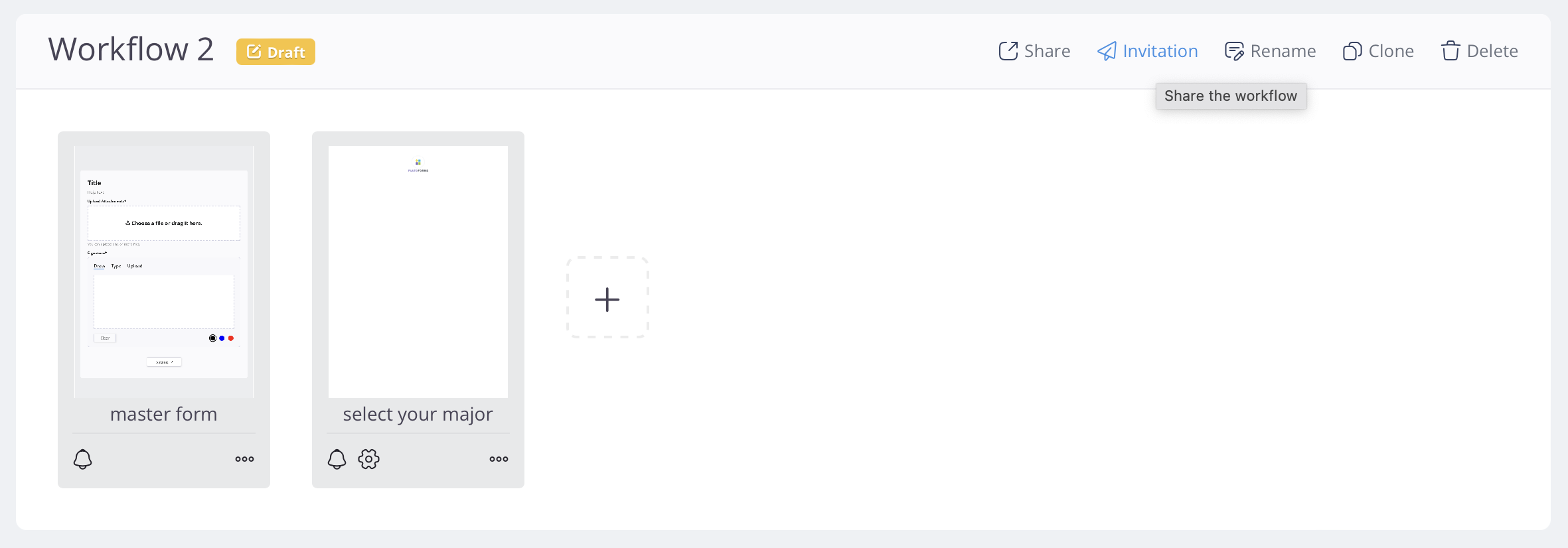
To set up the signature certificate for the first step in a Workflow, click the Invitation button at the top right of the workflow.
-
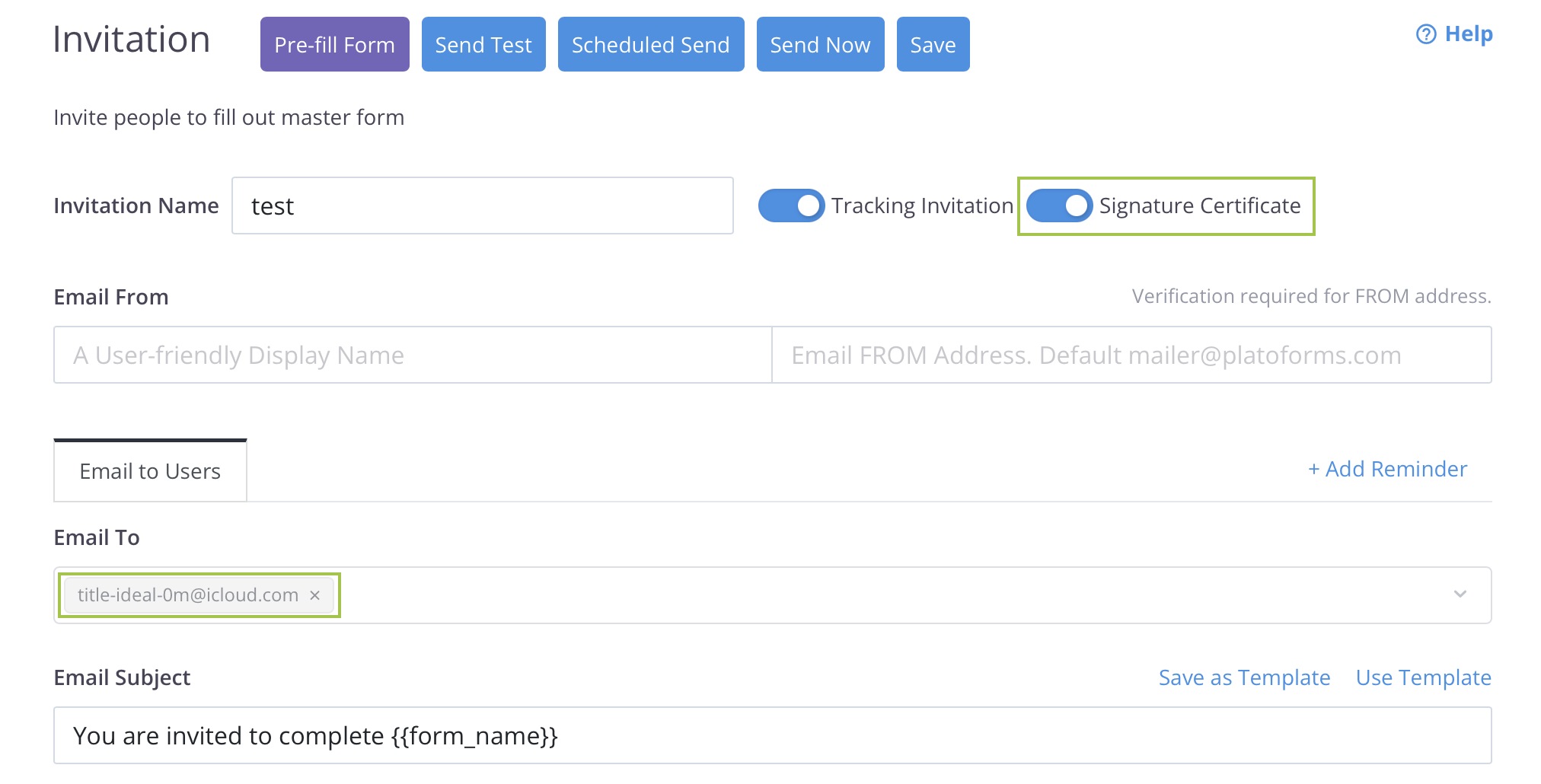
Enable the Signature Certification option and configure the associated email settings for the certification.
Note: The signature certificate must be linked to the email settings, allowing it to be identified through email.
Enable signature certificate for subsequent steps
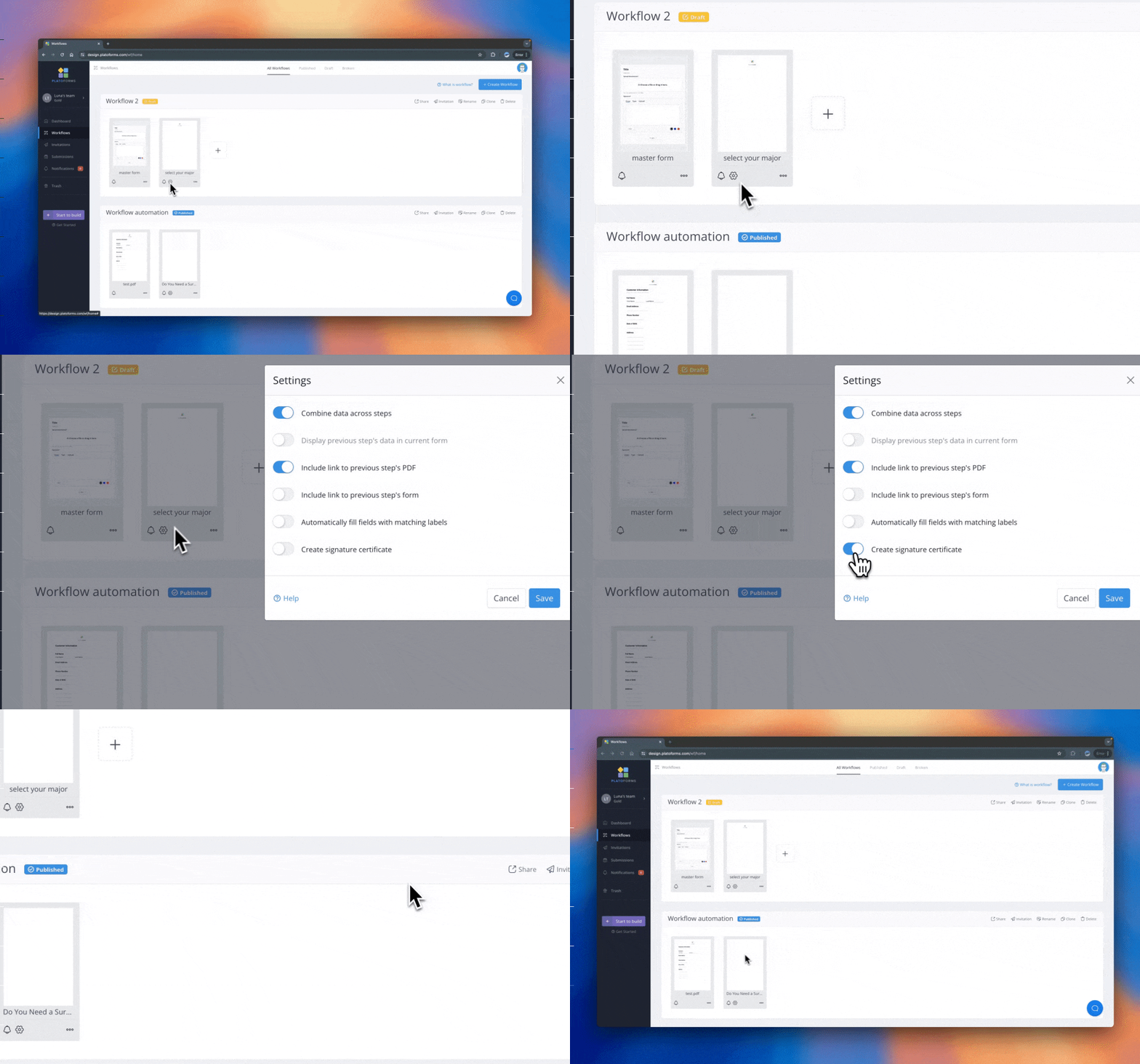
Signature certificates are initially disabled for all subsequent steps. To enable them, click the Settings button of the specific step and switch on the Create signature certificate option.
Video tutorial
You can also refer to the video tutorial on setting up signature certificates for Workflow Steps.
Have more questions? Visit our FAQs page or contact us.