










Find trending topics and quick answers here
Hi, how can we help?
Search by task, feature, or problem - not just a single keyword.
How to set up signature certificates for Workflow Steps?

Question
How can I create signature certificates for the steps within my Workflow?
Answer
Every step in the Workflow can create a signature certificate, but the setup process differs for the first and subsequent steps.
-
First Step: Use the Invite button in the top bar of the workflow designer to set up the signature certificate. It must be linked with email settings for proper identification.
-
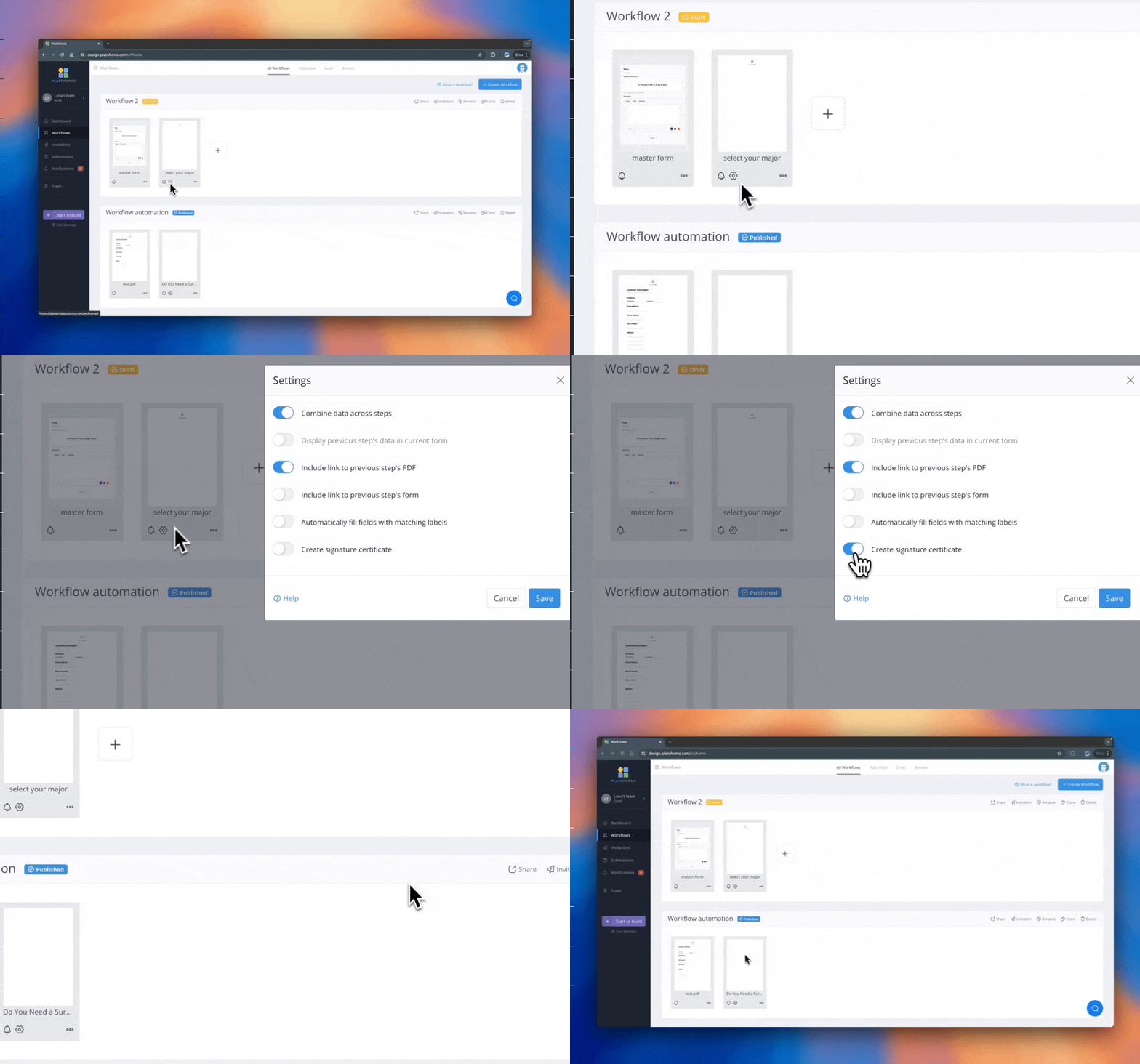
Subsequent Steps: Open the specific step’s Data & PDF tab and check that Create signature certificate is on. These steps use the workflow’s internal signature process, not email linkage.
Each step with the option on gets a signature certificate for its own submission. The final step’s certificate also lists the signatures of the earlier steps, and when the workflow completes, every approval decision and the final PDF’s fingerprint are added to its timeline. Earlier steps are included when these conditions are met:
-
Signature Collection: Only workflow steps that have
Signature certification enabledwill have their signatures collected. You can disable this option for any middle steps if needed. -
PDF Consistency: The PDF must remain identical from the previous step to the final step. If any step produces a non-identical PDF, the signature merging process will stop at that step.
-
Data Combination: The
Combine data across stepsoption must be enabled from the first step through to the current step.
Tip: To create a comprehensive signature certificate, you must enable the
Combine data across stepsoption. A well-designed workflow typically includes this option, allowing different roles to input distinct content at various stages. The workflow will then merge these inputs automatically.If you need to disable this option, it may indicate that the form in each step contains duplicated content. Please note that even if the 2nd step has the same fields as the 1st step, you can copy the content from the 1st step and then configure the 2nd step to not print these fields in the PDF. In this case, you can still turn on the “Combine Steps” option.
Enable signature certificate for the first step
-
To set up the signature certificate for the first step in a Workflow, click the Invite button in the top bar of the workflow designer.
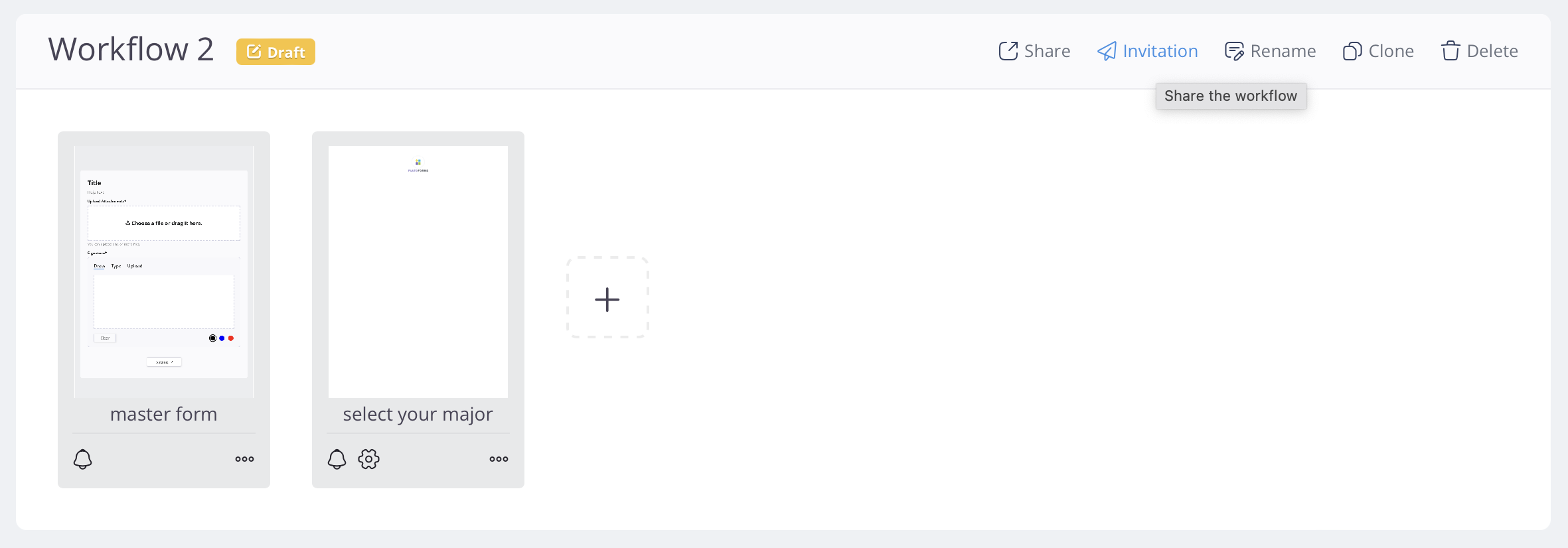
-
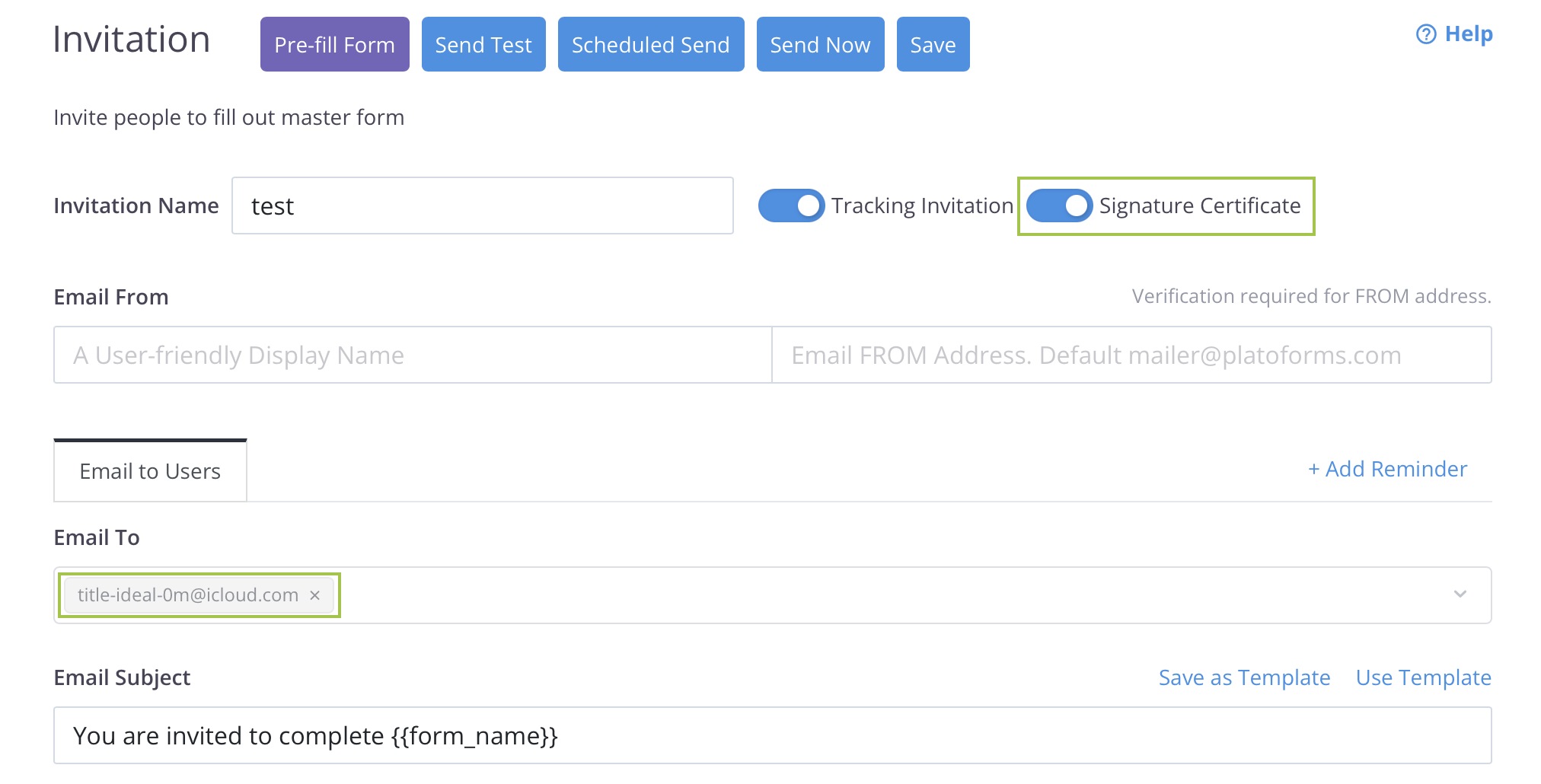
Enable the Signature Certification option and configure the associated email settings for the certification.
Note: The signature certificate must be linked to the email settings, allowing it to be identified through email.
Enable signature certificate for subsequent steps
Signature certificates are on by default for new subsequent steps. To check or change it, select the step, open its Data & PDF tab and switch the Create signature certificate option on or off.
Video tutorial
You can also refer to the video tutorial on setting up signature certificates for Workflow Steps.