

Google Forms is one of the most widely used form tools in the world — and for good reason. It’s free, easy to use, and integrates seamlessly with the rest of Google Workspace. But if you’ve ever tried to collect payments directly through Google Forms, you’ve probably run into a frustrating reality: Google Forms doesn’t support payments natively.
That means no credit card fields, no checkout page, and no built-in way to confirm that someone has actually paid. For small businesses handling event registrations, service bookings, or product orders, this is a real bottleneck.
The good news? There are a few free workarounds — and one significantly better alternative. In this guide, we’ll walk through three ways to collect payments with Google Forms for free, along with their limitations, so you can decide what’s right for your business.
Why Google Forms Doesn’t Support Payments Out of the Box
Google Forms was built for data collection — surveys, quizzes, and registrations. It was never designed as a payment tool. More critically, Google Forms is not PCI (Payment Card Industry) compliant, which means it legally cannot process credit card transactions directly.
This is a hard technical limitation, not a missing feature that’s “coming soon”. Any payment solution with Google Forms requires connecting a third-party tool.
Method 1: Add a Payment Link to Your Confirmation Message
Best for: Simple, fixed-price transactions with a small, trusted audience.
The easiest free workaround is to include a payment link in the confirmation message that appears after someone submits your form.
Steps:
-
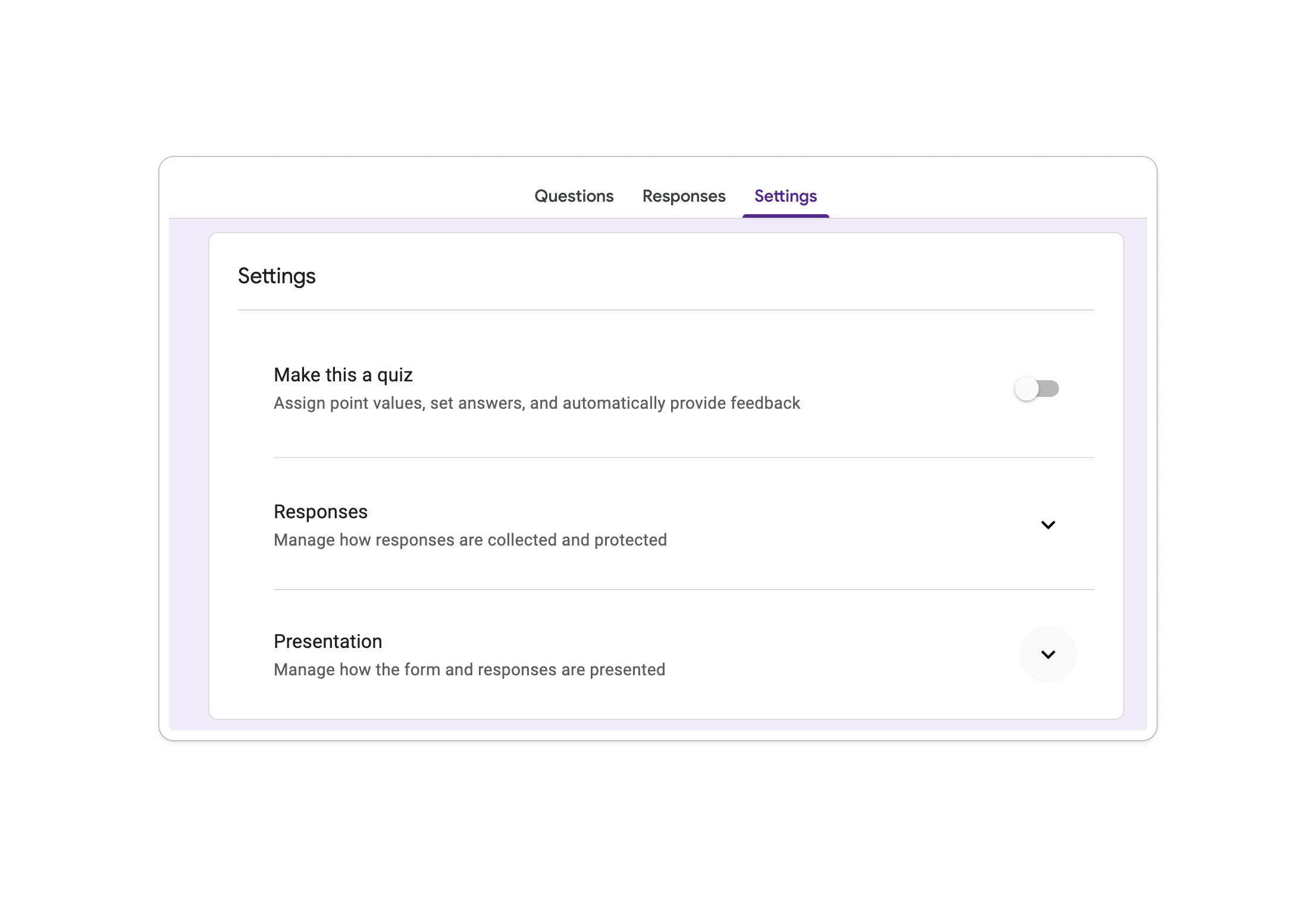
Open your Google Form and switch to the Settings tab.
-
Expand the Presentation tab.
-
In the Confirmation message field, click Edit, and paste in a payment link (e.g., a PayPal.me link, Stripe payment link, or Venmo handle).
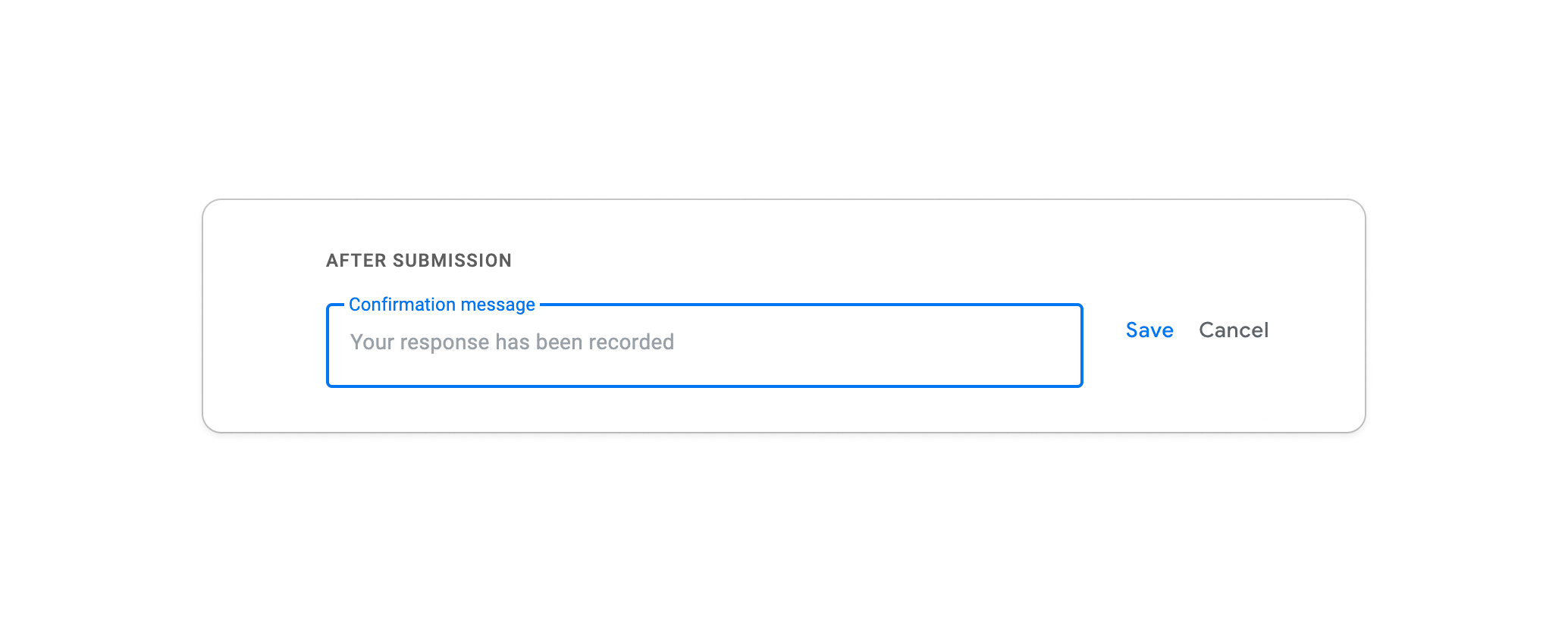
Example confirmation message:
“Thank you for registering! Please complete your payment of $50 here: [your payment link]. Your spot will be confirmed once payment is received.” -
Click Save.


Limitations:
-
No way to verify who has paid — you’ll need to manually reconcile responses and payments.
-
Respondents can submit the form without ever paying.
-
Fixed pricing only — you can’t automatically calculate totals based on form selections.
Method 2: Embed a QR Code Inside the Form
Best for: In-person or community events where respondents are likely to use the same P2P payment app.
Instead of a link after submission, you can embed a QR code directly inside your form so respondents can scan and pay mid-form or at the end.
Steps:
-
Generate a QR code for your payment platform (PayPal, Venmo, Cash App, Zelle). Most platforms provide this in your account settings.
-
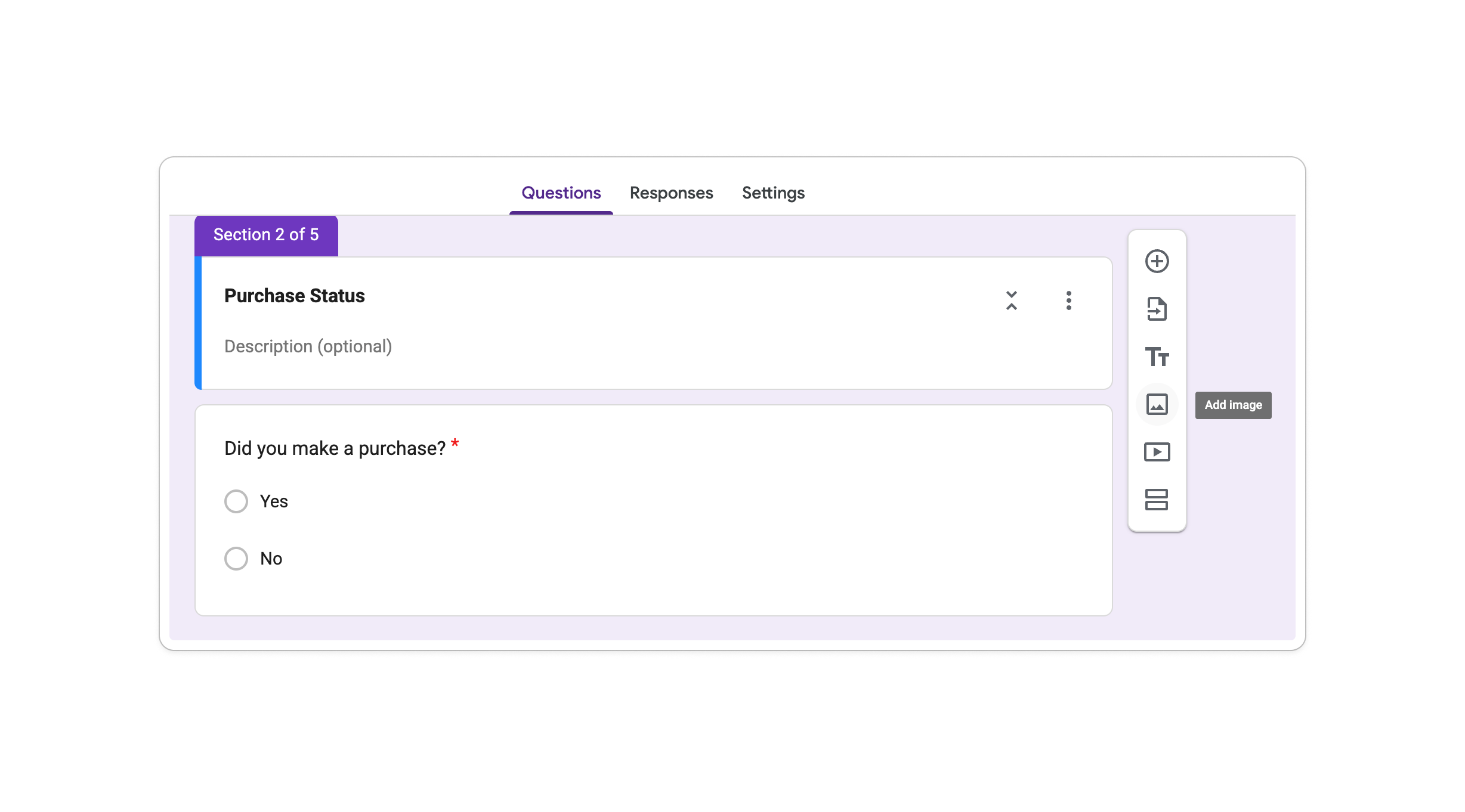
Open your Google Form and click the image icon (Add Image) on a question.
-
Upload your QR code image.
-
Add instructions asking respondents to scan and pay before submitting.

Limitations:
-
Respondents must already have the same payment app installed.
-
Still no automatic confirmation that payment has been made.
-
Not suitable for professional or branded client-facing workflows.
Method 3: Use a Google Workspace Add-On
Best for: Businesses that want to stay within Google Forms and need automatic payment calculation.
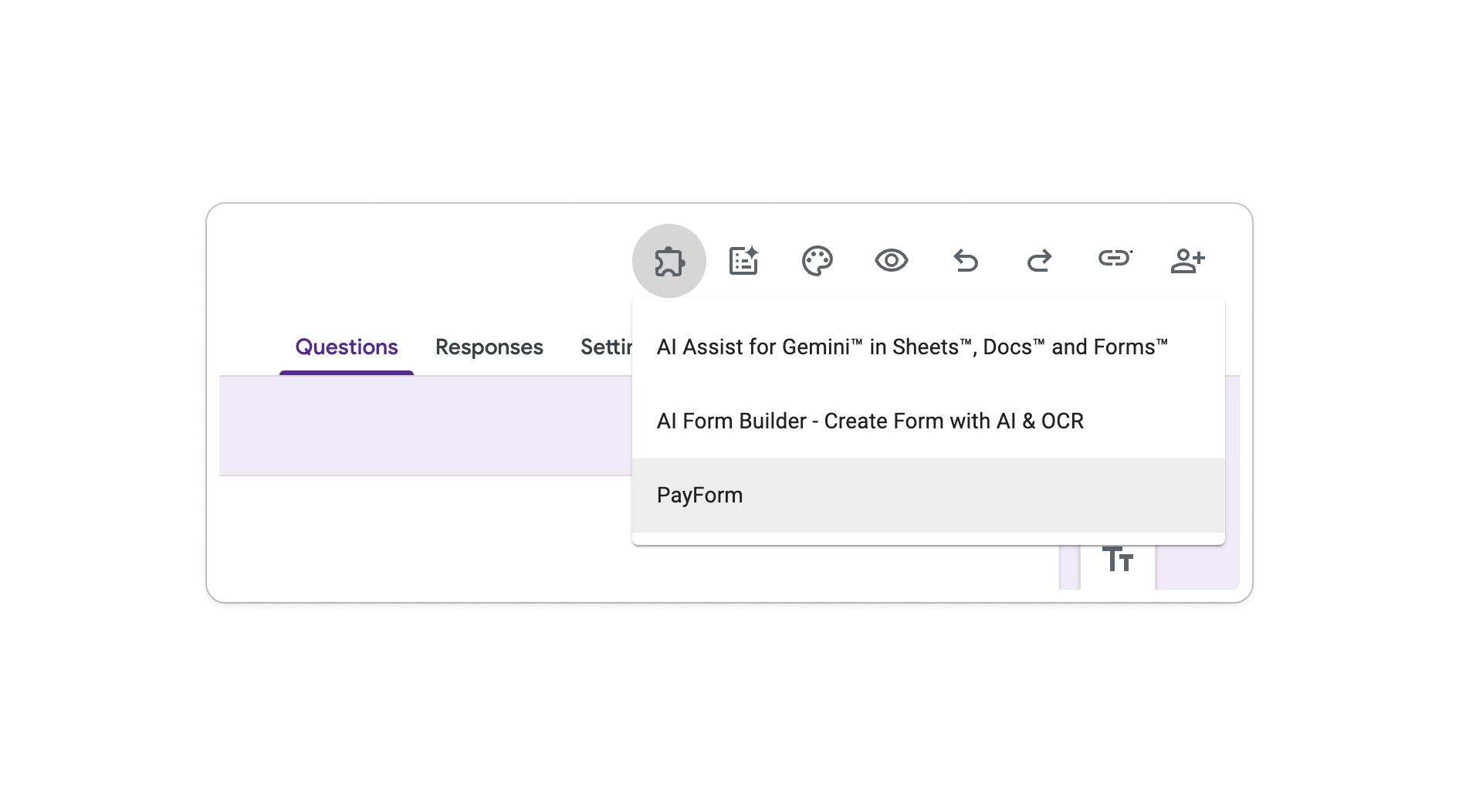
Google Workspace Marketplace offers add-ons like PayForm that add a payment layer on top of Google Forms. These add-ons automatically identify price values in your form answers, calculate the total, and redirect respondents to a secure checkout.
Steps:
-
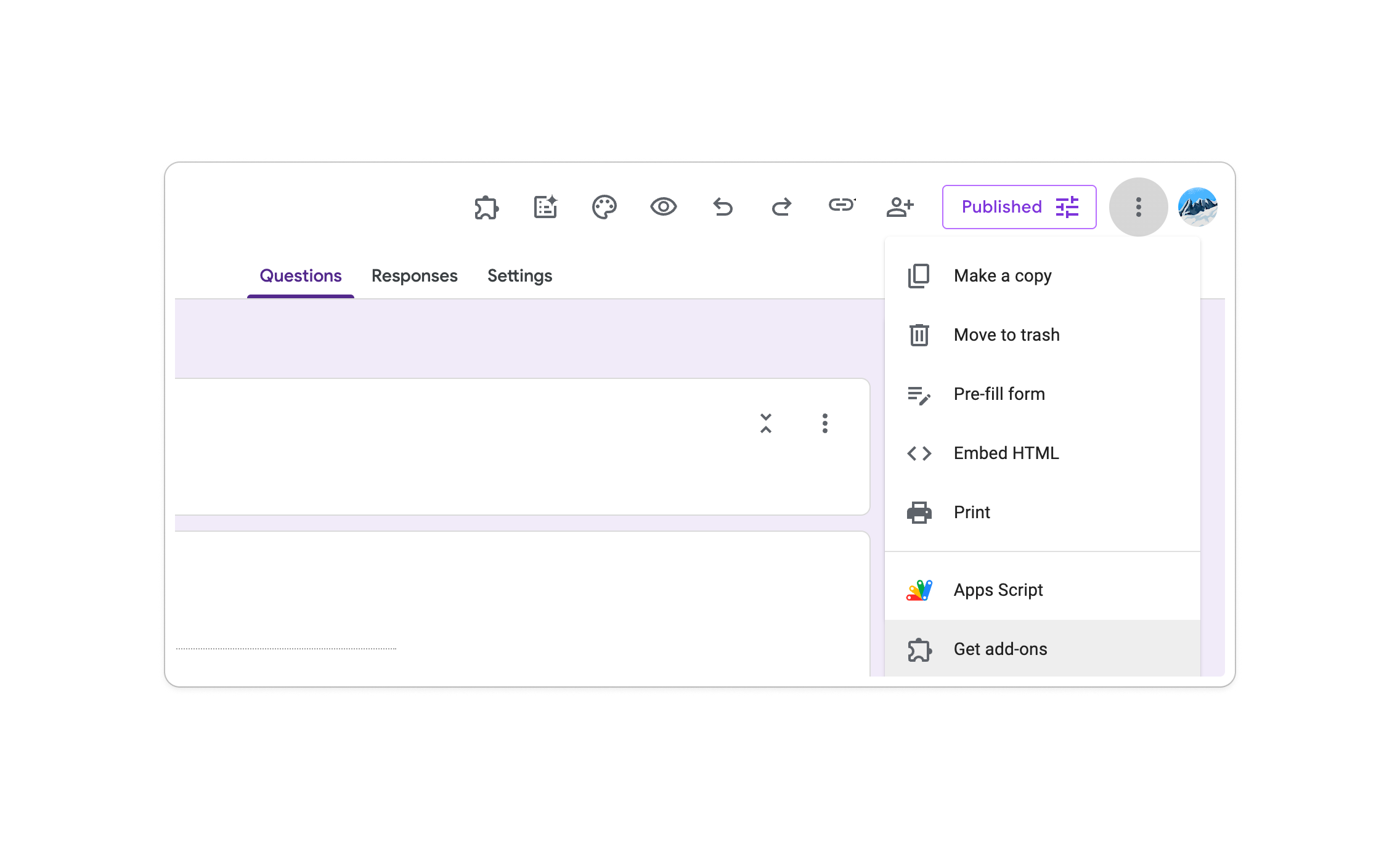
Find an Add-on: Go to ⋮ > Get add-ons and search for a tool like PayForm.
-
Install the Plugin: Grant the necessary permissions to access your form data.
-
Setup: Click the puzzle icon (🧩) to configure your new payment add-on.
-
Configure Pricing: Add prices to your form questions by including a currency symbol (e.g., “$50”). Then, go to the plugin settings to link your form to a payment gateway like Stripe or PayPal.


Limitations:
-
Add-ons can be unstable and may require re-authorization periodically.
-
Limited customization — the checkout page is hosted by the add-on, not your brand.
-
No built-in document generation, e-signatures, or multi-step form logic.
-
Pricing tiers can add up quickly as your volume grows.
The Limitations of All Google Forms Payment Methods
All three methods above share a fundamental problem: they’re workarounds, not integrated solutions. While they work for occasional use, they often lead to manual reconciliation errors or a disjointed customer experience.
If your business needs a more streamlined approach, PlatoForms is designed to bridge the gap. It’s a professional form builder that turns complex documents and data collection into a seamless workflow—with payment processing built directly into the core experience.
Here’s what you’re giving up when using workarounds versus a native platform:
| Feature | Google Forms (with workarounds) | Platoforms |
|---|---|---|
| Built-in payment field (no redirect) | ❌ | ✅ |
| Apple Pay & Google Pay | ❌ | ✅ |
| Dynamic pricing (auto-calculated totals) | ❌ | ✅ |
| PDF generation after payment | ❌ | ✅ |
| E-signature collection | ❌ | ✅ |
| Branded checkout experience | ❌ | ✅ |
| Payment confirmation tracking | Manual | ✅ Automatic |
| Test mode before going live | ❌ | ✅ |
| No third-party add-ons required | ❌ | ✅ |
A Better Way: Collect Payments Natively with Platoforms
If your business collects payments regularly — for client onboarding, service agreements, event registrations, or product orders — the workarounds above will cost you more time than they save in money.
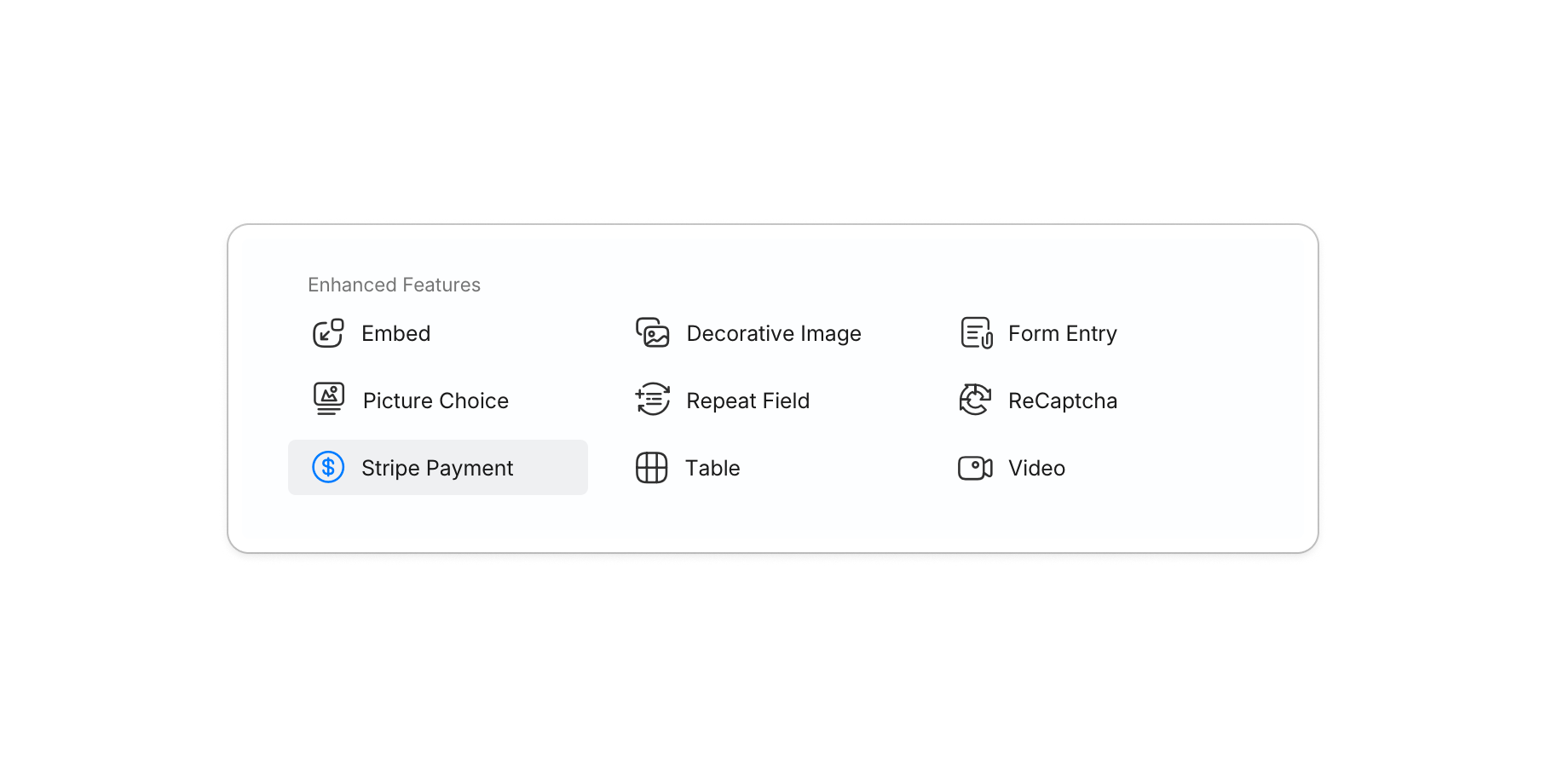
Platoforms now has a built-in Stripe Payment widget, which means customers can enter their credit card details directly inside your form — no redirects, no add-ons, no extra steps. And with the latest update, your forms also support Apple Pay and Google Pay for a faster mobile checkout experience.
⚡ The In-Form Widget
Keep users on your page from start to finish. They enter their details, pay, and submit in one continuous flow.
-
Easy Setup: Drag the Stripe Payment widget onto your form and open the settings panel to get started.
-
Flexible Layouts: Click the layout icon next to the Label field to choose how the card input fields are arranged — Vertical, Horizontal, or Hide — to best fit your form’s design.
-
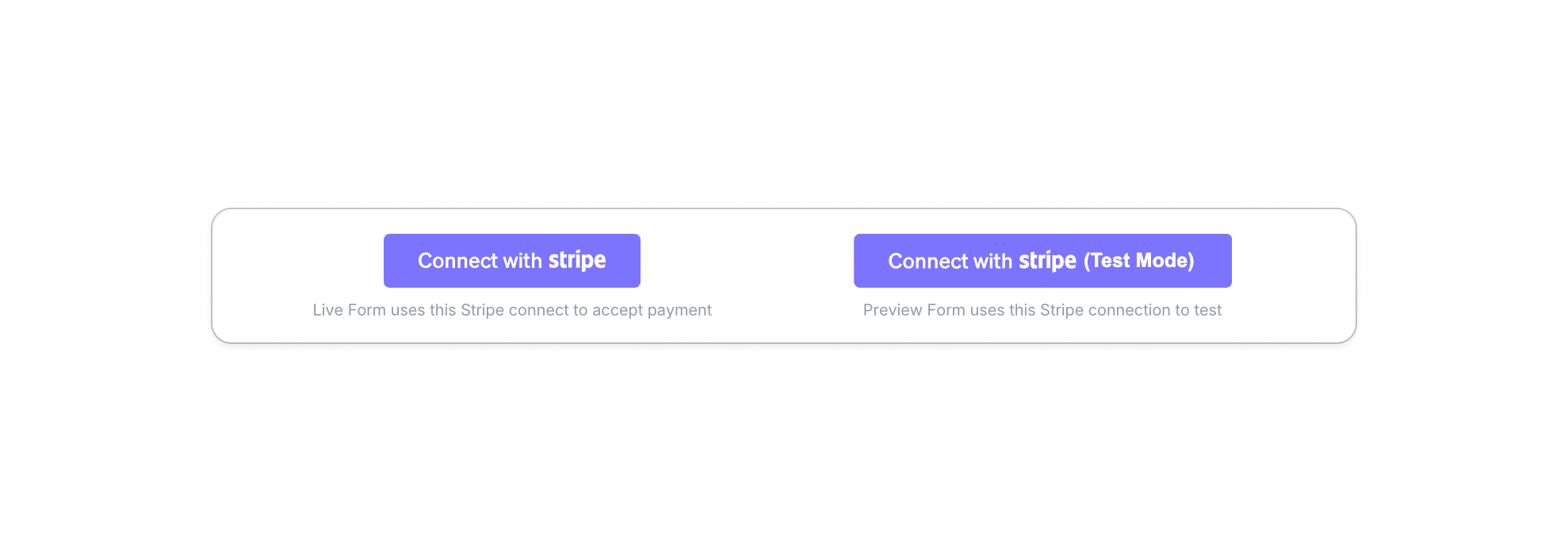
Two Stripe Connections: The settings panel shows two separate connection buttons — Connect with Stripe for your live form (real payments), and Connect with Stripe (Test Mode) for your preview form (simulated transactions, no real charges). Connect both independently so you can test safely before going live.
-
Customer Notifications: Enable Receipt Email, then use the Receipt Email Field dropdown to select which form field holds the customer’s email address. A payment confirmation is sent automatically on every submission.


🧠 Dynamic Pricing
If your pricing varies based on user input, PlatoForms handles the calculations automatically.
-
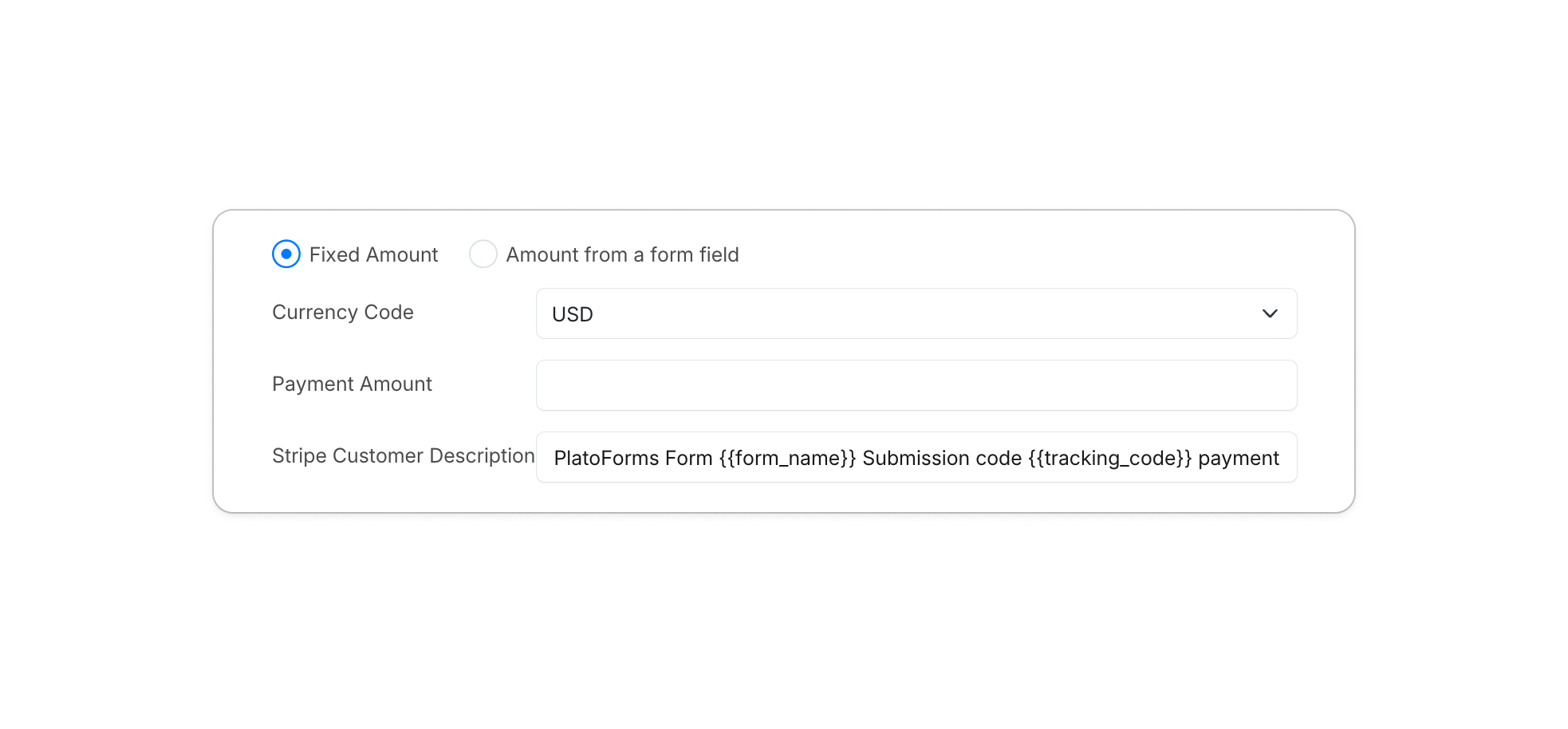
Logic-Based Math: Choose between a Fixed Amount or Amount from a form field to pull live totals directly from calculation fields within your form. Select your target field from the Payment Amount Field dropdown, and set the Currency Code (e.g., USD) to match your market.
-
Live Labels: Add the
{{pricing}}tag to your label — the default readsPayment {{pricing}}— and the placeholder is automatically replaced by the actual amount at runtime. Users see their exact total update instantly as they interact with the form.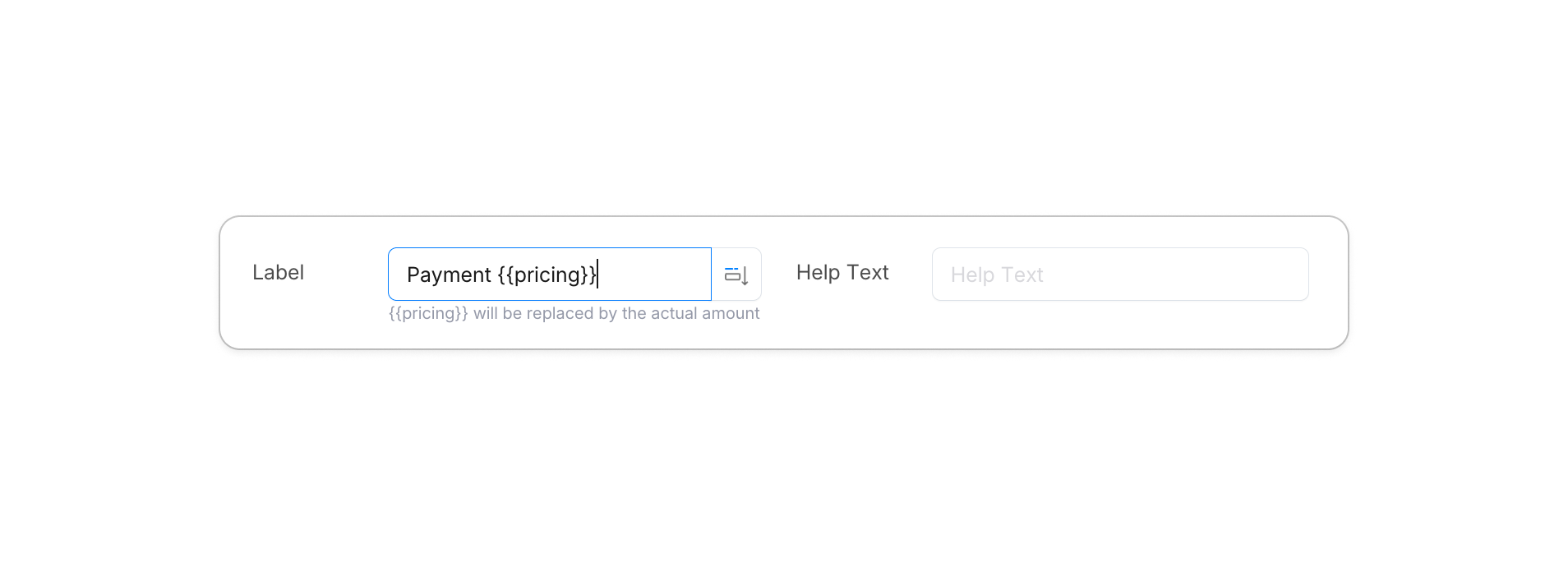
-
Detailed Descriptions: The Stripe Customer Description field defaults to
PlatoForms Form {{form_name}} Submission code {{tracking_code}} payment, keeping every transaction traceable in your Stripe dashboard without any manual setup.


📱 One-Tap Magic
Convenience is the biggest driver of conversion. By enabling Apple Pay and Google Pay, your users can pay with a biometric touch — no card number to type, no redirect to complete.
Google Pay works automatically once your Stripe account is connected. Apple Pay requires a one-time domain setup:
- Log in to your Stripe Dashboard.
- Go to Settings > Payment methods > Payment method domains.
- Click Add a new domain and add your form link:
- Live:
form.platoforms.com - Preview:
design.platoforms.com - HIPAA:
secure.platoforms.com - Custom domain: e.g.,
myform.company.com
- Live:
Once added, Apple Pay appears automatically on supported Safari browsers and iOS devices — no extra code required.
Which Method Should You Choose?
-
Occasional, low-volume payments from a trusted audience → The confirmation message link is fast and free.
-
In-person events with a community group → The QR code method works fine.
-
Regular payments, professional clients, or any business that needs a branded checkout → Use Platoforms with the Stripe Payment widget.
Google Forms is a great tool for what it was built to do. Payment collection just isn’t one of those things — and the workarounds reflect that. If payments are a core part of how your business operates, you deserve a tool built to handle them natively.
🚀 Get Started with PlatoForms (15-Day Free Trial)
Full features. AI-driven logic. No credit card required.