


Using conditional logic in Google Forms makes surveys more efficient and reduces respondent fatigue, but the setup process can be tricky and limited. In this guide, we’ll walk through how to create conditional questions in Google Forms, explore its limitations, and show you how to build powerful dynamic forms with Platoforms.
👉 Create conditional logic forms more easily with Platoforms. 15-day free trial included. No credit card needed.
What is conditional logic?
Conditional logic (also called branching or skip logic) is a feature that shows or hides questions based on previous answers. Instead of presenting every question upfront, the form adapts step by step—only revealing questions when they become relevant.
Here’s a simple example. You’re planning a team event and need to know:
- whether someone is attending
- their dietary restrictions (if they are attending)
- whether they need transportation, and
- a pickup location (only if transportation is needed)
Without conditional logic, your form would look like this:
Example
🟦 1. Will you attend the team event?
⚪ Yes
⚪ No
🟦 2. What are your dietary restrictions?
✏️ [Text field]🟦 3. Do you need transportation?
⚪ Yes
⚪ No🟦 4. Pickup location
✏️ [Text field]
Everyone sees all four questions, even if they answered “No” to attending. Someone who can’t come still has to scroll past questions about dietary restrictions and transportation that don’t apply to them.
With conditional logic, the form responds to each answer and adjusts the flow as the user moves forward:
Example
🟦 1. Will you attend the team event?
⚪ Yes
⚪ No
🔀 If Yes is selected, questions 2–3 appear
🟦 2. What are your dietary restrictions?
✏️ [Text field]🟦 3. Do you need transportation?
⚪ Yes
⚪ No🔀 If Yes is selected, question 4 appears
🟦 4. Pickup location
✏️ [Text field]
Now, respondents who select “No” for attendance skip the rest of the form entirely. Those who don’t need transportation never see the pickup location question. The form adapts progressively based on each answer.
Conditional logic helps keep forms short, relevant, and easier to complete—especially as conditions start to stack. Respondents answer fewer unnecessary questions, and you collect cleaner, more applicable data.
How to add conditional logic in Google Forms
Conditional logic isn’t available as a standard question type in Google Forms. Instead, you’ll need to split your form into sections and add branching rules to navigate between them.
It sounds complicated, but let’s break it down step by step.
💡 New to Google Forms? Check out this guide to getting started with Google Forms to learn the basics.
1. Create your form
Start by creating a new blank form in Google Forms or choose from one of their templates. For this example, we’ll create a customer feedback survey for an online store.
💡 Pro Tip: To get started quickly, you can create a form by prompts with Google Forms AI (Gemini).
Let’s say we want to collect feedback from website visitors. Without conditional logic, everyone would see the same long list of questions:
Example
🟦 Section 1: Purchase Status
🟦 1. Did you make a purchase?
⚪ Yes
⚪ No🟦 Section 2: Order Details
🟦 2. Order number
✏️ [Text field]🟦 3. Order total
🔢 [Number field]🟦 Section 3: Satisfaction Rating
🟦 4. How satisfied were you?
⚪ Very satisfied
⚪ Satisfied
⚪ Neutral
⚪ Dissatisfied
⚪ Very dissatisfied🟦 Section 4: Positive Feedback
(Shown to satisfied customers)🟦 5. What did you love about your experience?
📝 [Text area]🟦 Section 5: Issue Details
(Shown to dissatisfied customers)🟦 6. What went wrong?
☑️ Wrong item received
☑️ Item damaged
☑️ Late delivery
☑️ Poor quality
☑️ Poor customer service
☑️ Other🟦 7. Would you like us to contact you about this?
⚪ Yes, please contact me
⚪ No, just wanted to share feedback
This creates a poor experience:
- People who didn’t purchase still see order-related questions
- Happy customers see questions about “what went wrong”
- Unhappy customers see questions about “what they loved”
With conditional logic, we can make the form smart and relevant. Let’s build that now.
Google Forms is free but offers very little design control. PlatoForms solves this by turning your actual PDFs into online forms, keeping your professional layout exactly as it is. Want to convert your first PDF? Try it here.
2. Create and label your sections
Click the Add section button (looks like two stacked rectangles) in the toolbar on the right. This divides your form into sections that you can label and rearrange.

For our customer feedback survey, we need to know:
- Whether they made a purchase
- What they bought (if applicable)
- Their satisfaction level
- Details about their experience
We’ll create 4 sections: Purchase Status, Order Details, Satisfaction Rating, and Feedback. To add a title to each section, click inside the section and type your heading.

3. Add your questions
Select a section and click Add question from the right-hand toolbar. Choose from multiple choice, checkboxes, dropdown, short answer, paragraph, and other question types.
For our survey, we’ll use the same question structure shown above, organized into sections for purchase status, order details, satisfaction, and feedback.
4. Add conditional logic
Now it’s time to add branching. Start with your first trigger question - in our case, “Did you make a purchase?”
Click the three-dot menu at the bottom right of the question and select Go to section based on answer. A dropdown menu will appear next to each answer option.

For “No” answers, select Submit form from the dropdown - they don’t need to answer questions about an order they didn’t place.
For “Yes” answers, select Go to section 2 (Order Details) so you can gather more information about their purchase.

Next, set up branching for the satisfaction question. For the “How satisfied were you?” question:
- “Very satisfied” or “Satisfied” → Go to Section 4 (Positive Feedback)
- “Neutral” → Skip to Submit form
- “Dissatisfied” or “Very dissatisfied” → Go to Section 5 (Issue Details)
This way, happy customers can share what they loved, while unhappy customers are routed to report specific issues.
5. Test your form
Before going live, preview your form by clicking the eye icon at the top. Test the logic by trying different answer combinations to make sure respondents are routed to the correct sections.

Top 6 limitations of conditional logic in Google Forms
While Google Forms offers basic branching, setting up complex logic can be tedious and restrictive. For professionals needing advanced automation, these six limitations often become deal-breakers.
1. Section-based logic (No question-level control)
The biggest hurdle is that Google Forms logic only works at the section level. You cannot show or hide a single question instantly based on a previous answer. Instead, every conditional field must live in its own separate section.
The Problem: A form with 10 conditional rules requires 10+ sections, creating a messy structure that is difficult for you to manage and repetitive for the user.
2. Lack of visual logical tracking
Logic is easiest to manage as “If/Then” statements, but Google Forms lacks a visual logic map or summary.
The Problem: You must manually click through every section to remember which answer links where. For complex branching paths, this makes it nearly impossible to troubleshoot broken flows or “dead ends.”
3. No support for AND/OR logic
Google Forms only supports single-condition branching. You cannot create sophisticated rules that require multiple criteria to be met.
The Example: You cannot build a rule to show a discount only to users who are “First-time buyers” AND “Spent over $100.” You are limited to one trigger per rule.
4. Limited question triggers
You can only trigger logic using Multiple Choice or Dropdown fields. Other essential field types cannot be used to drive branching:
-
Short Answer/Text: No branching based on keywords.
-
Checkboxes: No logic based on multiple selections.
-
Dates & Numbers: You cannot show questions based on age thresholds or date ranges.
5. No “Negative” or inverse conditions
Google Forms can only branch based on what a user selects, not what they leave blank.
The Problem: You cannot create a “Negative Condition” (e.g., “Show this question only if the user did NOT choose Option A”). This prevents you from building more intuitive, exclusionary logical paths.
6. Tedious and manual setup
Because every rule requires a new section and manual navigation settings, the setup is incredibly time-consuming.
The Workflow: You must manually create sections, add questions, return to the trigger question, and map every single answer. Looking for a Better Alternative? Tools like PlatoForms can take hours to minutes.
🧭 Why PlatoForms Logic Beats Google Forms
Unlike the section-based restrictions of Google Forms, PlatoForms provides question-level control.
| Feature | Google Forms | PlatoForms |
|---|---|---|
| Logic Level | Section-based only | Question-level control |
| Triggers | Multiple choice / Dropdown only | Any field (Text, Number, Date, etc.) |
| Operators | Basic “Go to section” | AND/OR, Calculations, Negative conditions |
| PDF Integration | None | Auto-fill original PDF layouts |
| Field Reuse | Manual entry | Automatic content duplication |
🚀 Build Smarter Forms Faster with PlatoForms AI
Before you set up logic, you need a solid form structure. PlatoForms uses AI to eliminate the manual work of creating fields and labels from scratch.
1. Start with an Idea: AI Form Generator
You can start a form from just a prompt. The AI Form Generator takes plain-text descriptions like “employee onboarding form” or “customer feedback survey” and turns them into a complete web form. It automatically creates relevant fields, help text, and input types, allowing you to choose between Classic or Conversational layouts.
2. Start with a File: AI Recognition for PDF Forms
If you already have a PDF, our AI-powered form recognition can scan your file and detect fields automatically. Unlike standard detection, this AI-driven tool:
- Groups checkboxes and choice fields correctly.
- Matches labels accurately to headers and help text.
- Reduces manual editing by recognizing field types and layouts.
🛠️ How to Set Up Form Logic
Once your form is generated or detected by AI, adding intelligence is a simple “If/Then” process. Follow these steps based on our official documentation:
-
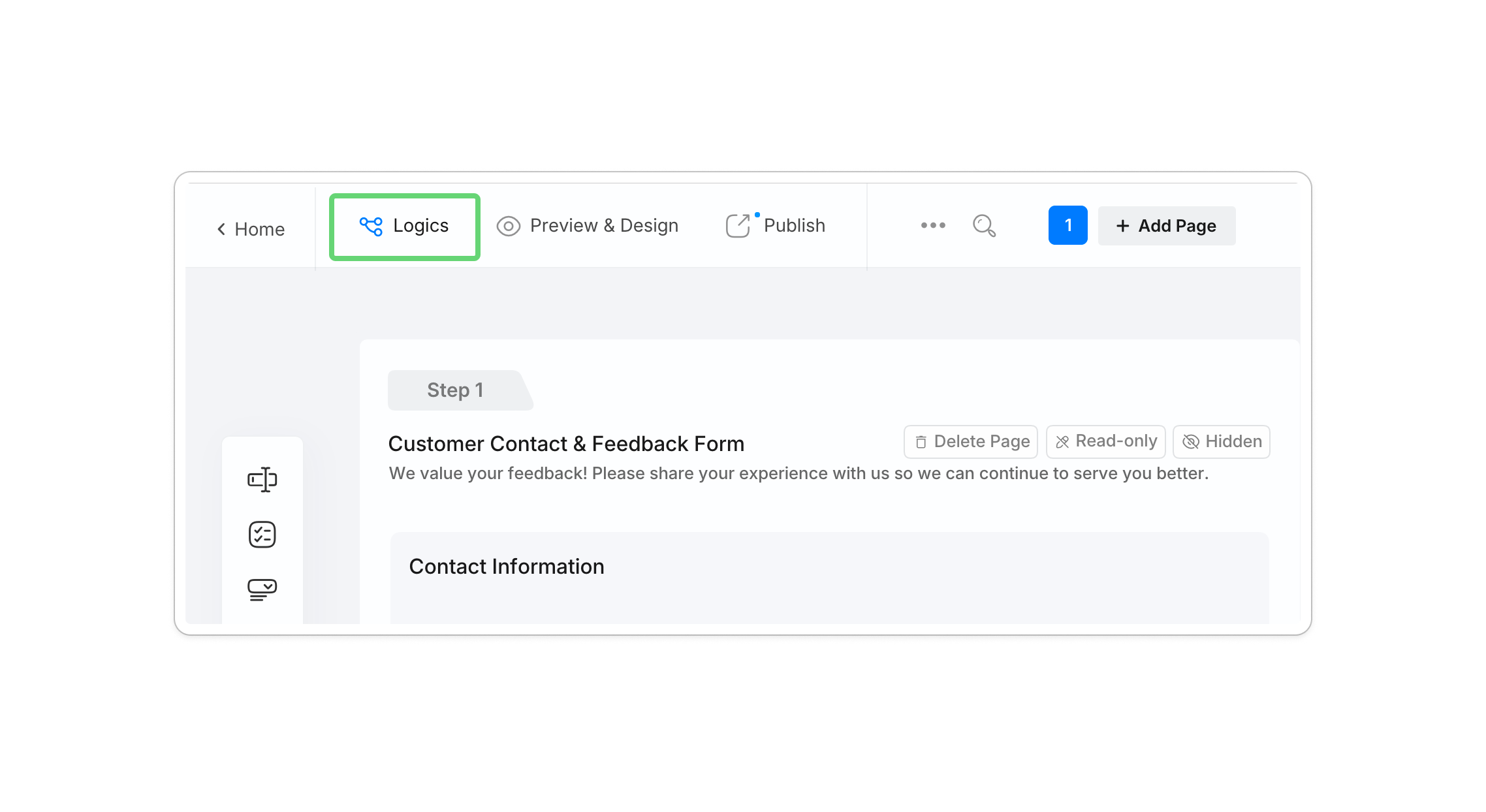
Open the Logics Panel: Click the Logics button in the top-left corner of the form builder.
-
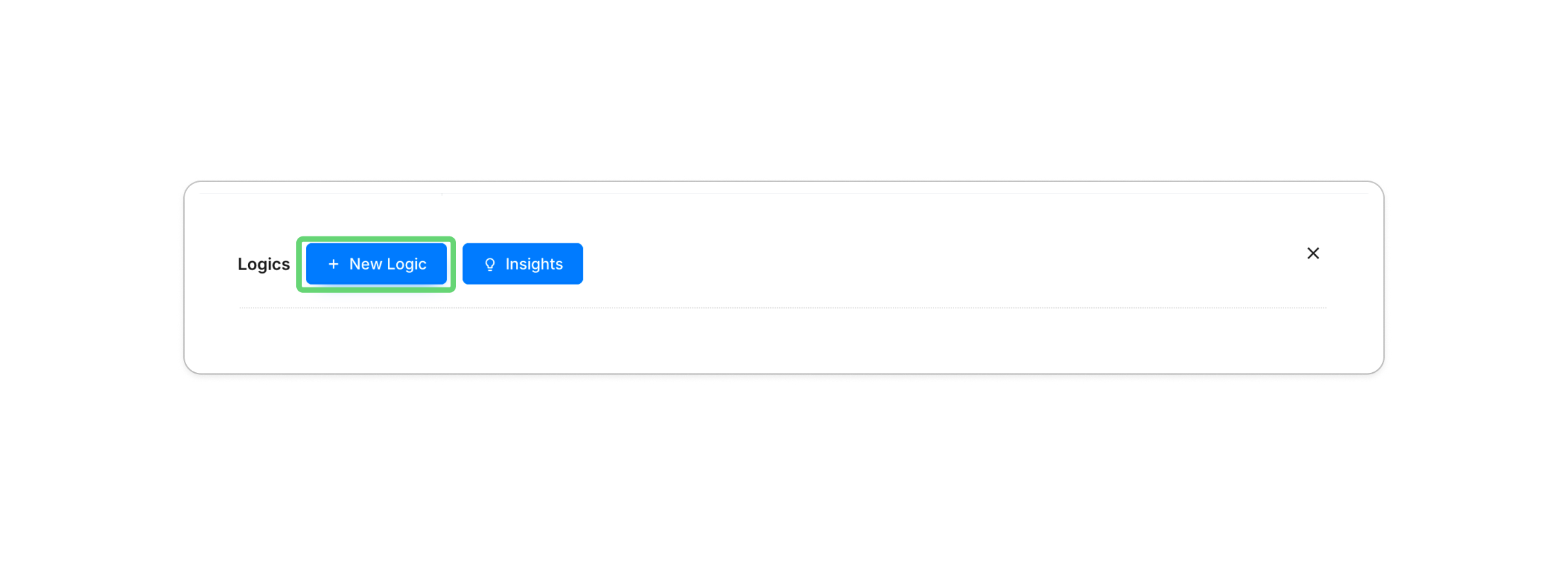
Create New Logic: Click + New Logic.
-
Define the Trigger (IF): Select your field and criteria (e.g.,
If #Coffee or Tea? is equal to Coffee). -
Set the Action (THEN): Define what happens (e.g.,
Then Show #Cream or Sugar?). -
Preview & Test: Use the preview mode to ensure your branching paths flow correctly.


💡 6 Powerful Logic Scenarios for Your Workflow
Below is a quick overview of the most common logic patterns you can build with PlatoForms.
| Logic scenario | What it does | Example | Best for |
|---|---|---|---|
| Jump question | Shows a question only when needed. | Show “Enter Discount Code” only if the user selects “Yes.” Jump Question logic |
Short surveys, lead forms |
| Skip page | Sends users to different pages. | Route users to “Speaker” or “Participant.” Skip Page setup |
Role-based forms, events |
| Branching logic | Changes questions based on answers. | 5★ → “What did you love?” 1★ → “How can we improve?” |
Feedback, NPS, support |
| Set value | Fills fields automatically. | Apply $100 Early Bird before a deadline. Set Value logic |
Pricing, registrations |
| Advanced calculations | Calculates values in real time. | Price × Quantity = Total CostCalculations logic |
Orders, invoices |
| Reuse fields | Copies values between fields. | Copy Signature #1 → Signature #2 Reuse fields |
Contracts, PDFs |
Managing complex logic at scale
When your form has dozens of rules, staying organized is key:
- Filter by Field: Click Logics in the attributes panel of any specific field to see only the rules affecting that question.
- Search by ID: Use the filter bar in the Logic Panel to search for specific Field IDs or labels.
🛠️ Take Your Forms Further with PlatoForms
Conditional logic is just the beginning. When you build forms with PlatoForms, you’re accessing a complete document automation platform designed for professional workflows:
- Automated Emails: Send personalized email notifications with answer piping.
- Payment Processing: Accept payments through Stripe with zero additional platform fees.
- Powerful Integrations: Connect with Google Sheets, Slack, and 5,000+ other apps via Zapier, Make, and Pabbly.
- File Uploads: Let respondents upload documents or images directly into your form with secure storage options.
- Custom Styling: Fully brand your forms with custom colors and fonts for a seamless look.
- Embed Anywhere: Host your form as a standalone page or embed it into your website.
Ready to Upgrade from Google Forms?
PlatoForms makes conditional logic powerful yet simple. Whether you are starting from one of our 1,000+ form templates or converting an existing PDF, we help you transition to a professional, PDF-ready workflow in minutes.
Start for Free with PlatoForms
No credit card required. Pixel-perfect forms ready in minutes.
Want to see it in action? Watch our Video Tutorial on Conditional Logic.


