










Find trending topics and quick answers here
Hi, how can we help?
Search by task, feature, or problem - not just a single keyword.
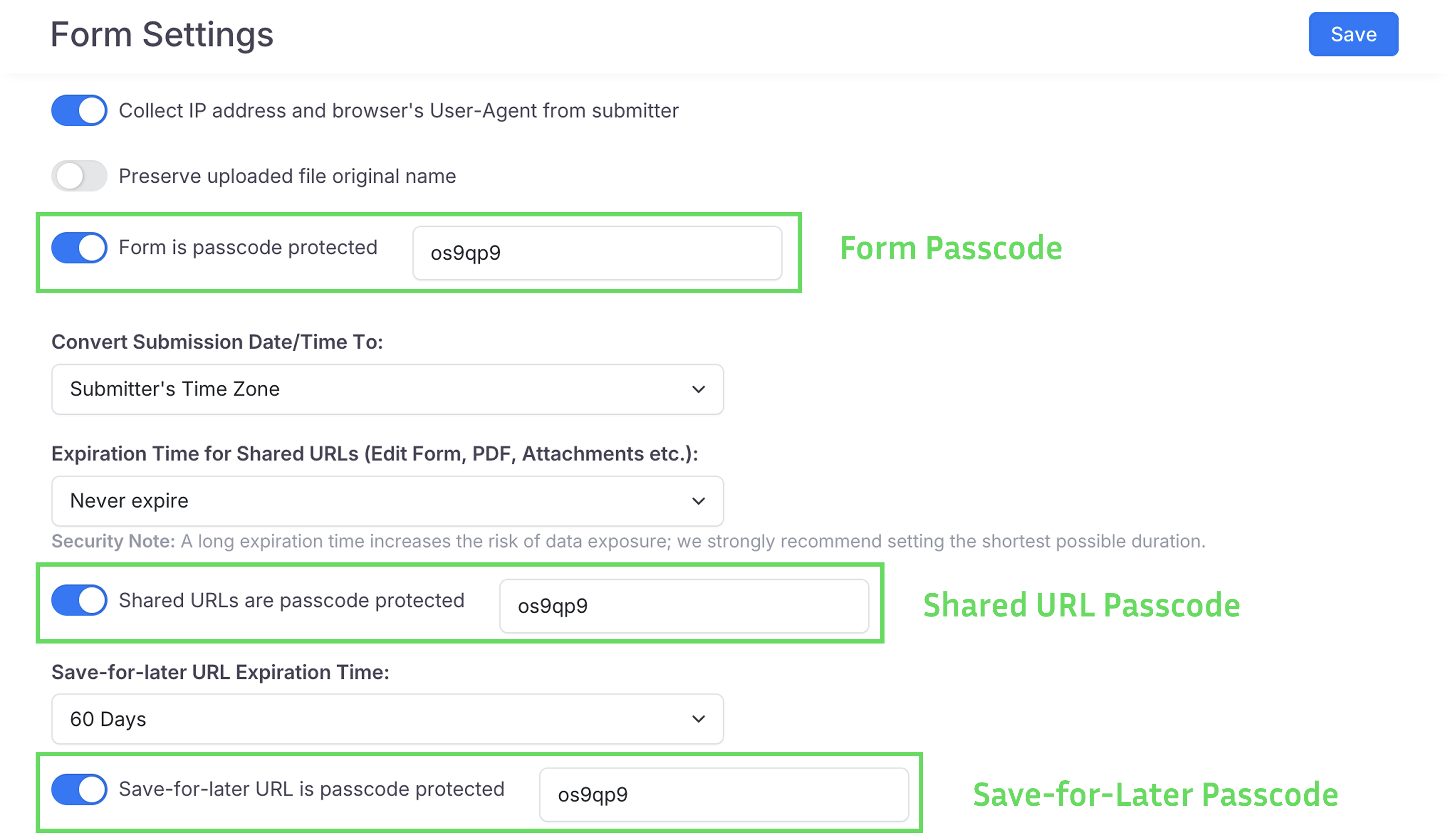
What’s the difference between form passcode, shared URL passcode, save-for-later passcode, and invitation password?

Question
What’s the difference between form passcode, shared URL passcode, save-for-later passcode, and invitation password?
Answer
These passcodes or passwords serve different purposes in PlatoForms and apply to different scenarios. Here’s a quick summary:
Summary
| Type | Purpose |
|---|---|
| Form passcode | Restrict access to the form |
| Shared URL passcode | Restrict access to shared submission link |
| Save-for-Later passcode | Resume unfinished submission |
| Invitation password | Restrict to invited recipients only |
1. Form Passcode
Used to restrict access to the entire form.
-
Example use case: Collecting data from internal staff only.
-
When is it used? When you want only users with a specific code to open the form.
-
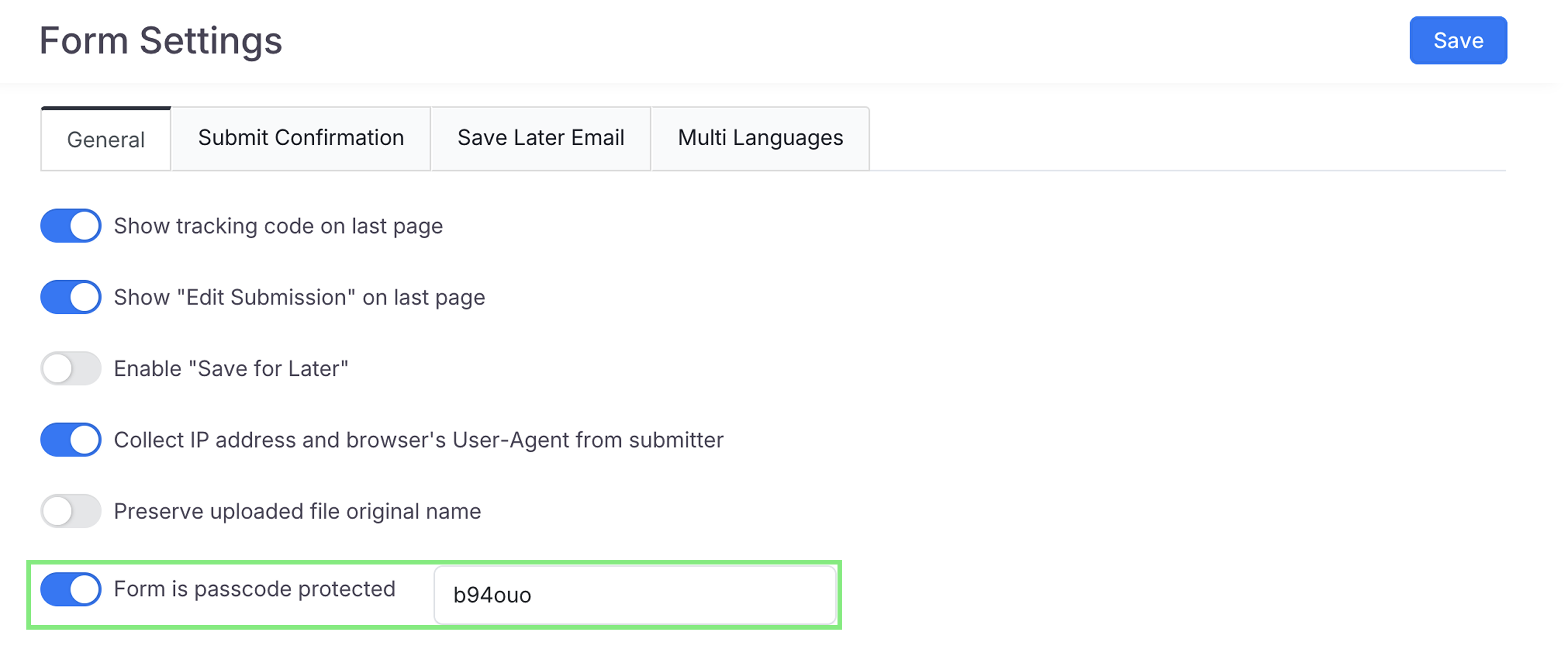
Where is it set? Manage Form > General settings > Privacy & Security > toggle on Form is passcode protected.
-
Who sets it? A random 6-character passcode is filled in when you turn the switch on. You can change it.
2. Shared URL Passcode
Used to protect links to one submission that you share: the Edit Submission link, the PDF download and attachments. It never protects the form link itself. To require a passcode to open the form, use the Form passcode.
-
Example use case: Sharing a submitted entry’s edit link or PDF with someone who needs a passcode to open it.
-
When is it used? When you want links to a submission to ask for a passcode.
-
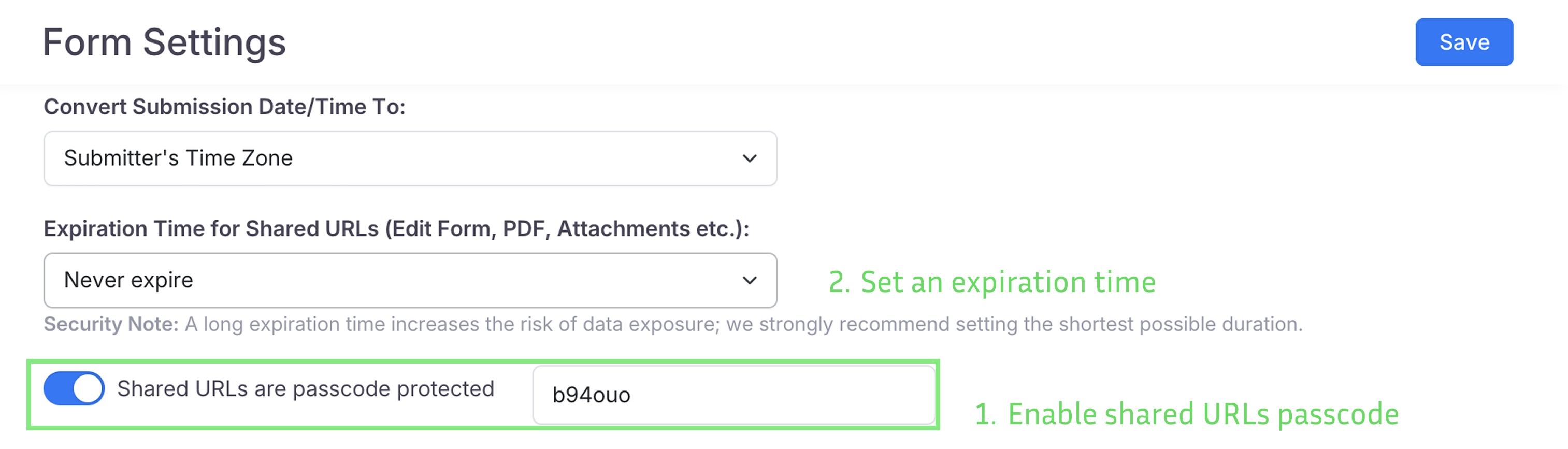
Where is it set? Manage Form > General settings > Privacy & Security > toggle on Shared URLs are passcode protected.
-
Who sets it? A random 6-character passcode is filled in when you turn the switch on. You can change it. Or tick Use random passcode to give each submission its own passcode, which you can add to the notification email with
{{ shared_url_passcode }}.
Important note:
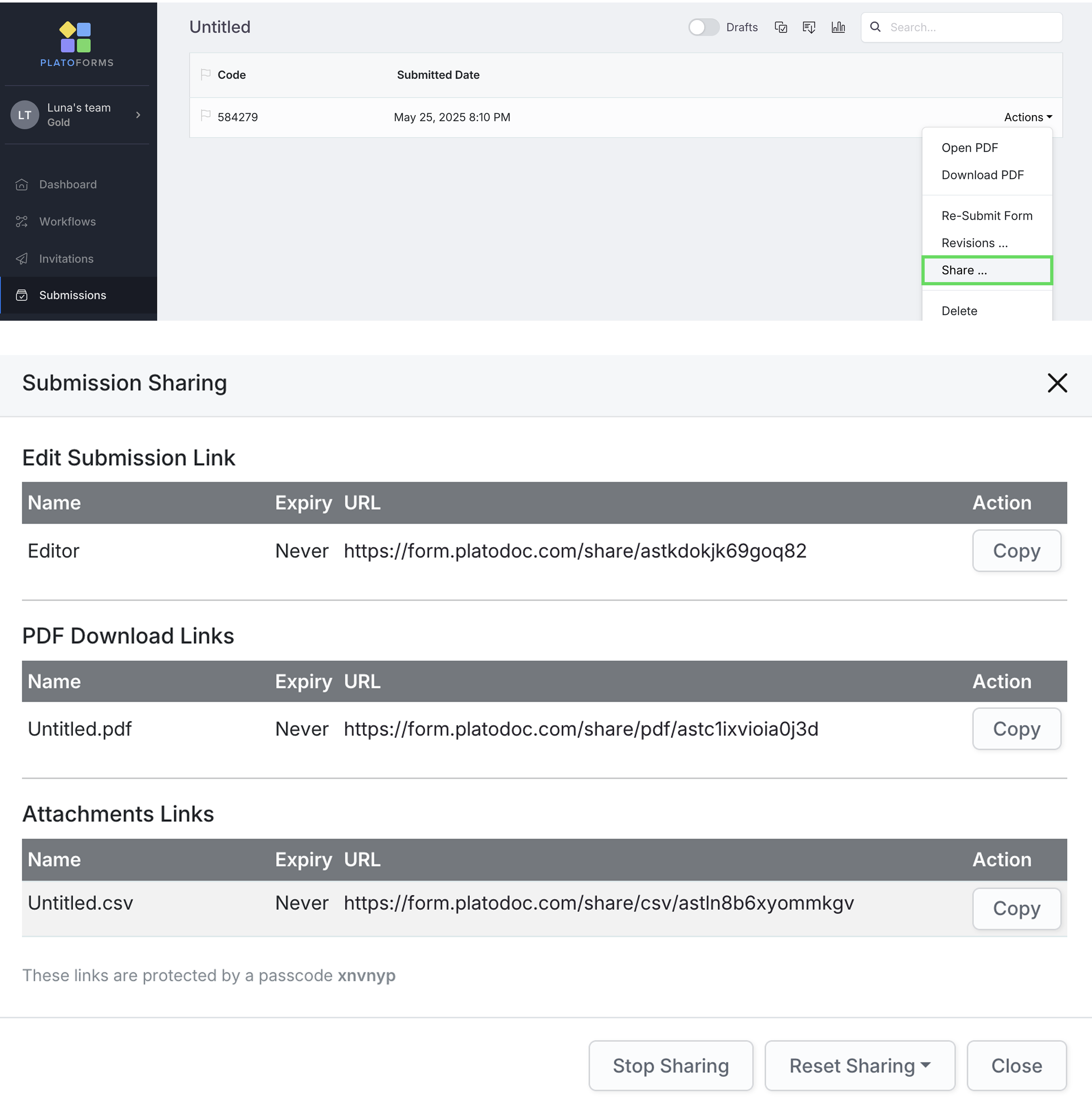
Once enabled and saved, all shared submission-related links, including “edit Submission”, “PDF download”, or “attachments”, will need a passcode to open. These links are available in Submissions page > Actions > Share > Submission Sharing panel.
3. Save-for-Later Passcode
Used to allow form submitters to save their progress securely and resume later.
-
Example use case: Submitters save a draft and use a password to continue filling the form later.
-
When is it used? When you want users to fill the form in multiple sessions securely.
-
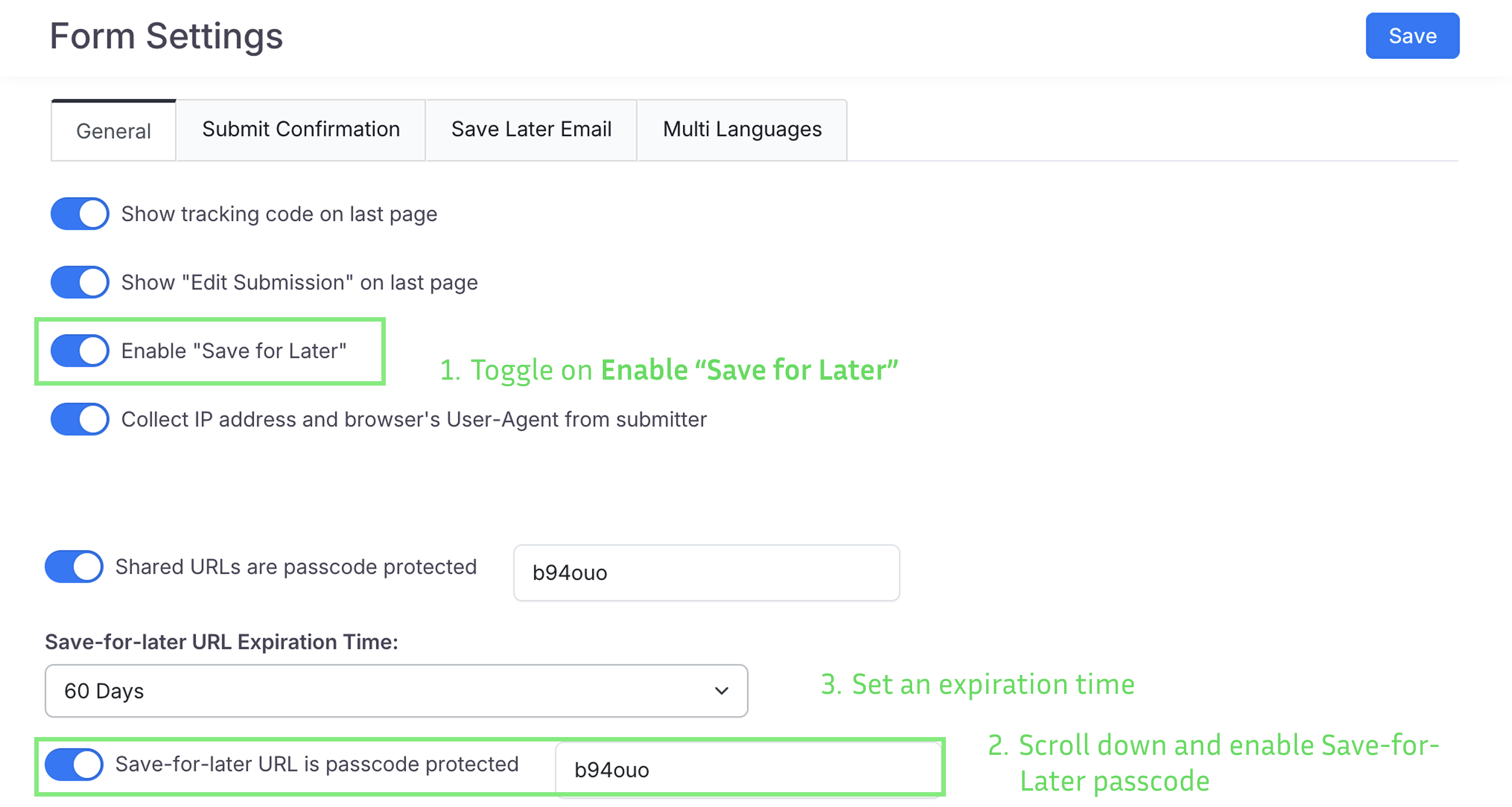
Where is it set? Manage Form > General settings > toggle on Enable “Save for Later” > toggle on Save-for-later URL is passcode protected.
-
Who sets it? A random 6-character passcode is filled in when you turn the switch on. You can change it. Or tick Use random passcode to give each saved draft its own passcode, shown when the draft is saved and available in the Save later email with
{{ draft_url_passcode }}. -
With a form passcode: when Form is passcode protected is on, save-for-later links ask for the form passcode instead of this one.
4. Invitation Password
Used to restrict access to the form for invited users only.
-
Example use case: You want to ensure that only specific people can open the form via their invitation emails.
-
When is it used? When you want to limit access to invited users only.
-
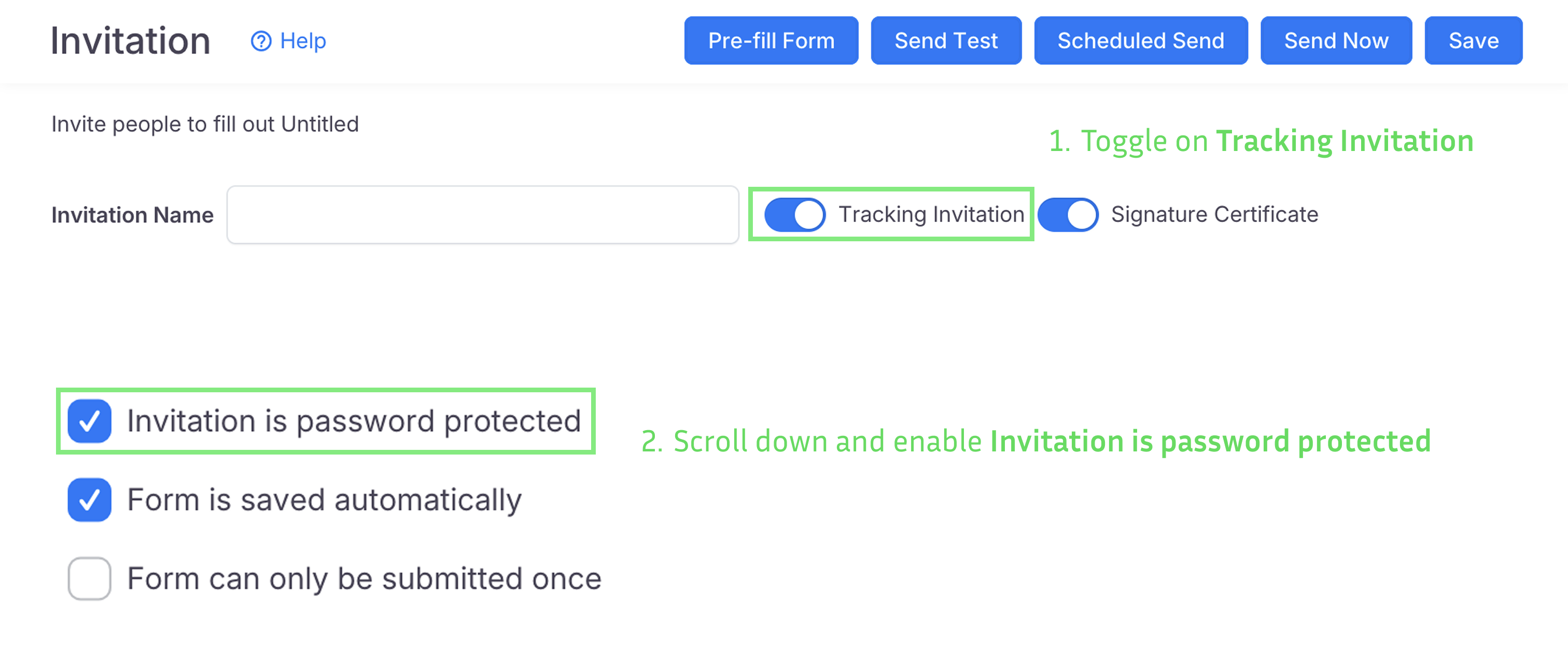
Where is it set? Manage Form > Invitations: enable Tracking Invitation, then check Invitation is password protected.
-
Who sets it? A password is generated for each recipient when the invitation is sent.
-
How does it work? After sending the invitation, each recipient gets a unique link and a password in their email. They’ll need the password to access the form.
Wrong passcodes
After many wrong passcodes or passwords in a short time, the page refuses for a while, even when the right one is typed. Wait a while and try again.
Passcode vs. Password
In PlatoForms, passcode and password are similar but used in different contexts:
| Term | Used in | Description |
|---|---|---|
| Passcode | Form-level access control | A short code (usually system-generated) to protect access to a form or link. It’s used for general form protection, shared URL access, or save-for-later. |
| Password | Invitation-based access | A code included in an invitation email, unique per recipient, used to protect access to a form sent via invitation. |
Summary:
- Use passcode when restricting general access to forms or links.
- Use password when securing access for specific invited users.
Video tutorial
You can also refer to our video tutorial: