


Creating a professional PDF document usually starts with a frustrating choice: stare at a blank page in a word processor and build everything from scratch, or spend hours searching for a template that almost fits your needs, only to break the formatting when you try to modify it.
Whether you need a freelance contract, a client project brief, or a workshop certificate, manually structuring sections, aligning content, and styling the layout takes time away from the work that actually matters.
While many tools now offer AI writing assistance, they often stop at generating plain text. You are still left copying that text into another tool, fixing margins, choosing fonts, arranging the layout, and exporting the final document. The disconnect between content generation and document design creates a fragmented and inefficient workflow.
An AI PDF generator changes this by bringing drafting and design into the same process. Instead of writing the content first and formatting it later, you can describe what you need in one sentence, and the AI builds the document directly on the canvas.
This guide explores how PlatoForms’ PDF Document Creator helps you move from one prompt to a complete, customizable document. You can generate the initial content and layout, refine it through AI chat or manual controls, and publish it as a PDF or online form without rebuilding the design in another tool.
In this blog, we’ll cover:
The power of the one-sentence prompt
The main advantage of an AI PDF generator is its ability to understand the content, structure, and purpose of a document at the same time. You do not need to provide a detailed outline, specify every heading, or decide where each field should go. You simply describe what you want to create.
Imagine you are a freelance web developer preparing an agreement for a new client. Instead of searching for a suitable template and modifying it manually, you can open PDF Document Creator and enter a prompt such as:
“Create a freelance web development agreement with sections for project scope, deadlines, payment, and signatures”
Within seconds, the AI builds the document directly on the canvas—not just the text, but also the sections, formatting, layout, and relevant fields. Instead of copying generated content into another editor, you can start reviewing and customizing the document immediately.
This removes the friction of starting from a blank page. You instantly have a structured working draft that looks and behaves like a real document, giving you a practical foundation to build on.
Refining your document with AI chat
The first draft is only the starting point. You may realize that a clause is missing, the tone feels too casual, or the visual style does not match your brand.
Instead of manually rewriting sections or repairing the layout after every change, you can use the AI assistant in the Chat tab to update the document directly on the canvas. The AI understands the context of the document, so you can request both content and design changes through conversation.
For the web development agreement, you might type:
- “Make the tone more formal and professional.”
- “Add a section covering the cancellation terms.”
- “Change the background to light yellow.”

The AI applies these requests directly to the existing document. It can revise the wording, add new sections, update the styling, and preserve the overall structure while the design evolves.
You can also select a specific component and ask the AI to modify only that part. This makes it easier to refine individual headings, fields, sections, or visual elements without changing the rest of the document.
The result is a faster editing process that lets you move between writing and design without repeatedly copying content between separate tools.
Taking manual control of the design
AI can handle the initial structure, content, and visual direction, but there are times when you need more precise control. Many automated tools make it difficult to move beyond the generated result, leaving you locked into a fixed layout or style.
PlatoForms keeps every part of the document editable. Once the AI has created the first version, you can use the visual editor to fine-tune the design, content, fields, and page structure.
Customize the visual style
-
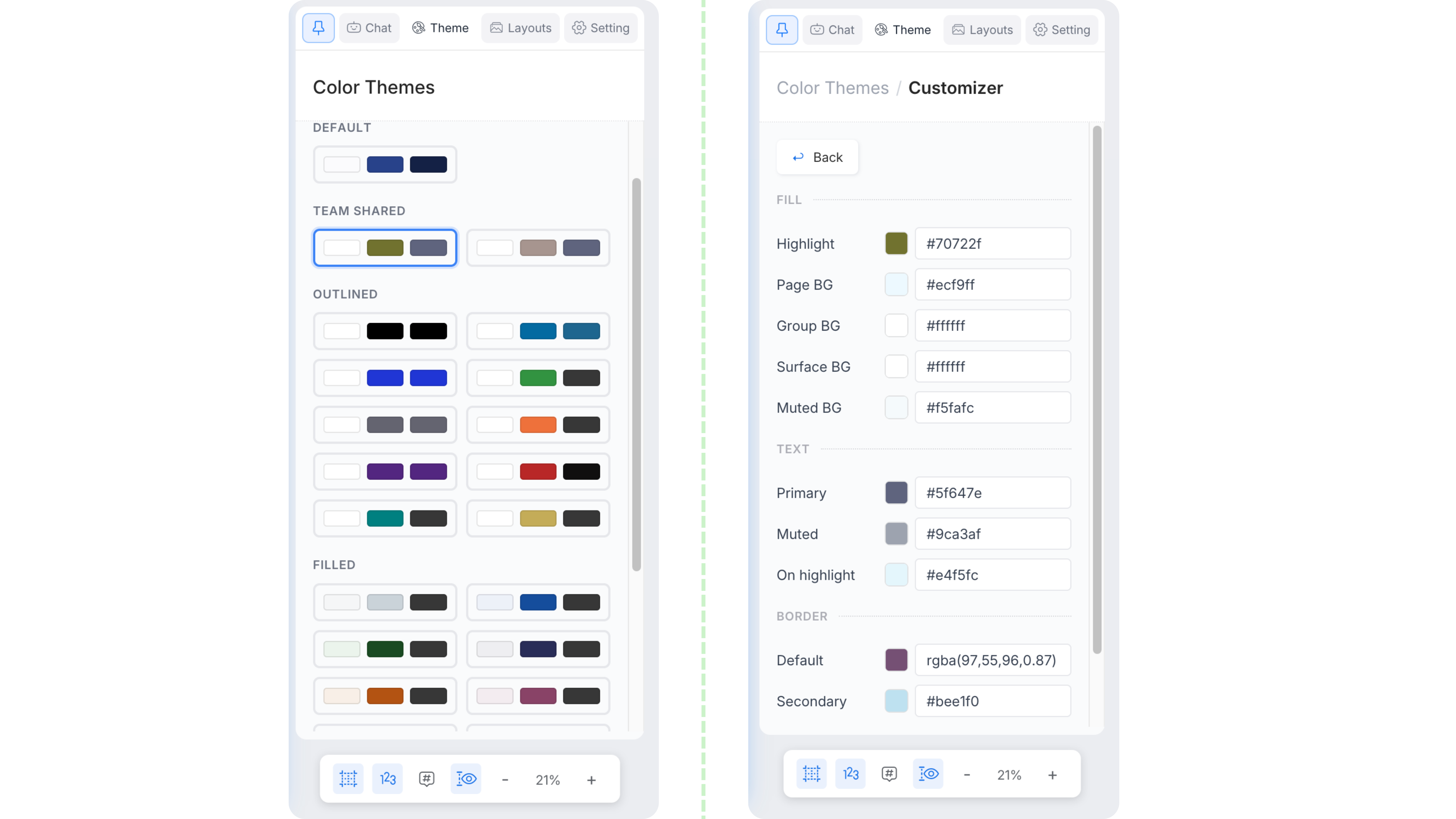
Adjust the theme: Hover over any pre-designed theme to preview it directly on your document. You can also customize the colors to match your brand, save your custom theme, and share it with your team to keep future documents consistent.
-
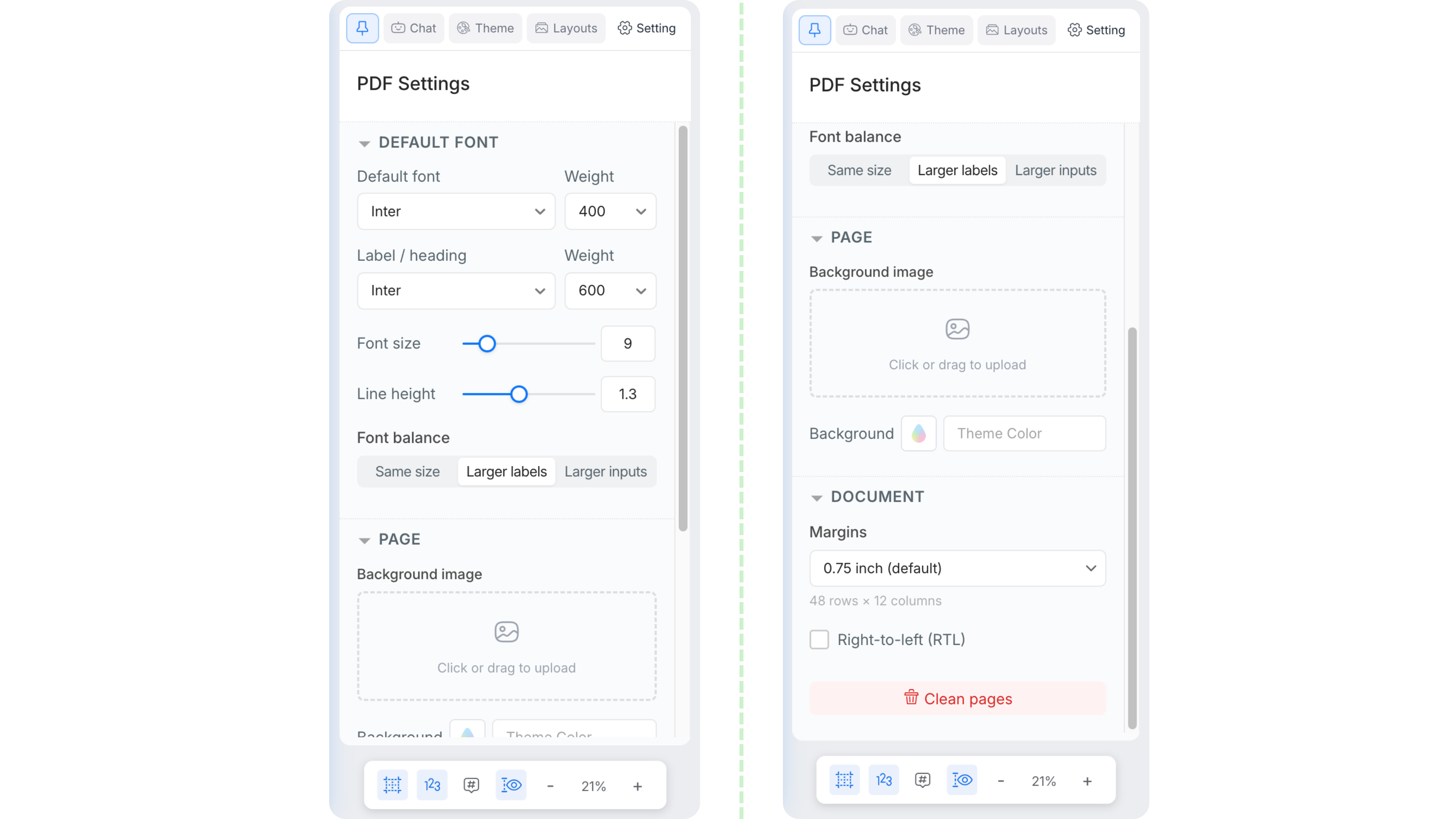
Apply document-wide settings: Want a consistent look without editing every field individually? Open the Setting tab to set the default font and font size for the whole document and how font sizes are balanced between labels and fields. You can also choose the page margins, add a background color or image, and turn on right-to-left (RTL) layout for languages such as Arabic or Hebrew, all from one place.


Add and customize content
-
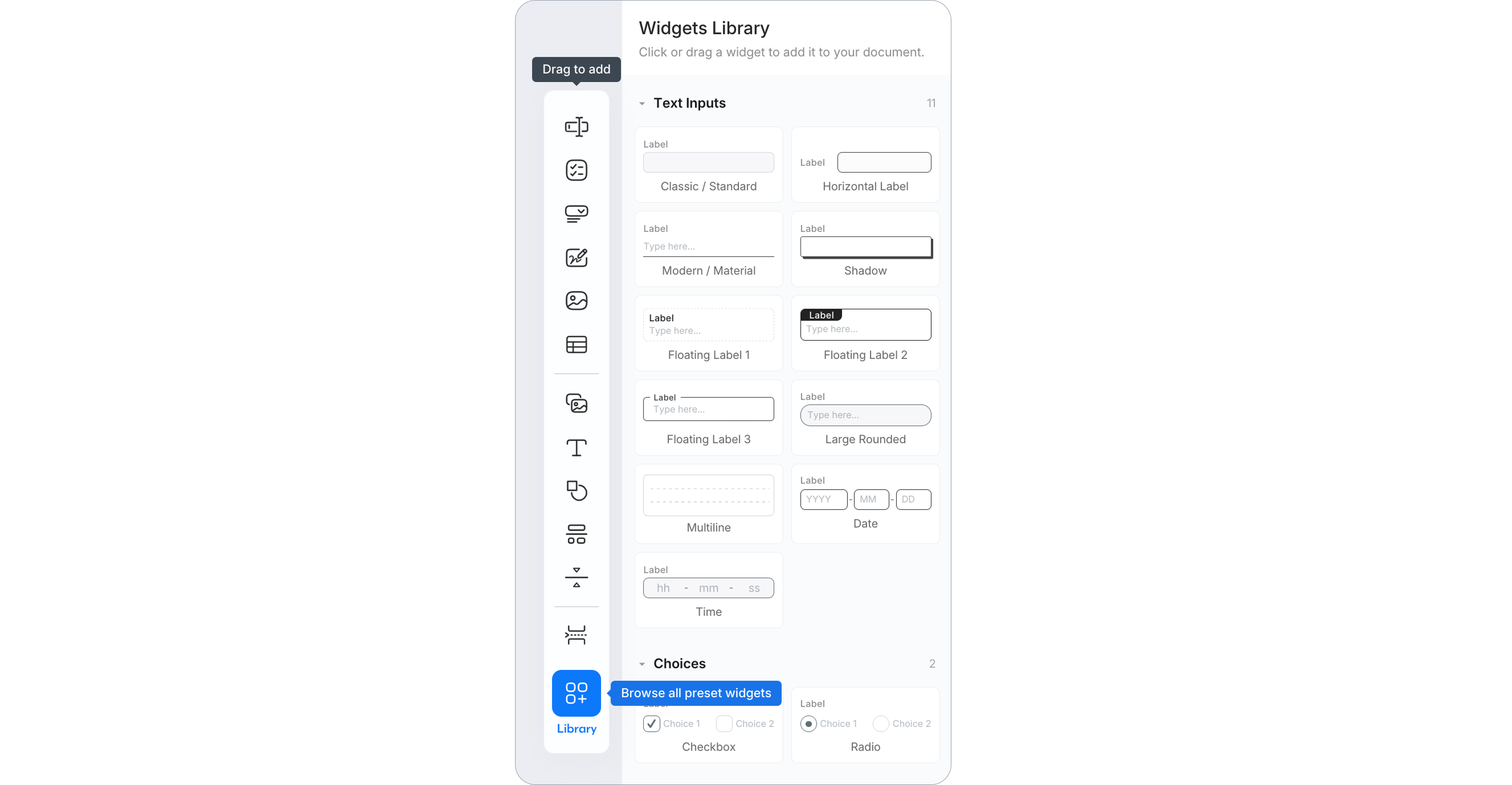
Add elements: Hover over icons in the left sidebar to see what to add, then drag it onto the canvas or click to place it. Once added, you can move, resize, duplicate, or delete any component. For more styles, open the Library and add a pre-styled variant from the preview.
-
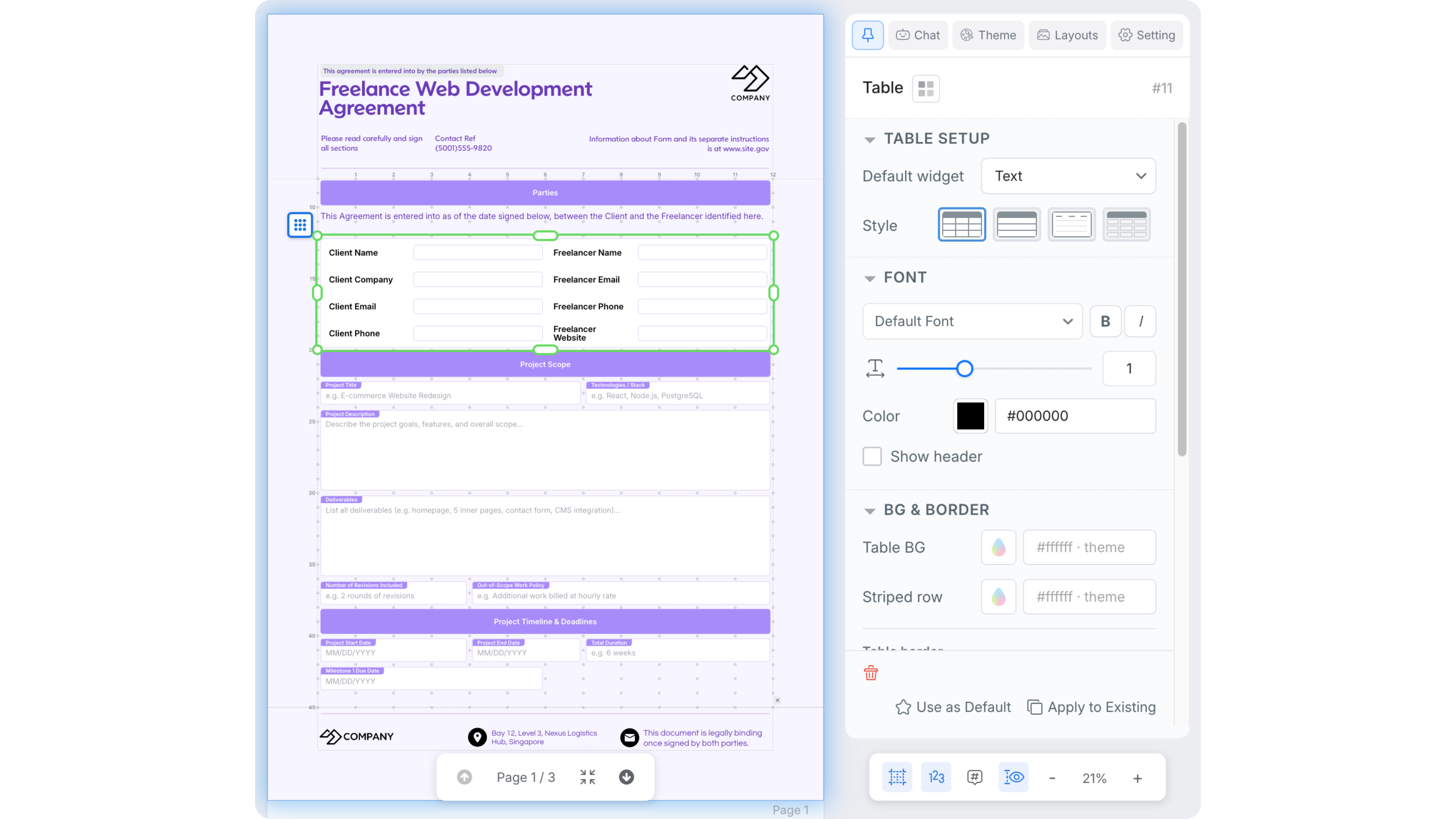
Modify fields: Click any field on the canvas to open its customization options in the right panel. The available settings vary by field type and may include the style, text size, background, border, label layout, padding, margins, and other field-specific properties.


Control the page structure
-
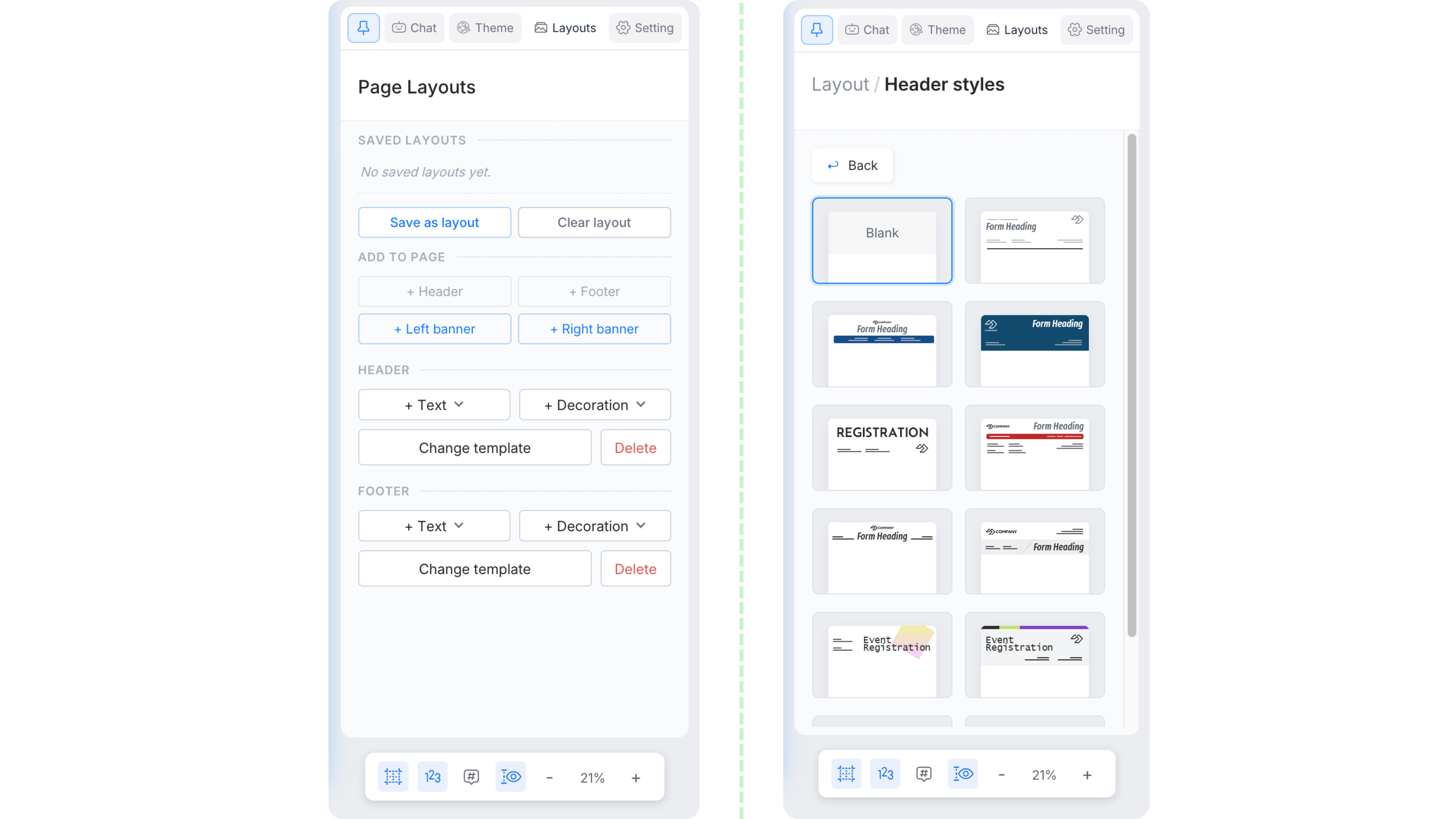
Set Page Layouts: Add customizable headers and footers to keep your document polished and consistent. You can include descriptions, URLs, page numbers, notes, decorations, and other details. You can also switch between templates and save customized layouts for reuse.
-
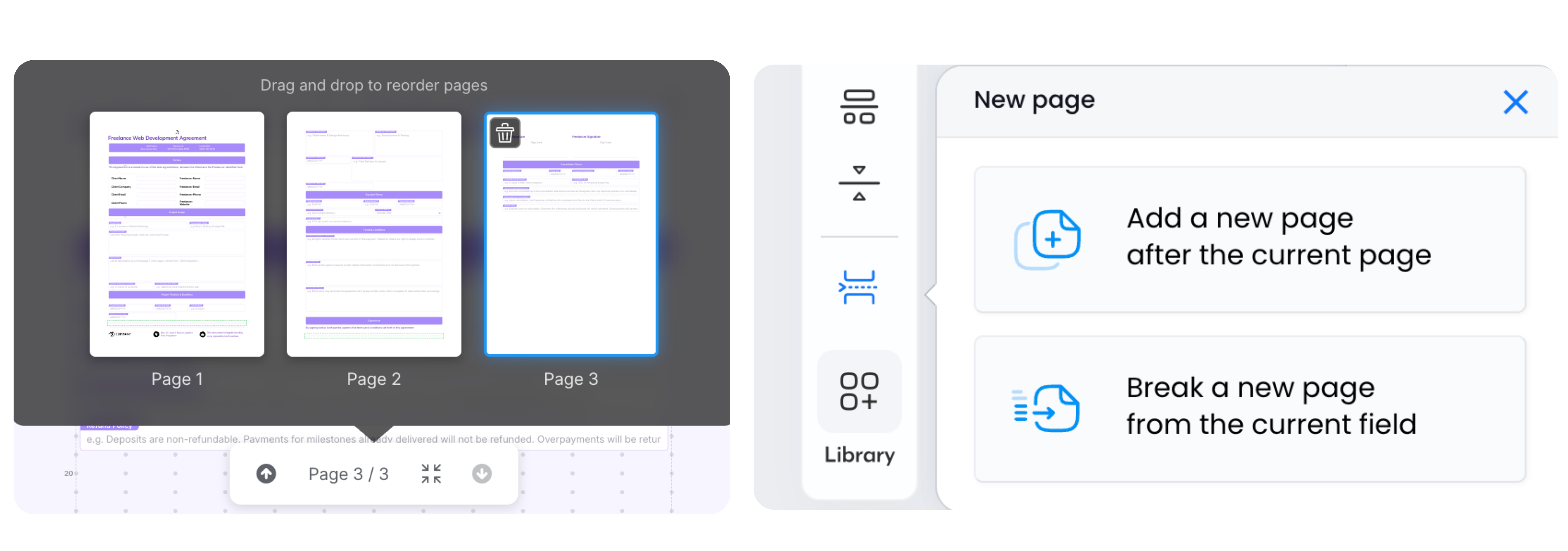
Manage pages: PDF Document Creator uses soft page breaks by default, allowing content to flow automatically onto the next page. For more control, you can add a hard page break, insert a new page, start a new page from a selected field, or reorder and delete pages.


Return to an earlier version
- Use version history: PDF Document Creator saves your work automatically. Press Cmd/Ctrl + S to create a named version, or click History in the top navigation bar to browse and restore earlier versions. PlatoForms also records AI-generated changes in version history, allowing you to return to an earlier stage of the editing process when needed.
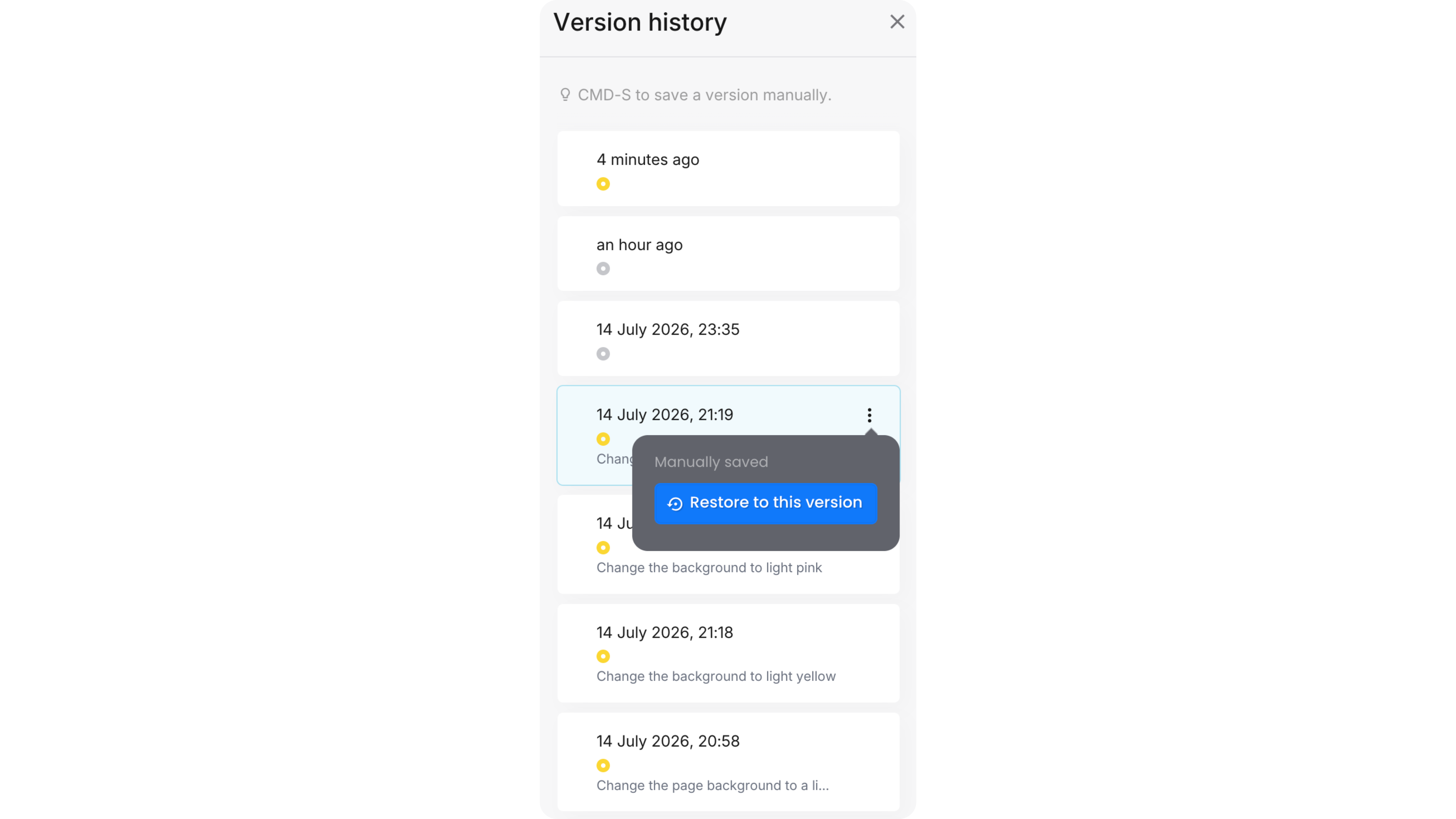

Note: Cmd/Ctrl + S does not always create a separate history entry. If you save repeatedly within a short period, multiple saves may be grouped into one entry to avoid creating excessive history records.
The goal is simple: let AI handle the repetitive setup while you stay in control of the final result. Whether you need one small adjustment or a complete redesign, the generated document remains fully editable.
Flexible output: Read-only PDF, fillable PDF, or online form
Once your document is ready, you can decide how people will use it. From the same design canvas, you can export it as a PDF or convert it into an interactive online form.
Export as a PDF
Choose between two PDF modes:
-
Read-only PDF: Best for printing, archiving, or sharing a fixed document, such as a workshop certificate or final project report. The layout is preserved exactly as designed, making this the best choice when visual accuracy is critical.
-
Fillable PDF: Best for documents that need to be downloaded and completed in a PDF reader, such as an agreement or application form. The fields remain interactive, although results may vary for highly complex designs.
Convert to an online form
You can also turn the document into a shareable form that users complete and submit in their browser. There are two conversion paths:
-
PDF Fillable Form: Keeps the original PDF as the background and places interactive fields on top, making it ideal when preserving the document’s appearance is important.
-
Web PDF Form: Creates a clean, web-based form for data entry, then maps the submitted information back into the final PDF.
After conversion, you can configure each field’s label, placeholder, format, required, read-only, or hidden settings, input validation, and conditional logic before publishing and sharing the form. The online form is a separate copy: later changes to the document do not reach it on their own, and converting again with the same type rebuilds that form from the current document.
This means you do not need to rebuild the same document for different use cases. One AI-generated design can become:
- A read-only PDF
- A downloadable fillable PDF
- A PDF Fillable Form
- A Web PDF Form
For a better visual explanation, see this tutorial 👇🏻
Comparing AI document creation workflows
To understand the difference, it helps to compare how each approach handles the complete process—not just writing the content, but also designing the document, adding fields, and preparing it for use.
| Workflow step | Traditional tools (Word/Google Docs) | General-purpose AI assistants | PlatoForms PDF Document Creator |
|---|---|---|---|
| Getting started | Start from a blank page or search for a suitable template. | Describe what you need and generate a text draft. | Start from a blank canvas or describe the document in one prompt. AI builds the content, sections, fields, formatting, and layout directly on the canvas. |
| Formatting and layout | Manually adjust fonts, spacing, margins, headings, and page structure. | Copy the generated text into a document or design tool, then format it separately. | AI handles the initial design. You can then apply themes, use pre-styled components, or manually adjust the layout, fonts, colors, background, and spacing. |
| Revisions | Rewrite the content and repair any affected formatting manually. | Generate revised text, copy it back into the document, and check the formatting again. | Continue chatting with the AI to revise the whole document, or select specific components and ask it to update only those elements. |
| Adding fields and signatures | Add lines or placeholders, or use separate form and signature tools. | Usually requires moving the content into another tool. | AI can include input and signature fields during generation. You can also add, resize, duplicate, and customize fields directly in the visual editor. When you send the form by invitation or workflow with Signature Certificate turned on, you also get a certificate after it is signed. |
| Visual customization | Manually style the document and duplicate an existing file when you want to reuse its design. | Depends on the document or design tool used after the content is generated. | Preview themes on the document, use pre-styled components, enter exact brand colors, adjust document-wide settings, and save custom themes for reuse. |
| Final output | Export the document as a standard PDF; interactive forms usually require additional software. | Requires another tool to design, export, or distribute the finished document. | Export a read-only or fillable PDF, or convert the same design into a PDF Fillable Form or Web PDF Form without rebuilding it. |
Traditional document tools are primarily built for writing and formatting, while general-purpose AI assistants focus mainly on generating content. PlatoForms combines AI drafting, visual document design, interactive fields, and flexible publishing in a single workflow.
Instead of moving content between an AI assistant, document editor, PDF tool, and form builder, you can create, refine, export, and publish the document from the same design canvas.
Frequently Asked Questions
Can I create a PDF with AI using just a short description?
Yes. You only need to provide a single sentence describing the document you want (e.g., “Create a non-disclosure agreement for a software project”). The AI will generate the appropriate structure, content, and formatting based on that prompt.
Is the AI-generated PDF fully customizable?
Absolutely. After the AI generates the initial draft, you can use the built-in AI chat to make structural or tonal changes, or use the visual editor to manually adjust fonts, colors, layout, and input fields.
Can I edit the document after AI generates it?
Yes. Every document remains fully editable. You can continue chatting with the AI, manually adjust the layout in the visual editor, or combine both approaches at any time.
What if I need the document to be interactive?
The platform is designed for interactivity. You can export your document as a fillable PDF or convert it into an online form. You can also add conditional logic to make it easier to complete.
Do I need design experience to use an AI PDF maker?
No design experience is required. The AI creates the initial document for you, including the layout, formatting, and fields. When you want to make changes, the visual editor provides straightforward controls for adjusting fonts, colors, spacing, fields, pages, and other details without requiring professional design skills.
Can I translate the PDF document into another language?
Yes. Once your document is built, you can create a translated copy directly from the editor. Choose AI Translate to generate the translation automatically, or clone the document and translate it yourself on the canvas — your original is never touched. See Translate Document for details.
Ready to create your next PDF with AI?
Creating professional documents no longer has to involve multiple tools, endless formatting, or searching for the perfect template.
With PlatoForms PDF Document Creator, you can move from a single prompt to a polished, customizable document in minutes. The AI builds directly on the canvas, every part remains editable, and the same design can be exported as a PDF or converted into an online form.
One prompt. One editable design. Multiple ways to publish.


