












Someone starts a quote request for office cleaning. They enter their name, work email, and company name. Then they get to a question about the size of their office. They don’t have the answer handy, so they close the form.
If their progress was saved, your sales team can see how far they got and send them a link to pick up where they left off. Here’s how to set up lead follow up for unfinished forms in PlatoForms, including what to say in your first email or call.
Why an unfinished form is worth a follow-up
People who start a quote request can be warm leads. They’ve already taken a step toward getting a price. Sometimes they just need to look up a detail or check something with a coworker before they can finish.
Keep the first follow-up simple. Give them their link and offer to help. For an office cleaning quote, that could mean telling them whether an estimate of their office size is enough to get started.
See who stopped and how far they got
In Form Settings, turn on Save for Later and check that Save progress automatically is on. Save for Later is available on paid plans and during the free trial. PlatoForms saves an entry once someone answers three questions or moves to the next page, even if they never click Save for Later. After that first save, changes are saved as they go. Respondents can also click Save for Later to save immediately.
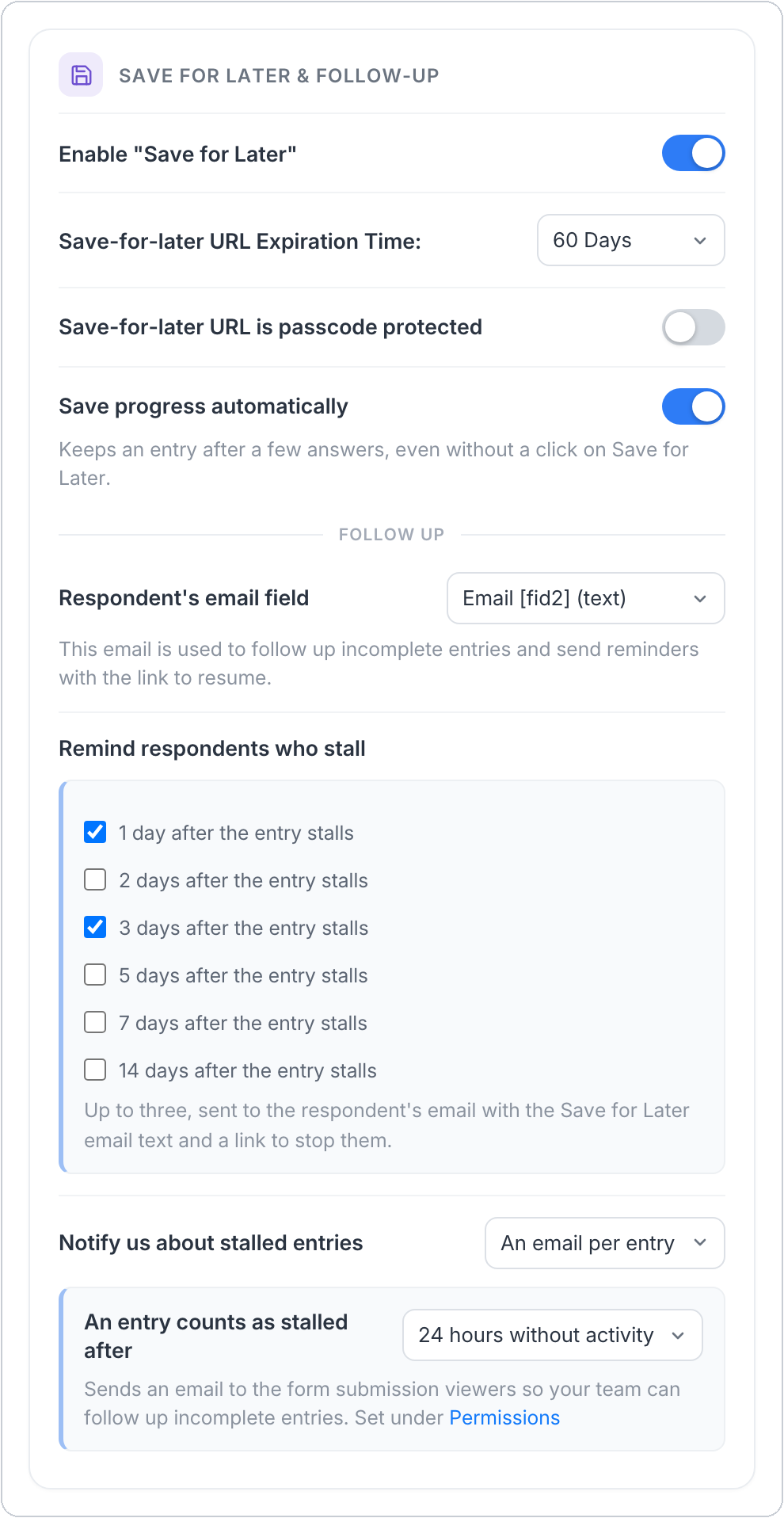
Open Submissions → Incomplete entries to see when someone last worked on the form, which page they reached, what they answered, and any contact details they provided. You can filter by how long entries have been idle, their status, or whether they include contact details. See the Incomplete entries settings in the User Guide.
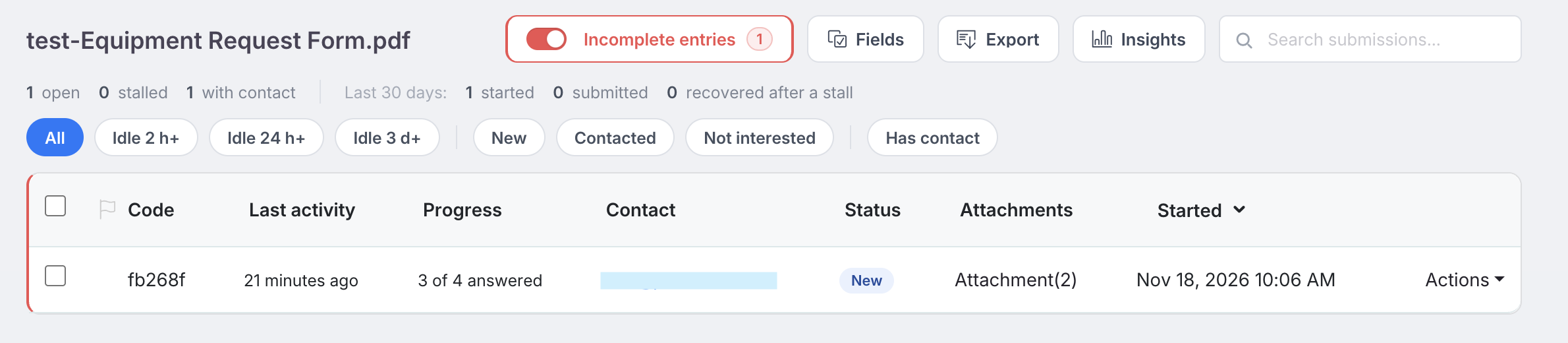
For a quote request form, ask for the lead’s name, work email, and company name before details like office size and cleaning frequency. Set Respondent’s email field to your form’s work email field. PlatoForms uses that address when your team clicks Send resume link or when an automatic reminder is due. If you leave the field unset, PlatoForms can only use an address the respondent entered when emailing themselves the link from the Save for Later pop-up.
Let your sales team know when a lead stops filling out the form
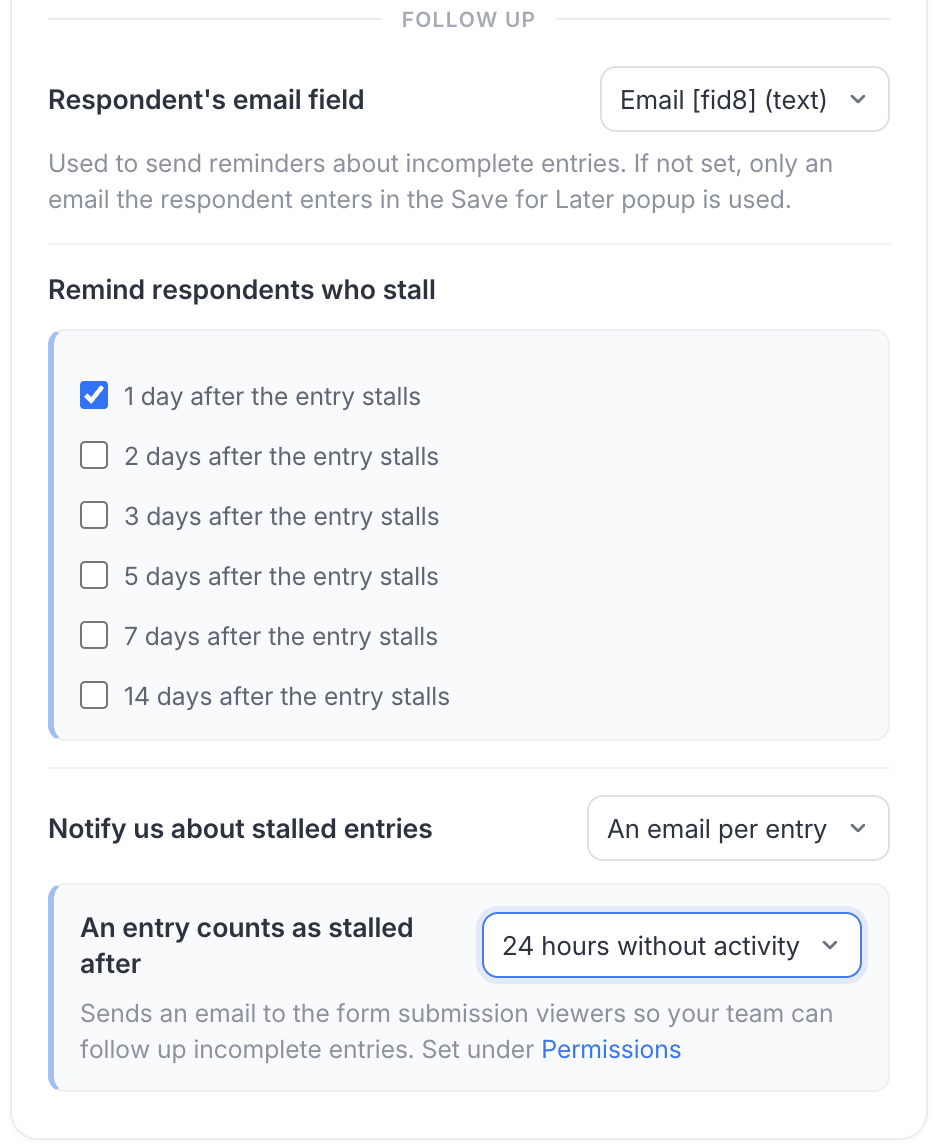
Under An entry counts as stalled after, choose how long an incomplete entry can sit without activity before PlatoForms marks it as stalled. The options are 2 hours, 24 hours, and 3 days. For quote requests your team handles throughout the day, try starting with 2 hours.
Under Notify us about stalled entries, choose An email per entry for an alert each time an entry stalls, or A daily summary for one email per day. Choose Off to disable team email alerts. With either email option, PlatoForms notifies team members who can view the form’s submissions (set under Permissions) and adds a Follow up to-do in the Inbox.
How to follow up on a sales lead: call or email first?
Email first when the person left an email address and the easiest next step is to send their link. This gives them time to look up any details they need.
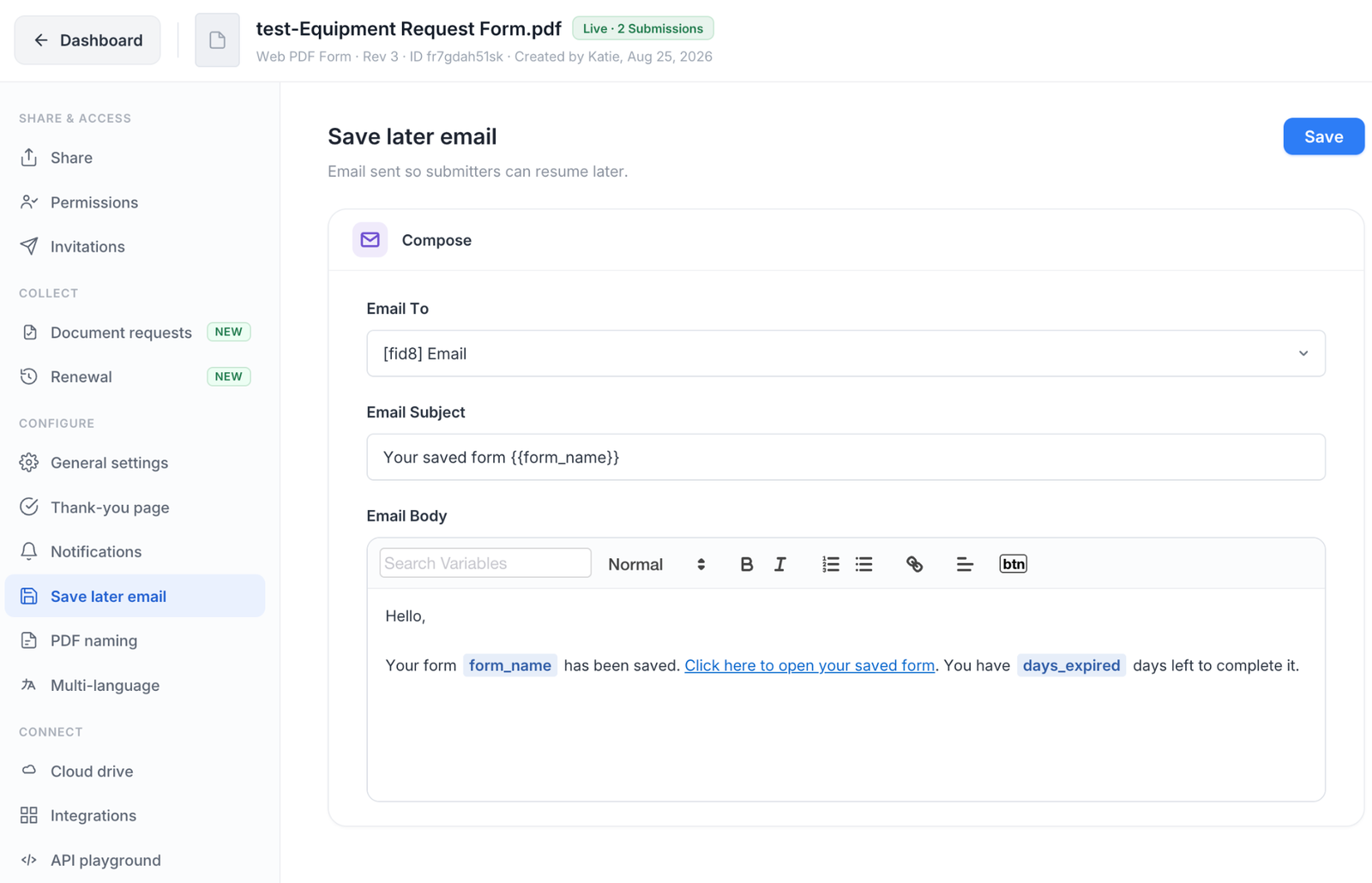
To customize the email that sends leads back to their saved form, go to Form Settings → Save later email. Edit the Email Subject and Email Body, and keep the link to the saved form in the message. See the Save later email settings in the User Guide.
Consider a call when they left a phone number and a quick conversation could help. For example, you could explain what information you need to give an initial price range.
Follow-up email example
Subject: Your office cleaning quote request
Hi Jordan,
Thanks for starting a quote request with us. If you’d like to finish it, you can pick up where you left off here: [resume link].
If you’re unsure about your office size, reply here and I can help you work out what to enter.
Thanks,
Alex
Phone opener
Hi Jordan, this is Alex from Bright Office Cleaning. I’m calling about the quote request you started. Is now a good time? I can help if you have a question about the form, or I can email you the link so you can finish it later.
Send them their own link to finish
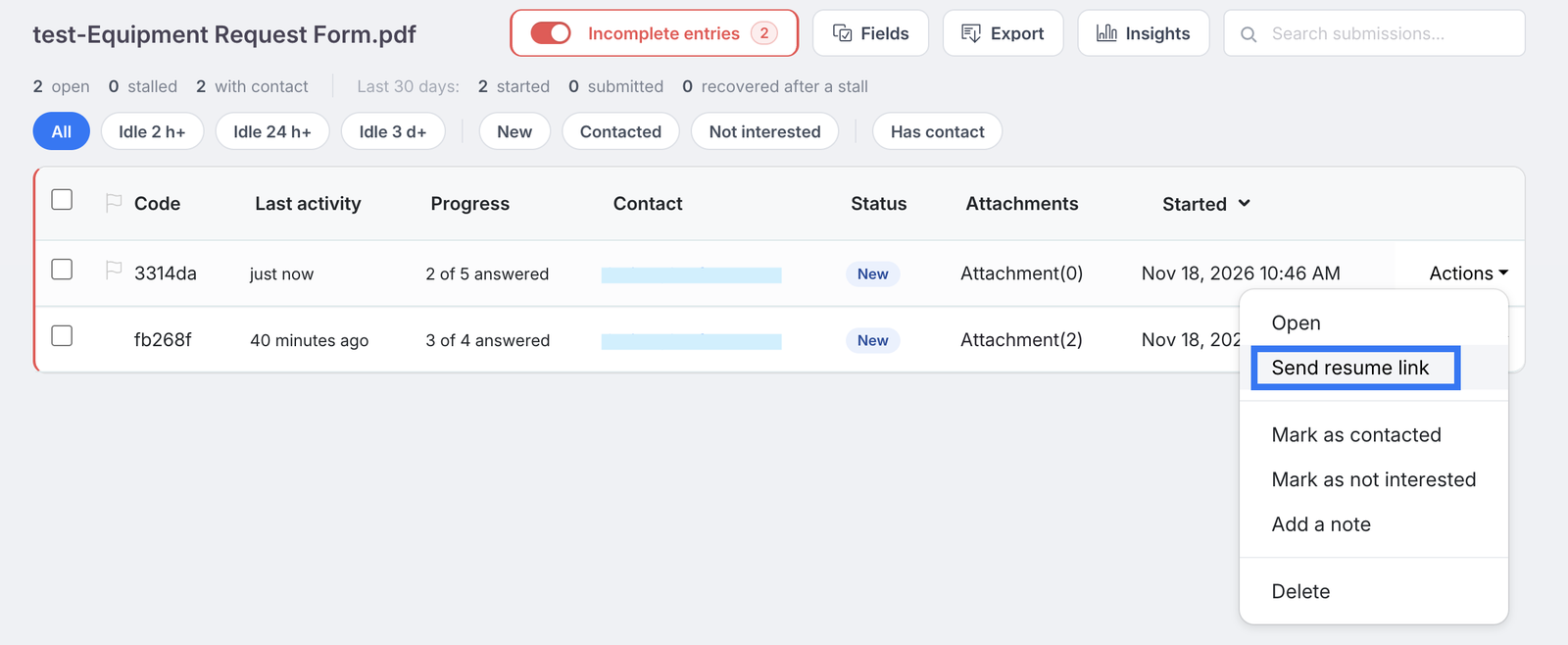
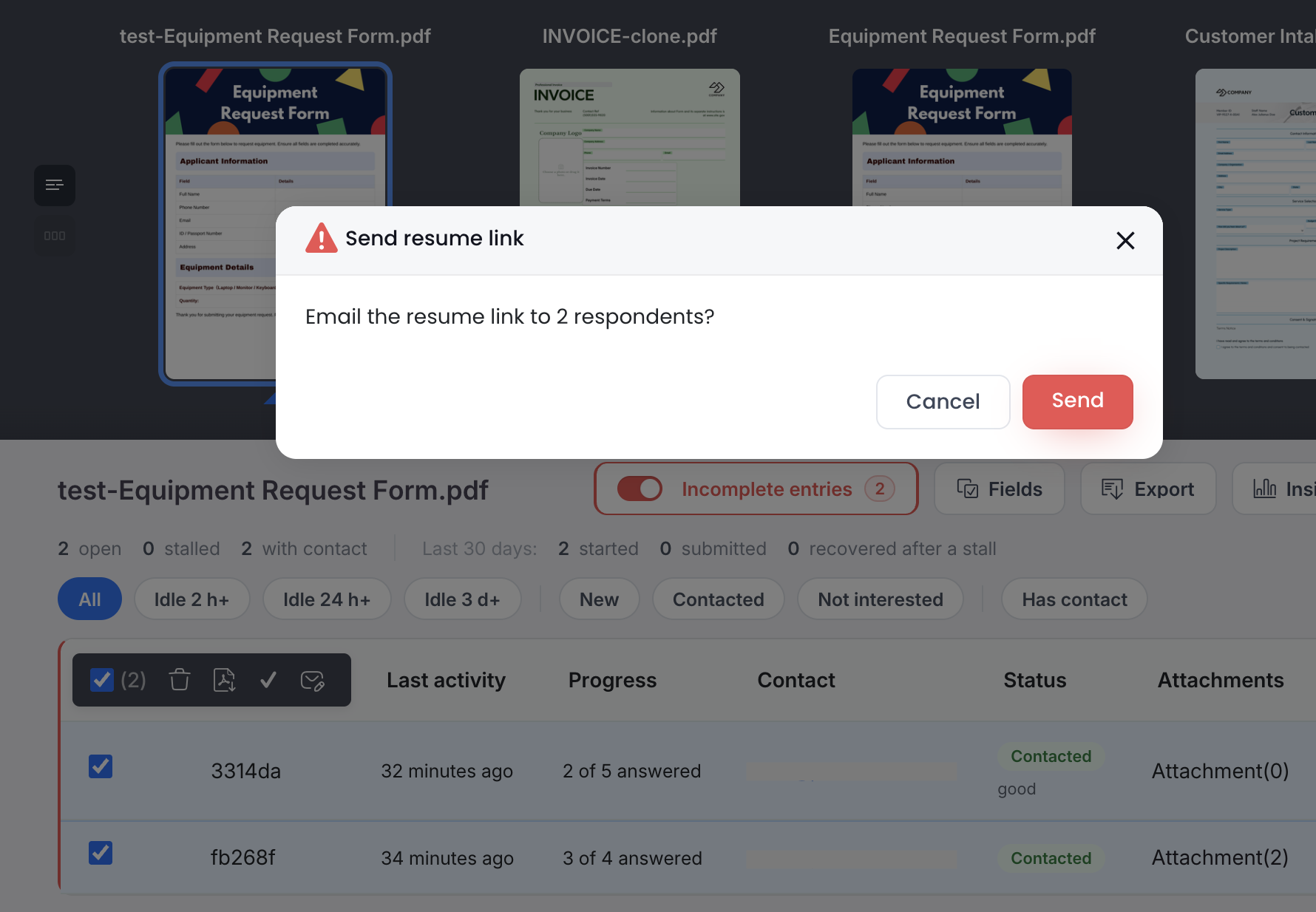
In Incomplete entries, open the entry’s Actions menu and select Send resume link. PlatoForms sends the person their own link using the text you’ve set under Save later email. When they open it, they can continue with the answers they already entered.
You can also select several entries and send their links together. Each person receives their own link.
Keep track of who you’ve contacted
In Incomplete entries, filter by New, Contacted, or Not interested to see which leads still need a follow-up. After reaching out, open the entry’s Actions menu and choose Mark as contacted. Use Add a note to leave context for your team, such as “Sent the link. Jordan will check the office size on Friday.” To update an existing note, choose Edit note.
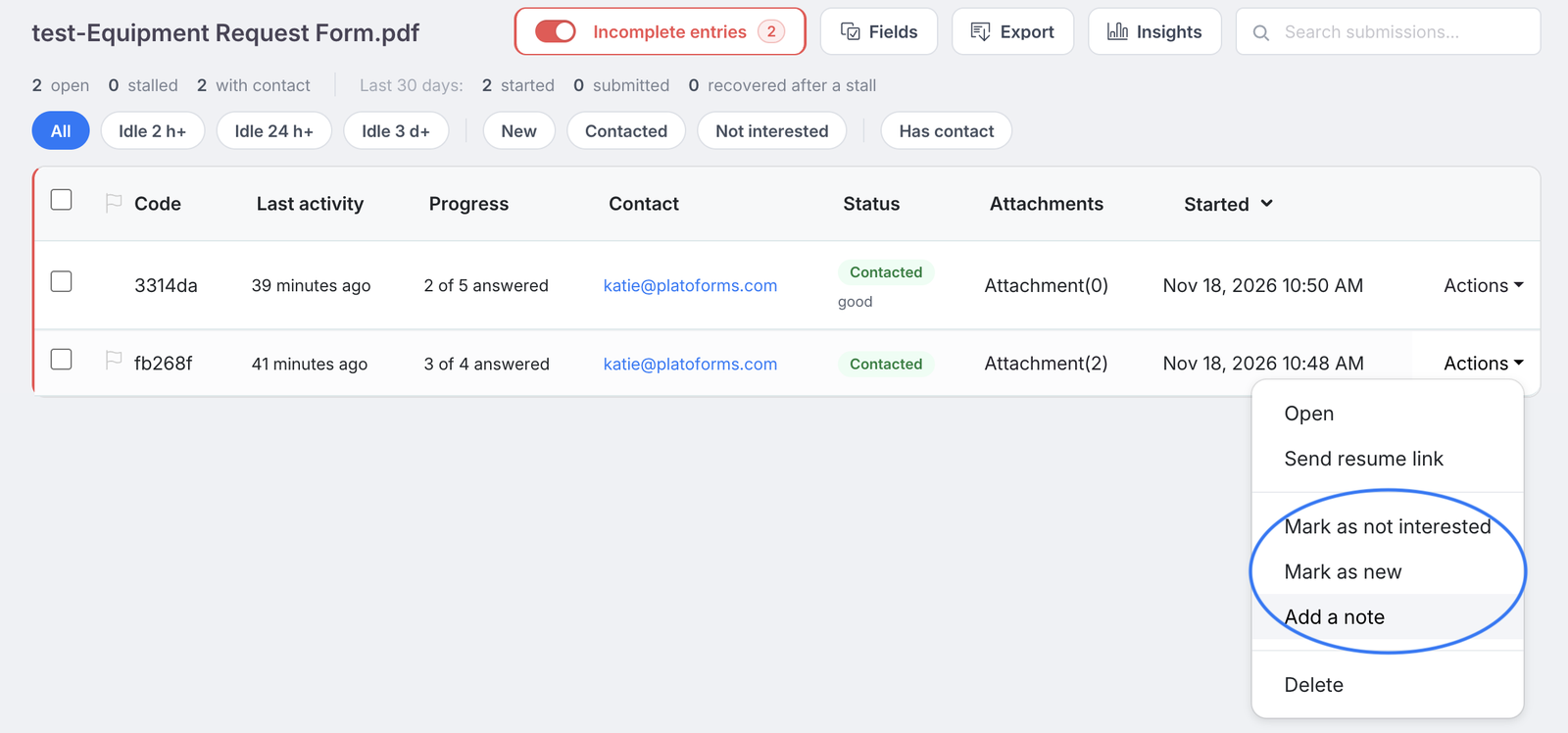
If the lead no longer needs a quote, choose Mark as not interested. To move an entry back to New, choose Mark as new.
When a lead submits the form, their entry moves from Incomplete entries to the regular Submissions list. An entry also leaves Incomplete entries if you delete it or its resume link expires.
Send incomplete entry updates to your CRM
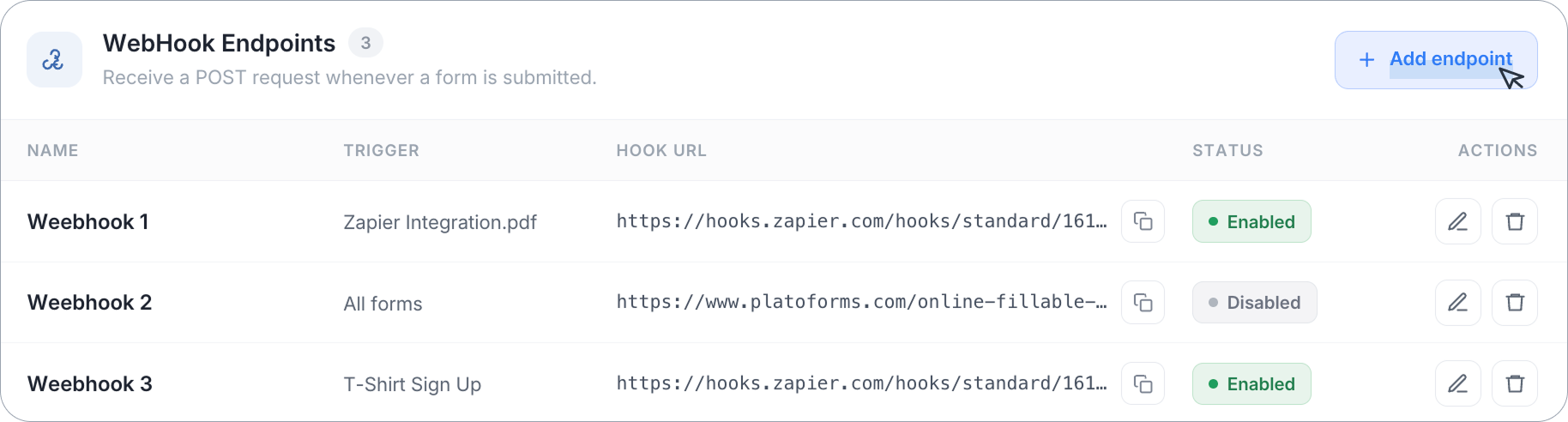
To track unfinished quote requests in your CRM, connect a webhook endpoint that can receive PlatoForms events and update your CRM. In API and Webhooks, set Sends when to An incomplete entry starts, changes, stalls or is submitted. This option also sends events when someone resumes an entry or the link expires. See how to configure a webhook endpoint.
Frequently asked questions
How soon should you follow up with a lead who didn’t finish a form?
For a quote request, try checking the entry after two hours of inactivity. If there’s a saved email address for the lead, use Send resume link to follow up. For a longer application, consider waiting a day. Those are suggested times for your team to reach out. Automatic reminders follow the schedule you set under Remind respondents who stall, starting one day after the entry stalls at the earliest.
Do respondents know their progress has been saved?
PlatoForms doesn’t show a confirmation when it saves progress automatically. With Save for Later enabled, Save progress automatically is on by default, except for HIPAA-enabled teams, where it starts off. When automatic saving is on, PlatoForms saves an entry once the respondent has entered three answers or moved to the next page, even if they haven’t clicked Save for Later. You can add a short note to the form if you want respondents to know when their progress is saved.
Can PlatoForms send an automatic reminder if the form has no email address for the respondent?
Yes, if you’ve scheduled a reminder and the respondent used the Save for Later pop-up to email themselves the link. PlatoForms uses that address if Respondent’s email field is unset or has no valid email address. A reminder can only go out if one of those sources provides an address.
Can a lead finish their form on a different device?
Yes. For example, if a lead starts a quote request on their phone, they can open their resume link on a laptop and pick up with their saved answers. The link needs to be valid. If the resume link is passcode-protected, the lead must enter the passcode to reopen the form.


