










Google Forms is often a perfectly good place to start employee onboarding. Most people know how to use it, HR can build a form quickly, and responses can be stored in a linked Google Sheet. For a short form covering contact details, equipment preferences, or a policy acknowledgment, it may be all the team needs.
The problems usually start outside the form. A new hire pauses to look for a bank detail. HR needs a copy of an ID or certification. IT is waiting for the equipment request, while the manager still has to approve access. Before long, someone is maintaining a spreadsheet just to see what is missing before day one.
The important question is no longer whether Google Forms can collect the answers. It is whether the rest of the process can run without constant manual follow-up:
Can the process keep the new hire, HR, IT, and the hiring manager moving without a spreadsheet becoming the workflow?
This guide starts with what Google Forms already does well, then shows how to build the reminders, document collection, approvals, and records around an existing new-hire form.
Short answer: Google Forms works well for a short onboarding questionnaire when HR can manage the follow-up separately. If the process also needs recipient-specific invitations, incomplete-entry reminders, document review, approvals, renewals, or completed PDFs, treat the form as the first step in a wider workflow.
On this page
- Where Google Forms fits employee onboarding
- Map the workflow before changing tools
- Import the Google Form instead of rebuilding it
- Personalize the form for each new hire
- Help new hires finish long paperwork
- Collect supporting documents separately
- Coordinate HR, IT, and the hiring manager
- Give the employee and HR a PDF record
- Keep onboarding active after day one
Where Google Forms fits employee onboarding
Google Forms already covers several useful onboarding tasks. You can divide a form into sections, route multiple-choice or dropdown answers to different sections, validate answers, collect email addresses, and send respondents a copy of their responses. A file-upload question can collect documents, although the respondent must sign in to a Google Account to upload a file.
For respondents signed in to a Google Account, Google Forms automatically saves a draft for 30 days after the last edit, or until the form is submitted, whichever comes first. That is useful when someone needs to stop and return later. The respondent must reopen the form URL with the same account, and the form owner can disable autosave.
These capabilities make Google Forms a practical option when:
- The onboarding form is short and straightforward.
- Every new hire follows roughly the same path.
- HR is comfortable reviewing responses in Forms or Google Sheets.
- HR is comfortable managing any file review, replacement, expiration, or renewal outside the form.
- HR is comfortable managing notifications and follow-up manually or through other tools.
Google’s own documentation explains how to save draft responses, send response copies, and pre-fill a form.
The form itself is rarely the difficult part. HR needs a quick way to find unfinished entries. IT should receive the equipment request without seeing payroll details. Someone has to chase a missing certificate, and a manager may need to approve an access level. Once the form is submitted, the answers still have to become a usable employee record.
When those handoffs matter, HR is managing a workflow rather than a single form.
Map the workflow before changing tools
Before copying questions into another form builder, write down what actually happens from offer acceptance through the employee’s first few weeks.
| Stage | New hire | HR and other teams |
|---|---|---|
| Before the form | Receives instructions and a personal link | Prepares known details and assigns a deadline |
| While completing | Enters information, uploads files, and reviews policies | Sees whether the process has stalled |
| After submission | Receives confirmation and a copy | Reviews documents and routes tasks to HR, IT, or a manager |
| After day one | Supplies replacements or updated information when needed | Tracks expiring documents and follow-up tasks |
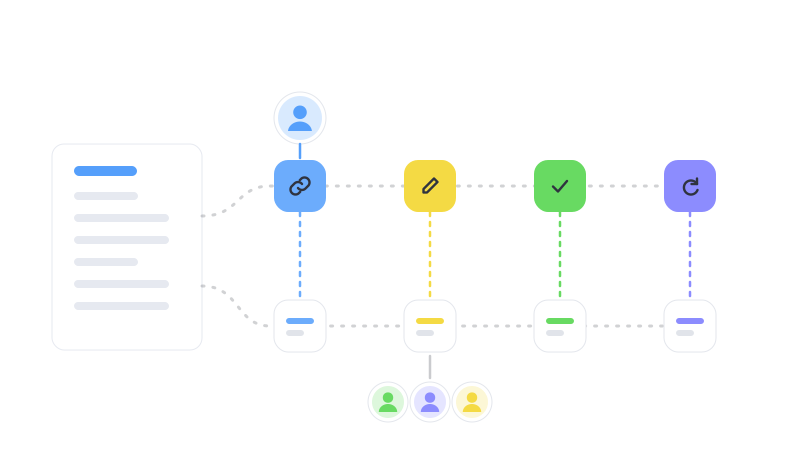
It helps to separate three things that are easy to mix together:
- An onboarding form collects information from the employee.
- An onboarding checklist tracks tasks assigned to the employee, HR, IT, and the manager.
- An onboarding workflow moves information and responsibility between those people.
A basic new-hire form usually covers:
- Personal and emergency contact details
- Job, department, manager, location, and start date
- Equipment and account requests
- Policy acknowledgments
- Required documents or signatures
If you are still deciding what fields to collect, start with the employee onboarding form guide. For the human and operational tasks that continue through the first 90 days, use the new employee onboarding checklist. You can also see how PlatoForms handles online forms for HR teams. The rest of this article focuses on the workflow connecting them.
Import the Google Form instead of rebuilding it
If the team has used the same Google Form for a while, its questions and sections have probably already been revised more than once. There is little value in rebuilding that work field by field.
The Google Forms importer creates a separate PlatoForms copy from the form’s edit URL. It brings supported questions, sections, and field types into the editor while leaving the original Google Form unchanged. You can review the imported structure, adjust the design, add fields, and test the result before deciding when to share the new link.
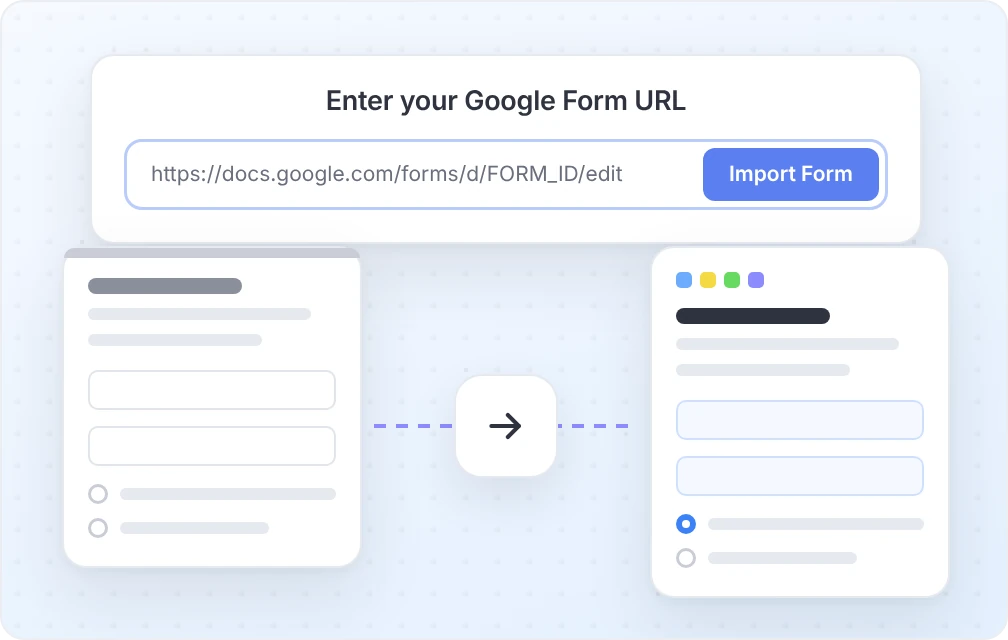
A practical migration looks like this:
- Remove old or duplicated questions from the Google Form.
- Import the cleaned form into PlatoForms.
- Check each field type, required setting, section, and branch.
- Add the workflow features that were previously handled by email or a spreadsheet.
- Submit test entries as an employee, HR reviewer, and manager.
- Keep the original Google Form available until the new process has been verified.
After the import, review the form with one distinction in mind: what should the employee answer here, and what should happen after they submit?
Personalize the form for each new hire
By the time HR sends the paperwork, it usually already knows the employee’s name, department, manager, job title, location, and start date. Asking for the same details again wastes time and makes mismatches more likely.
Google Forms can generate a pre-filled link. For a small number of hires, that may be enough. The link itself is not an invitation record, however, so HR still needs a separate way to track who received which link and whether they responded.
In PlatoForms, pre-filled forms and personalized invitations can place the known values into a recipient’s form. Fields can be made read-only when the employee should verify a value without changing it. With Tracking Invitation enabled, the Invitations page shows sent, email-opened, and submitted counts. Each recipient’s details show email-open, form-open, and submission activity. See the pre-filled invitation instructions for the setup steps.
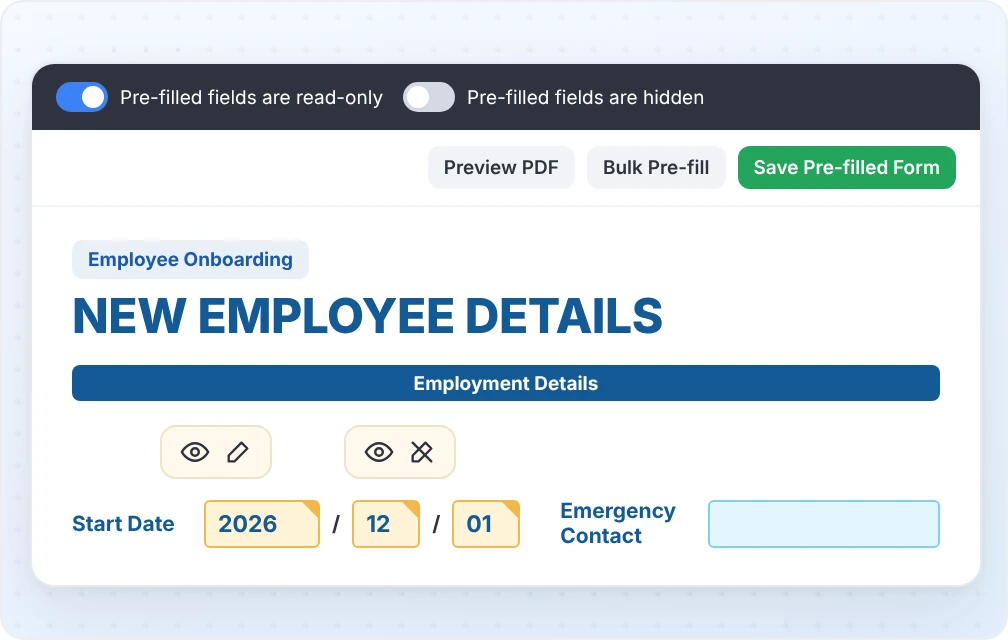
For onboarding, useful pre-filled values include:
- Employee or candidate ID
- Legal or preferred name already confirmed during hiring
- Department and job title
- Hiring manager
- Work location
- Start date
Invitations can be sent by email. On a paid plan, PlatoForms can also send form invitations by SMS, which may help when a new hire has not yet received a company email account.
If the same tablet or computer is used during an in-person orientation, reopen the form’s Public URL for each employee so every person starts with a blank entry. A form left open still shows the previous person’s answers, so the handoff procedure matters. See the shared-device form guide before using a kiosk or shared HR computer.
Help new hires finish long paperwork
Few new hires have every tax number, banking detail, license, and emergency contact at hand when they open the form. If they must finish everything in one sitting, some will leave the form or enter a placeholder just to move on.
For respondents signed in to a Google Account, Google Forms automatically saves a draft for 30 days after the last edit, or until the form is submitted, unless the form owner has disabled autosave. When account-based draft saving fits your workforce, it is a useful built-in option.
PlatoForms Save for Later instead gives the respondent a resume link. With automatic progress saving enabled, the Incomplete entries view keeps an entry after the person has answered three questions or reached the next page. HR can then track and follow up partial form submissions, including the page reached, answers given, contact details found in the form, and how long the entry has been idle.
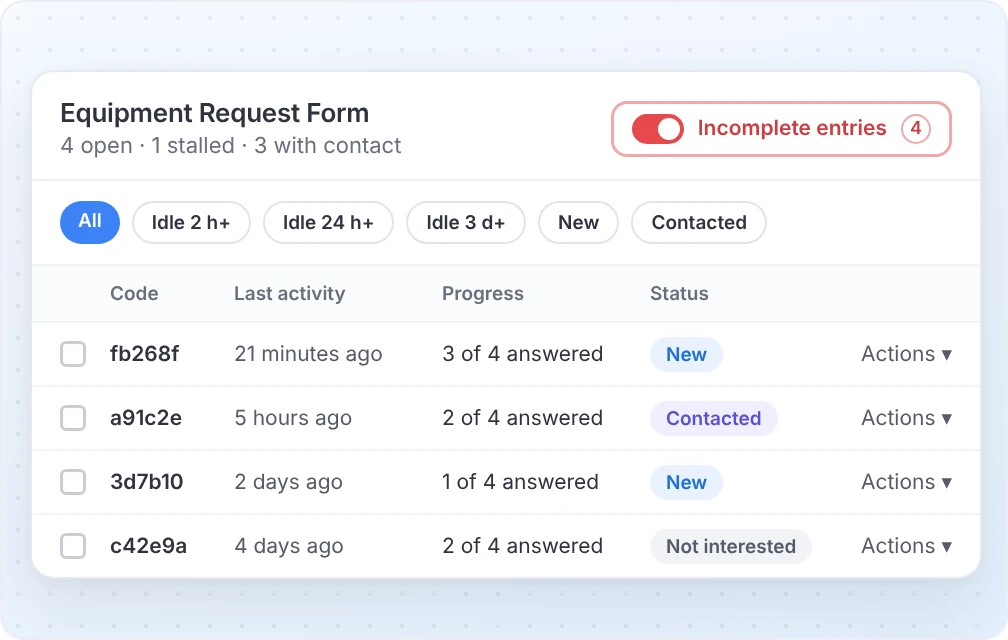
The team can:
- Send the employee their resume link.
- Mark the entry as contacted or not interested.
- Add an internal note.
- Receive an email or Inbox task when the entry stalls.
- Schedule up to three follow-up emails while the resume link is valid.
Instead of seeing only that a form was not submitted, HR can see where the person stopped and decide whether to follow up.
If an email address, employee ID, or other value must be unique, a Text Input field can also reject a value that has already been submitted. Use that carefully: shared email addresses or legitimate resubmissions may require a different identifier or an HR-managed exception.
Collect supporting documents separately
A file-upload question works well when the file is simply another answer. Google Forms stores the upload in Google Drive, although the respondent must sign in to a Google Account.
Employee documents often need more attention. HR may have to check several files, reject an unreadable photo, request a replacement, or note when a certification expires. When every file sits inside the original form submission, that work is easy to lose track of.
Document requests attach a post-submission checklist to the form. Each new submission then gets its own request. The employee receives a private Documents link by email and, when SMS is enabled on an eligible paid plan, by text. They can upload requested files without creating a PlatoForms account. HR can review each item, accept it, or ask for another copy. Reminders continue for required files that are still missing.
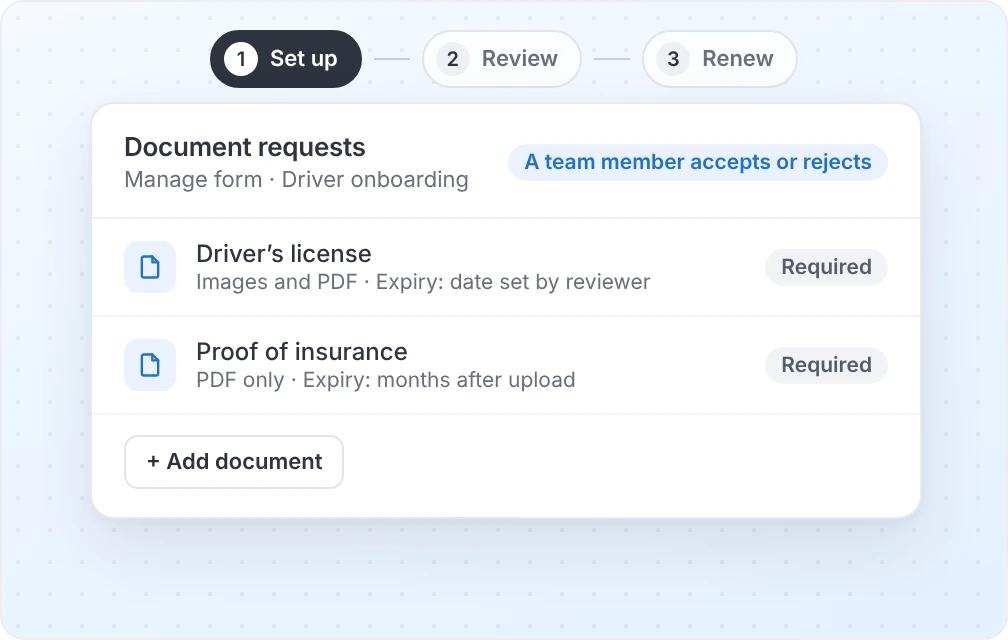
An onboarding request might include:
- Proof of identity or work authorization, where legally required
- A professional license or certification
- A signed policy or role-specific agreement
- Payroll or benefits documentation
- A profile photo or equipment receipt
Keep the checklist limited to documents the organization genuinely needs. Before collecting them, decide who can view them, how long they will be retained, and which system holds the official record. Avoid copying sensitive identifiers into general notification emails or team-wide spreadsheets.
Coordinate HR, IT, and the hiring manager
One onboarding submission can start several different jobs:
- HR verifies employment and payroll information.
- IT prepares accounts and equipment.
- The hiring manager approves role-specific access.
- Facilities prepares a desk, badge, or building access.
Forwarding the full submission to everyone is tempting, but it can expose information people do not need. Configure each task, notification, approval page, and document so that participants receive only the information required for their part of the process. Before publishing the workflow, test every participant’s view and any linked or attached PDF; limiting the fields shown on an approval page does not by itself limit what appears in the underlying document.
A PlatoForms Workflow can pass a form or document through ordered steps. For example, the employee completes the first step, the manager approves the equipment and access request, and HR performs the final review. Conditional logic can route different roles or locations through different steps.
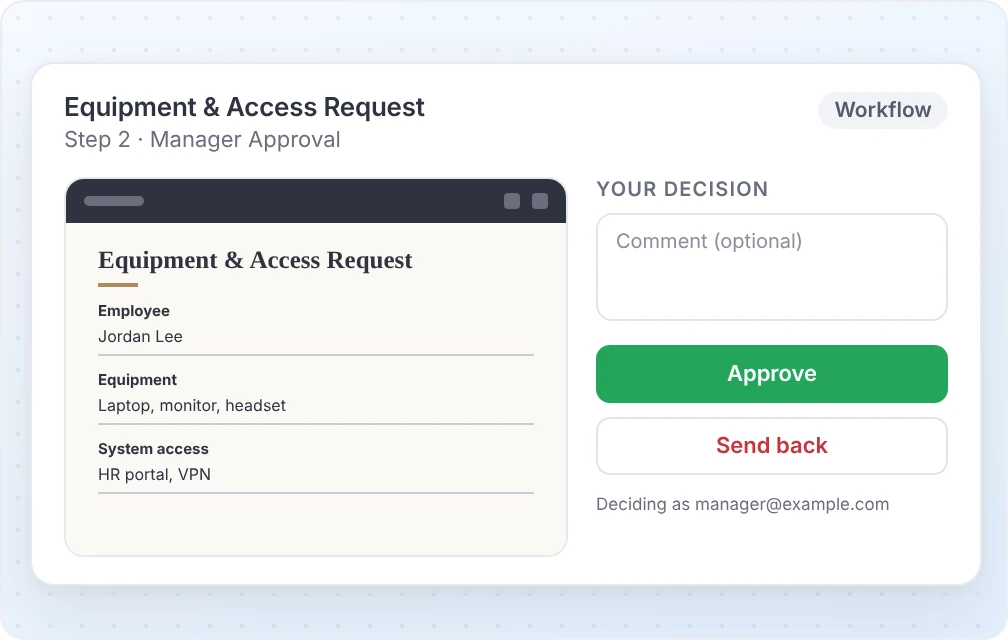
The Inbox brings together work waiting for a team member, including forms to fill, approvals, files to review, renewals, and stalled-entry follow-up. This does not replace an HRIS or IT service-management platform, but it keeps form-related work from being scattered across unrelated email threads.
For a simple handoff, a notification email or integration may be enough. A workflow becomes useful when the order of the steps, the owner of each task, or the approval status needs to be visible.
Give the employee and HR a PDF record
When email collection is enabled, Google Forms can be configured to email the new hire a copy of their answers either on request or after every submission. For a short questionnaire, that receipt may be sufficient.
When HR needs a consistently formatted record rather than an email summary, PlatoForms can create it in several ways:
- A Web Form can generate a PDF from the submitted answers. Turn on Show “Download PDF” on thank-you page to let the new hire download it immediately after submitting. This setting is off by default.
- A PDF Form places answers into an existing HR document while preserving its layout.
- A Master Form collects shared answers once and can place them into multiple connected PDFs, which is useful when the same name, address, and start date appear across several onboarding documents.
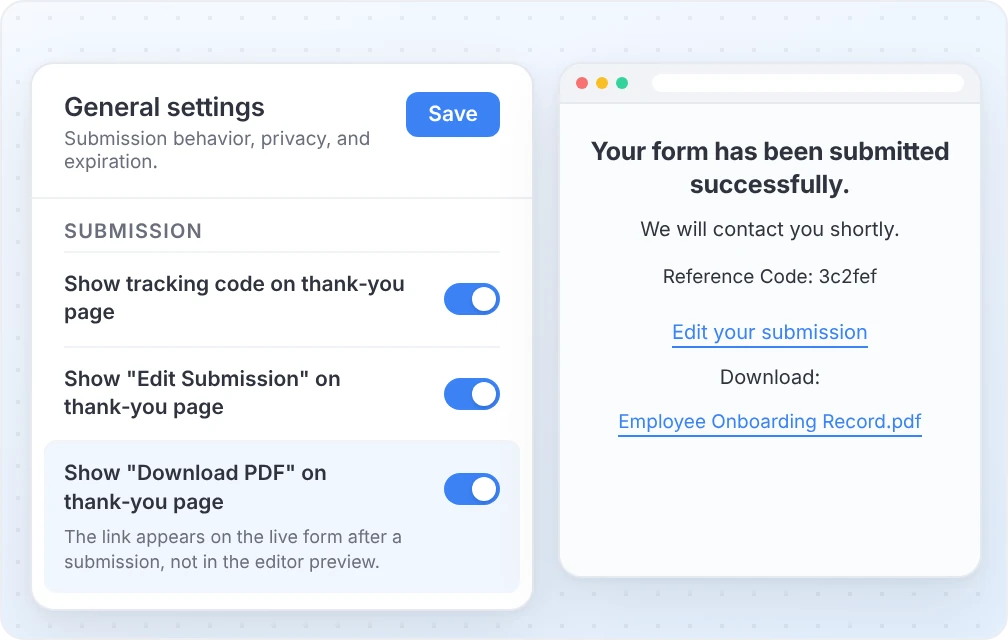
The PDF shown on a Web Form’s thank-you page uses the same layout as the form’s submission PDF. It does not appear in the form-builder preview, and it is not shown when the form redirects the respondent to another URL after submission. See how to offer a Web Form PDF download.
Before enabling the download, check whether the PDF contains information that should not remain on a personal or shared device. Not every HR record should automatically be offered as a respondent download.
Keep onboarding active after day one
Submitting the initial paperwork does not close every task. Some records stay relevant for years, while licenses, permits, and certifications may need replacing before they expire.
With document renewals, an accepted document can expire a set number of months after it is accepted, on a date supplied in the form, or on a date entered during review. On Silver and higher plans, and during the free trial, PlatoForms can request a replacement before that date and send the reminders selected by the team. Submission renewals can also send the form again with the employee’s previous answers pre-filled when that option is enabled.
Renewals are useful for professional certifications, work permits, training acknowledgments, and similar records the organization is authorized to maintain. Requirements vary by jurisdiction and role, so HR and legal teams should set the policy rather than copying one from a generic onboarding template.
The rest of the employee experience belongs in the onboarding checklist: first-week meetings, access checks, training, feedback, and 30/60/90-day conversations. The form workflow should support those activities, not pretend that paperwork alone is onboarding.
A practical decision: stay with Google Forms or extend the workflow?
Stay with Google Forms when the process is a short information collection task, signed-in draft saving is acceptable, and the HR team can comfortably manage the responses and follow-up in Google Workspace.
Consider extending or moving the form when you need several of these together:
- Recipient-specific invitations and pre-filled values
- Resume links and follow-up for incomplete entries
- File requests with review, reminders, expiration, and renewal
- Separate tasks for HR, IT, and managers
- Approvals or ordered steps
- Completed PDFs in an approved layout
- One set of answers mapped into several onboarding documents
There is no reason to replace a familiar tool just to gain a longer settings menu. Make the change when manual handoffs and follow-up have turned one HR coordinator’s inbox into the system that holds the process together.
If the existing Google Form is still a good starting point, import it into PlatoForms and run one real onboarding case through it. Add only the workflow pieces that solve a problem the team already has.