
Document requests and renewals
Tabs
Many forms come with paperwork: an ID to prove who someone is, an insurance card, a signed consent, a certificate. Document requests collect those files after the form is submitted. You build a checklist on the form, each person who submits gets a private link to upload the items, PlatoForms reminds them until everything is in, and your team accepts or rejects each file from the Submissions page.
Renewals take care of what goes out of date. A form can expire after a period, or on a date the person entered, and so can each document. Before the date, the person is asked for a new submission or a new copy of the file, and the Renewals page shows what is due, sent, renewed or overdue.
In this chapter
- Set up a checklist: the items, what happens on submit, who gets the link, reminders, the emails and where files are filed.
- What the person sees: the thank-you page, the Documents link, the emails and text messages.
- Review and track documents: the Documents column on the Submissions page, accepting and rejecting, and the Document Requests page.
- Renewals: expiry rules, what the person receives, the Renewals page, and how a form and its documents renew together.
- People: every submission and file grouped by the person who sent it.
- Plans, API and webhooks: what each plan includes, the usage report, and how to read requests and renewals from your own systems.
How it works
- Open a form on the dashboard, choose Manage, then Document requests, and build the checklist. Start from a template, let PlatoForms suggest items from the form’s fields, or add your own.
- Somebody submits the form. The thank-you page lists the documents needed, and the same list goes out by email with a private Documents link. A text message can carry the link too.
- The person uploads each item from any phone or computer. Nothing to install, and they can come back to the link any time until everything is in. Reminders go out while something is missing and stop when it arrives.
- Your team is told when files wait for review. A reviewer accepts or rejects each file with a note; a rejected file is asked for again. Accepted files are filed next to the submission PDF and, if the form has one, in its cloud drive folder.
- When the form or a document is about to expire, a renewal goes out. The person gets a prefilled copy of the form or their Documents link, and the new submission is linked to the old one.
Where to find it
- Per form: the Document requests and Renewal sections of the form’s Manage page.
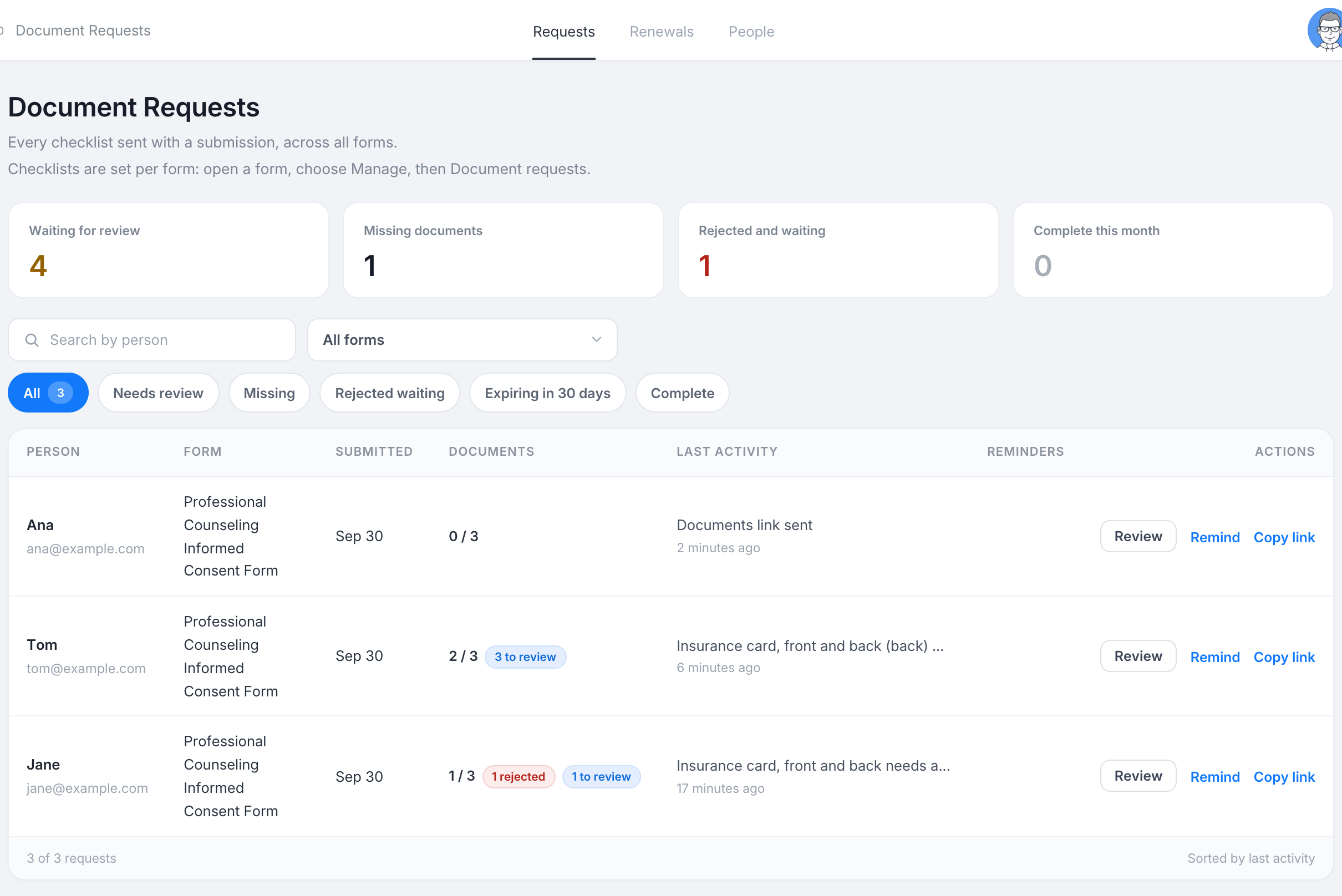
- Across forms: Document Requests in the left navigation, with three tabs: Requests, Renewals and People. The badge on the menu item counts the files waiting for review.
- Per submission: the Documents column on the Submissions page and the Documents drawer that opens from it.
Document requests are part of every plan, with a monthly number of requests that depends on the plan. Renewals and People are on Silver and above. See Plans, API and webhooks.