
Fill out forms with Voice Filling
On this page
Voice Filling lets authorized users complete a published PlatoForms form by speaking. It puts each answer into the matching form field. Users can review the answers before they submit the form.
It can help when typing is difficult or inconvenient, such as during an inspection, site visit, or intake conversation.
Before you start
- Publish the form before enabling Voice Filling.
- Decide who can use Voice Filling.
- Choose the languages they can speak.
- Voice sessions use your team’s AI credits.
To use the mobile app, sign in with an existing PlatoForms account. The app does not create a separate account.
Enable Voice Filling
-
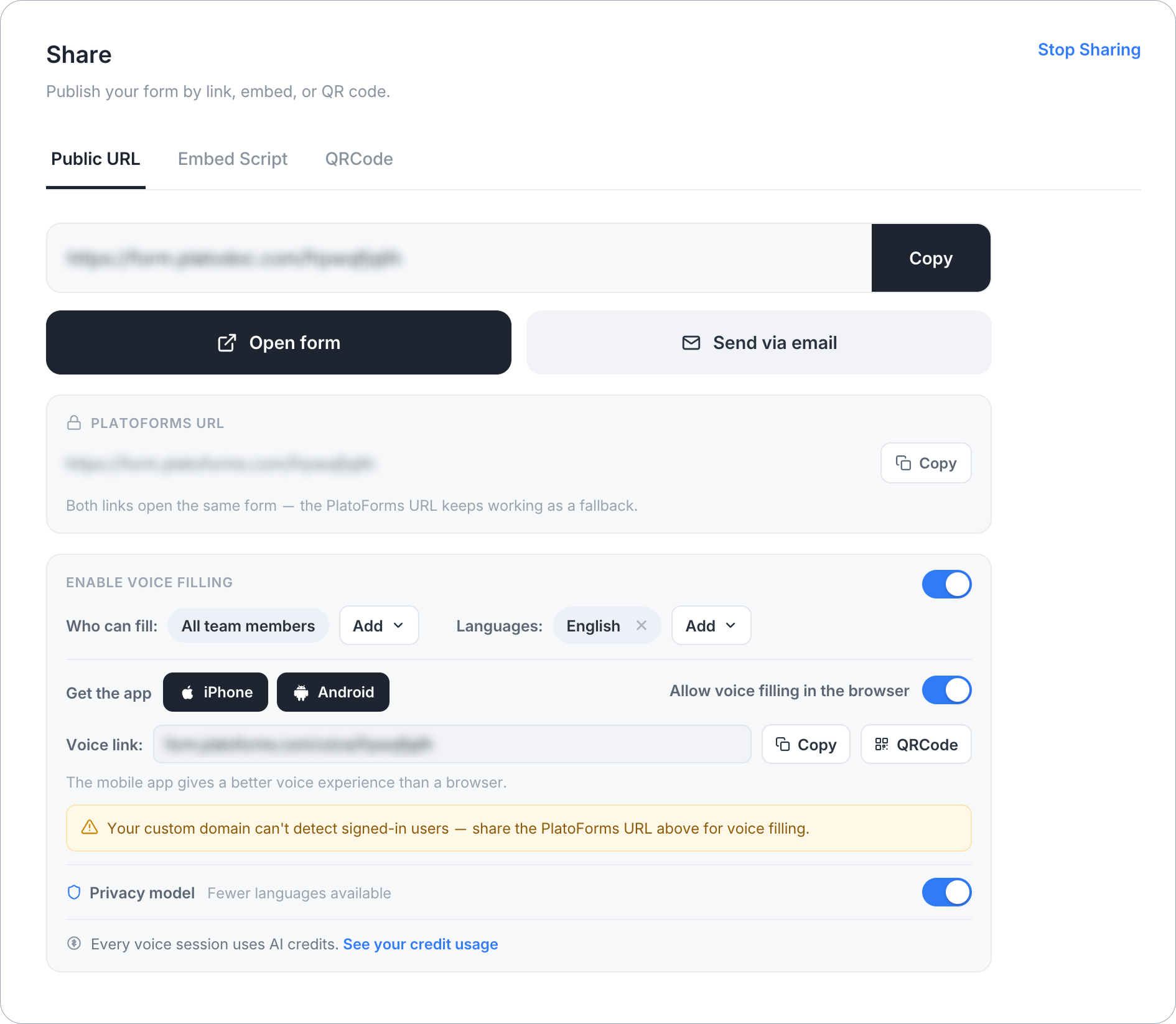
Open the published form and go to its Share page.
-
In Enable Voice Filling, turn on the main switch.
-
Under Who can fill, choose who can use Voice Filling.
-
Under Languages, add the languages they can speak during a session.
-
To allow Voice Filling in a web browser, turn on Allow voice filling in the browser.
The panel shows a voice link and QR code. Share either one with authorized users. If browser access is off, users must open the form in the mobile app.
If the form uses a custom domain, check the warning in the Voice Filling panel. A custom domain cannot identify signed-in PlatoForms users. If Voice Filling requires the user to sign in, share the PlatoForms URL instead.
Use the mobile app
Install PlatoForms VF from the App Store for iOS 17 or later or Google Play for Android.
-
Sign in with your existing PlatoForms account.
-
Select a voice-enabled form from Your forms.
-
Start the voice session and answer the questions aloud.
-
Check the Live ledger to see the answers added to each field.
-
Answer any follow-up questions. If you do not know an answer, you can skip it.
-
Tap Review answers when the session is complete.
-
Review and edit the answers. To finish in the regular form, tap Open the form.
-
Tap Submit form when the answers are ready.
Voice Filling does not submit the answers until the user taps Submit form.
Use Voice Filling in a browser
When browser access is on, open the voice link or scan its QR code. Answer by speaking, review the answers, and submit the form as you would in the mobile app.
The PlatoForms VF app provides a better voice experience on mobile devices than a browser.
AI processing and privacy
Voice Filling processes two types of data:
- The user’s voice input
- The form fields being completed
It uses this data to convert speech into field values. Voice input is processed only while the feature is in use.
Voice Filling is off by default for HIPAA-enabled teams. Data sent through Voice Filling is not covered by the PlatoForms Business Associate Agreement.
Do not use Voice Filling to collect payment-card data, government identifiers, passwords, API keys, authentication secrets, or MFA and one-time codes.
See How PlatoForms uses AI and the Privacy Policy for details.
Video tutorial
Prefer watching over reading? Check out this video guide!