
Sort and filter submissions
On this page
The Submissions table lets you sort rows by the values in a column and narrow the list to a submitted-date range. Both work together with the search bar and the flag filter, so you can combine them freely.
Sort by a column
Every sortable column shows a small sort control (⇅) next to its header.
-
Click the sort control once to sort ascending (↑), again for descending (↓), and a third time to return to the default order (newest first).
-
Numbers and dates sort by value, not alphabetically — a rating column sorts 2, 9, 10, and a date column sorts chronologically even when it is displayed in a custom format.
You can sort by your own form fields as well as system columns such as Submitted Date, Submitter, and Rev. A few field types with no orderable value — like file uploads, images, signatures, and tables — are not sortable, and their columns show no sort control.
Sorting is available for submissions only; the Drafts view keeps its default order. Sorting is also switched off while a Documents filter chip is on.
Combine up to 5 columns
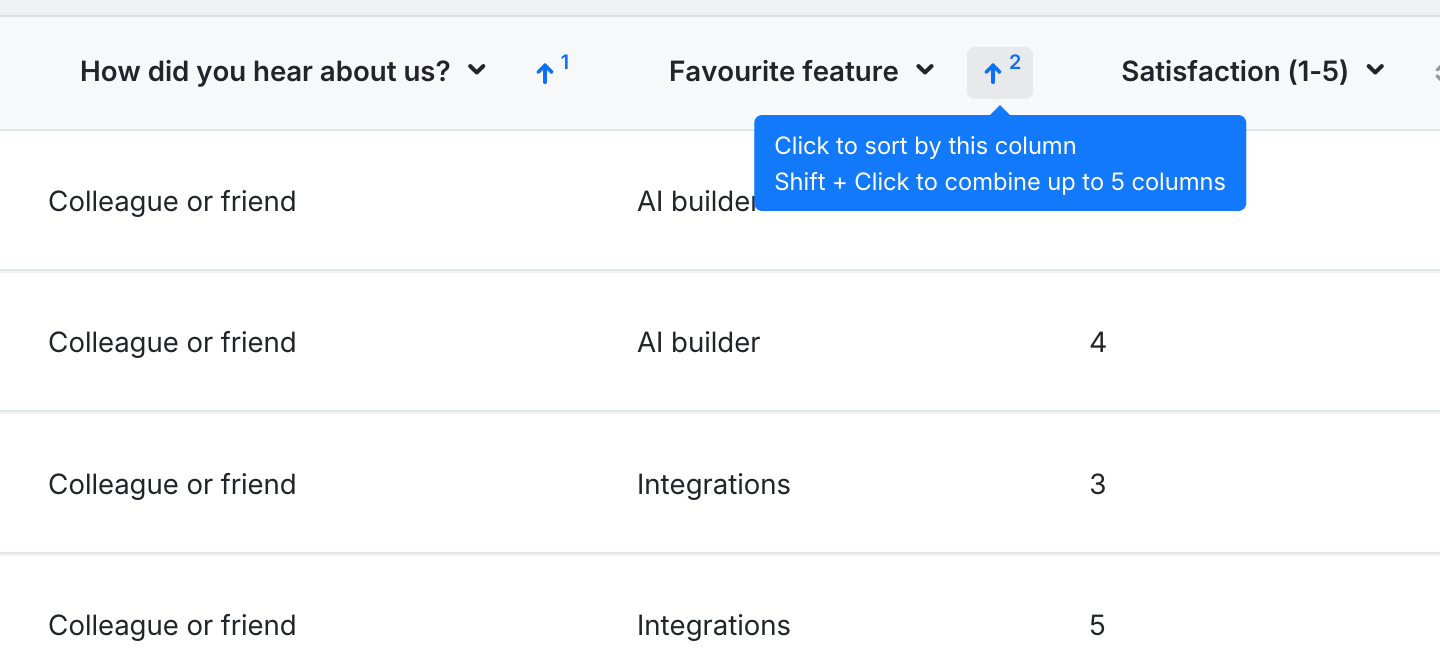
To sort by more than one column, hold Shift and click another column’s sort control. The first column stays the primary sort, and each Shift-clicked column is added as the next level — rows with equal values in the first column are ordered by the second, and so on, up to 5 columns.
- Each arrow shows a small priority number (1, 2, …) so you can see the sort order at a glance.
- Shift-click a combined column again to flip its direction, and once more to remove it from the combination.
- A plain click (without Shift) always starts over with that single column.
Filter by submitted date
Click the Submitted Date column header to open a date-range calendar — the same picker used in the Export dialog.
-
Select a start and end date, then click Apply. The table now shows only submissions submitted within that range (dates are interpreted in your profile’s timezone). The table itself shows times in your browser’s time zone, so near midnight a row’s displayed date can differ from the filter’s date.
-
An active filter appears as a chip above the table showing the selected range. Click its × — or the Clear button in the calendar — to remove the filter.
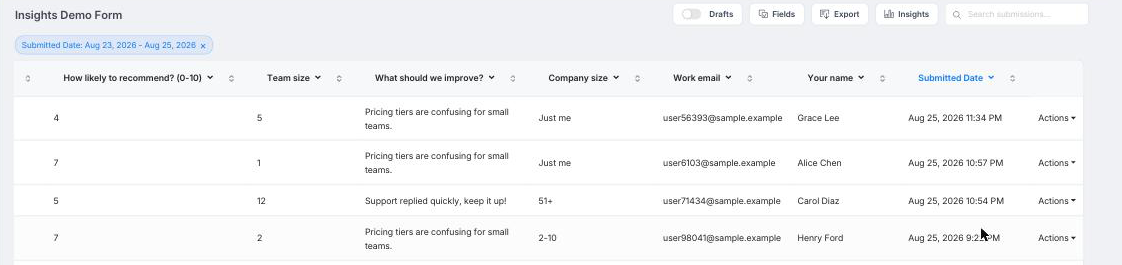
The date filter combines with everything else on the page: search results, the flag filter, and any column sorting all apply within the selected range.
For additional related information about submissions, check out the Manage submissions section.