










Branches and parallel paths
On this page
Not every run needs the same steps. A Branch step sends a run one way or another depending on what was answered, and two connections out of one step run their steps at the same time. This article covers both, and what happens where paths meet again.
Use a Branch when the path depends on what was answered. Use parallel paths when the path depends on who can work at the same time. If the goal is to merge multiple people’s signatures into one final PDF, use neither on its own: see the warning under Parallel paths below.
Branch steps
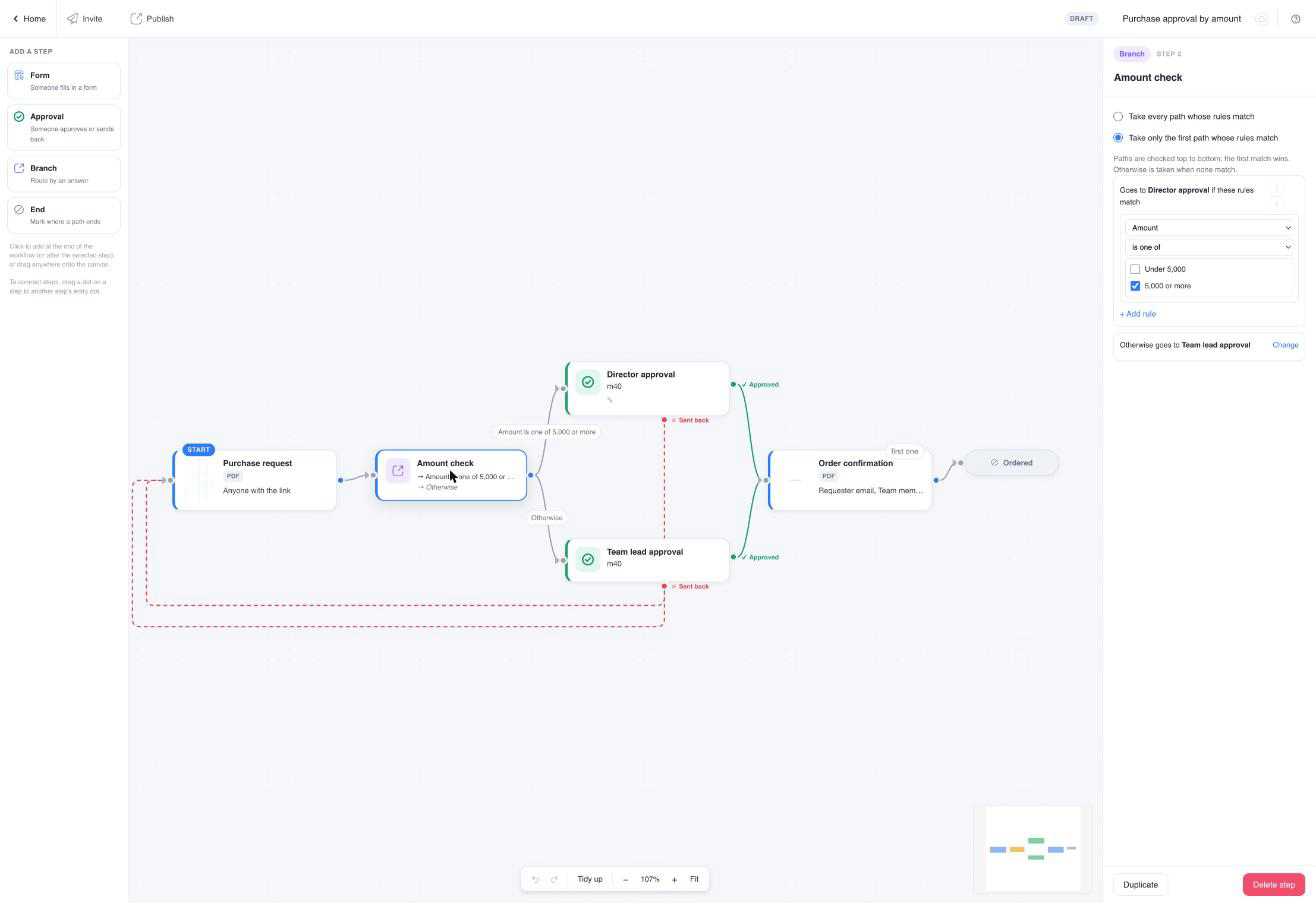
A Branch step routes; nobody does anything at it. Add it from the palette, connect it to the step before it, then draw one connection per possible path out of its exit dots. Each outgoing connection has its own rules; the one without rules is Otherwise, taken when nothing else matches. A branch needs at least two paths and exactly one Otherwise, or the checklist blocks publishing.
The first connection you draw out of a branch becomes its Otherwise path. Every connection drawn after that starts with a rule to fill in, and that rule cannot be removed. So draw the default route first, or pick a different Otherwise path later with Change on the Conditions tab: the rules of that path move to the old Otherwise path, so no rule is lost.
Rules
Select the branch to see its Conditions tab: one card per path, headed “Goes to X if these rules match”, and the Otherwise card at the bottom. Each rule is a field from an earlier step, a comparison and, where it makes sense, a value. Add rules with Add rule; with more than one rule choose All rules must match or Any rule matches.
The comparisons offered depend on the field, the same way they do in the form builder’s Logics:
| Field | Comparisons |
|---|---|
| Choice, dropdown, picture choice | is answered, is not answered, is, is not, is one of, is none of. The value is picked from the field’s own options. “Is” means exactly those options; “is one of” means any of them. |
| Text, email, URL and other typed fields | is answered, is not answered, is, is not, contains, does not contain, starts with, does not start with, ends with, does not end with, matches pattern. |
| Number, slider, rating | is answered, is not answered, is, is not, is greater than, is at least, is less than, is at most. |
| Date, time | is answered, is not answered, is, is greater than, is at least, is less than, is at most. |
| Signature, image, file upload, table | is answered, is not answered. |
Text comparisons ignore case, except matches pattern, which is case-sensitive. Numbers compare as numbers. An unsigned signature counts as not answered. A field that was left empty, or that belongs to a step the run skipped, compares as empty, so a rule can never get a run stuck.
Order and mode
A new branch uses Take every path whose rules match: every path whose rules match runs at the same time, for example “notify Legal” and “notify Finance” both applying to a large contract. Switch to Take only the first path whose rules match when only one path should run: paths are then checked top to bottom and the first match wins; move a card with the arrows to change the order. Otherwise is taken only when no path matches, in either mode.
The checklist flags a rule that reads a field from a later step, a comparison that does not fit the field, a rule with no value, and a choice that no longer exists on the form.
A purchase request: Amount is greater than 5000 goes to “Director approval”, Category is one of IT, Software goes to “IT review”, Otherwise goes straight to “Order”. With the default mode a large IT purchase goes to both the director and IT review. With Take only the first path whose rules match, put the amount rule first so it reaches the director only.
Parallel paths
Drag two connections out of the same exit dot and both target steps start the moment the step before them is done. Each gets its own task and its own email. Use it when two people can work independently: a reference check and a background check, or two departments that each fill in their part.
Each parallel form step starts from the PDF of the step before the split: it has no knowledge of the other path. Two form steps that both sign the same PDF on separate paths will produce two separate documents, not one document with both signatures. If the goal is one PDF carrying everyone’s signature, the signers have to go in sequence, not in parallel.
Things to know about parallel paths:
- The run completes only when every path has finished. A form step that says The run completes on its Form tab means “when this path finishes”; other open paths still have to end.
- Each parallel form step starts from the PDF of the step before the split, unless the paths meet again at a join, so two form steps that both sign the same PDF on separate paths produce two documents. To collect two signatures in one document, sign in sequence after the approvals; the examples show how.
- A send-back on one path cancels the open tasks on the other paths of that run; when the reopened form is resubmitted, the paths start again.
Where paths meet
A step with two or more incoming connections is a join. Select it and its panel gains a tab, When several paths arrive here. It asks two separate questions: when does the step start, and whose PDF and answers does it continue.
When does the step start?
- Wait for all of them (default). The step is created once every incoming path has finished. When the first path arrives the tracker shows “Waiting for other paths” and nobody is emailed yet. A path that can no longer arrive does not hold the step up: if a branch went the other way, or an approval on that path was sent back, the join stops waiting for it.
- Continue on the first one. The step is created the moment the first path arrives, and its email goes out. When the other paths finish later they find the step already there and do nothing: their outcome does not affect this step, and no second copy of it is created. Their own tasks stay open until they are done.
Examples:
- Two managers must both approve before the employee signs. Approval A and Approval B in parallel, then the signing form as the join, with Wait for all of them. The form is emailed only when both have approved.
- A form reached from two different routes. A branch sends large requests through a Finance review and small ones straight on; both routes end at the same confirmation form. Only one route runs per request, so the join never waits for the route that was not taken. Either setting behaves the same here; leave the default.
- Either of two reviewers is enough. Continue on the first one does this, but the slower reviewer’s task stays open and they can still decide. The cleaner design is one approval step with both reviewers on it and its rule set to “any one of them”, see When several people approve.
Whose PDF and answers does it continue?
Continue the PDF and answers from lists the incoming connections. A joined step continues one path only. The path you pick supplies everything the step inherits: the prefilled answers, “Combine data across steps”, “Display the previous PDF’s data”, the links to the previous PDF and form, the placeholders in its task email, and the document its own PDF is built on. The other paths’ PDFs and answers are not merged in. The same choice is available as Use this path’s PDF and answers as the base on the connection itself.
When every incoming path leads back to the same form, as with two approvals of one request, there is nothing to choose: both paths reach the same submission and the setting makes no difference. It matters when the paths contain different form steps:
- Manager section and Finance section filled in parallel, then a summary form. Choose the path whose PDF the summary should continue. The other section’s PDF is not carried on, and the checklist warns about this whenever two incoming paths both carry a PDF of their own. If both sections must end up in one document, do not run them in parallel: put them in sequence, so each continues the last.
- Continue on the first one, and the chosen path is not the first to arrive. The step cannot wait for the chosen path, so it continues the one that did arrive. With that setting, treat the choice as a preference, not a guarantee.
A join is not a fix for the parallel-signing problem above. It still keeps only one incoming path’s document; the other path’s PDF is dropped, not combined. If both paths produced a signed document, one of those documents is lost.
End steps
An End step marks where a path ends. Any step with nothing after it also ends its path, so End steps are optional. Add one when it helps to read the canvas, or when paths end differently and you want to see which ending a run reached: name them “Approved” and “Declined”, and the tracker shows the name.
Watch out for auto-fill
Combining this option with sequential form steps is useful, but two side effects are easy to miss.
You might expect: turning a field read-only (Disabled) also keeps it from being printed again on a later step.
What actually happens: Disabled and Print in PDF are two separate settings. If “Automatically fill fields with matching labels” is on, a shared field (like Requester Name) gets re-filled with a fresh value on every step that has it turned on. If Print in PDF is still on too, that fresh value prints again at the same spot as the copy already carried over from the previous step. The two overlap.
What to do: keep “Automatically fill fields with matching labels” on (turning it off entirely also removes the field from the later steps’ form pages: reviewers lose their on-screen reference, though they can still see the original via the email’s attached PDF). Instead, turn off Print in PDF on the shared field itself, for every step after the one where it should first appear. Leave “Combine data across steps” on regardless: that’s what keeps everything merging into one PDF.
You might expect: each reviewer’s own fields (like their Decision or Comments) stay private to their own step.
What actually happens: if two steps have fields with the same label and “Automatically fill fields with matching labels” is on, the later step can auto-fill from the earlier one, even when the fields are meant to be independent.
What to do: give each reviewer’s fields a different Display Name per step, and turn on Match display name first in Data & PDF. This makes the match check the Display Name instead of the Label, so same-labelled-but-different fields stop bleeding into each other.