
What the person sees
Tabs
Right after submitting
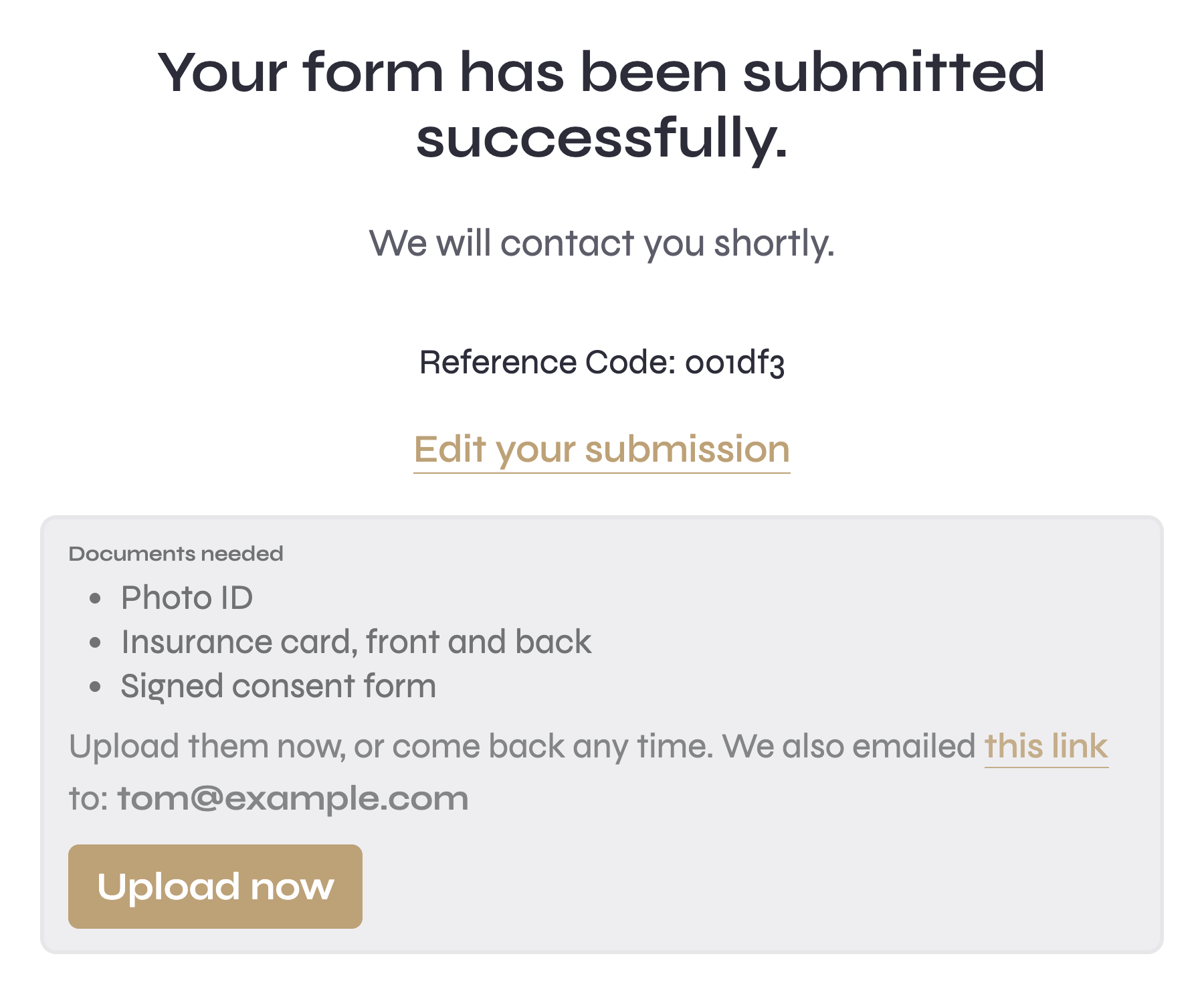
With Show the checklist set to After the form is submitted, the thank-you page ends with a Documents needed card: the items, an Upload now button, and the line “Upload them now, or keep the link below and come back any time.” If the link was emailed, the card says so and to which addresses. If nobody could be emailed, the link itself is shown so the person can keep it.
The email
The person receives an email from your team: “Team needs a few documents from you”, listing what is missing and carrying the Upload documents link. The small print says the link can be reopened any time until everything is in, when it expires, and the file size limit. If the checklist asks for a passcode, the passcode is in the same email.
The Documents link
The link opens a page that works on any phone or computer, with nothing to install. It shows the form’s name, the team’s name, a progress bar and one card per item.
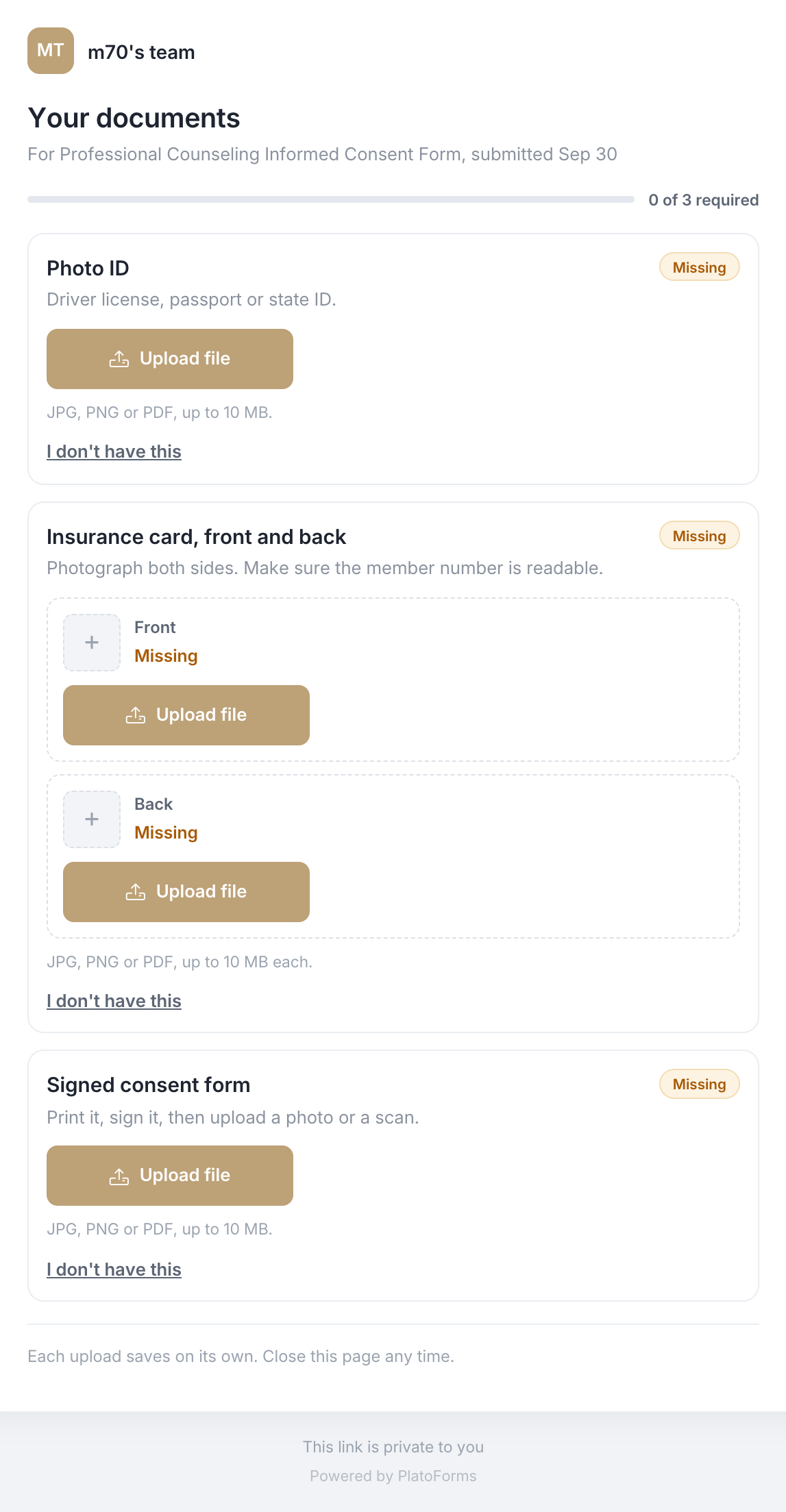
On each item the person can:
- Take photo or Upload file. A card with a front and a back has a slot for each.
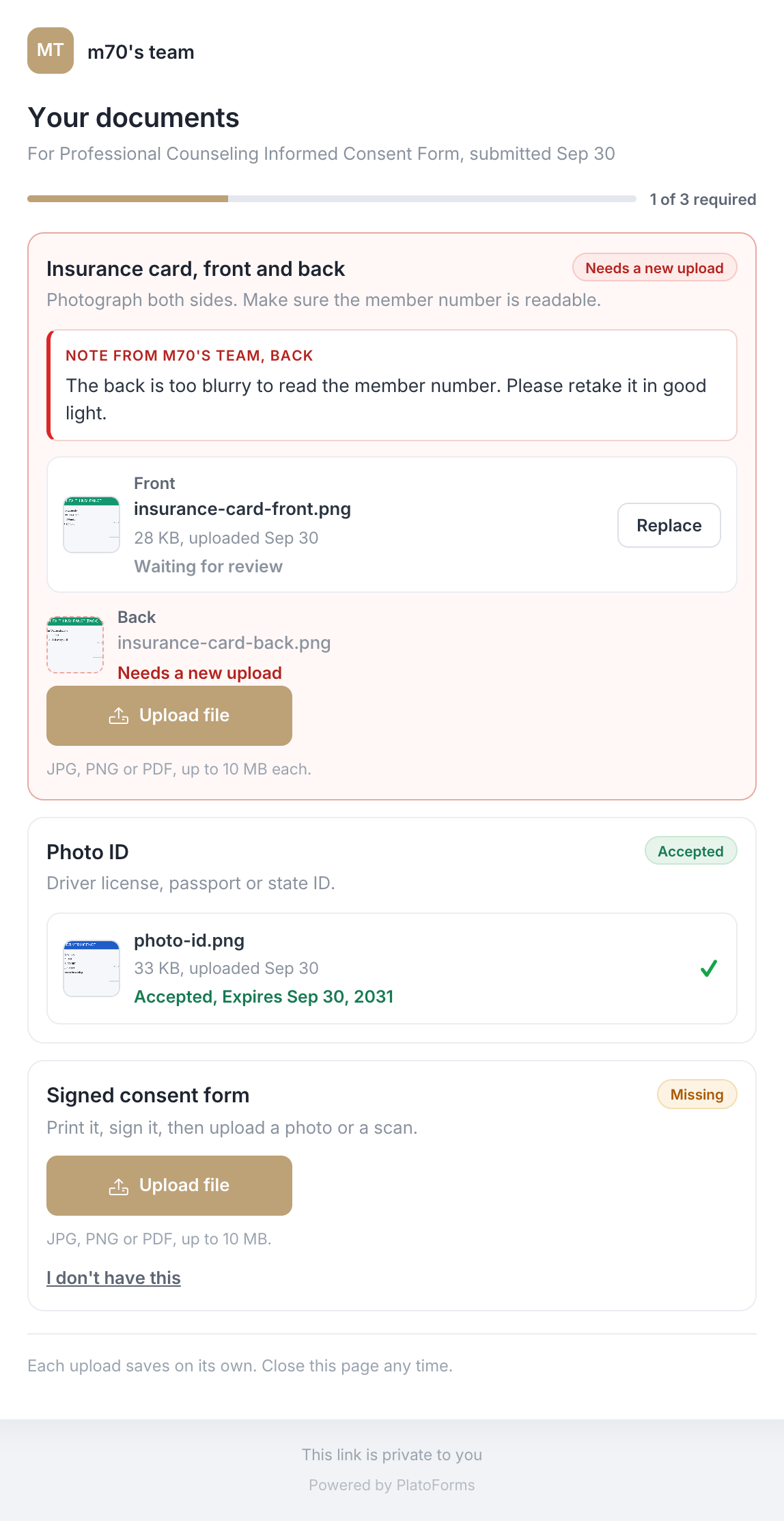
- See the status: Missing, Received (waiting for review), Accepted, Needs a new upload with the reviewer’s note, or Optional.
- Replace a file that has not been reviewed yet.
- Say I don’t have this on a required item, with a reason. The item shows as Declined and your team decides whether to waive it or ask again.
Everything is saved as it happens. The page can be closed and reopened from the same link until every required item is accepted. Then it shows a short confirmation and the final list.
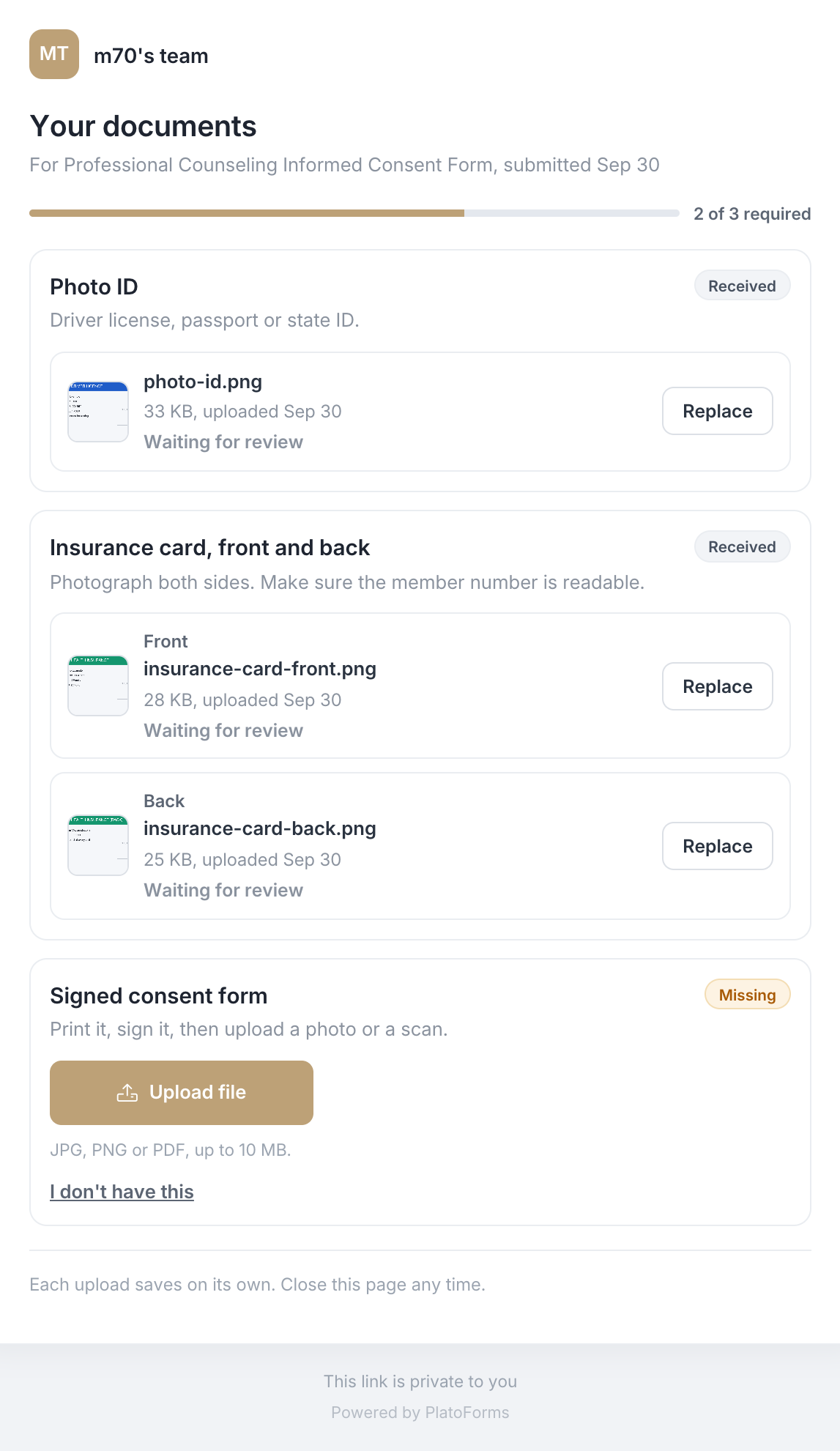
Images get a small preview; on HIPAA teams no preview is shown. If the link has expired, the page says so and suggests contacting the team; a reviewer can reissue it from the Submissions page. If the checklist asks for a passcode, the page asks for it first.
Reminders and follow-ups
-
Reminders arrive on the days you set, listing only what is still missing, marked “Reminder 1 of 3” and so on. They stop as soon as everything is in.
-
Please upload item again: when a reviewer rejects a file, with the reviewer’s note and the link.
-
Time to renew your item: when an accepted document is about to expire, with the link. On the page the item shows Expires soon, an amber line with the date, and a Replace button. The old file keeps counting until the new one is accepted. See Renewals.
If the form sends text messages, the same link and reminders go by SMS. Every text names the team and says how to stop them.