










Approvals
On this page
An Approval step asks someone to look at what was submitted and decide. It has two outgoing connections on the canvas: the green Approved dot and the red Sent back dot. What follows each of them is up to you.
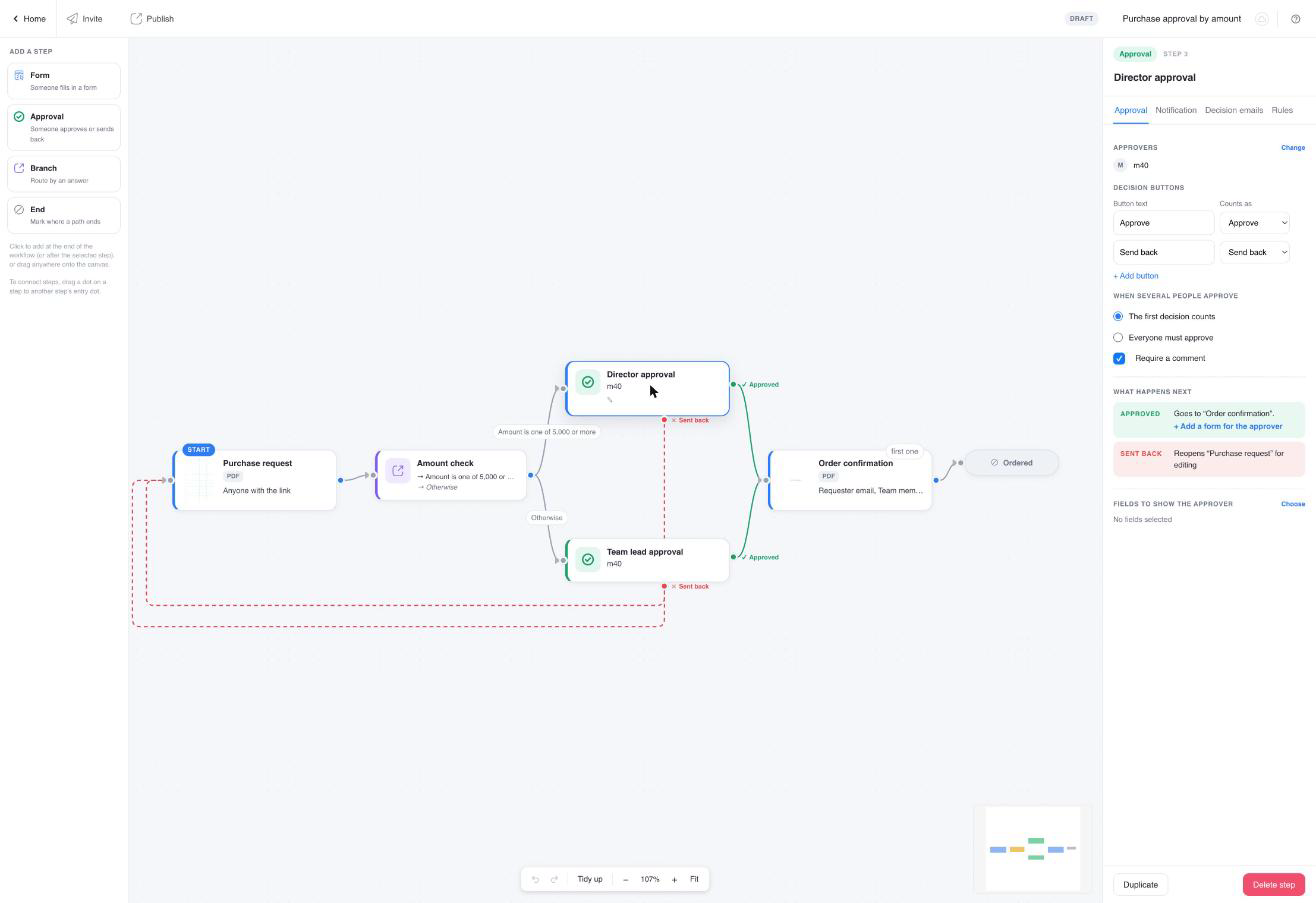
Approval tab
Approvers. The approvers are the recipients on the approval’s Notification tab. The Approval tab shows them under Approvers; click Change (or Notification tab when nobody is set yet) to open that tab. There is no separate member or group picker. On the Notification tab, use any mix of:
- Send to these addresses: fixed email addresses.
- Or send to the email filled in the form: the approver’s address comes from an answer, for example a “Manager email” field on the start form.
- Send to the person who started the workflow: the person who submitted the start form, as identified by Who hears back or the invitation.
- Send to team members (under Notify Team Members): every team member who may view the submissions of the form step before the approval becomes an approver. If that form’s Submission Viewer permission was never restricted, that is every team member.
Each approver gets their own task, their own email and their own link.
When several people approve.
- The first decision counts (default): the first approver to decide settles it; the other approvers’ links close.
- Everyone must approve: the step is approved only when every approver has approved. One Send back from anyone sends the work back. The approval page tells each approver how many decisions are still outstanding.
Require a comment. Approvers must write a comment before deciding. Comments appear in the decision email, on the tracker timeline and on the approval record page.
Decision buttons. By default the page has Approve and Send back. Rename them or add more, and say what each one Counts as: approve or send back. “Endorse”, “Reject with changes” and “Decline” are all fine, as long as each maps to one of the two kinds.
What happens next. Two rows that read the canvas back to you:
- Approved: the step the green connection leads to, “Goes to “Order confirmation””. Under it, Add a form for the approver inserts a form step on the Approved path that is addressed to the person who approved, typically a signature. If a form already sits there that nobody is told about, the row says so and offers Let the approver fill in “X” instead, which addresses that form to the approver without adding another. Once set, the row reads “The approver fills in “X” next”. The approver’s approve button becomes Approve and continue, and they land straight in the form. See Let the approver fill in a form.
- Sent back: what the red connection does. Connected to an earlier form step it reads Reopens “X” for editing: that form’s submitter gets an email with the approver’s comment and a link to revise and resubmit, and the steps between run again. Left unconnected it reads The run ends; tick Let the submitter start again to offer a Start again button, and Pre-fill the new run from the rejected one so they do not retype everything. Start again reopens the same run at the start step, and the tracker shows it in progress again; with the pre-fill option the original start submission opens for editing.
Fields to show the approver. Click Choose to pick which answers from earlier steps are shown on the approval page, so the approver does not have to open the PDF for the basics. Fields are searchable and grouped by step.
Rules tab
Deadline and When overdue work as on a form step, with one extra choice under When overdue: Decide automatically with an Outcome to apply, for approvals that should default to approved (or sent back) when nobody responds in time.
Notification tab
The email approvers receive when the step is ready. The tab is the form’s Notifications screen in its workflow version, and it starts with a default “Your turn in …” email that you can edit directly. Its variable list adds Step name, Due date, Recipient name, Started by and Previous step ({{ step_name }}, {{ due_date }}, {{ assignee_name }}, {{ initiator_name }}, {{ previous_step_summary }}) to the workflow name, the step position and the link ({{ next_step_link }}), and you can quote answers from earlier steps. Reminders live here too.
Decision emails tab
The emails sent to the person who filled in the reviewed form, one for When approved and one for When sent back. Both come pre-filled with a standard text you can edit. Available variables: workflow name, step name, the decision, the approver’s comment, the approver, and a link to open and revise or start again. The approved email goes out at decision time; the signed final PDF comes later, with the completion notification.
What the approver sees
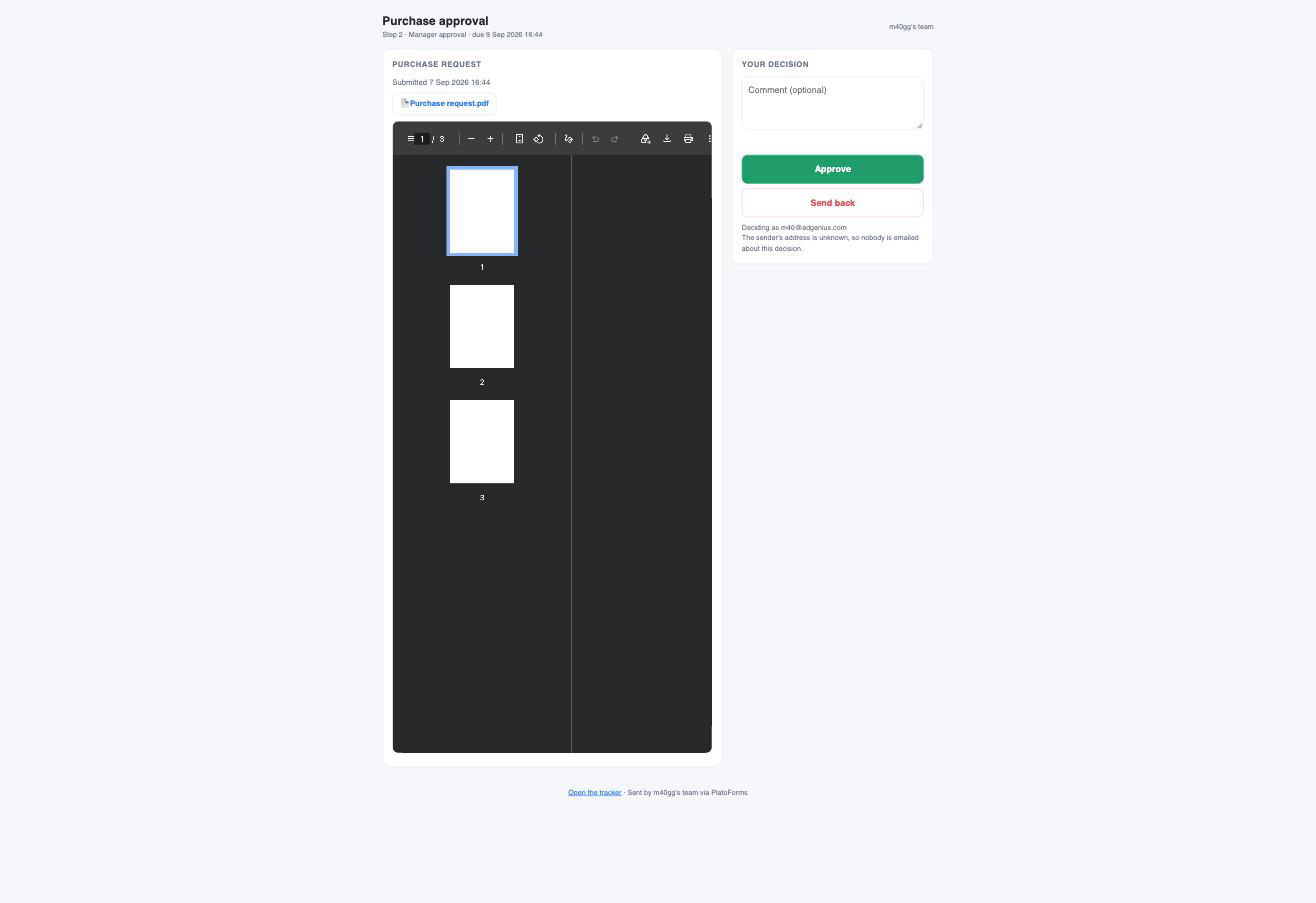
The approver’s link opens a page with the workflow name, the step (“Step 3 · Manager approval”), what was submitted before this step with a link to each PDF, the fields you chose to show, and the decision buttons with a comment box. The address the link was emailed to is shown as who is deciding.
- Under the buttons a note says what happens next when a form follows for them: “After approving you fill in “Sign””, or, when the form has to wait for another approval, ““Sign” comes to you by email when it is your turn”.
- After deciding, the page shows the decision, the time and the address, and “This link is now closed”. With Everyone must approve, approvers who are not last see “Waiting for N more approvals”.
- A decision that ends the run says so: “This request was not approved and the run has ended”, with Start again when you allowed it.
- If the workflow cannot tell who started the run, the page says that nobody is emailed about this decision. Set Who hears back on the start form to fix that.
The link acts as the address it was emailed to, whoever is signed in to PlatoForms on that computer. Team members do not need to sign in to approve.
Let the approver fill in a form
Often the approver also has to sign. On the canvas that is an ordinary form step on the Approved path whose recipient is the person who approved: there is no special step type, the recipient is what makes it the approver’s form.

Any of these builds it, and they all end in the same place:
- Add a form on the Approved path. Drag from the approval’s green Approved dot, or select the approval and click Form in the palette. A form placed there is addressed to the approver straight away.
- After approving → Add a form for the approver on the Approval tab, or Let the approver fill in “X” when a form already sits on the Approved path and nobody is told about it.
- By hand. On any form step’s Notification tab, tick Send to the person who approved “Manager approval”. With more than one approval before the step it reads Send to the approver of with a pick list: one approval per form step, because a form addressed to two approvers is one shared task that the first to open claims. Two signatures are two form steps, one per approver.
That checkbox is the single switch. The form step shows a green edge and a green ✓ Approver of “Manager approval” chip while it is ticked; untick it and the step is a normal form step again, going to whoever else its Notification tab names. It does not have to sit directly after the approval, only somewhere on its Approved path.
- The approver clicks Approve and continue and lands in the form. Their email for that form step is held back for 10 minutes and sent only if the form is still not submitted by then, so an approver who closes the browser half way still gets the link. A workflow submission never sends the form’s own notification email.
- With Combine data across steps on the sign form, the signature lands in the same PDF as the original submission.
- With two approvals in parallel, each sign form names its own approval, and the second sign form waits for the first. The Examples article compares the shapes this can take and which to choose.
Two steps both called “Approval” make “the person who approved “Approval”” ambiguous. Give each approval a distinct title before you add forms for the approvers.
The approval record page
With Add an approval record page to the final PDF on (the Workflow panel, on by default), a run that had at least one approval decision gets an extra page appended to a copy of its final PDF: every decision with the step, the approver, the outcome (the button text), the comment, the time and the task ID, including earlier passes (“pass N”) and send-backs, and every form submission with who submitted it and when. All times are in UTC. The original submission PDF is never changed.
The record page is in the PDF that the completion notification attaches and links, in the tracker’s Final PDF (with approval record) download, and in the API’s final PDF. If the page could not be built when the run completed, the completion email waits a few minutes for it, then goes out with the plain PDF and a note; the download link picks the page up once it exists, and the tracker offers Rebuild approval record.
A workflow without an approval step never gets a record page: there is nothing to record.
If the last form step is a master form, the record page is added to the first of its linked PDFs only. The record is not rebuilt when a submission is edited after the run completed; download the submission’s own PDF for the corrected version.