
Set Form Entry properties
Tabs
Form Entry is a field that acts as a hub for multiple forms, allowing you to organize and manage various sub-forms within a main form. It is commonly used to reuse existing forms, collect information in stages, or show different sub-forms conditionally based on user input.
Note: Form Entry is only available in Custom Web Forms. When creating a new form, make sure to select Web Form from the Start to Build menu.
Follow the steps below to set up Form Entry.
Add and select forms
PlatoForms allows you to search for and add multiple forms to your Form Entry field.
-
Open your form in the editor.
-
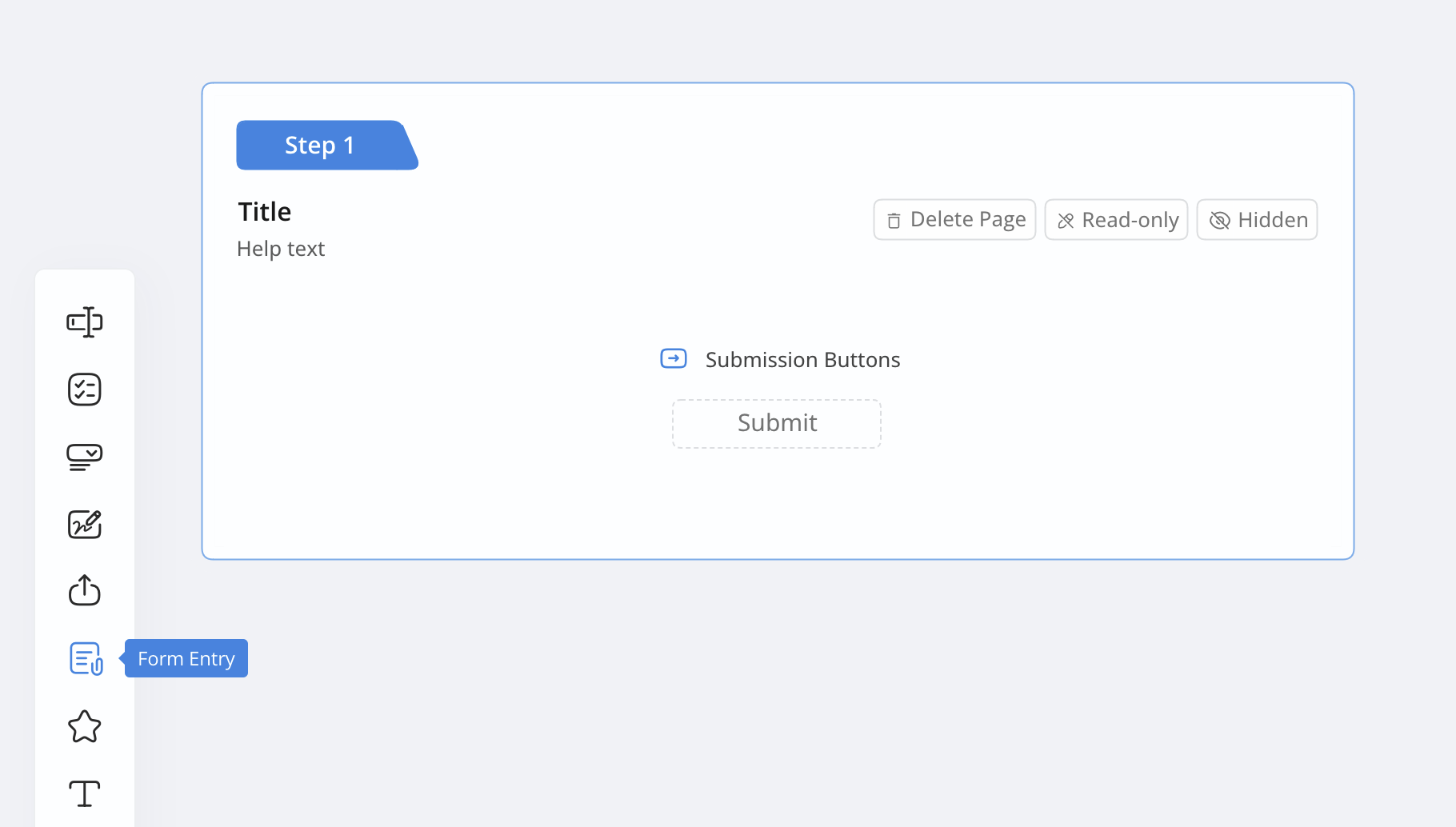
Find the Form Entry field under Enhanced Features.
-
Click Form Entry to add it to your form, then open its properties panel.
-
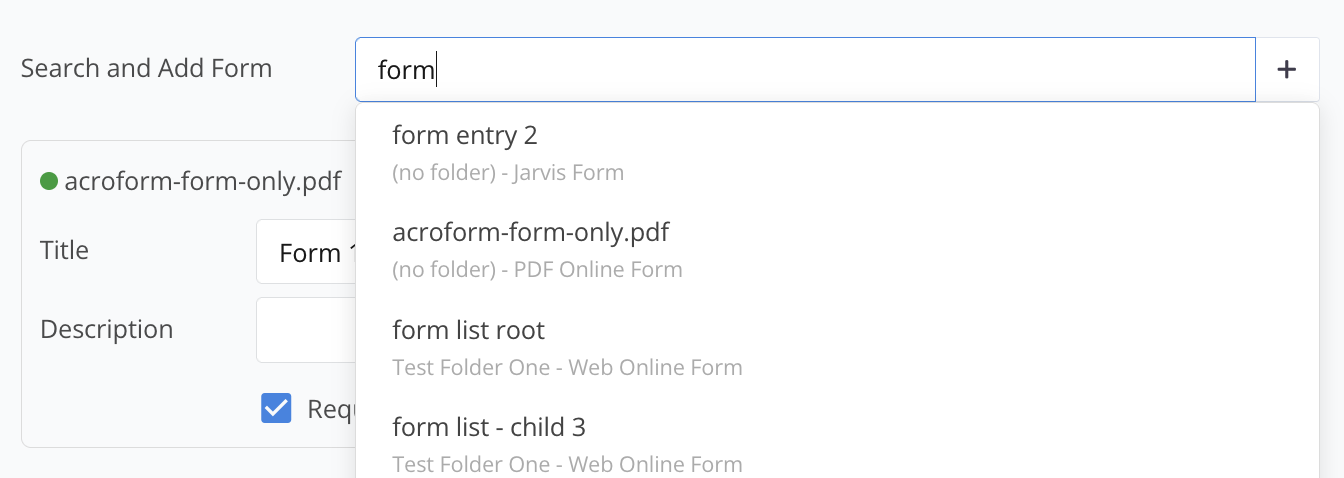
Use the Search and Add Form box to find forms by keyword.
-
Click on the desired form to add it to your Form Entry. You can add multiple forms this way.
Set display options
You can choose how the sub-forms open when users click on them in the main form.
-
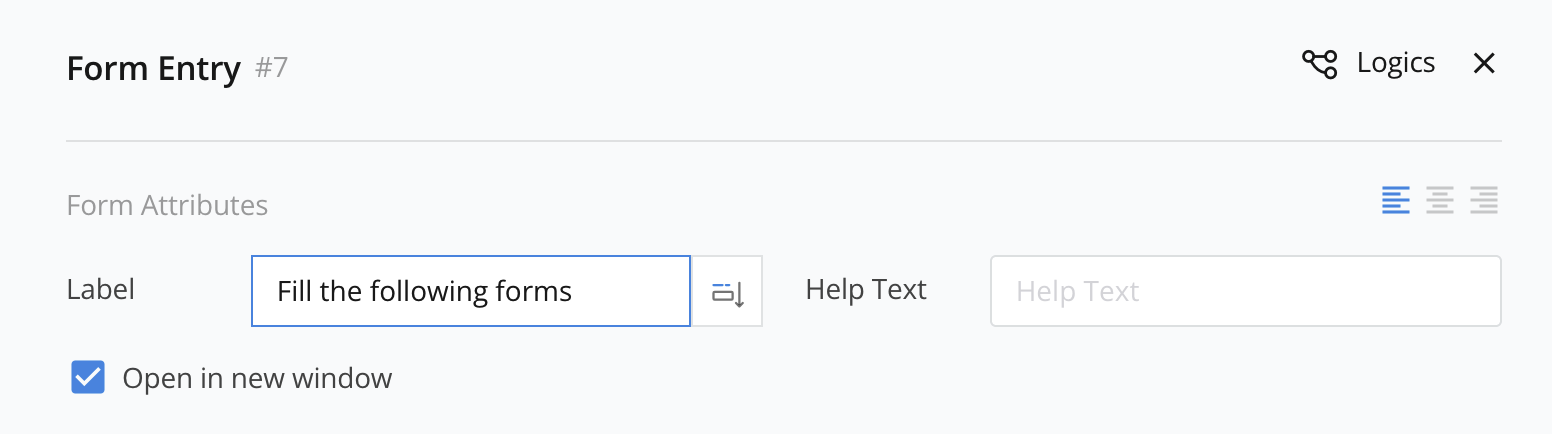
In the properties panel, locate the Open in Window option.
-
Check this box if you want sub-forms to open in a new browser window. Leave it unchecked if you prefer to keep them in the same window.

Customize labels and descriptions
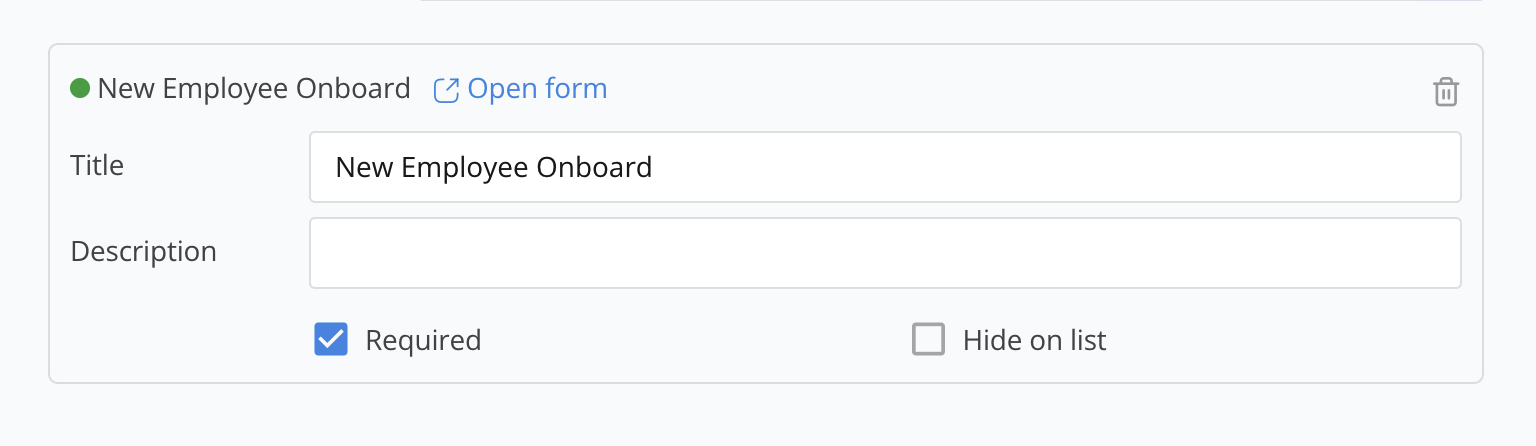
You can modify the name and add a description for each sub-form within your Form Entry field.
-
Click on a sub-form you’ve added to open its settings.
-
Enter a custom name in the Label field.
-
Add any additional information in the Help Text field to provide users with more information.
Configure form visibility and requirements
You can control the visibility and submission requirements for each sub-form in your Form Entry.
- Set as Required: Check this option if the sub-form must be completed before the main form can be submitted.
- Hide on list: If you want the sub-form to remain hidden until a specific condition is met, select this option.
Apply form logic
Form Entry supports logic rules that control when sub-forms appear based on certain conditions.
- Access the Logics settings in the properties panel.
- Add rules or other conditions to determine when sub-forms should be visible.
Video tutorial
You can refer to the video tutorial below: