










Manage submissions
On this page
The Submissions page provides access to submitted form data, generated PDFs, workflow progress, and submission totals. Use it to find individual submissions, manage their files, or review activity across forms.
Guides in this section
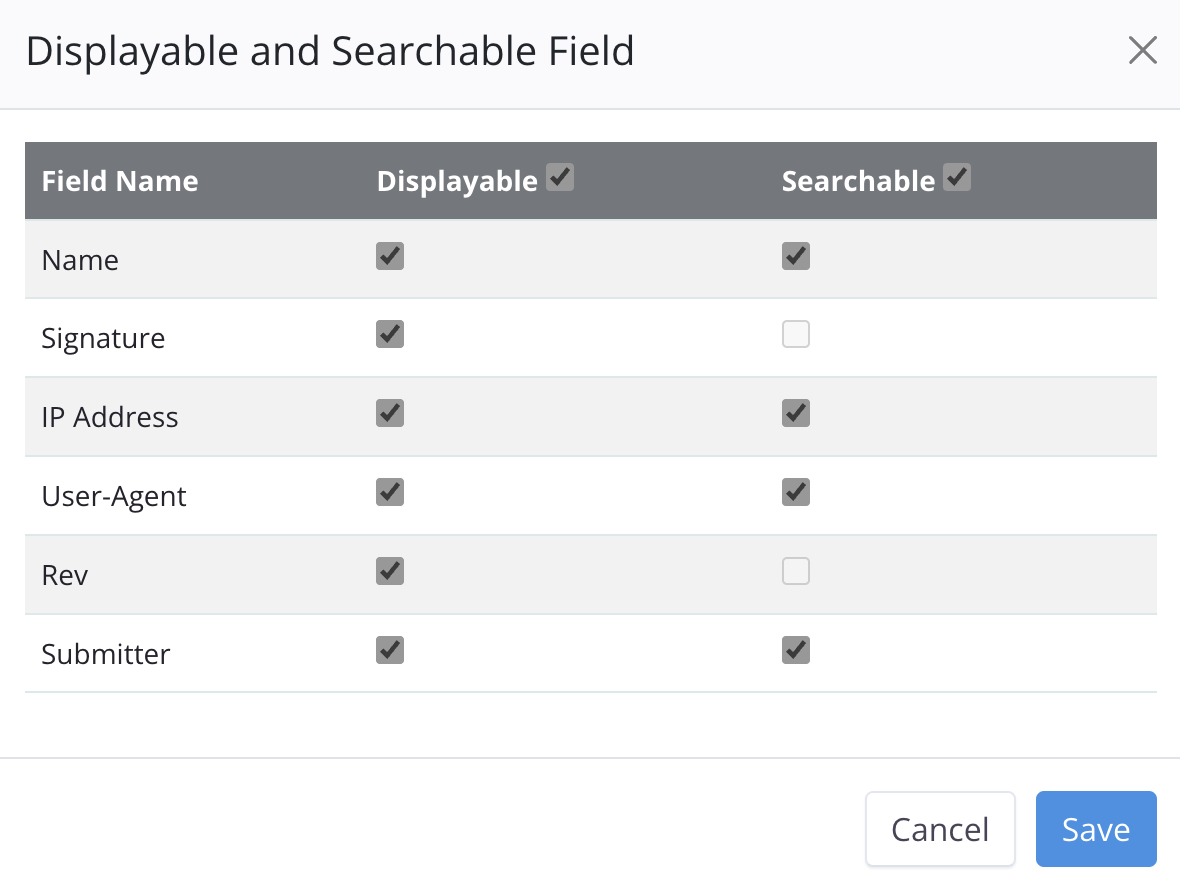
- Configure field display name: Choose which fields appear as columns or can be searched, and give their columns easier-to-read names.
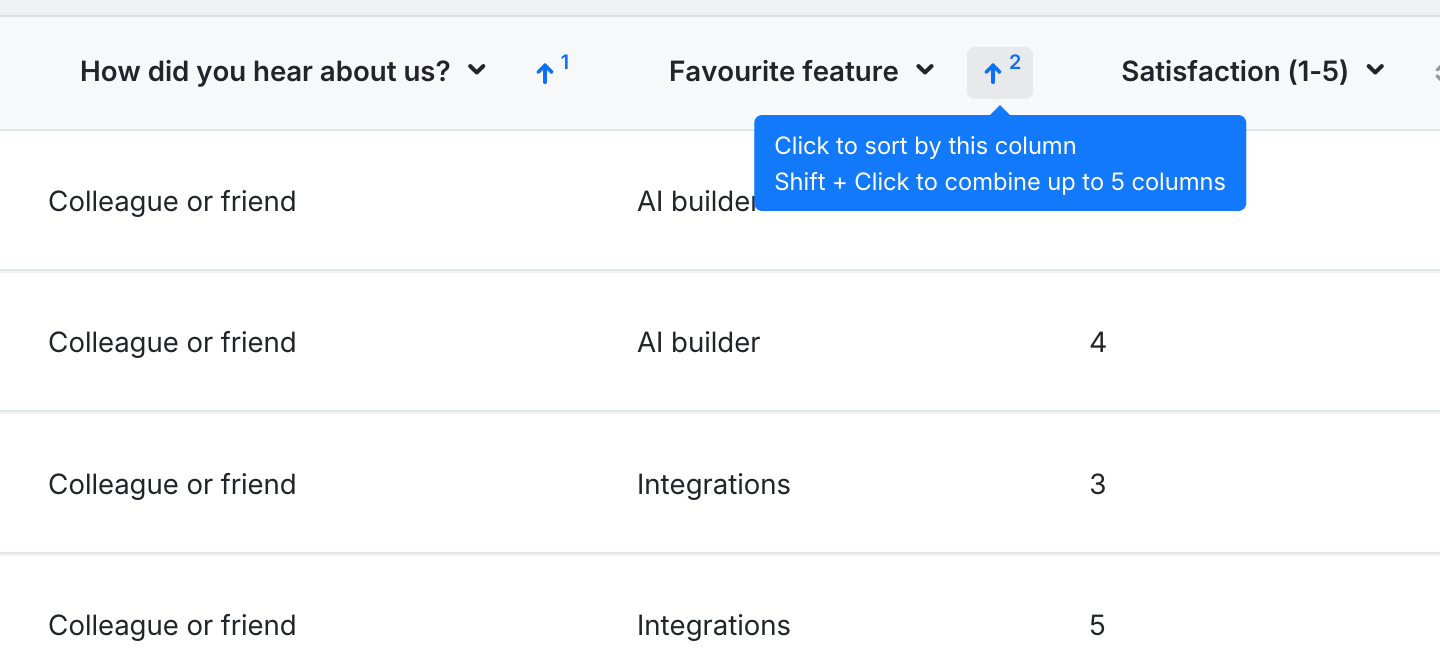
- Sort and filter submissions: Reorder submissions by field values or show submissions from a selected date range.
- Export form submissions: Download submission data as CSV, generated PDFs, or file attachments.
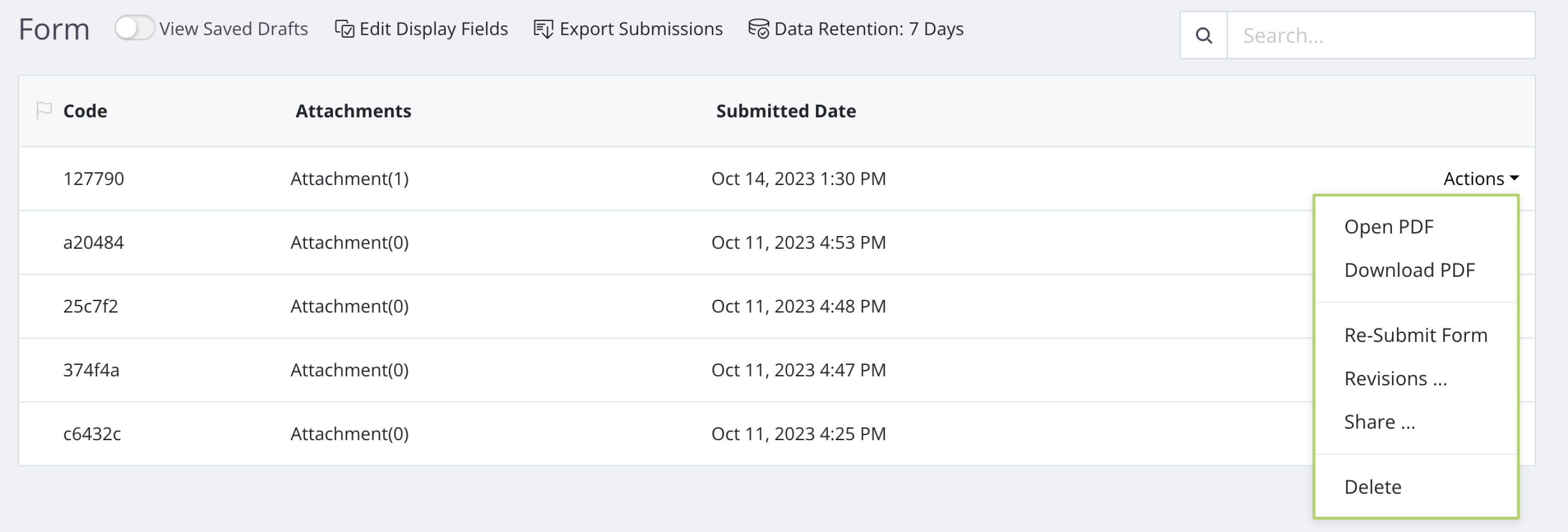
- Manage submissions and PDFs: View, revise, re-submit, download, or delete individual submissions and generated PDFs.
- Completed PDFs: When the completed PDF of a submission is created, where to find it, and what to do when PDF creation fails.
- Workflow submission: Review the progress and status of submissions moving through a workflow.
- Manage submission summary: Review submission totals across forms and filter or export the summary.
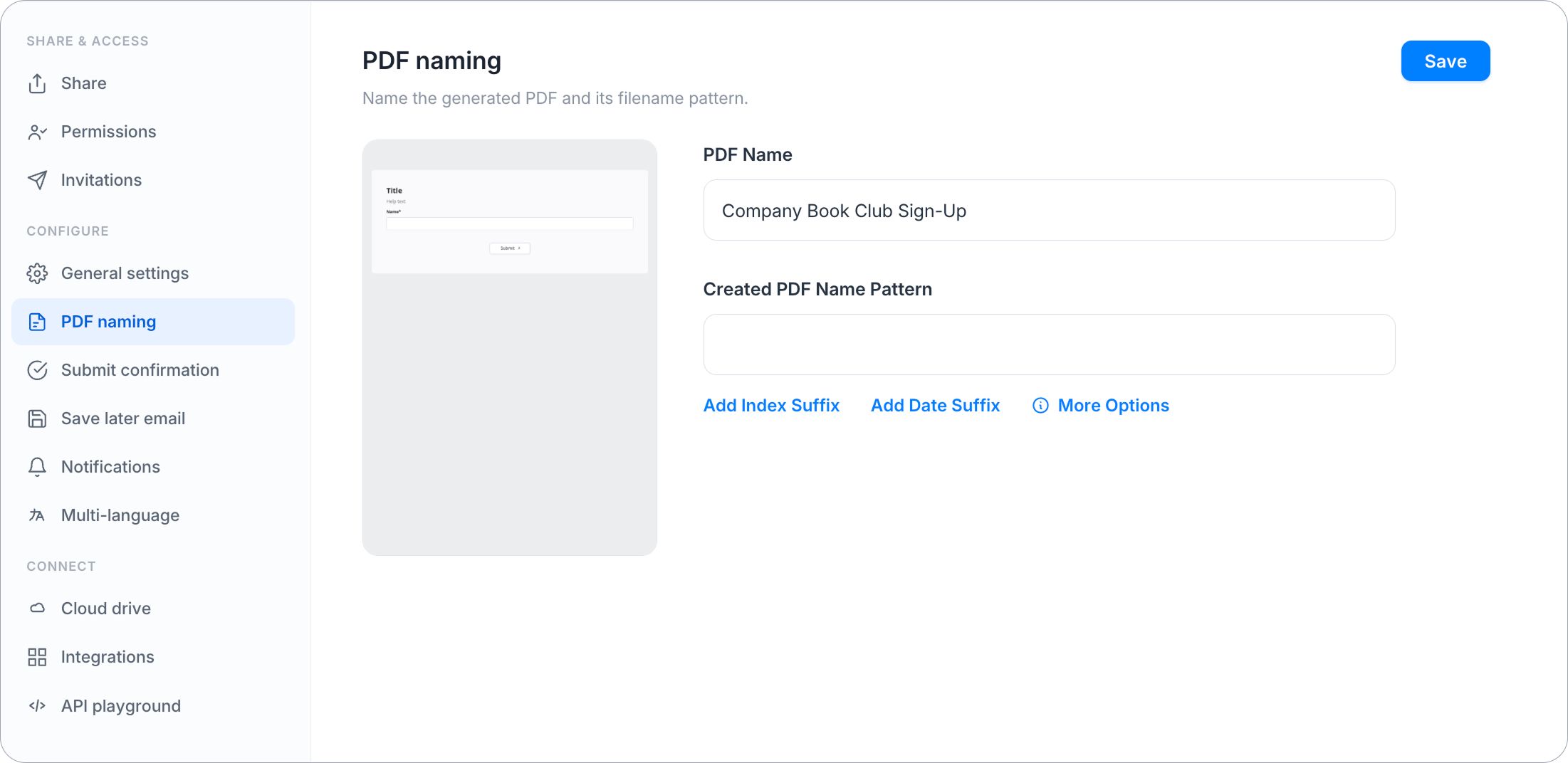
- Downloaded file names: Control how downloaded PDF files are named using fixed text or submission values.
Access the Submissions page
To access the Submissions page, click Submissions in the left navigation of the Dashboard.

Work with individual submissions
The Submissions tab provides the following tools for viewing and managing individual form submissions:
-
View submissions: Access and view submission data.
-
Configure field display names: Add identifiers for different form fields to help keep things organized and find information easily. For more details, check here.
-
Search submissions: Once you’ve added identifiers for form fields, you can use the search bar to find specific submissions.

-
Sort by any column: Order the table by a form field or system column, or combine up to 5 columns with Shift + Click. For more details, check here.
-
Filter by submitted date: Click the Submitted Date column header to pick a date range and show only submissions within it. For more details, check here.
-
Manage submissions and generated PDFs: View revisions, re-submit the form, open or download generated PDFs, and delete submissions. For more details, check here.
-
Customize downloaded PDF file names: Set a fixed name or a dynamic pattern using variables like submission index, date, and field values. For more details, see Downloaded file names.
-
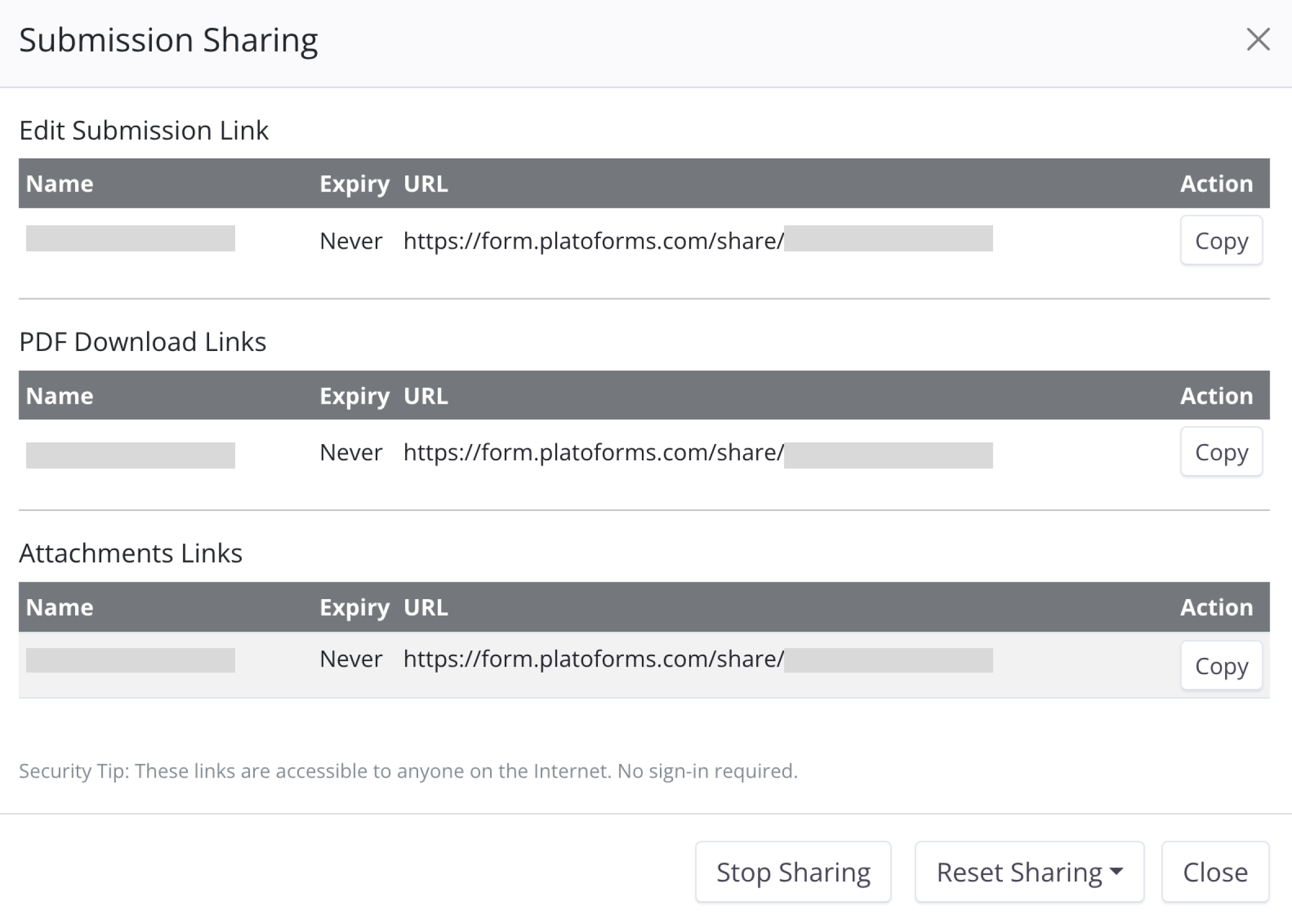
Manage submission sharing: Have control over sharing links, allowing you to reset link expiration and stop sharing.
-
Set data retention period: Decide how long PlatoForms will keep your data. For more details, check here.
-
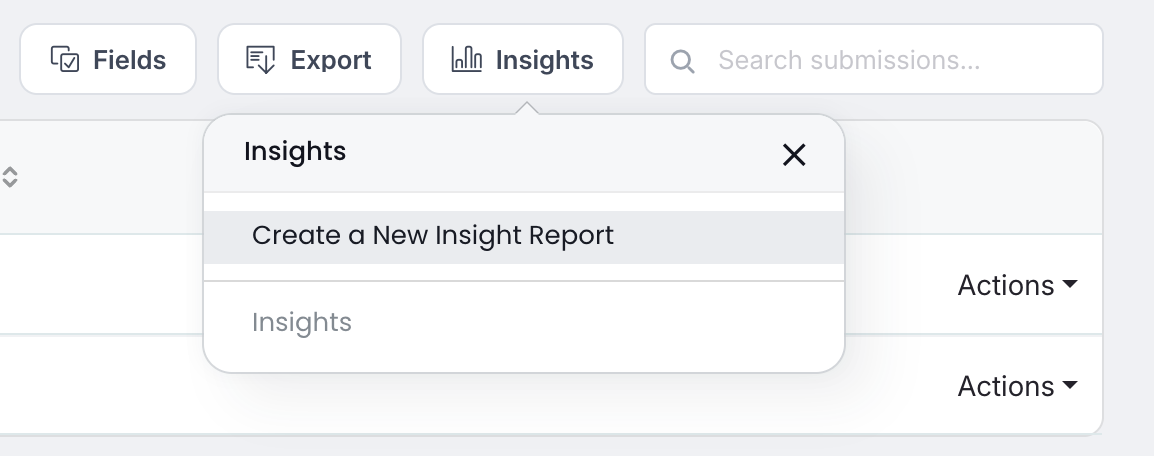
Analyze submissions with Insights: Review submission totals and trends, create charts for form fields, filter responses, and share or export reports. For an overview, see the Insights guide, or follow the steps to create and switch reports.
-
Import paper copies: If people fill in your published PDF Fillable Form or Web PDF Form on paper, click Import from paper and upload scans or photos of those copies. AI reads each copy into the form’s fields, so you don’t have to type the answers in. Imported submissions are marked Paper, and the From paper filter shows only them. See Import from paper.
Review workflow progress
Use the Workflow tab to track submission progress and status within workflows. For more details, see View workflow submissions.
View and export submission summaries
Use the Summary tab to work with submission data across forms:
-
Review all submissions: Access all your form submissions and use filters to sort by time range, form state, or form/folder names.
-
Export submissions in CSV format: Download submission data in CSV format for analysis or record-keeping. For more details, check here or see Export form submissions.