










Track runs
On this page
The tracker lists every run of your workflows: where each one is, who it is waiting on and for how long, and what happened along the way. Open it with Track on a workflow’s card, or from Workflows → Tracker. The designer has no link to it.
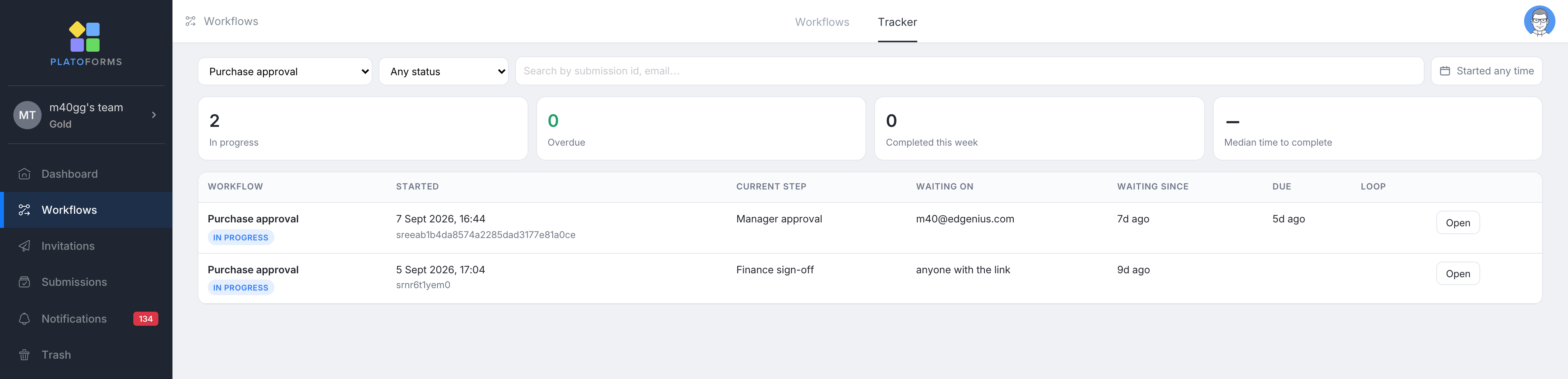
Find a run
- Filters: one workflow or all; status (In progress, Waiting on someone, Overdue, Completed, Sent back, Not approved, Cancelled, Expired); when the run started; and a search box for a submission id or an email address.
- Tiles: how many runs are in progress, how many are overdue, how many completed this week, and the median time from start to completion.
- The table: one row per run with the workflow, when and by whom it started, the current step or steps, who it is waiting on, since when (red when overdue), the due date, a Loop column that shows “sent back ×1” or “restart of …” when the run has been around before, and Open.
Waiting on shows “anyone with the link” when no open task has an email address, for example a step whose recipients could not be found.
Open a run
Click Open on a row. A drawer slides in with everything about that run:
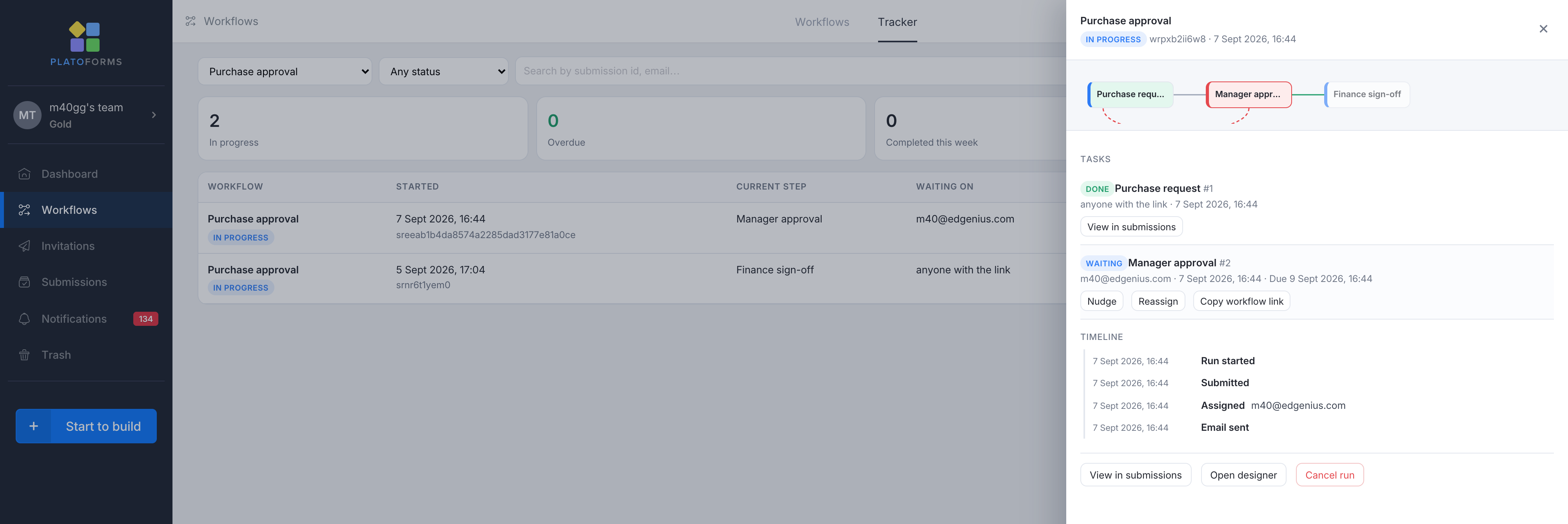
- The workflow’s canvas in miniature, with each step coloured by its state: done, waiting, overdue, sent back, skipped or not reached. On a run with parallel paths you see at a glance which path is holding it up.
- Tasks: one entry per step instance with who it was assigned to, when it was opened and completed, and links to the submission or to the decision and its comment. The task that is currently waiting carries the actions:
- Nudge resends its email. At most once an hour per task. If a form task has no email address, its link is copied for you to pass on instead. On an approval task nothing is copied (the toast says “no email sent”): an approver’s link is never handed to someone else.
- Reassign hands it to a team member or an email address. The previous link stops working and the new person gets a fresh one.
- Copy workflow link copies the task’s link. It is offered on form tasks only; approval tasks have no Copy workflow link, so use Nudge to send the approver their link again.
- Timeline: everything that happened, in order: started, Email sent (the recipient is not shown), opened, submitted, reminded, decided with the comment, sent back, reassigned, completed, and the signature certificate and approval record events.
- At the bottom: View in submissions, Open designer and Cancel run. Cancelling closes every open task, with an optional reason; submissions already made are kept. Every completed run offers its final PDF here: Final PDF (with approval record) when the record page was built (the run had an approval decision and the record page is on), otherwise Final PDF, the last form’s PDF. Rebuild approval record appears if the page could not be built.
Who can see and do what
Access follows each form’s own permissions. Team ownership and team roles give no extra access here; a team owner who is missing from a form’s lists adds themselves first, under the team menu > Form Permissions.
- Design a workflow: Form Editor on every form in it. A new workflow with no form yet is open to whoever created it.
- See its runs: Form Submission Viewer on every form in it. This includes a form a canvas edit removed while runs still hold its submissions.
- Nudge, cancel, rebuild the approval record, reassign a form task: the same as seeing the runs.
- Reassign an approval: Form Submission Viewer and Form Editor on every form, because choosing the approver is part of the design.
- Approve or reject: only the person the approval is assigned to.
Submissions by step
The Submissions page still lists a workflow’s submissions form by form. Its Workflow tab is not tied to one form: it opens with the workflow you last viewed, and a dropdown at the top left switches to another workflow. It shows each run as a row of steps with a date in every column that was submitted; you can open any of them. See Manage workflow submissions. A submission that belongs to a run also shows the run’s status and current step on its own page.
Recover from problems
| Situation | What to do |
|---|---|
| Nobody has acted on a task for days | Nudge it, or Reassign it to someone else. Set a deadline with When overdue on the step so this happens by itself next time. |
| The wrong person got a task | Reassign. The old link stops working. |
| A run should not continue | Cancel run. To start over, the person who started can submit the start form again. |
| The workflow shows Broken | One of its forms is unpublished or archived. Publish the form again, or replace it on the step; the workflow recovers by itself and its runs continue. |
| A link says it has expired | Reassign the task from the tracker, which sends a fresh link, or lengthen Links on the workflow panel for future runs. |