










API Playground
On this page
The API Playground lets you test PlatoForms’ REST API against a specific form, using that form’s real data and an auto-filled API token. You can pick an endpoint, see ready-to-run code samples in several languages, and run a live request without writing any code yourself. This guide covers how to access the Playground and use it to explore an endpoint.
Access API Playground
-
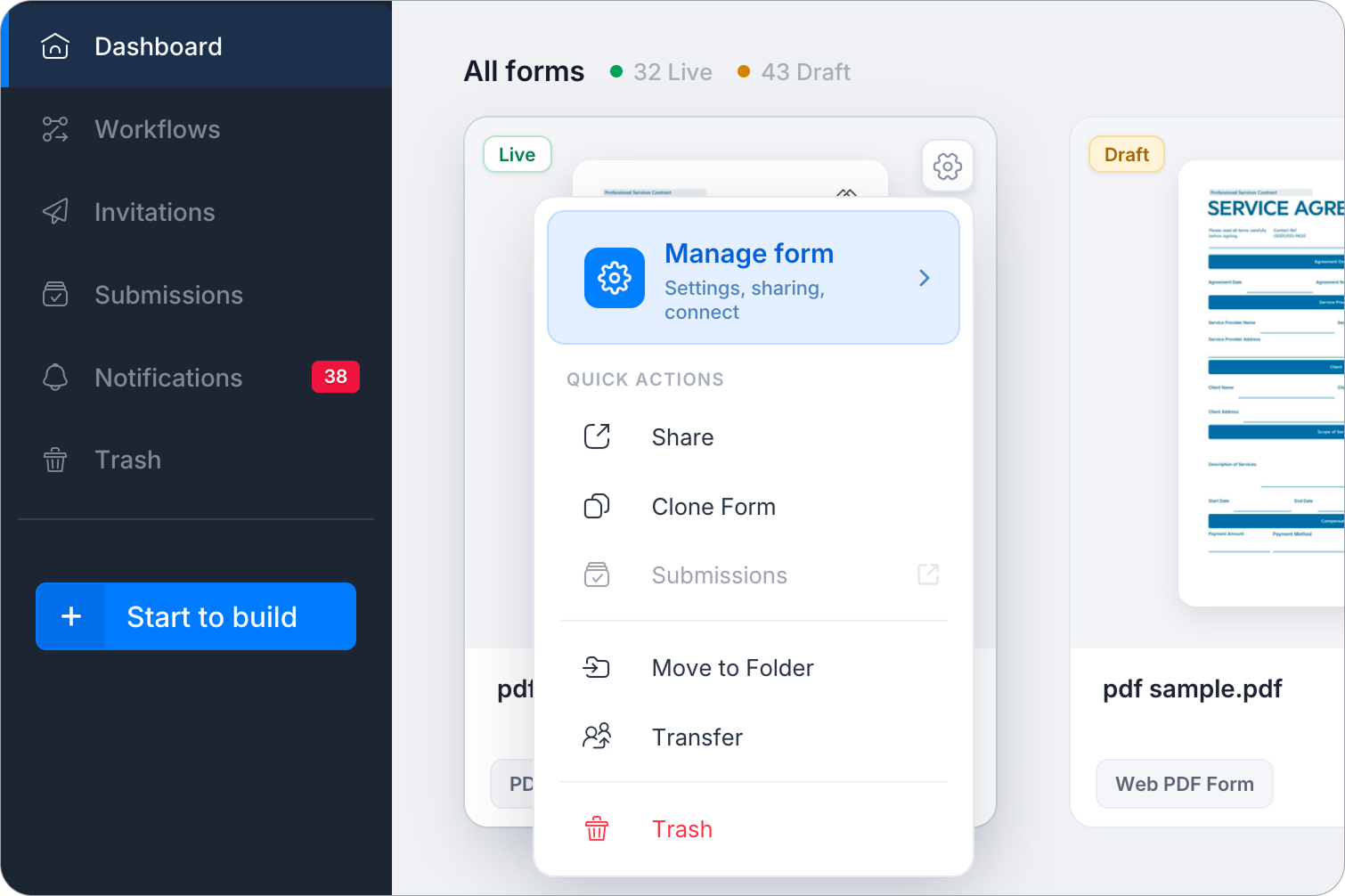
Hover over the desired form on the Dashboard and click the Settings (gear) icon in the top right corner.
-
Click Manage form to open the form’s settings.
-
In the left sidebar, under Connect, select API playground.
Prerequisites
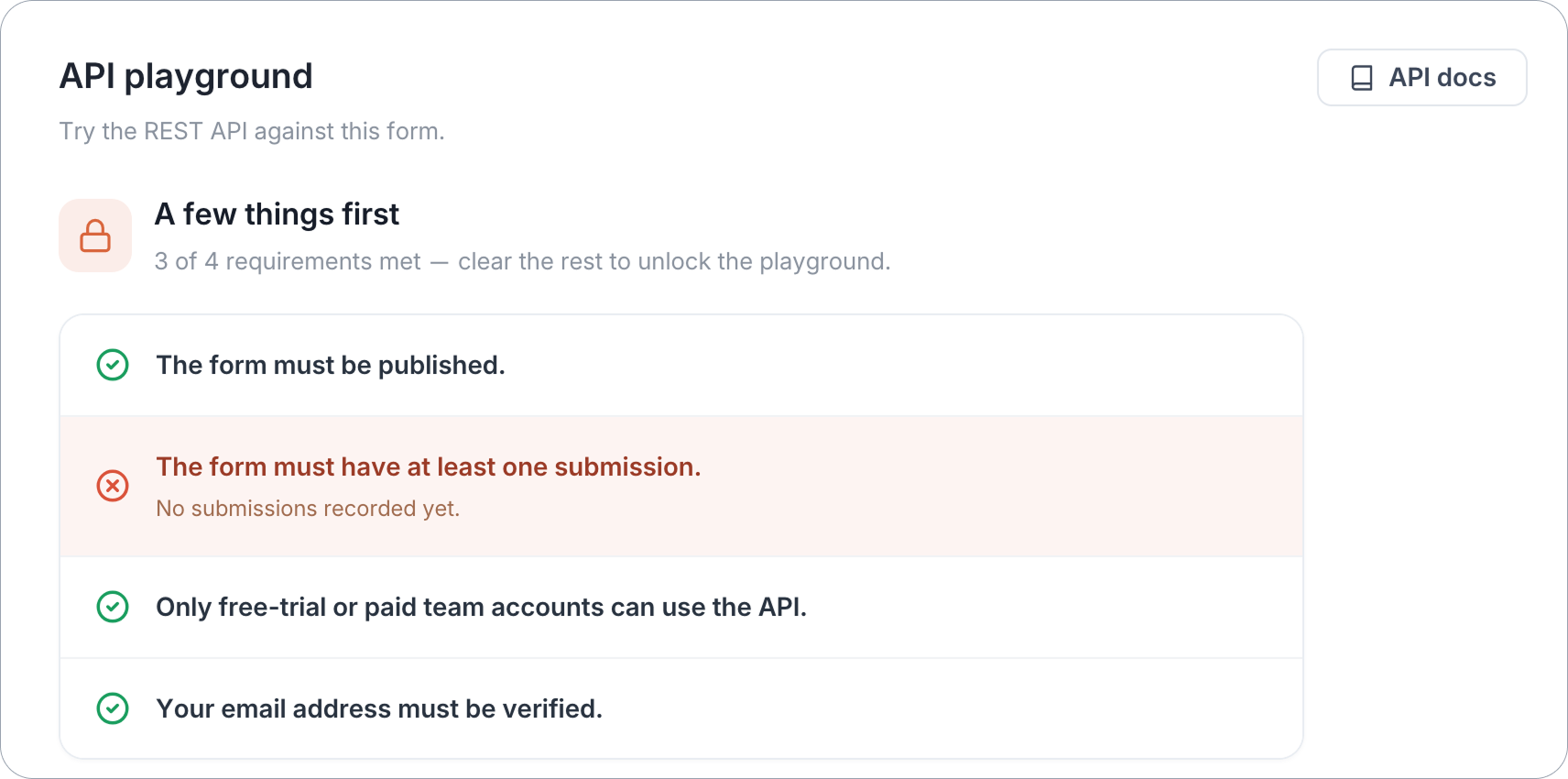
To use the API Playground for a form, the following requirements must be met:
- The form must be published.
- The form must have at least one submission.
- Your team must be on a free-trial or paid plan.
- Your email address must be verified.
If any of these aren’t met yet, the page shows A few things first, with each requirement marked as met or not, along with the reason when it isn’t (for example, “No submissions recorded yet.”).
If your team hasn’t granted your account API access, you’ll also see a card for your team with a Request Access button. Click it to notify your team admin.

Requirements are checked automatically. Once everything is met, the page turns into the live Playground: no need to refresh or navigate away.
Once everything is met, the page shows your form’s API Token at the top, ready to use in the requests below.

Explore API endpoint
The API Playground offers testing for most major API endpoints without the need for coding. Endpoints are grouped by category: Form, Forms, Invitation, Me, Submission, and more.
-
Click Choose an API endpoint to explore and select an endpoint from the dropdown list. Each endpoint shows its HTTP method (for example GET), a short description of what it does, and the route it calls (for example
GET /v4/form/{form_id}/).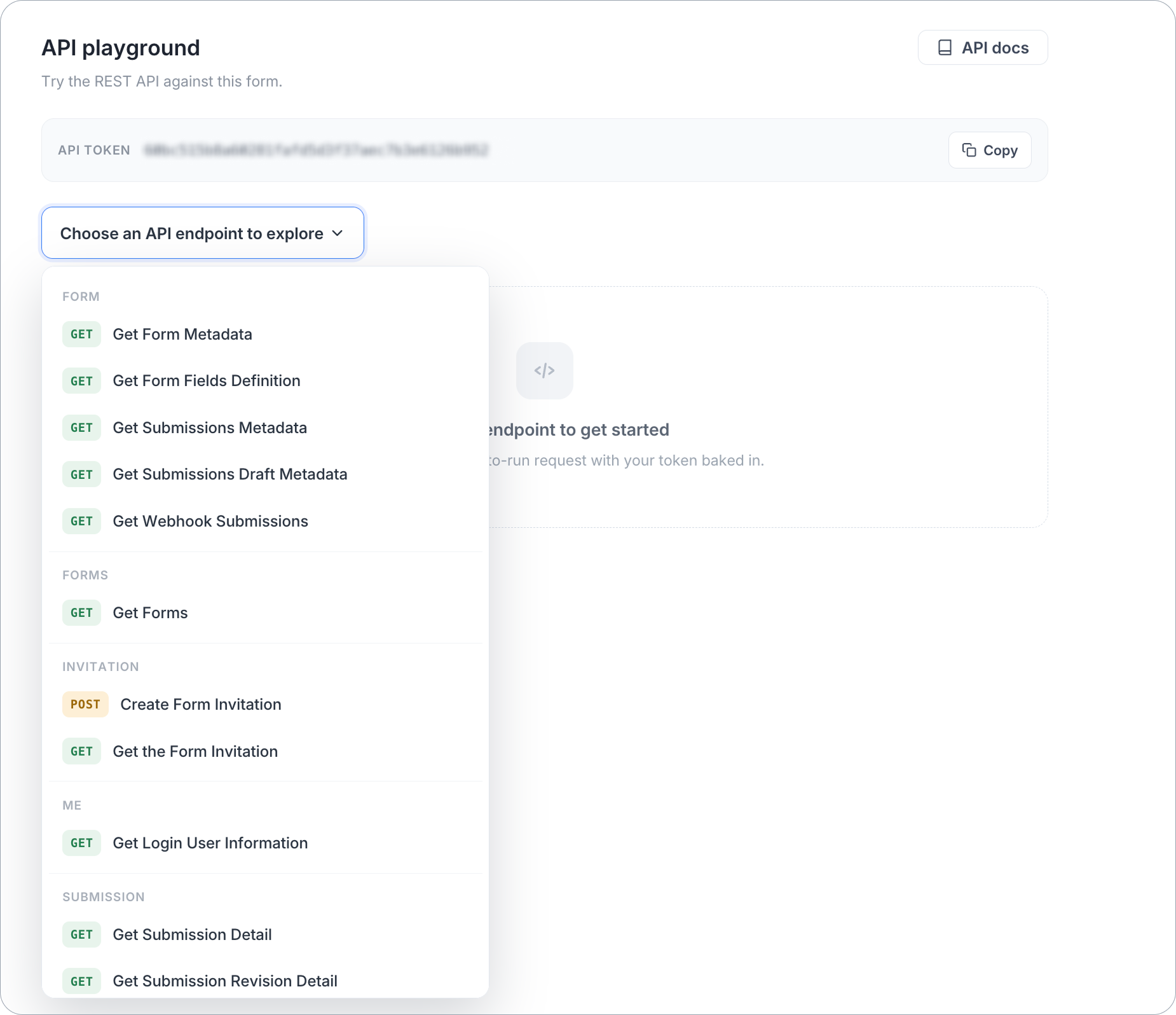 Note
NoteFor more details about each endpoint, refer to our API Documentation via the API docs button.
-
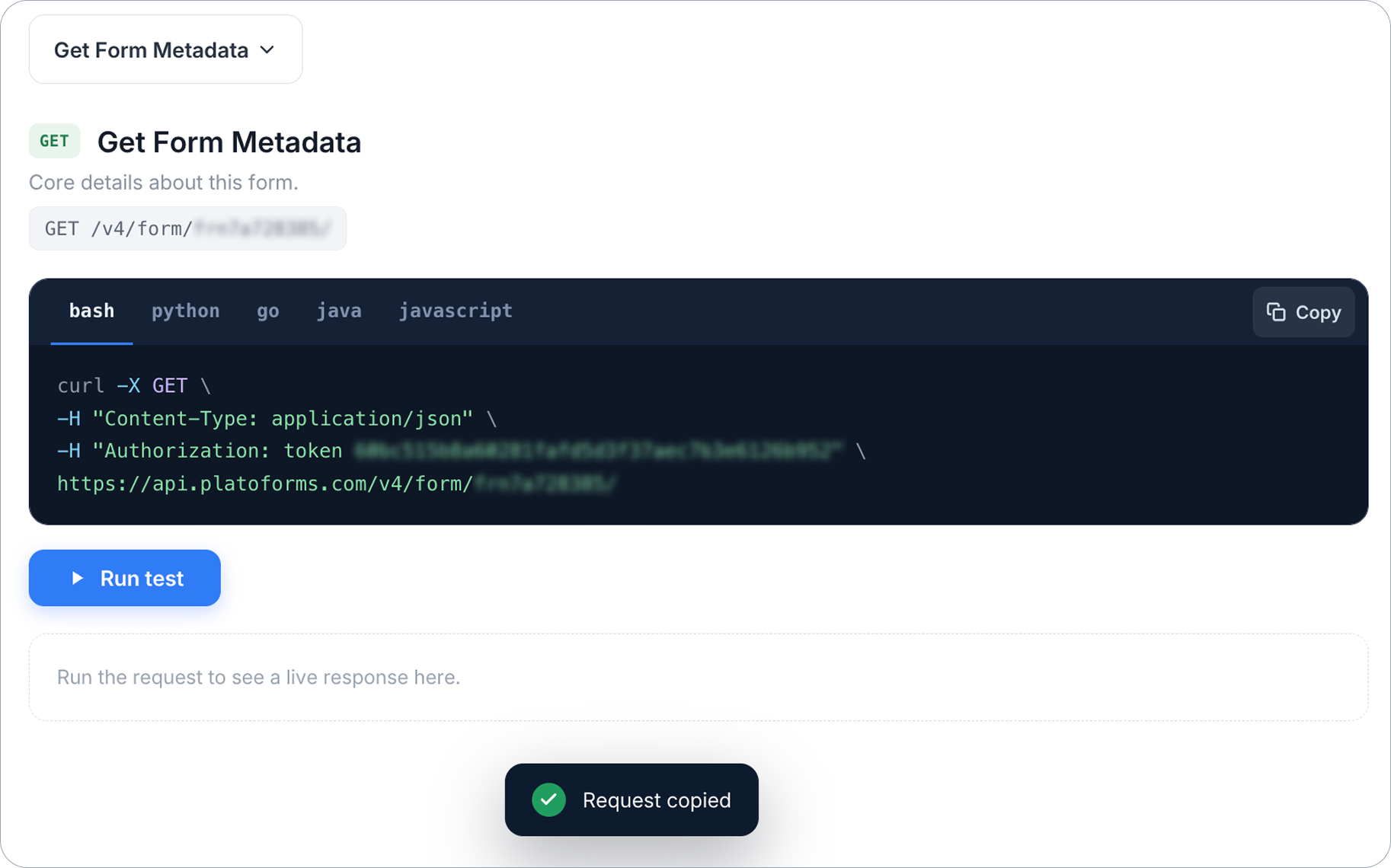
If you are familiar with programming, you can copy sample code provided in various languages, including shell commands using Curl, Python, JavaScript, Java, or Golang. Your form’s API token is already filled in, so the request is ready to run as-is.
-
Click Run test to make a request and generate a response.
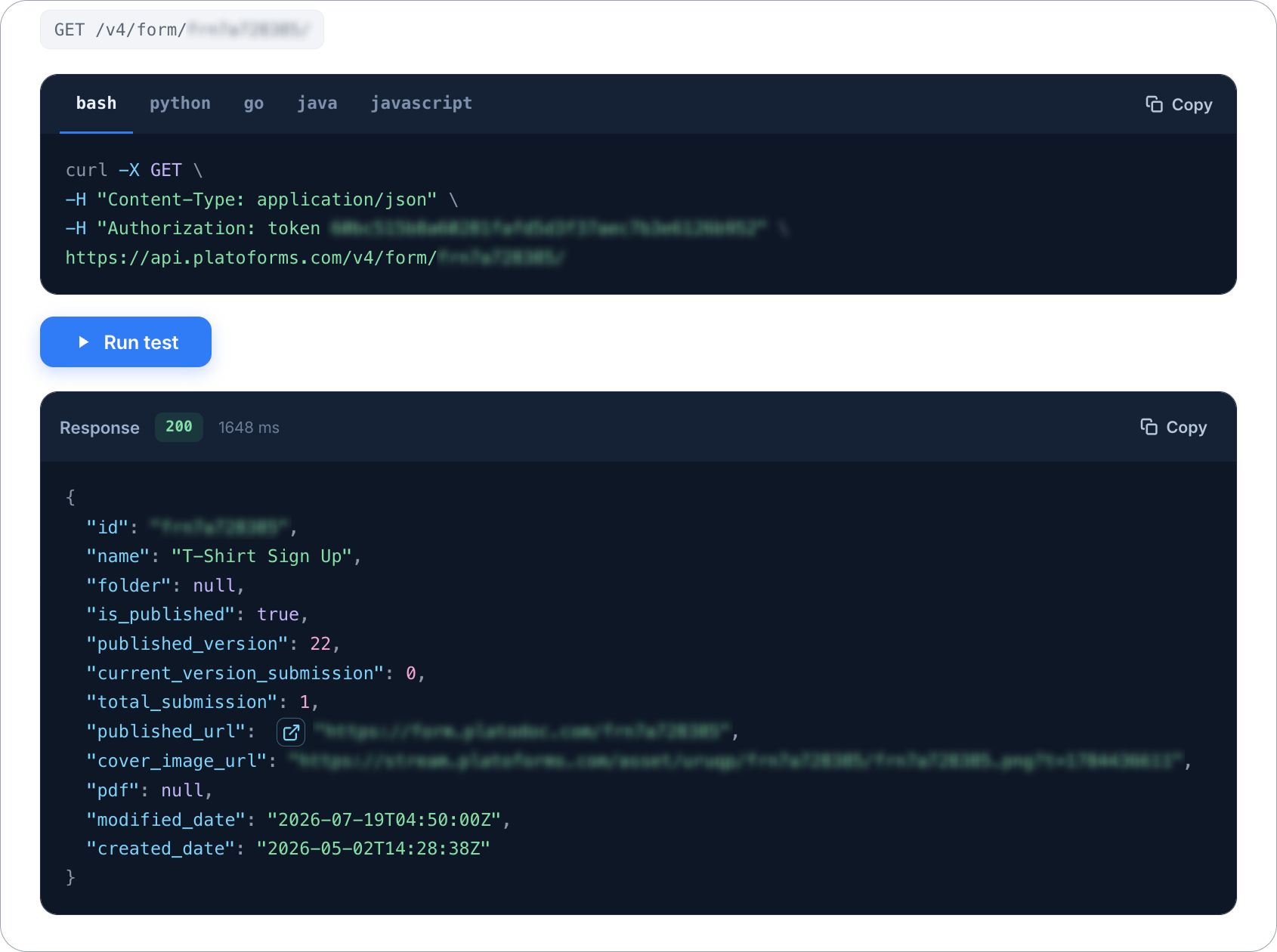
Once the request completes, the response shows the HTTP status code and how long the request took, along with the returned JSON. If the response includes a URL, you can click on it to test the functionality or follow the link to view the submitted form.