










Use a custom domain for your form links
On this page
In PlatoForms, each published form has its own unique web link that starts with “https://form.platoforms.com”. By sharing this link, others can easily access and fill out your online form in their web browser.

With a premium plan, you can personalize your form link, like “mydomain.com”. Once it’s set up, all your team’s published forms will have this custom URL (e.g., https://forms.mydomain.com).
If you’re using the Embed Script for your form, a custom domain isn’t necessary. The form appears inside your existing webpage, so visitors stay on your site’s URL and no extra setup is required.
Before you begin
Before you begin setting up a custom domain for your forms, ensure you have the following:
- Domain name: You’ll need to register a domain through services like GoDaddy, Namecheap, or Google Domains.
- Access to DNS records: It’s important to have access to your domain’s DNS records to make the required changes and connect your custom domain to your forms.
Set up custom domain
Only the Team Admin and members with Team member management access can open Custom Domain and change it. Other members get a page where they can request access.
-
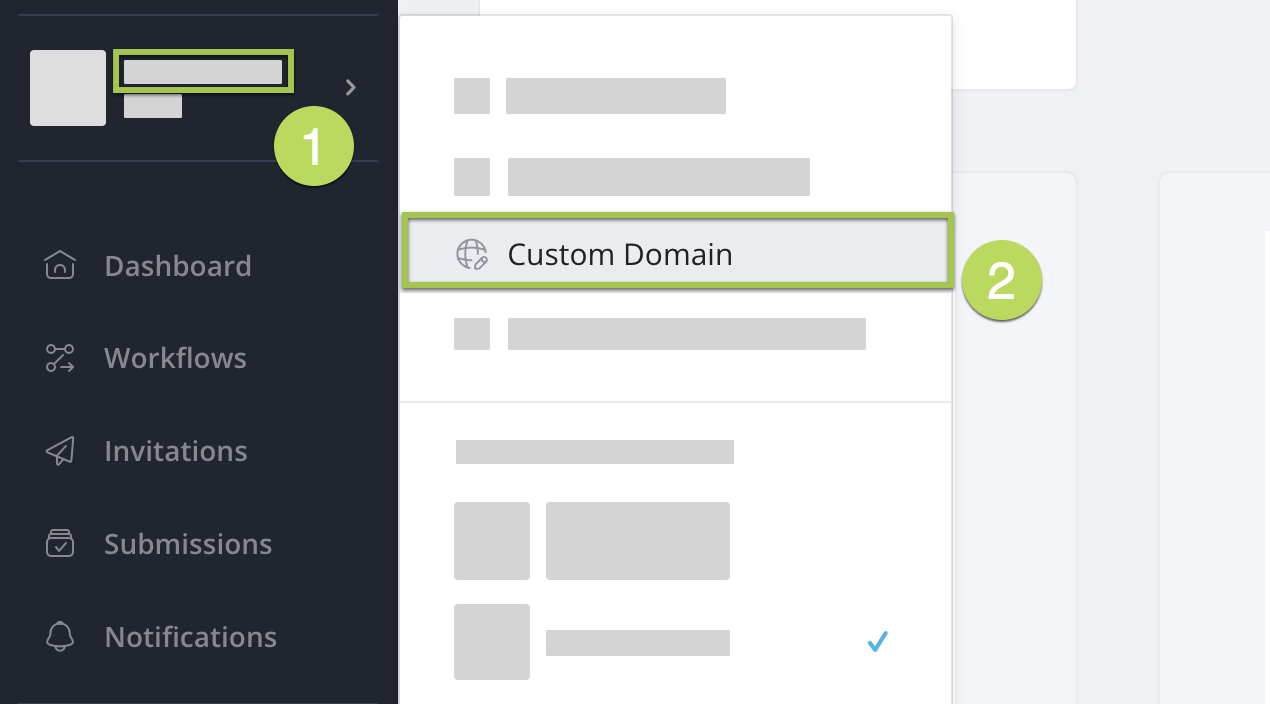
In the left navigation, click your team name.
-
From the expanded dropdown menu, select Custom Domain.
-
On the Custom Domain page, configure your custom form URL:
-
Domain name
Type in the desired domain name for your form. For example, if your domain is
foo.com, consider usingform.foo.comormyform.foo.com. -
Root redirect
Choose what happens when visitors go to your custom domain without adding
/form_idto the end of the URL. Without a root redirect, the bare domain shows an error page. Do not redirect to an address on the custom domain itself, or visitors end up in a loop:-
Redirect to URL
Specify a particular URL for redirection. -
Redirect to Published Form
Direct visitors to the published form version.
-
-
Custom error page
Use your own custom error page instead of the default.NoteWhen your custom domain is set up correctly, a customized error page displays if visitors encounter issues accessing or submitting forms. This page is user-friendly and informative.
-
Add error codes to your URL
If enabled, error codes are added to the URL (e.g.,
?errorcode=404) for HTTP errors like “404 Not Found.” -
Upload Favicon
Add a PNG or JPG icon (under 1MB) to show in the browser’s address bar on your team’s published forms, on the custom URL and the PlatoForms URL alike. Publish each form again to pick up a new favicon. Recommended size: 192x192 pixels.
-
After confirming your edits, click Save.
Once saved, a DNS configuration card shows the CNAME record to add: Type CNAME, Host your domain, and the CNAME value. Copy it exactly from the page; you’ll need it to adjust DNS details and complete the setup.

Change your DNS settings
To complete your custom domain setup, you need to change your DNS details on your domain registrar’s site. Here’s how you do it:
-
Log in to your domain registrar’s account and find the section related to DNS settings or domain management.
NoteDifferent registrars may use different terms for accessing DNS settings, so it’s best to look for options like “DNS Management,” “DNS Settings,” or “Manage DNS.” If you need specific guidance on setting up CNAME forwarding for your custom domain, we recommend you reach out to the registrar’s support team.
-
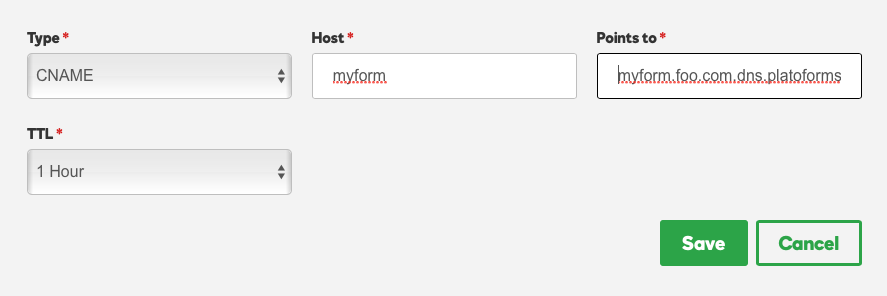
On the settings page, add the CNAME value generated in the previous steps from PlatoForms. For example:
-
Add the CNAME you received to direct it to PlatoForms.
If you use Cloudflare, set the record’s proxy status to DNS only. A proxied record hides the CNAME and the check never finds it.
PlatoForms checks the record automatically: every 15 minutes for the first two hours after you save the domain, then about every hour. To check at once, click Check DNS & connect on the Custom Domain page. CNAME changes usually show within minutes, but may take between 24 and 48 hours to take effect at some DNS providers.
Once your CNAME record is set up correctly, your published forms will have a unique sharing URL that matches your custom domain name. For instance, it will look like this: https://myform.foo.com/fr1srsswes.
HTTPS/SSL protection
Forms on a custom domain are protected with HTTPS/SSL encryption through Let’s Encrypt. As soon as your CNAME record is detected, the SSL certificate is installed automatically, usually in about a minute. The card then shows Connected, and the team owner gets an email “Your Custom Domain is Ready”.
API integration
After setting up your custom domain successfully, the form URL returned by our API will use your domain URL.
Use custom domain and PlatoForms URL
Even if your custom domain is functioning correctly, you can still access the form using our original PlatoForms URL.
To do this, replace your custom URL (https://myform.yourdomainhere.com) with our PlatoForms URL (https://form.platoforms.com) and keep the form ID at the end.
CNAME value format
The CNAME value always follows the same format:
[subdomain].dns.platoforms.com.
This allows you to setup CNAME before the custom domain is set.