










Workflow submission
On this page
Workflow forms move through multiple steps. On the Workflow tab, view a workflow’s submissions step by step, side by side, and jump straight to editing or continuing a submission. Here, you can:
- Select a workflow and browse its submissions step by step
- Choose which fields appear alongside each step’s submissions
- View the PDF generated for each step
- Jump to the next step’s form, or edit a submission, from the actions menu
Access Workflow submissions
-
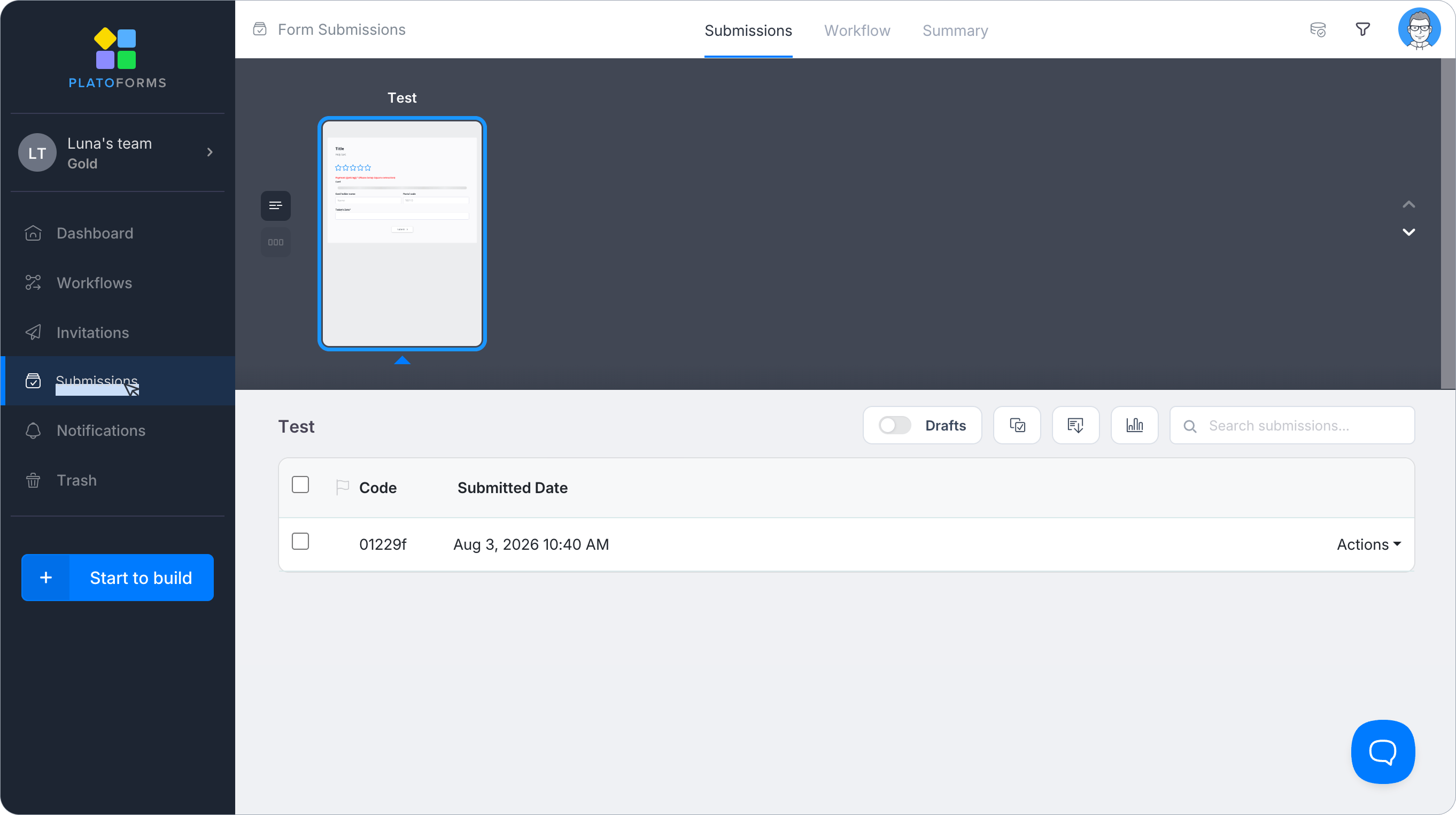
In the left navigation of the Dashboard, click Submissions.
-
Click the Workflow tab at the top (between Submissions and Summary).
-
Use the dropdown in the top left to switch between your workflows.
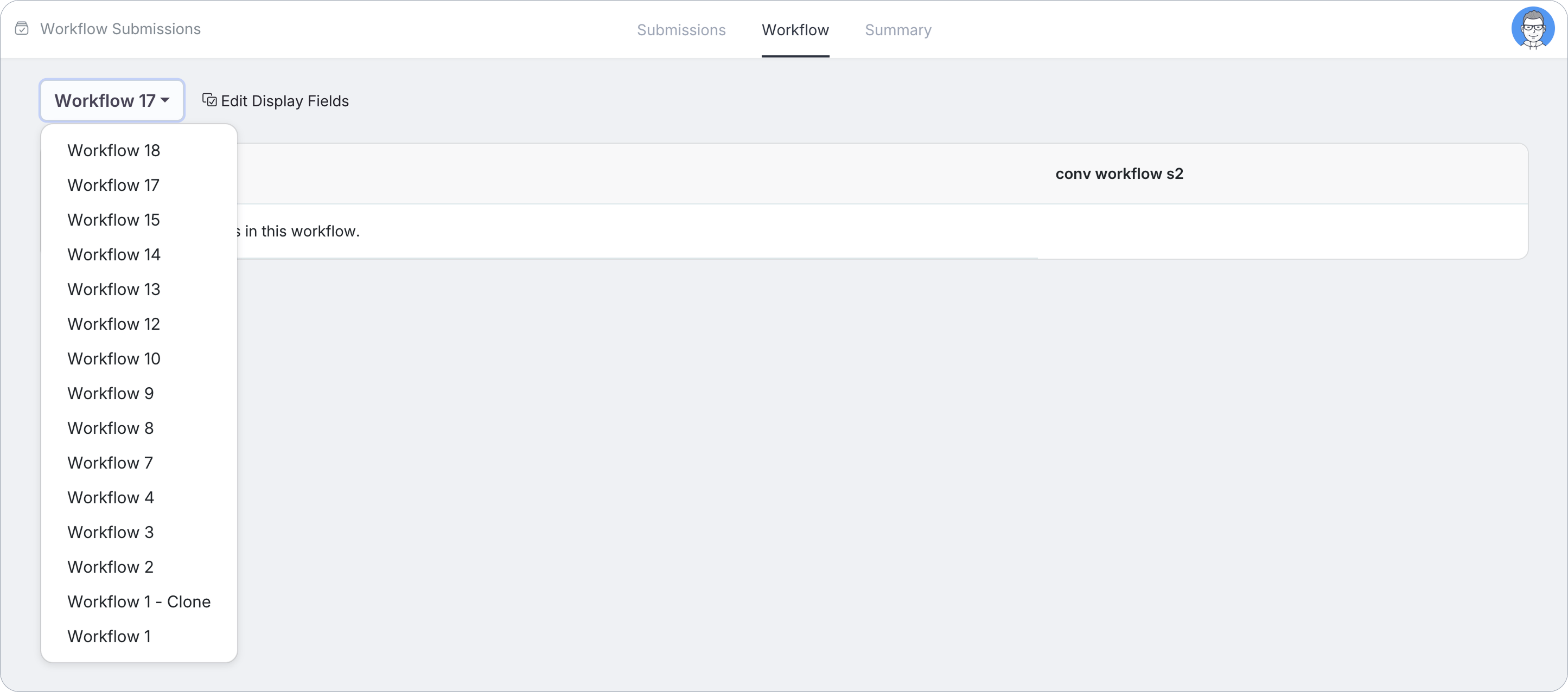
If a workflow has no completed submissions yet, you’ll see a message like “There are not submissions in this workflow.”
Choose which fields to display
By default, each step shows few or no fields alongside its submissions. Before reviewing submissions, set up which fields you want to see:
-
Click Edit Display Fields next to the Workflow selector dropdown.

-
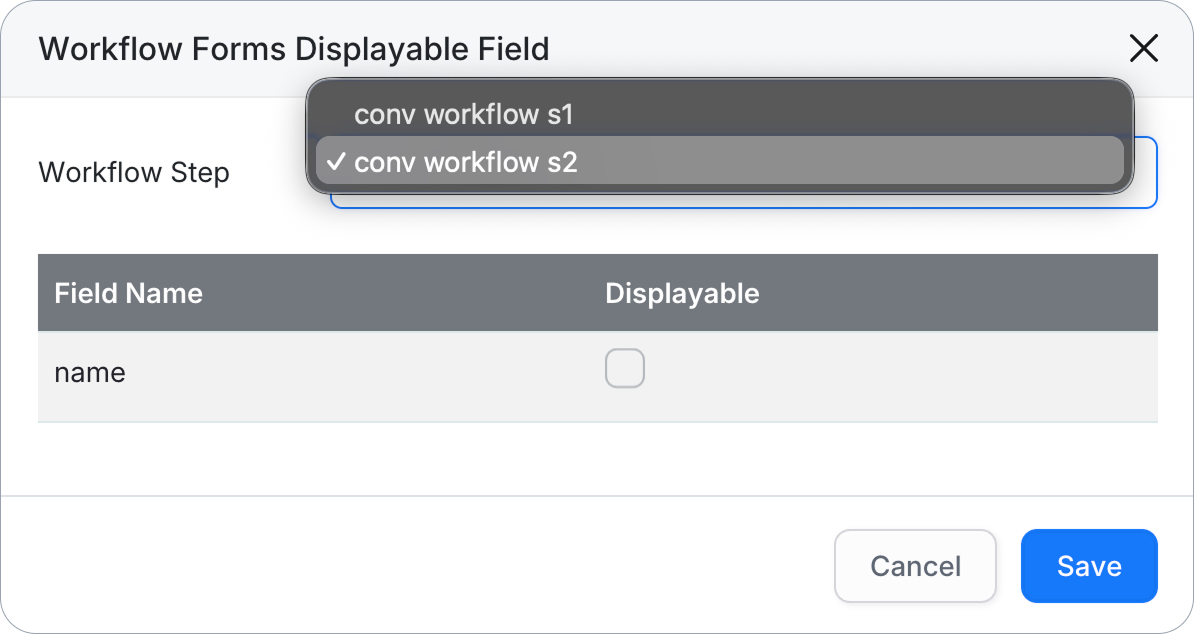
In the Workflow Forms Displayable Field window, use the Workflow Step dropdown to select the step you want to configure.
-
Check Displayable next to each field you want to show under that step’s submissions.
-
Click Save.
Displayable fields are set independently per step. Repeat these steps for each step in the workflow you want to configure.
Review submissions by step
Each workflow’s submissions are displayed in columns, one per form step, headed by the step form’s name (e.g., Worksheet admin, Worksheet Worker.pdf; long names are cut at 35 characters). Each column lists the submissions for that step, along with the field values you made displayable above.
The table shows straight chains of form steps. For workflows with parallel paths, or a branch that can skip a form step, a step whose submission does not follow directly from the step in the column before it is not shown, and neither are the run’s later steps. For those runs, use the tracker or each form’s Submissions page.
Click the timestamp next to a submission to open its actions menu:
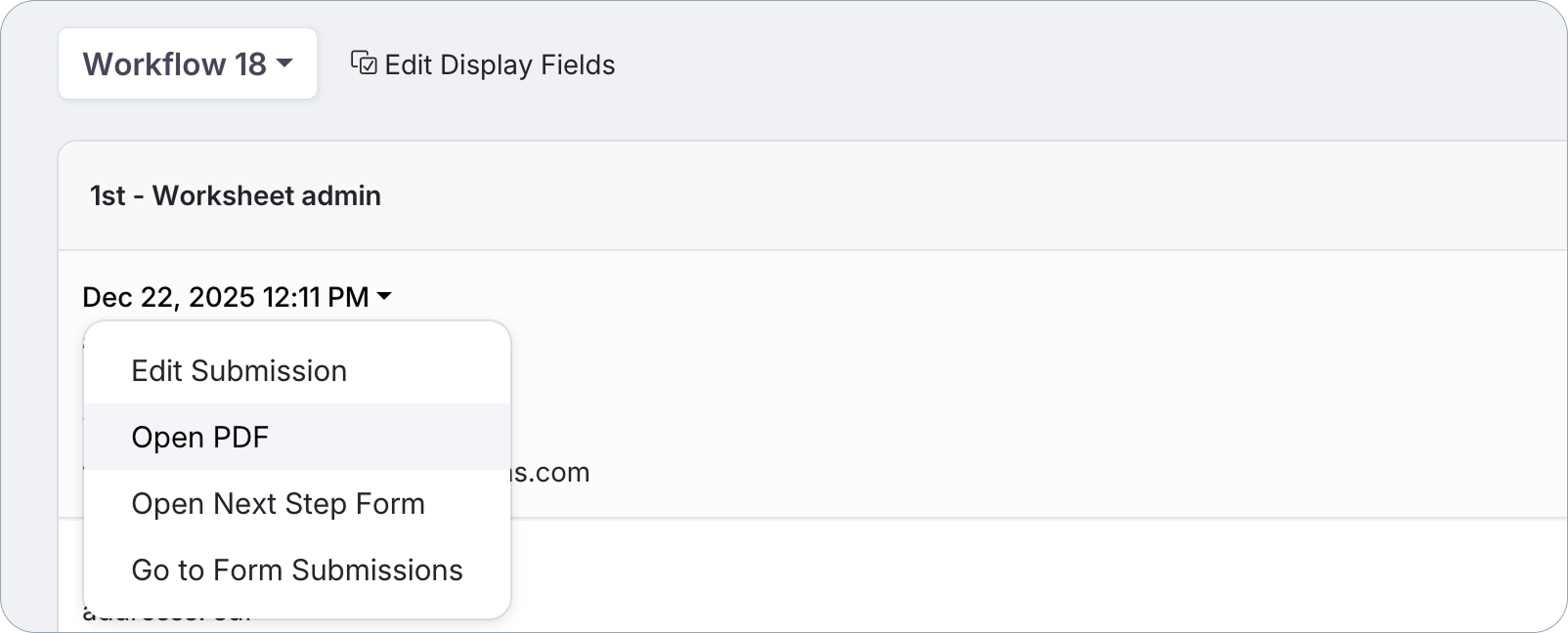
- Edit Submission: update the submitted data.
- Open PDF: view the generated PDF for this step.
- Open Next Step Form: fill out or resubmit the form for the next step in the workflow.
- Go to Form Submissions: jump to this step’s form in the regular Submissions view.
Open Next Step Form only appears on submissions that aren’t the workflow’s final step: there’s no next step to open from the last one.