
Review and create submissions
On this page
Nothing becomes a submission until someone on your team says so. Copies marked To check are opened on the Review page; copies marked Ready can be opened too, or created in one go.
The Review page
Open it from the Import page with Review, or from Import from paper > Review queue.
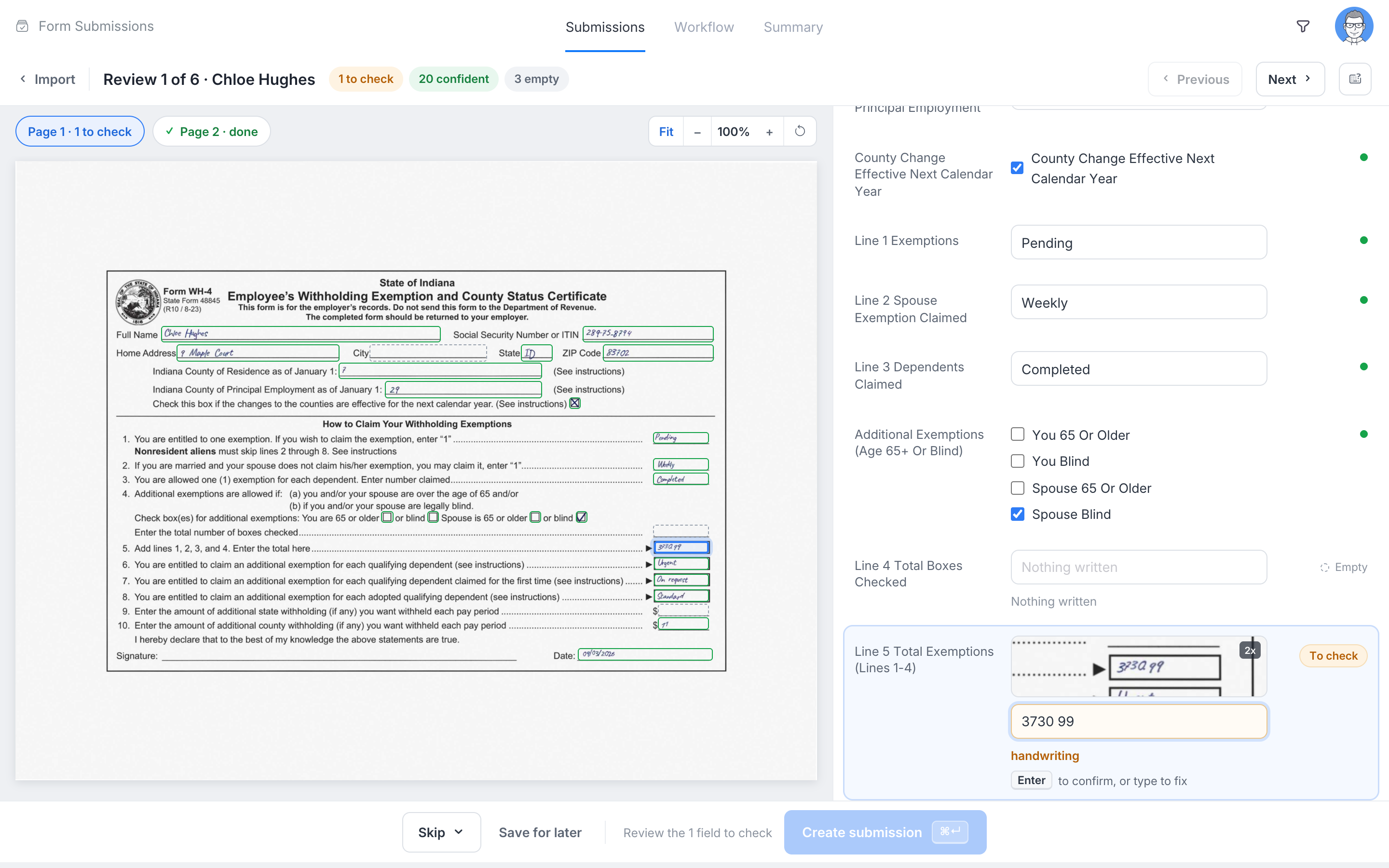
On the left is the scan. Use the page tabs to move between pages, and Fit, zoom and Rotate to see it better. A box marks every field on the page; click a box to jump to that field.
On the right are the form’s fields, grouped by page. A magnified view of the scan appears above the selected field, so you can compare the handwriting with the answer. Each field is marked:
- Confident: the AI is sure of the answer.
- To check: the answer needs a look. A short reason is shown under the field, for example that the handwriting was unclear.
- Empty: nothing was written.
When you confirm or change a field it shows confirmed or edited.
Some fields need a choice from you:
- Dates are shown in the form’s date format. When a date can be read two ways (for example 03/04), pick the right one.
- Choices and dropdowns show the option that was marked. If what was written matches none of the options, the closest option is suggested.
- Signatures are kept as the image of the signature on paper. They do not get an e-signature certificate.
Fields that the form has but the paper does not show are listed last, under Not on paper. Type them in if you need them.
Use the keyboard
| Key | What it does |
|---|---|
| ↓ ↑ | Move between fields (not inside a multi-line field) |
| Enter | Confirm the answer and go to the next field to check, in a multi-line field too |
| Tab | Jump to the next field to check |
| Shift Enter | New line in a multi-line field |
| ⌘ Enter or Ctrl Enter | Create the submission |
| Esc | Close the shortcuts list or the Skip menu |
Click the Keyboard shortcuts button at the top of the page to see the list at any time. Your changes are saved as you go, so you can leave and come back.
Create the submission
Create submission becomes available once every field to check has been confirmed or edited. When you click it, the form’s own checks run, for example a required field or an email address format. If one fails, the field goes back to To check with the reason, and nothing is created.
The submission is created and the next copy to check opens. When every copy is done, the page says so and links to the new submissions.
Other actions
- Skip: choose Not this form or Do not import this copy. You can undo it for a few seconds.
- Save for later: keep your work and go back to the list. After that, Open in the form instead opens the normal form with the answers filled in so far.
- Previous and Next: move between the copies.
When a page is missing
If a page of the form was not in the scan, the copy is marked Pages missing and the page’s fields are empty. Click Add pages on the Review page, drop a scan or photo of the missing page, and click Add. The added page is read like any import, and the copy updates when it is done.
Create all Ready copies at once
Copies marked Ready were read with confidence and pass the form’s checks. To create them without opening each one, click Create N submissions on the Import page (the Ready copies of that import) or on the review queue (the Ready copies of the form).
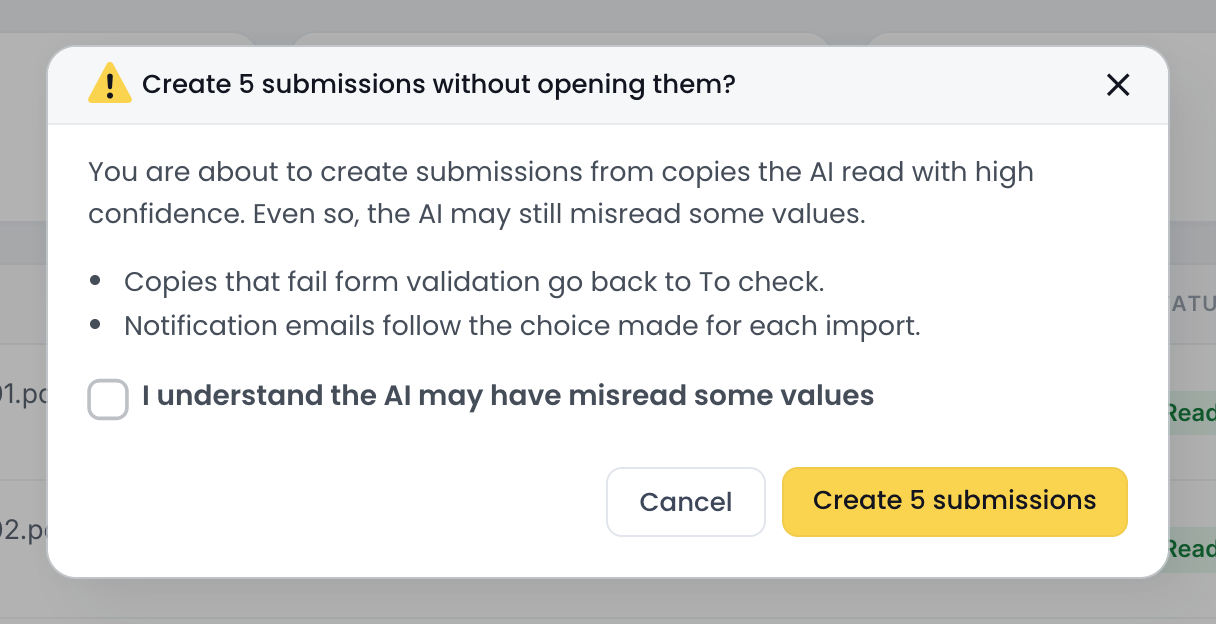
Tick I understand the AI may have misread some values and click Create N submissions. You can Stop at any time; copies that were not created stay Ready. A copy that fails the form’s checks goes back to To check, and the summary lists it with the reason.
Even confident readings can be wrong. Open a few Ready copies on the Review page before you create the rest in one go, especially the first time you import a form.
The review queue
Import from paper > Review queue lists every copy of the form that still needs a look, from all imports, the oldest first, because unreviewed copies are deleted after 90 days. Filter by To check, Ready or Pages missing, or pick one upload. Review opens the first copy, and Next goes through the whole queue.
Paper submissions on the Submissions page
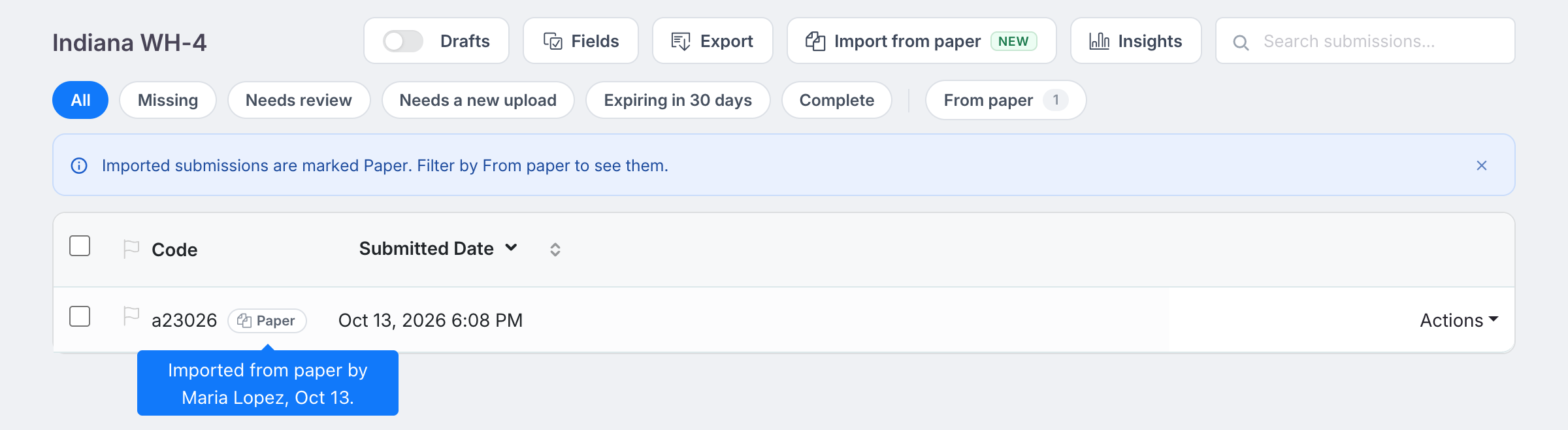
- Each imported submission has a Paper chip. Hover it to see who imported it, when, and how many answers were corrected.
- The From paper filter shows only the submissions that came from paper.
- If your team keeps originals, the scan is attached to the submission as Original (paper).pdf. Open it from the attachments, or from the row menu with Open the original (paper). The scan is not added to the completed PDF.
- When you export submissions to CSV, the Source column reads Paper for these submissions. In Insights, the form’s default report adds a Source chart that shows paper and online submissions side by side; in a report you customised, add a chart for Source yourself.
Troubleshooting
| Problem | What to do |
|---|---|
| Create submission stays unavailable | Confirm or edit every field marked To check. The hint at the bottom of the page says what is left. |
| A field went back to To check when you created the submission | The form’s own checks refused the value. Read the reason under the field and fix it. |
| “Maximum submission limits reached for this form” | The form has reached its submission limit. Raise or remove the limit in the form’s settings. |
| Many fields are To check | Handwriting and faint scans need more checking. Scan pages flat and in good light. Your team may also have set Review sensitivity to Strict. |
| A field that is hidden by your form’s logic is shown | Form logic is not applied on the Review page. Leave the field empty if it does not apply. |
| “This copy can no longer be reviewed.” | Someone else already created or skipped it, or it expired. |