
Import paper copies
On this page
Before you begin
- The form is a PDF Fillable Form or a Web PDF Form, and it is published.
- The paper copies were printed from the same PDF the form was built from.
- You can edit the form, or submit to it. Your team can limit importing to editors.
- Have the scans or photos ready. A document scanner or a scanning app gives the best results: pages flat, in good light, the whole page in the picture.
Start an import
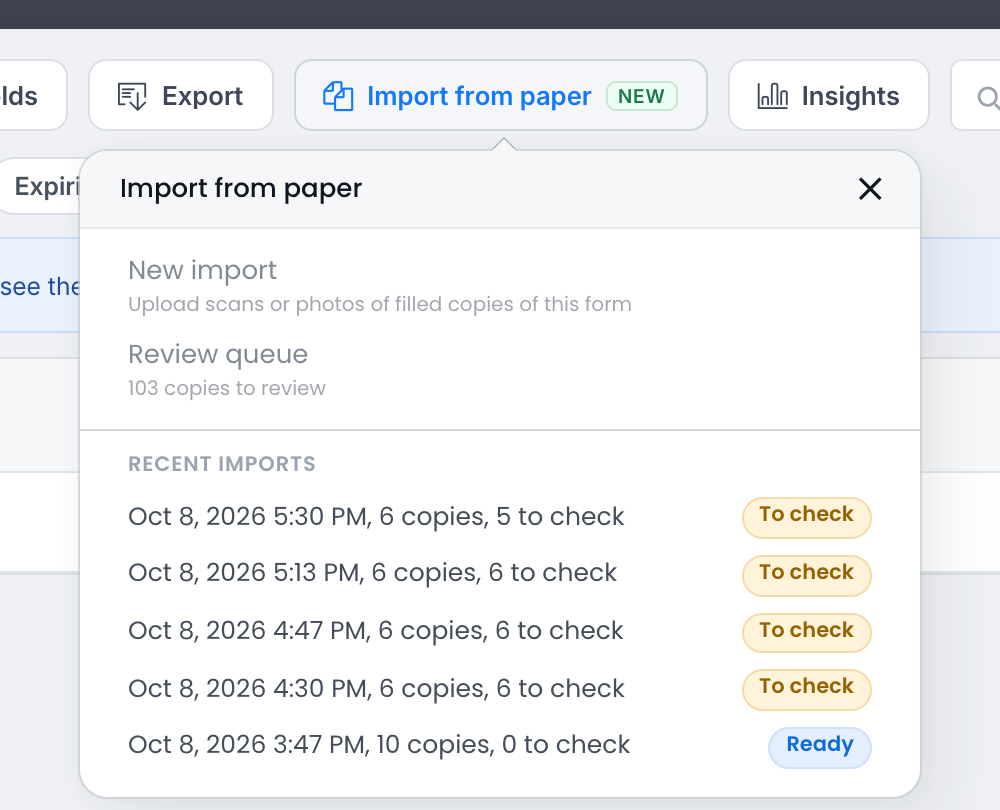
- Open the form’s Submissions page and click Import from paper.
- Click New import.
- The first time anyone imports into this form, a short notice explains that the pages are read by AI and that every copy is checked by someone on your team. Click I understand, continue. This is asked once per form.
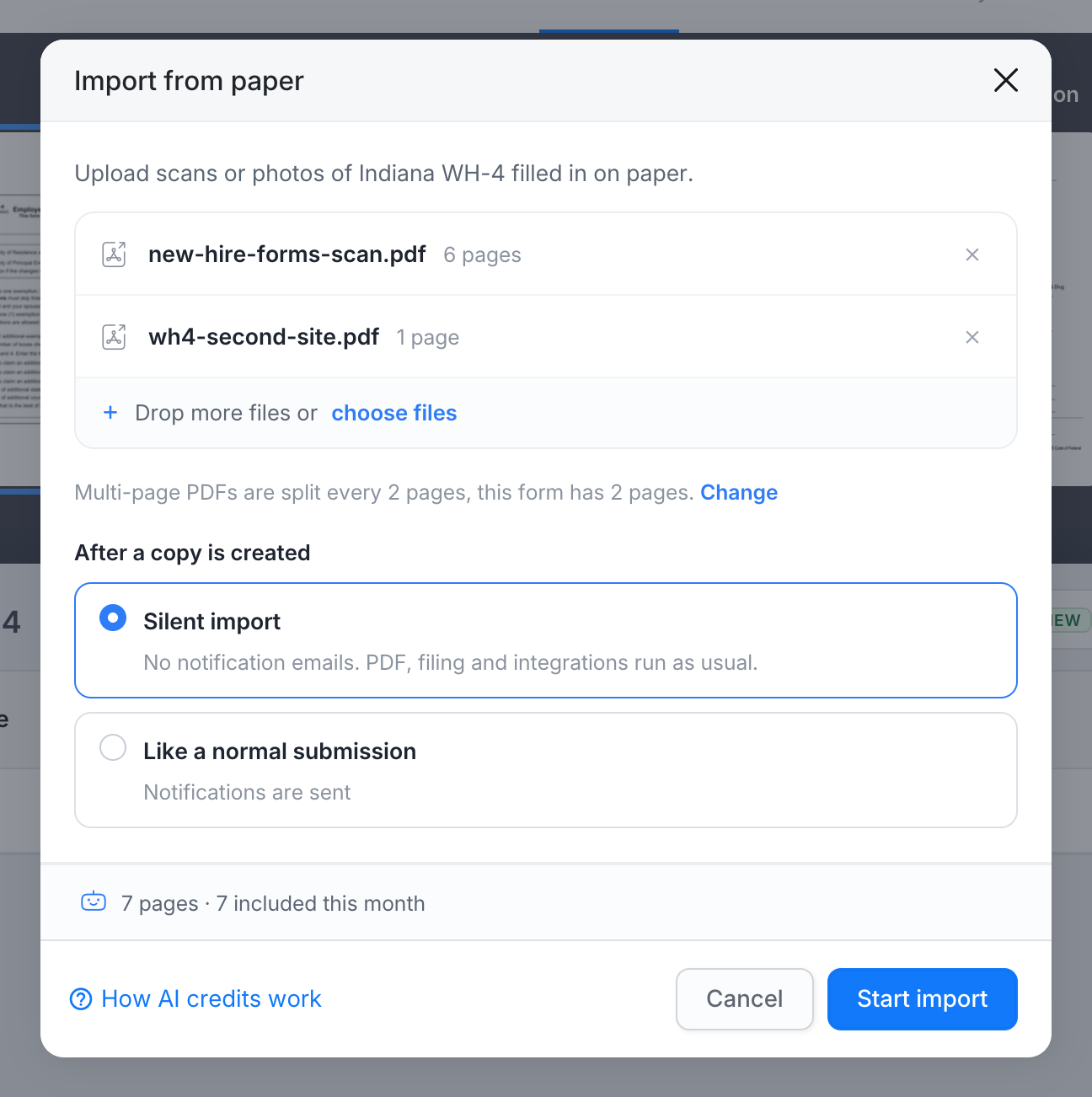
- Drop the files on the dialog, or click choose files.
- Check how the pages are split into copies and what happens after a copy is created (see below), then click Start import.
The files upload one after another, then the Import page opens.
Files you can upload
| What | Limit |
|---|---|
| File types | PDF, JPG, PNG and HEIC (iPhone photos) |
| Files per import | Up to 40. On the Bronze plan, one file per import. |
| File size | Up to 25 MB per file |
| Pages | Up to 25 pages per PDF. A photo counts as one page. |
Password-protected PDFs cannot be read. Export them again as a plain PDF.
How pages are split into copies
One scan often holds a whole stack of filled copies. Click Change to choose how PlatoForms splits it. Your choice is remembered for the form.
| Choice | Use it when |
|---|---|
| Every N pages (default), N is the number of pages in the form (Every page (default) for a one-page form) | Every copy is complete and the pages are in order, for example a stack of three-page forms scanned as one PDF. A copy never runs from one file into the next. |
| Detect where each copy starts | Copies have different numbers of pages, some pages are missing, or you took one photo per page. A new copy starts at every page that matches the first page of the form, even across files. |
| Each file is one copy | You uploaded one file per filled copy. |
After a copy is created
| Choice | What happens |
|---|---|
| Silent import (default) | No notification emails. The completed PDF, cloud drive filing and integrations run as usual. |
| Like a normal submission | Everything a normal submission does, including notification emails. |
Pages and cost
Below the files, the dialog shows how many pages the import has and how many are included in your plan this month. If the import goes past the month’s pages, the rest is paid from your usage credit balance, and the dialog shows the amount. Pages that turn out not to be this form are not counted once the import is read. See Settings, plans and privacy.
The Import page
While the pages are read, the Import page shows the steps Uploaded, Pages matched, Reading answers and Ready, how many pages have been read, and an estimate of the time left. Each file shows its status, for example Reading, Read or Not this form.
You do not have to wait. With Email me on, you get an email when the import is ready. You can also find the import later under Import from paper > Recent imports.
To stop an import while it is being read, click Cancel import. Pages that were already read still count.
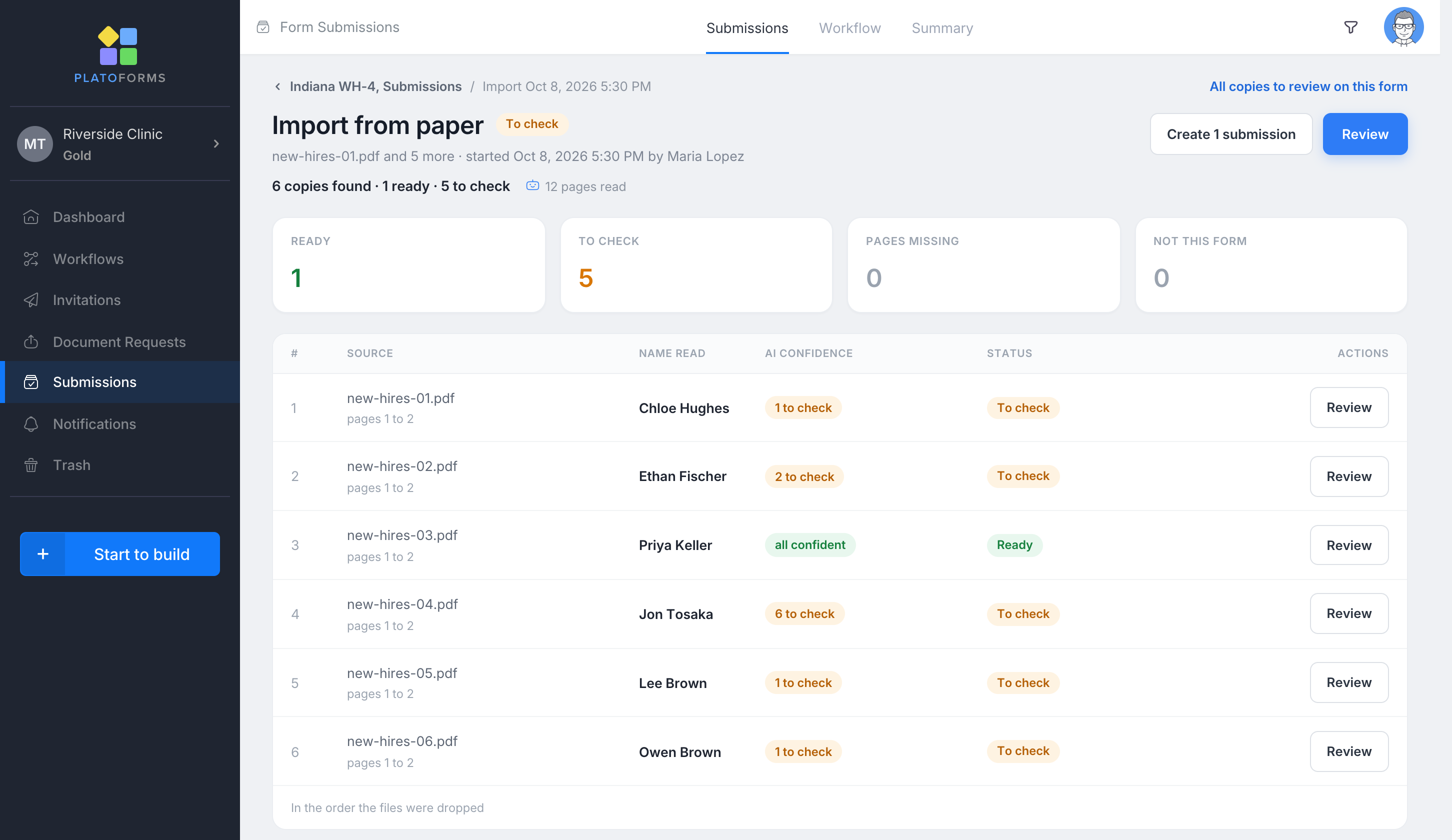
When reading is done, the page lists every copy it found:
| Column | What it shows |
|---|---|
| Source | The file and the pages that make up the copy |
| Name read | The name the AI found on the copy, to help you tell copies apart |
| AI confidence | How many answers need a look, for example 3 to check or all confident |
| Status | Where the copy stands (below) |
| Status | Meaning |
|---|---|
| Ready | Every answer was read with confidence and passes the form’s own checks. |
| To check | At least one answer needs a look: the handwriting was unclear, a date can be read two ways, a choice matches none of the options, or a required field is empty. |
| Pages missing | A page of the form was not found in the scan. You can add it on the Review page. |
| Not this form | No page of the file matched the form. The pages are not read and not counted. Single pages that do not match inside a file with other copies are simply left out. |
| Failed | The copy could not be read. |
| Created | The copy is now a submission. Open shows it. |
| Skipped | Someone chose not to import this copy. |
| Expired | Nobody reviewed the copy within 90 days, so it was deleted. |
Next: click Review to check the copies one by one, or Create N submissions to create the Ready copies at once. See Review and create submissions.
Troubleshooting
| Problem | What to do |
|---|---|
| There is no Import from paper button | Check that the form is a PDF Fillable Form or a Web PDF Form, and that Import from paper is on for your team (Team menu > API and Webhooks > Paper intake). The button is hidden while the Drafts switch on the Submissions page is on. |
| The button is greyed out | You can only view this form’s submissions. Ask for edit or submit access. Your team may also have chosen Editors only. |
| “Publish the form before importing.” | Publish the form first. |
| Every copy is Not this form | The paper is a different form or another version of it. Make sure people fill in a printout of the form’s current PDF. |
| Copies are cut in the wrong places | Import again with Detect where each copy starts, or upload one file per copy with Each file is one copy. |
| Start import is not available and the dialog says your credit balance does not cover the rest | This month’s pages are used up. Add usage credit, import fewer pages, or wait for the next month. |
| “We could not read this import” | Click Try again on the Import page to read the same files again. Nothing is charged for a failed import. If it keeps happening, contact support. |