
Form default settings
On this page
Form Default Settings lets you define default values that are automatically applied to every newly created form on your team. Instead of configuring the same options (thank-you page, notification emails, permissions, and more) each time you build a form, set them once here and every new form will start with those defaults already in place.
Most Form Default Settings only apply to forms created after you save your changes, and editing a form’s own settings later has no effect on these team-wide defaults. These exceptions also reach existing forms:
- The Email From under Notifications and under Invitation Settings is used, at send time, by every form and invitation whose own Email From is empty.
- Expiration Time for Workflow Links and the SMS country are team-wide settings and apply right away.
- Invitation Settings apply to every new invitation, on existing forms too.
- Option Lists is a shared resource rather than a default. See Team option lists.
Every team member can open and read Form Default Settings. Saving changes needs the Team Admin or a member with Form permissions & defaults management access; other members get “You don’t have permission to change the team defaults.” The Permissions tab is listed only for the Team Admin and those members.
Open Form Default Settings
From the Dashboard, click your team name in the top-left corner, then click Form Default Settings.
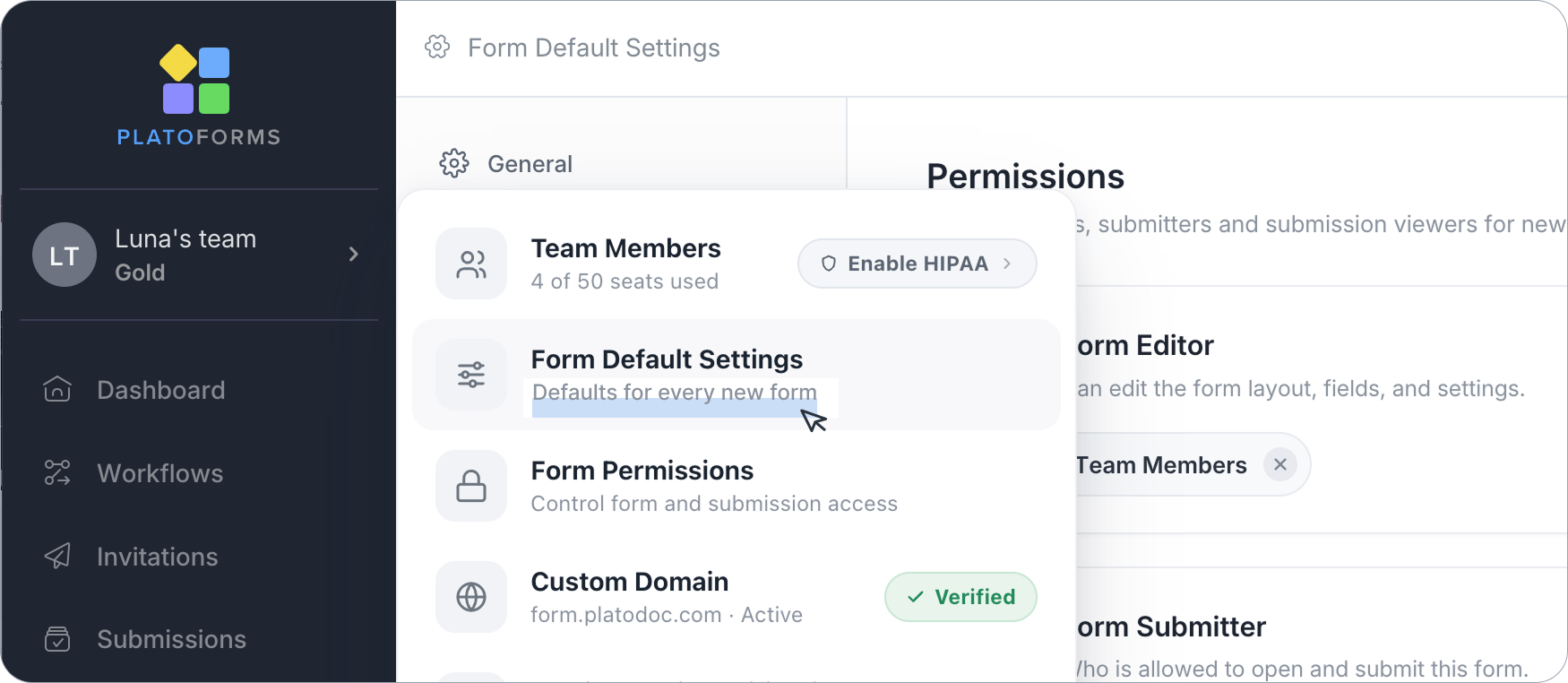
This opens a dedicated settings page with a left-hand navigation containing nine tabs: General, Thank-you page, Save Later Email, Multi Languages, Notifications, Invitation Settings, Form Style, Option Lists, and Permissions (shown only to the Team Admin and members with Form permissions & defaults management).
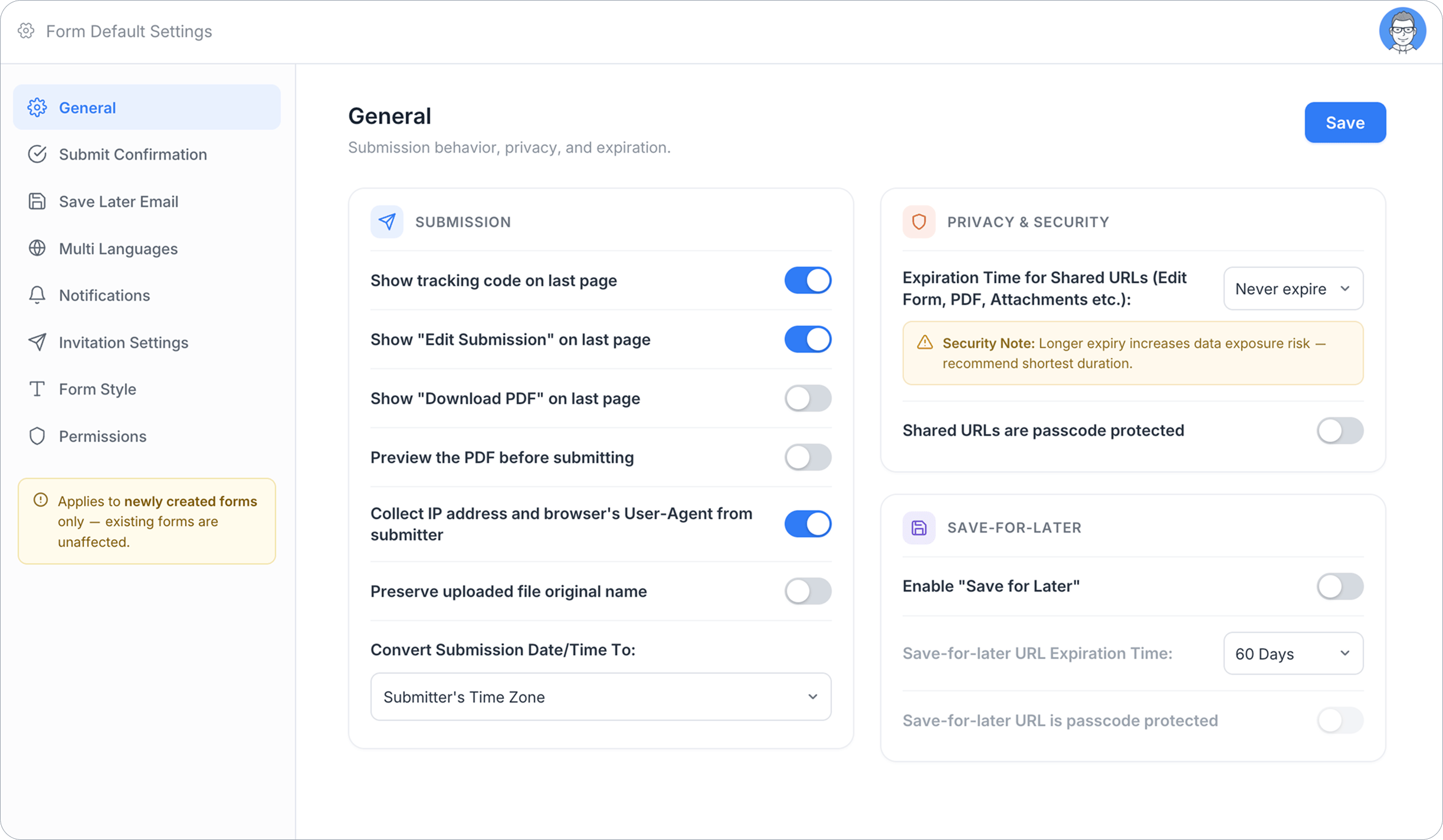
Each tab has its own Save button in the top right. Changes on one tab are not saved until you click Save on that tab, and unsaved changes are lost when you switch to another tab.
General
Sets default submission behavior, privacy/security options, and Save-for-Later settings for new forms — the same options covered in General settings.
For example, if your team always wants shared links (PDF downloads, edit links) to expire quickly for compliance reasons, set a short Expiration Time for Shared URLs here once, instead of remembering to change it on every new form.
Thank-you page
Sets the default thank-you message (or redirect link) shown after a new form is submitted. See Thank-you page for what each option does.
Useful if your team’s forms usually redirect to the same thank-you page or company site — set that redirect once here instead of pasting the URL into every new form.
Save Later Email
Sets the default subject and body for the email sent when a submitter uses Save for Later. See Save Later Email for details, including available variables.
Handy if your team wants a consistent, on-brand save-for-later email (tone, signature, disclaimer) across all forms rather than the generic default text.
Multi Languages
Sets whether new forms show a language switcher and auto-detect the submitter’s browser language by default. See Multiple languages and the Enable multi-languages guide for the full setup.
If most of your forms serve an international audience, turning this on by default saves you from enabling it manually every time you build a new form.
Notifications
Sets the default notification emails sent to users and team members when a new form is submitted — sender, recipients, subject, body, and attachment options. See Notifications and the Configure form notifications guide for details.
For example, if every form your team creates should notify the same shared inbox (like support@yourcompany.com), set that as the default recipient here instead of adding it to each form individually.
Note that the FROM address still requires verification before it can be used.
Invitation Settings
Sets the default invitation email for every new invitation, on any form. It also holds the starting state of the Tracking Invitation and Signature Certificate switches for new invitations. Corresponds to the Invitations entry in form settings; see Create an invitation for the full invitation workflow, including passcodes and tracking.
Useful for teams that send a lot of invitations (HR onboarding, event registration) and want the wording and branding to stay consistent without editing it form by form.
As with Notifications, the FROM address requires verification before it can be used.
Form Style
Set default field styling and PDF styling applied to new forms.
- Form Default Style: default text alignment, plus whether new fields are Required, Read-only on Form, Hidden on Form, and Print in PDF by default.
- PDF Default Style: default font, bold/italic style, font size and color, letter spacing, and line spacing for generated PDFs.
- Apply uploaded PDF settings when available: when checked, settings already embedded in an uploaded PDF (such as required fields or font size) take priority over these defaults.
If your team has a standard PDF style guide (font, size, spacing) that every generated PDF should follow, set it here once instead of adjusting it on every form’s PDF output.
Form Style has no equivalent tab in Manage form settings — it’s specific to Form Default Settings and controls the starting field/PDF style for newly added fields, not a per-form setting you’ll find listed there.
Option Lists
Maintains the team’s shared dropdown option lists — one master list of departments, product codes or branch offices that any Dropdown field in any form can follow. See Team option lists for the full guide.
Unlike every other tab on this page, this one is not about new forms: editing a list updates the forms that already use it, and you can choose to push the change to published forms too.
Permissions
Sets the default Form Editor, Form Submitter, and Form Submission Viewer for new forms. Click Add on any card to add default people or groups, or Reset to system defaults to revert. See Permissions and the Manage permissions guide for how these roles work.
For example, if every new form should automatically be viewable by all team members without adding them one by one, set Form Submission Viewer to All Team Members here as the default.
When you first open this tab, it already shows PlatoForms’ built-in system defaults: Form Editor and Form Submission Viewer default to All Team Members, and Form Submitter defaults to Public — meaning anyone with the link can submit the form. If your team handles sensitive data, consider restricting Form Submitter here before your team starts creating forms.