










Set up reminder
On this page
The Reminder feature in PlatoForms helps you manage forms easily by sending automatic reminder emails. It works with Invitations, Notifications and Workflows to make sure forms get filled out and workflows stay on track.
Invitation reminder
Send reminder emails to remind recipients to fill out the form.
- How it works: The countdown starts when you send the invitation. For example, if you set the reminder for 1 day, the recipient receives an email reminder 24 hours later if they haven’t completed the form.
- Automatic cancellation: If a recipient completes the form before the reminder time, the reminder email to that recipient is automatically canceled.
- Tracking Invitation needed: Invitation reminders need Tracking Invitation, a paid-plan option. With it off, + Add Reminder is greyed out (“Available with Tracking Invitation”).
Notification reminder
Keep you and your team updated by sending reminder emails about form submissions.
- How it works: A reminder email is sent a set number of days after each submission. To stop reminders, remove the reminder tab and save: this also cancels the reminders it already scheduled.
- Revisions: Each new revision of a submission restarts its reminder schedule. For a revised submission, the reminder is sent only when Send an email for every revision is ticked on Notify Users.
Workflow reminder
Ensure each step in your workflow is completed on time with automated reminder emails.
- How it works: Reminders are triggered based on the time you set for each workflow step. For example, if you set the first reminder for 1 day and the second for 3 days, recipients will receive a reminder email 1 day after the first step and another 3 days after the second step if they are not completed on time.
- Automatic cancellation: If the next step is finished before the reminder time, no reminder will be sent.
Set up reminders
-
Open your form’s Invitation or Notification settings.
-
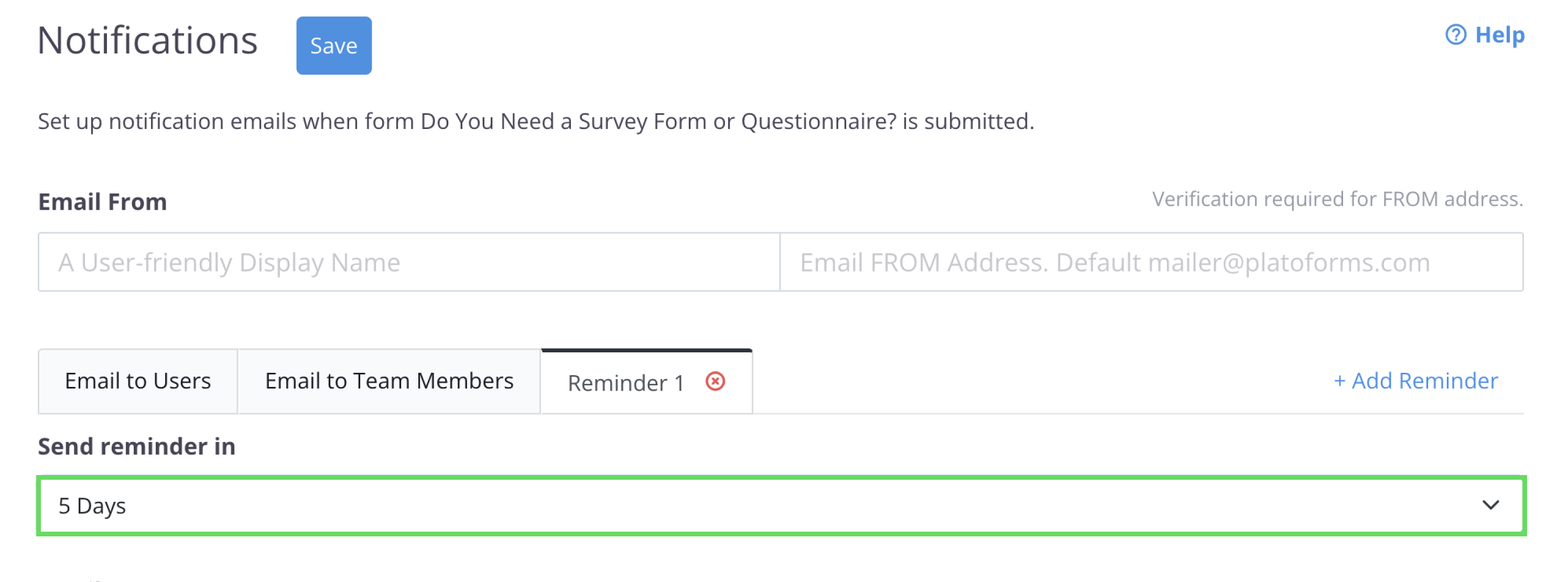
Click on + Add Reminder.

-
Select a time frame by clicking Send reminder in, and choose the number of days for the reminder.
-
Adjust any additional settings as needed, then click Save to confirm your changes.
Video tutorial
Watch the video walkthrough:
You can set up to 3 reminder emails for each form or workflow.