
AI in Insights
On this page
AI in Insights helps you interpret report data and summarize open-text responses. You can ask questions about the report, generate chart titles and captions, organize text answers into themes and sentiment categories, and create written summaries.
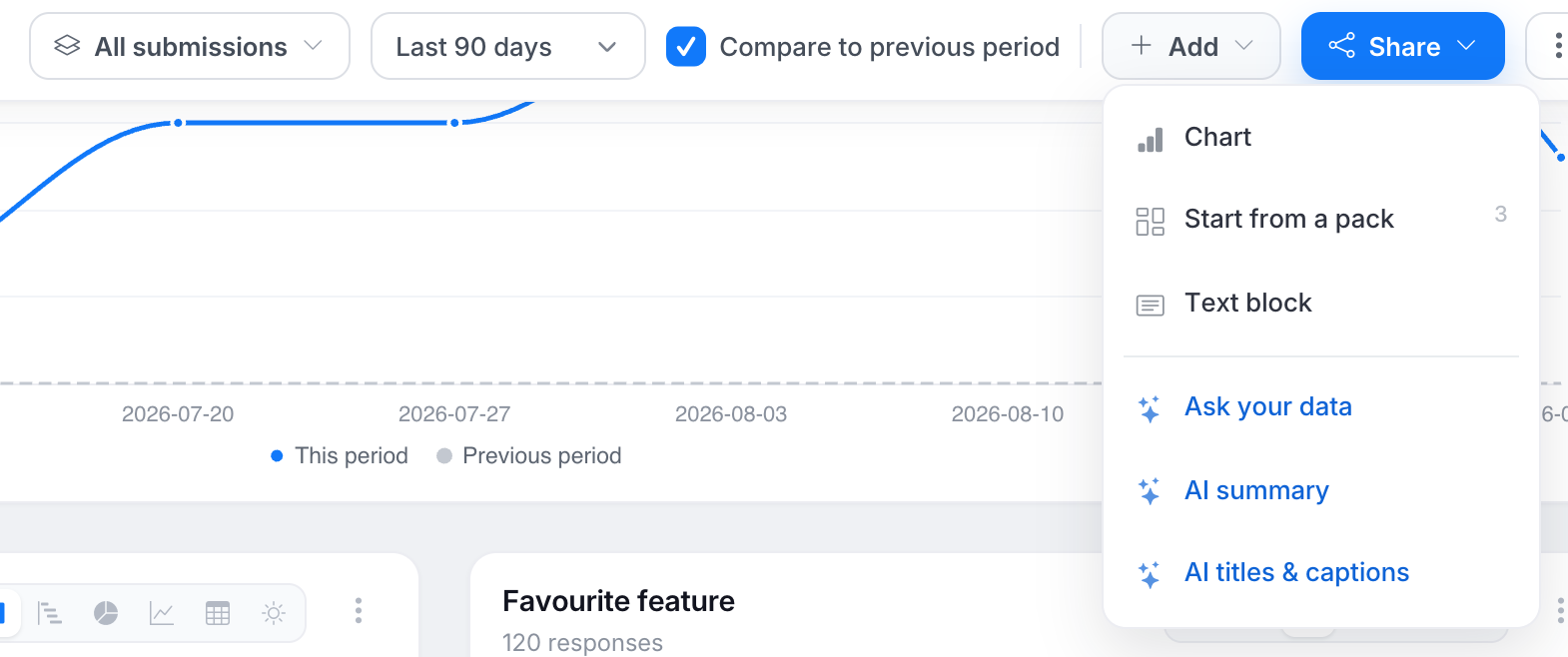
AI features appear as ✦ options in the Add menu and in the ⋮ menu on each chart.
Ask your data
Select Add ▾ → Ask your data to open a panel docked to the right side of the report. The report remains visible so you can compare the response with its charts. The panel provides suggested starting questions, accepts questions as free text, and retains the conversation.
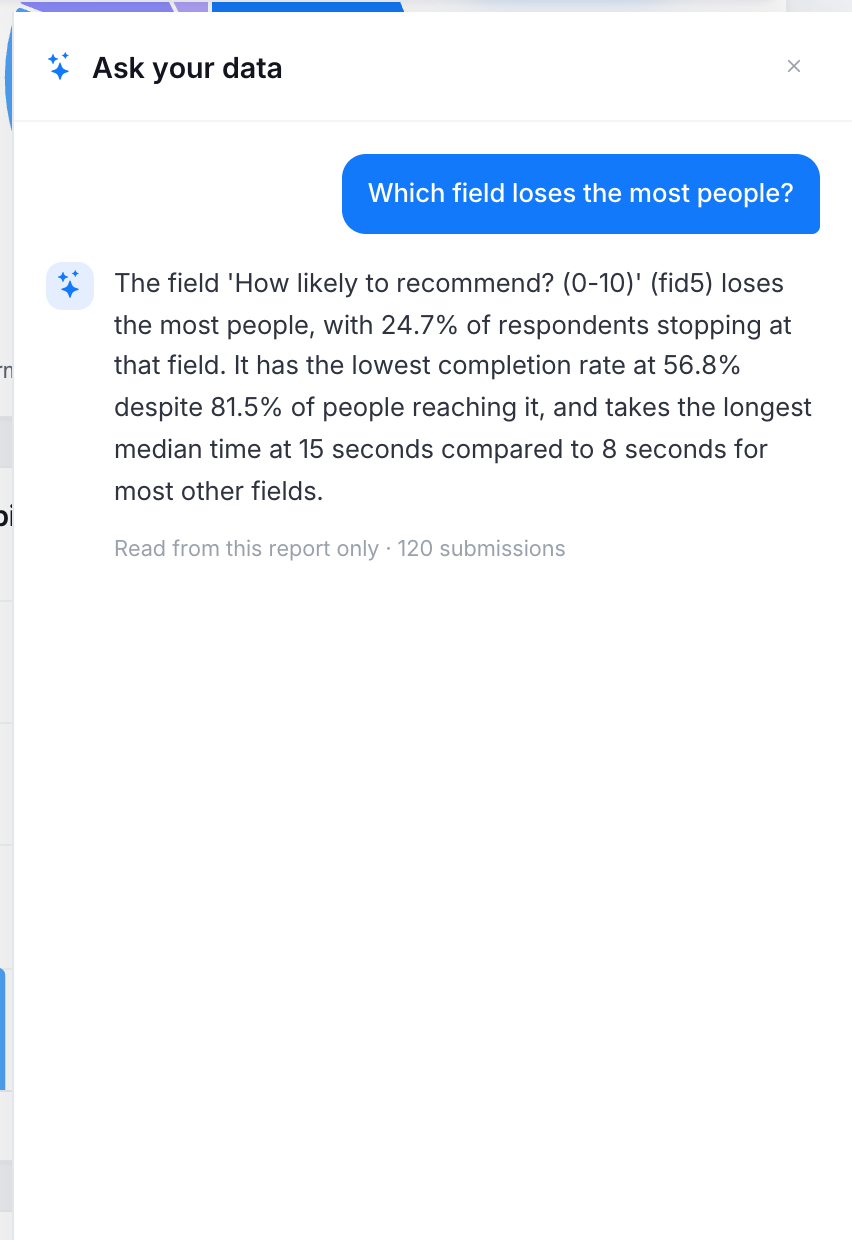
- Responses are concise, and each claim includes the number that supports it.
- The model reads aggregated report data, including Journey figures. This allows it to answer drop-off questions using the calculated Journey values.
- If a single chart directly supports a response, the panel provides an Add this chart to the report option.
- The conversation is saved with the report and is visible to the whole team.
AI title & caption
AI generates a chart title and caption from that chart’s aggregated numbers. Select AI title & caption from a chart’s ⋮ menu to process one chart. Select AI titles & captions from the Add menu to process each chart in the report in sequence.
The generated caption is added to the chart’s caption field. Both the generated title and caption remain editable. If a chart already has a caption, Insights asks for confirmation before replacing it.
Analyze with AI (text fields)
For an open-text field, select ⋮ → Analyze with AI to generate a proposed set of categories from the field’s actual answers. Review, edit, and approve the categories before classification begins. AI then assigns every answer to the approved categories and adds a sentiment tag to each value.
The results are stored in the field’s category mapping, allowing the chart to display themes instead of individual sentences. The analysis also enables two chart options: sentiment and sentiment over time. New answers can be classified incrementally later. AI-generated categories require your approval and can be edited before use.
AI summaries
Select AI field summary to create a short written summary for one text field, or AI summary to summarize the whole report. Each summary includes a small number of representative quotes. The most recent summary is also used in the email digest.
Credits and privacy
- AI operations use your team’s monthly AI allowance. Usage appears under the team menu > Usage > AI tab as Report Insights entries. Beyond the monthly allowance, AI is paid from Usage credit only when AI is set to Pay from balance; otherwise AI pauses until the next usage period. If you repeat an identical request without changing the data, the result is served from cache and does not use additional credits.
- Ask your data and AI summaries read only the report’s aggregated numbers, not raw submissions. Analyze with AI reads the distinct answer values for the selected field. This data is not used to train models.
- In HIPAA workspaces, AI options require explicit consent before aggregated data is sent to a third-party AI model. The consent prompt appears once per visit.