
Integrate with Twilio
Tabs
PlatoForms can send text messages (SMS) for your forms: submission notifications, invitations, document requests, renewals and workflow tasks. By default they go through PlatoForms SMS, which is paid from your credit balance and uses a fixed text. If you have a Twilio account, you can connect it and send those texts through your own Twilio instead.
PlatoForms SMS or your own Twilio
| PlatoForms SMS | Your own Twilio | |
|---|---|---|
| Sender | A PlatoForms sender | Your Twilio Messaging Service: your phone number or sender ID |
| Cost | Paid from your PlatoForms credit balance | Billed by Twilio to your account. No PlatoForms credit is used |
| Countries | The countries PlatoForms SMS supports | Any country your Twilio account can text |
| Message text | Fixed by PlatoForms | You write it, with variables such as the recipient’s name and the link |
| Approval for new accounts | One-time approval | Not needed |
No Twilio account? You don’t need one: PlatoForms SMS sends your texts without any setup, and a US or Canadian business can register there to text US numbers. See Send text messages (SMS). The two services are separate: registering in PlatoForms does not change what your Twilio account can send.
You connect Twilio once for your team. After that you choose the service in each place that sends texts, so one form can use your Twilio while another stays on PlatoForms SMS.
Text messaging requires a paid plan. Connecting Twilio is done by the team owner or a member with billing access. If you don’t see the Twilio card on a form’s Integrations page, the feature isn’t turned on for your team yet: contact us.
Before you start: what you need from Twilio
Collect these in the Twilio Console:
-
A Messaging Service with a sender in its pool. Go to Messaging > Services, open or create a service, and add a phone number or an alphanumeric sender ID to its sender pool. Copy the Messaging Service SID (starts with
MG). -
Your Account SID (starts with
AC), shown under Account info. -
A standard API key. Go to Account > API keys & tokens, create a Standard key, and copy its SID (starts with
SK) and its secret. Twilio shows the secret only once. Leave the region selector on United States (US1), the default. The region does not limit which countries you can text.
Use an API key, never your Twilio Auth Token. An API key can be revoked on its own without affecting anything else in your Twilio account.
To text US numbers, Twilio requires the Messaging Service to have a registered A2P 10DLC campaign or a verified toll-free number. Other countries have their own sender rules, and many accept an alphanumeric sender ID. Check Twilio’s guidelines for the countries you text.
Connect your Twilio account
-
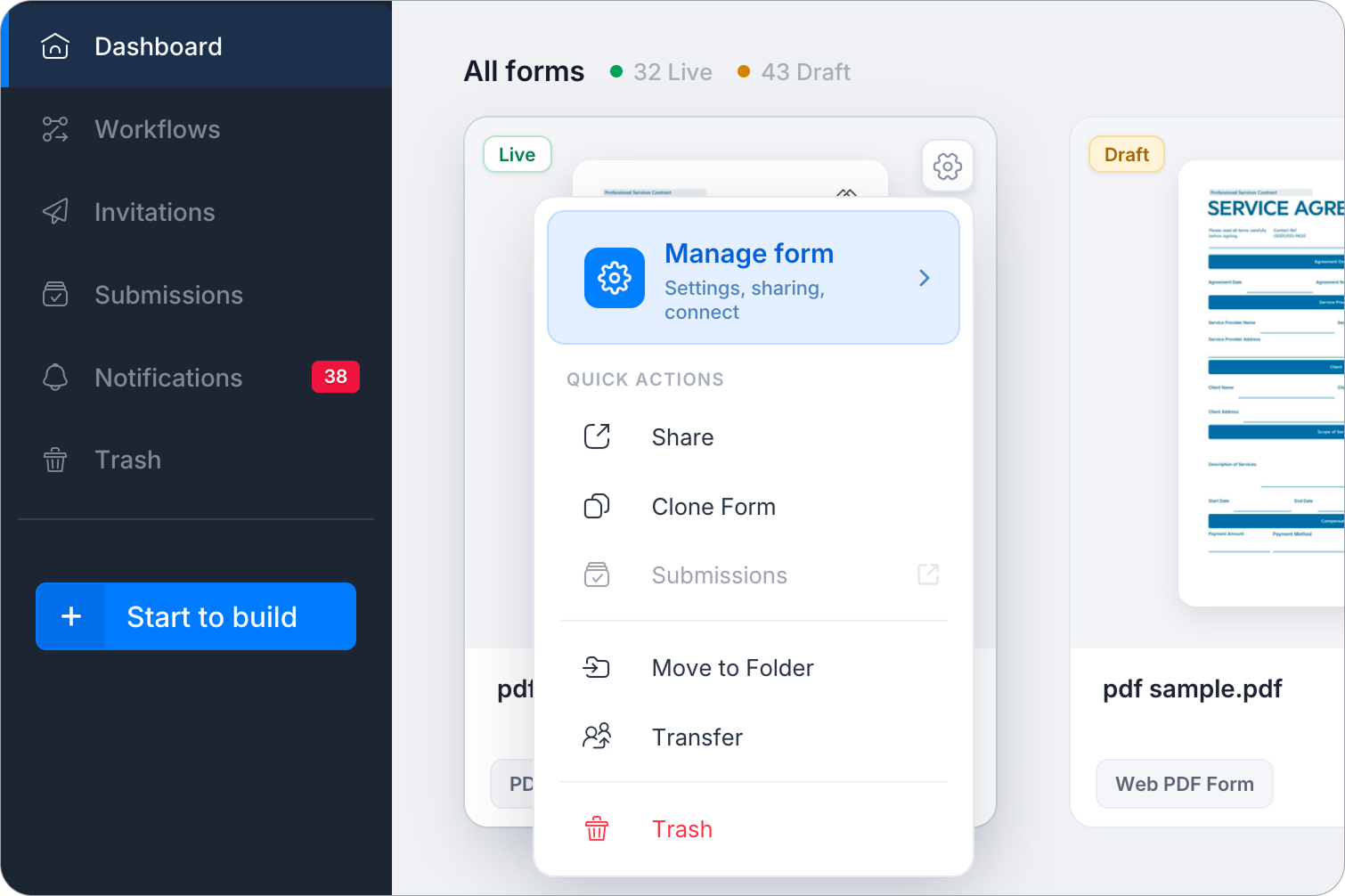
On the Dashboard, hover over any form, click the Settings (gear icon) at the top right, then click Manage Form.
-
In the left sidebar, click Integrations.
-
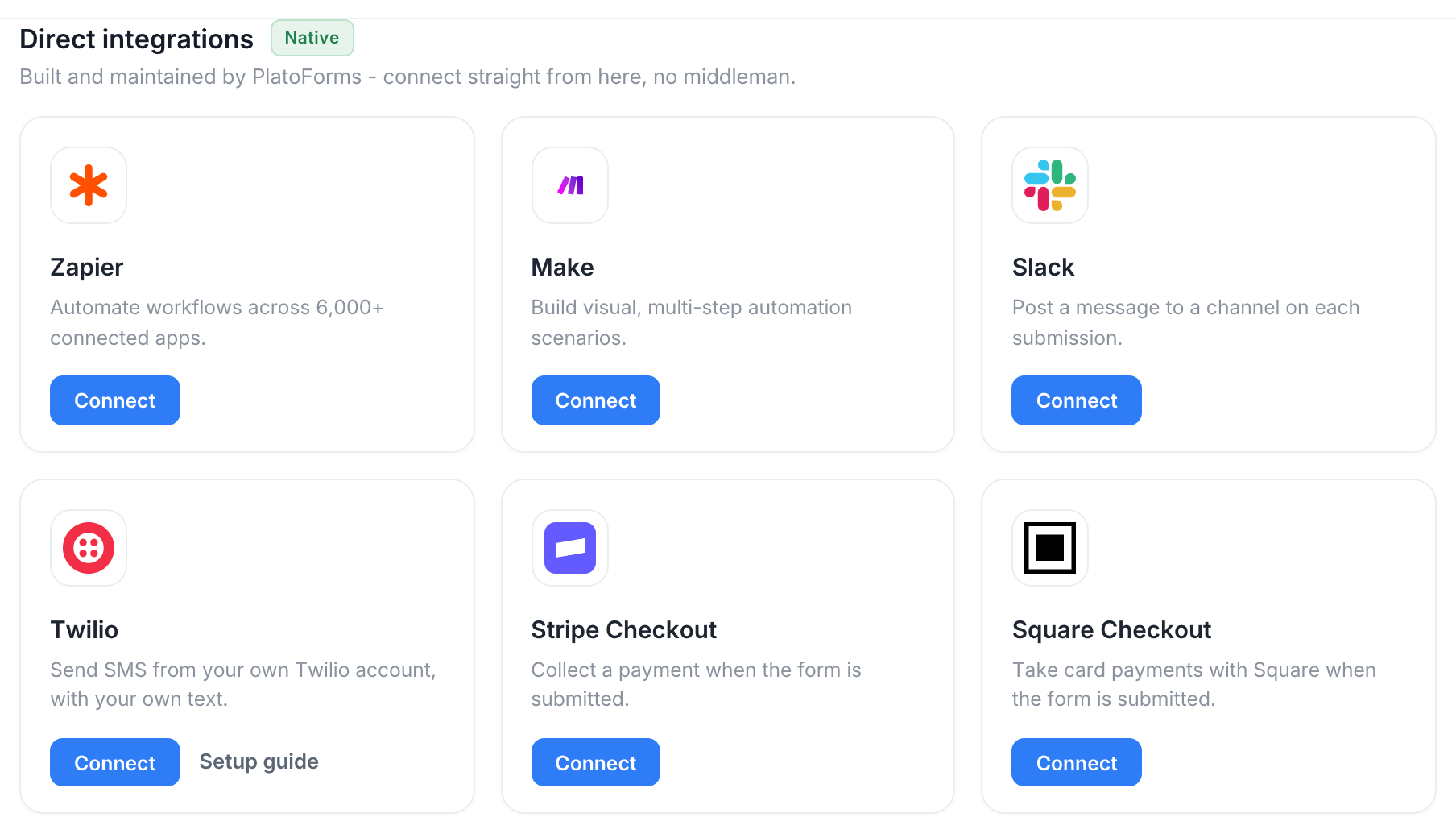
Find the Twilio card and click Connect. The Text messaging page opens in a new browser tab, on its Your own Twilio tab.
 Note
NoteThe connection is for your whole team, so you do this once, from any form. You can also open the page from Plan and Billing > Credit balance: click Text messaging settings next to SMS messages, then the Your own Twilio tab.
-
Under Connect your Twilio, enter the Account SID, Messaging Service SID, API Key SID and API key secret, then click Connect.
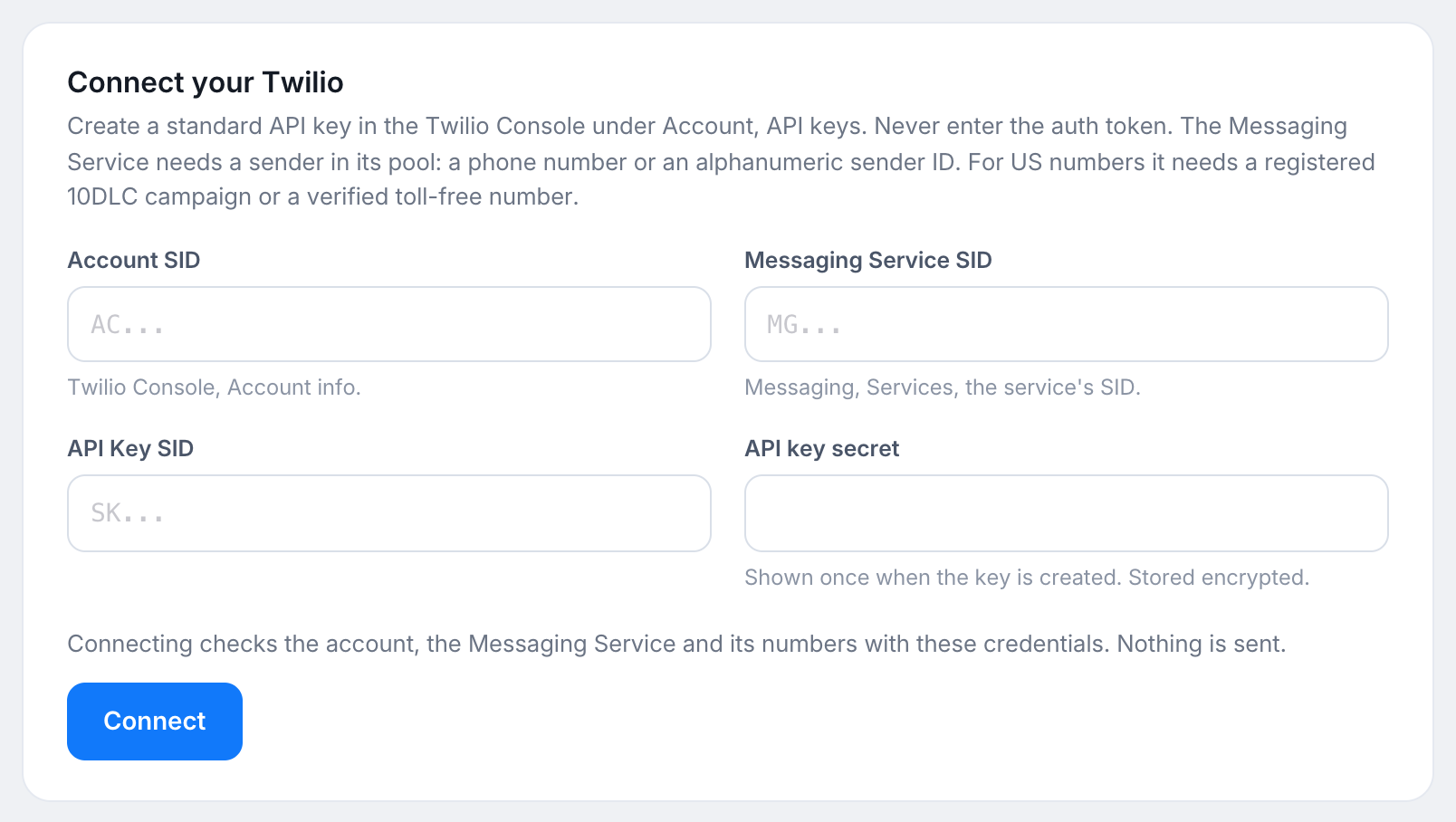
PlatoForms checks the account, the Messaging Service and its senders with these credentials. Nothing is sent. The API key secret is stored encrypted.
-
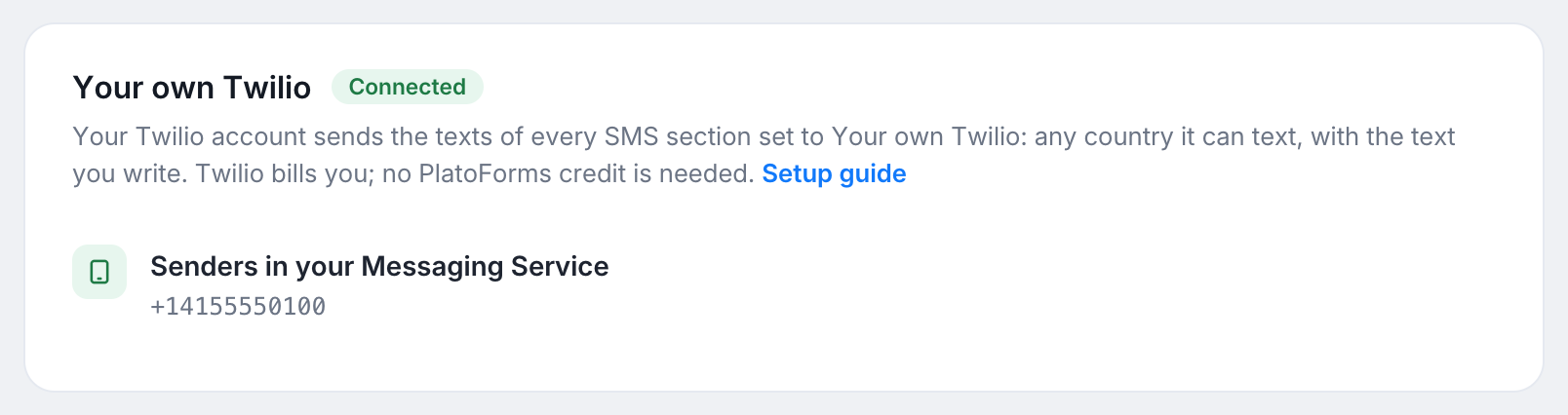
When the check passes, Your own Twilio shows Connected, with the numbers or sender IDs of your Messaging Service.
-
(Optional) Under Send a test text, enter a mobile number and click Send test text to confirm delivery. Twilio bills you for this text.
Use your Twilio for a form’s texts
Connecting Twilio changes nothing by itself. Each SMS section keeps using PlatoForms SMS until you switch it.
-
Open the SMS settings you want to change, for example Manage Form > Invitations or Manage Form > Notifications, and turn on SMS.
-
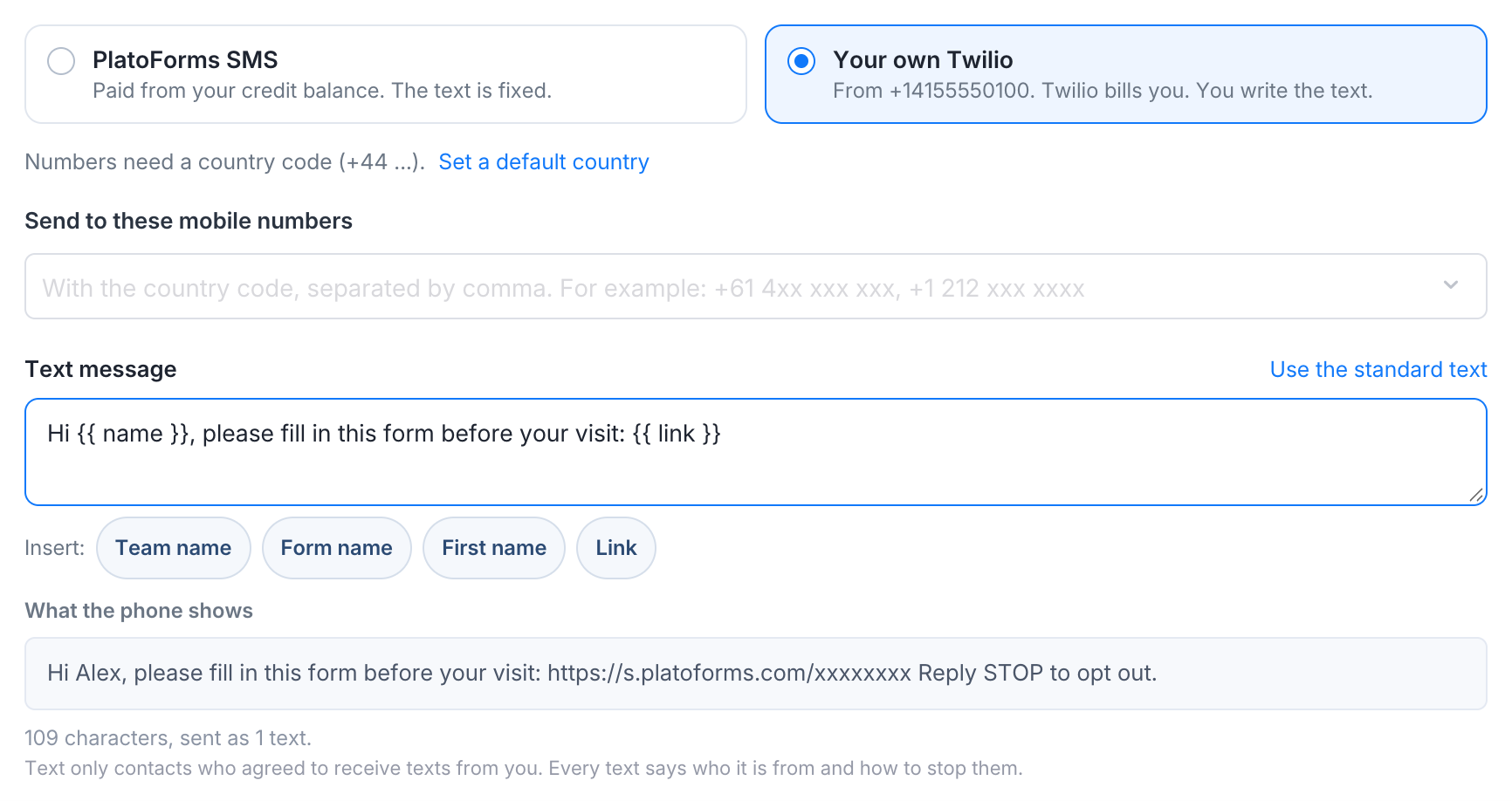
Select Your own Twilio.

-
Write the text message. Click a variable next to Insert to add it. What the phone shows previews the message with sample values, and tells you its length and how many texts it is sent as.
-
Save your changes.
You can make this choice in each of these places:
| Where | Which texts |
|---|---|
| Notifications | The text sent when the form is submitted |
| Invitations | The invitation and its reminder |
| Document requests | The documents link, the reminders, and the request for a new upload |
| Renewal | The renewal notice |
| Workflow step notifications | The text sent for a workflow task |
Rules for your own text
- A text can be up to 320 characters. A long message is sent as several texts; the preview shows how many.
- Use only the variables offered for that text. Where the text delivers a link (invitations, document requests, renewals and workflow tasks), it must contain
{{ link }}. - PlatoForms adds an opt-out line to every text: “Reply STOP to opt out.” when the sender is a phone number, or an opt-out link when it is an alphanumeric sender ID, which can’t receive replies. If your Messaging Service has both, Twilio uses the alphanumeric sender ID wherever the country allows one (everywhere except the US and Canada), so those texts end with the opt-out link.
- A text is checked when you save it. A text that asks for passwords, payment details or personal information is not accepted.
- Text only people who agreed to receive texts from you. Daily limits per recipient and per form still apply, to protect the people you text.
| Variable | Inserts | Available in |
|---|---|---|
{{ team }} |
Your team name | Every text |
{{ form }} |
The form name | Every text |
{{ name }} |
The recipient’s first name | Invitations |
{{ link }} |
The link the recipient opens | Invitations, Document requests, Renewal, Workflow steps |
{{ workflow }}, {{ step }} |
The workflow name and the step name | Workflow steps |
{{ item }}, {{ expires }} |
The document name and its due date | Renewal |
Billing and usage
- Texts sent through your Twilio are billed by Twilio to your account. PlatoForms doesn’t charge for them, and they don’t use your credit balance.
- They still appear on the Usage page under SMS, at $0.00.
- Sections left on PlatoForms SMS work as before and are paid from your credit balance.
Replace the API key or disconnect
- Replace the key: create a new API key in Twilio, open the Text messaging page (click Configure on the Twilio card), and enter the key under Reconnect your Twilio.
- Disconnect: click Disconnect your Twilio. The API key secret is removed from PlatoForms. Sections set to Your own Twilio go back to PlatoForms SMS with the standard text. Your choice and your texts are kept, and are used again when you reconnect.
- Needs attention: if Twilio stops accepting the key, for example after you revoke it, the connection shows Needs attention and the team owner gets an email. Until you reconnect, those sections use PlatoForms SMS, which needs credit in your balance.
Troubleshooting
| What you see | What to do |
|---|---|
| “This Messaging Service has no sender.” | In Twilio, add a phone number or an alphanumeric sender ID to the service’s sender pool, then connect again |
| Texts to US numbers are not delivered | Register an A2P 10DLC campaign for the Messaging Service, or use a verified toll-free number |
| “Connect your Twilio account first.” | Connect Twilio on the Text messaging page before choosing Your own Twilio |
| “This text was not accepted.” | Remove wording that asks for passwords, payment details or personal information |
| A section set to Your own Twilio uses your credit balance | Your Twilio is disconnected or needs attention. Reconnect it on the Your own Twilio tab |
| “This Messaging Service has no registered US sender” | Register an A2P 10DLC campaign or verify a toll-free number in your Twilio console. Registering your business under PlatoForms SMS does not fix this |