










Change the Team Admin
On this page
Every team has one Team Admin, the person who owns the team, its plan and its settings. When that person changes role or leaves, the Team Admin hands the role to someone else from the Team page. Nothing is lost: forms, submissions, members, settings and the subscription all stay with the team, and you stay in it as a member.
Before you begin
- Only the current Team Admin can do this. Members with Team member management cannot.
- The new Team Admin can be anyone: a member of your team, someone with a PlatoForms account who is not in your team yet, or someone with no account at all.
- If the new Team Admin already has a PlatoForms team of their own, their own forms, PDF documents and workflows move into your team when they accept. Their own team must not have other members, a custom domain, a verified email domain, single sign-on, HIPAA compliance or a paid plan. If it does, the request is refused with the reason (in the dialog when they are already a member of your team, otherwise on the page they open from the email), and they need to remove those first (or cancel their plan).
- If your team is HIPAA compliant, contact support to change the Team Admin, because the new admin has to sign the BAA.
Send the request
-
Click your team name at the top of the left navigation, then Team Members.
-
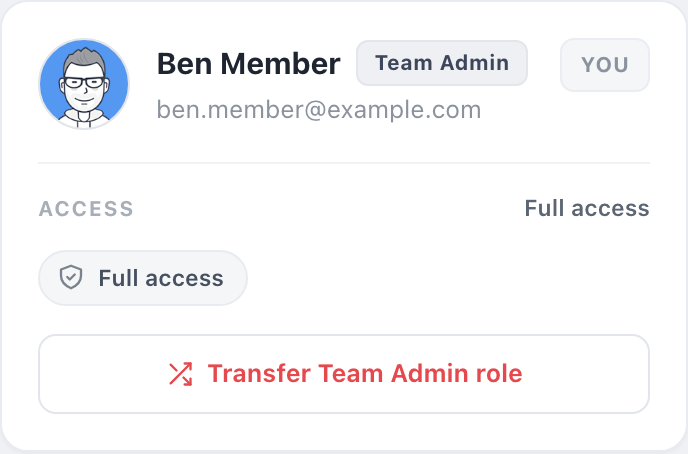
On your own card, click Transfer Team Admin role. To pick a member of your team instead, open the three-dot menu on their card and click Make Team Admin; the dialog opens with their email filled in.
-
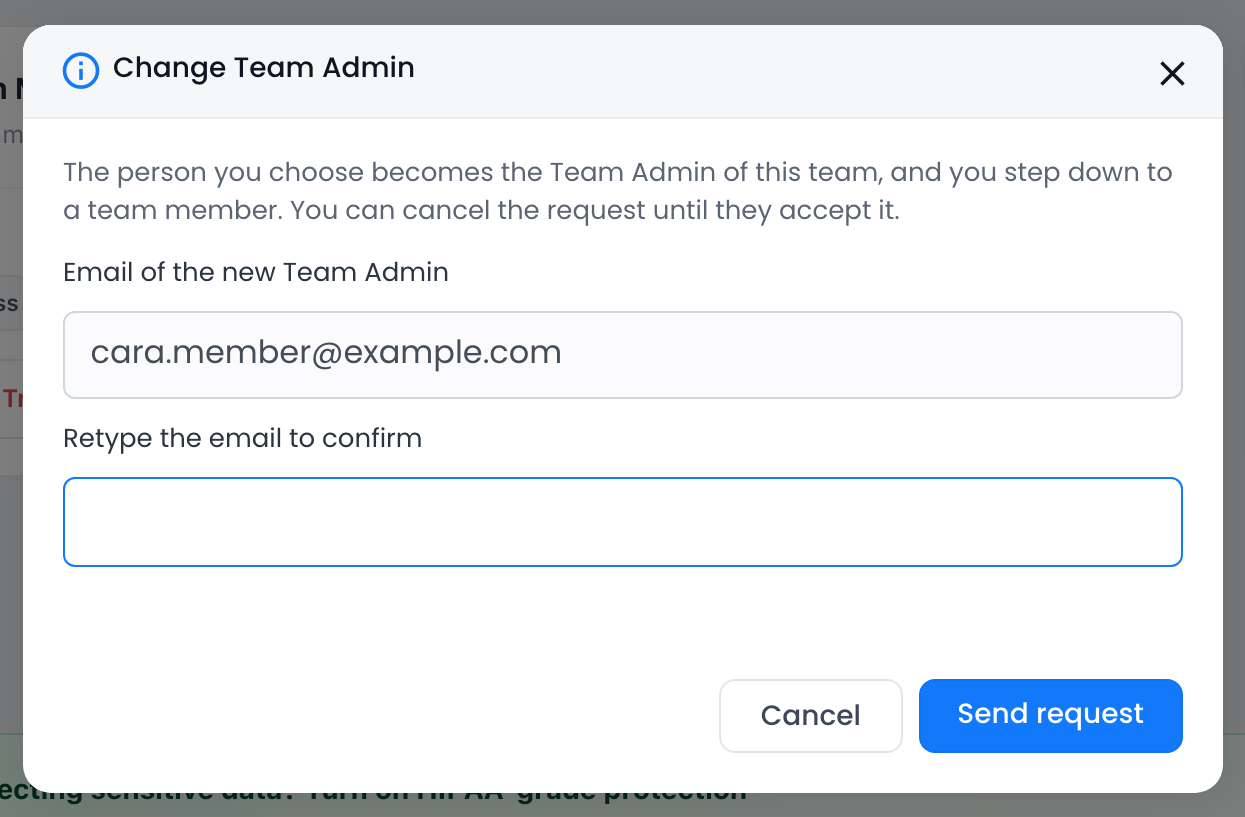
In the Change Team Admin dialog, enter the email address of the new Team Admin, then type it again under Retype the email to confirm. Pasting into the second field does not work: typing it twice protects you from sending the request to the wrong address, because whoever receives it can take over the team.
-
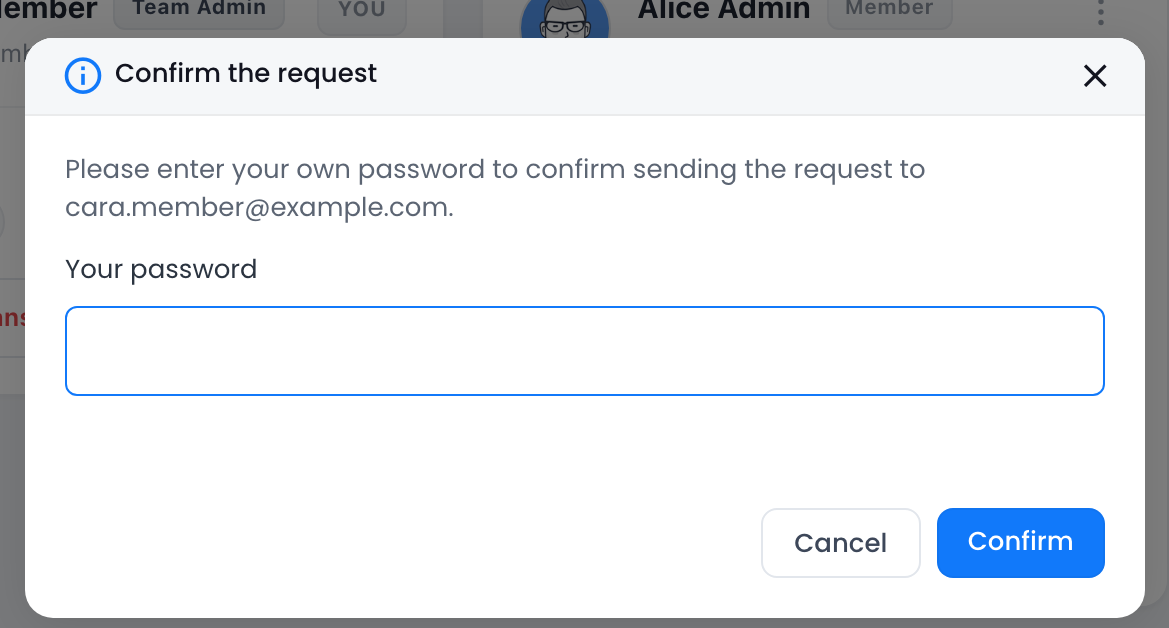
Click Send request, enter your own password (not the new admin’s) and click Confirm. If your account has no password, click Email me a code and enter the code we send you.
The Team page now shows Team Admin change pending with the address and the date the request is open until. Nothing changes until the other person accepts. To call it off, click Cancel request.

A request is open for 7 days. Only one request per team can be open at a time: to ask someone else, click Cancel request first.
Accept the request
The new Team Admin receives the email “You are asked to become the Team Admin of

If the address has no PlatoForms account yet, the email asks them to create one with that address first. After signing up they land on the request.
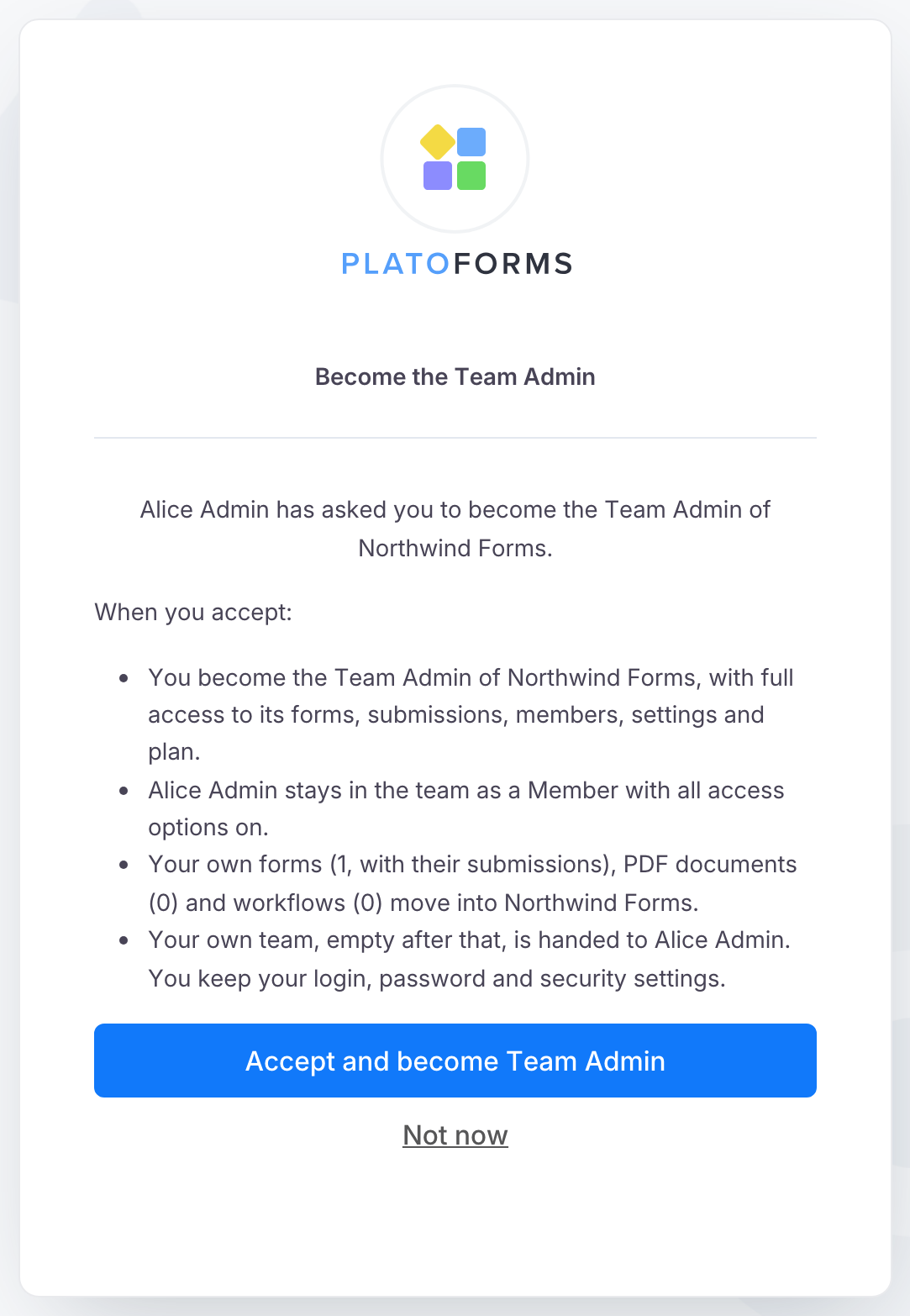
The link opens the Become the Team Admin page, which lists what happens: they get full access to the team, you stay as a member, and any forms, PDF documents and workflows from their own team move into yours. They click Accept and become Team Admin and are taken to the team’s Team page as its Team Admin.
The link only works for the account with the invited email address. Opening it with another account, or after the request was cancelled or has expired, shows “This request is not available”.
After the change
- The new Team Admin has full access to everything in the team, including Plan and Billing, and manages the subscription from now on.
- You stay in the team as a Member with all seven access options switched on. The new Team Admin can change them later.
- The forms you created stay editable by you. Forms that other members restricted to specific editors keep those settings; the new Team Admin can change any form’s access from Form Permissions in the team menu.
- Your login, password and security settings do not change. Neither do the new Team Admin’s.
- The new Team Admin’s own team, empty after their forms moved, now belongs to you. It appears in your team switcher.
- Both of you receive an email confirming the change.
Troubleshooting
- I do not see Transfer Team Admin role or Make Team Admin. Only the Team Admin sees them, and they are hidden while a request is pending. Cancel the pending request to send a new one.
- “The two email addresses do not match.” Retype the address in the second field. It refuses pasting on purpose.
- “The new Team Admin runs a team of their own with …” Their own team has other members, a custom domain, a verified email domain, single sign-on, HIPAA compliance or a paid plan. They remove those (or cancel their plan) and open the link again, or you send a new request.
- “Your plan has no team member seat left for the new admin.” The new admin is not in your team yet and your plan is full. Remove a member or upgrade, then send again. See Invite team members for the limits.
- The new admin never got the request. Check the address on the pending banner and ask them to look in their Inbox and spam folder. Cancel and send again if needed.
- The old Team Admin has left and nobody can sign in as them. See How to change the current Team Admin for the fallback.