
Set up a checklist
Tabs
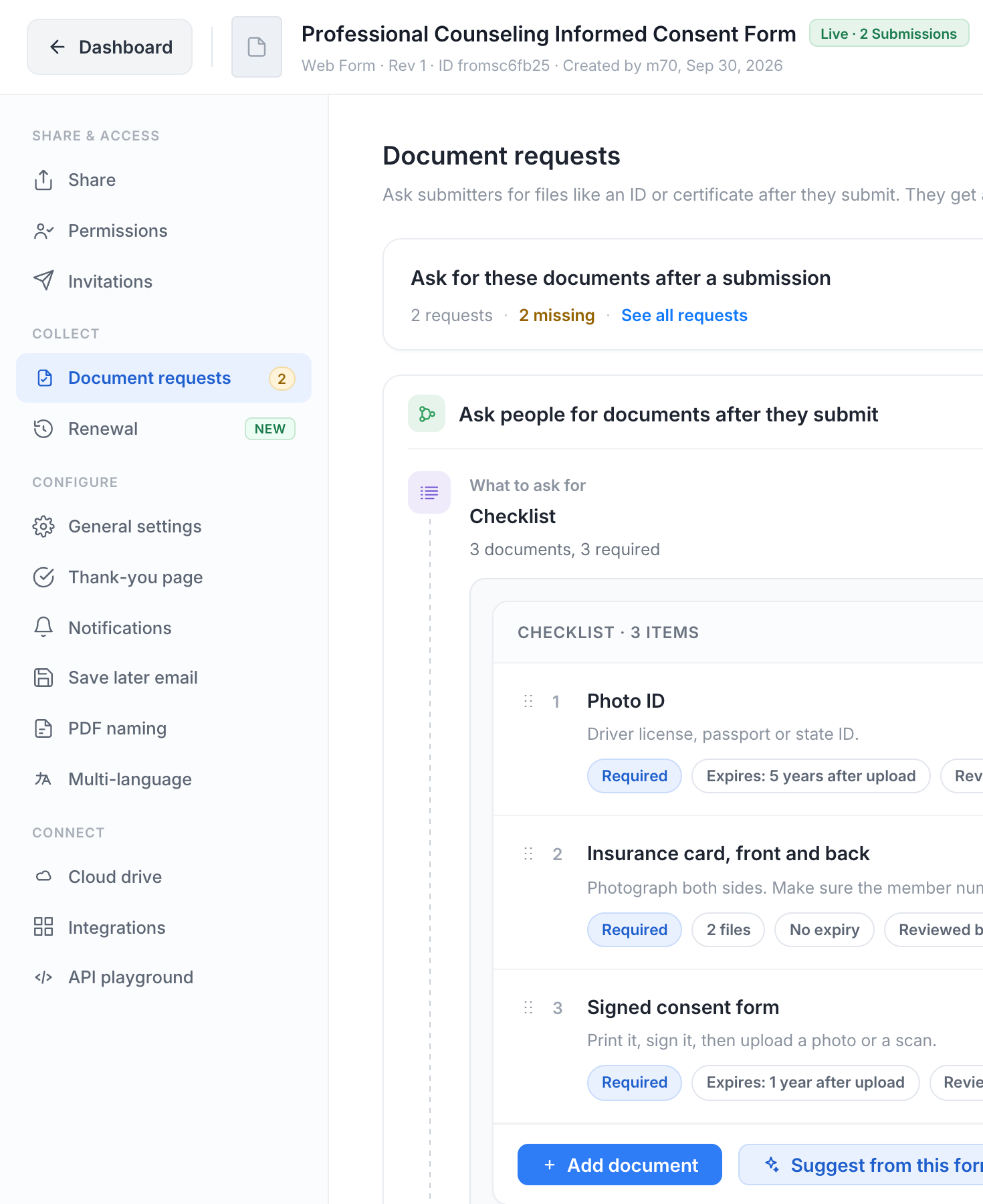
A checklist belongs to one form. Open the form on the dashboard, choose Manage, then Document requests. Turn on Ask people for documents after they submit, build the list, and click Save. Every submission made from then on gets its own request.
Turning the switch off later stops new requests. The checklist and the requests already open stay as they are.
Add the items
There are three ways to fill the list, and you can mix them:
- Add document creates an item you describe yourself.
- Use a template copies a set of items in. The built-in templates are Patient intake (photo ID, insurance card front and back, signed consent), New client (photo ID, signed engagement letter), New hire (photo ID, right-to-work document, certifications) and Vendor (W-9, certificate of insurance). Your own saved templates are listed above them. Edit or remove any item afterwards.
- Suggest from this form reads the form’s field labels and proposes documents that usually go with them. Keep the ones you want, edit the names, then add them. This uses AI credits. Only the form title and field labels are sent, never answers, uploaded files or the names of the people who filled it in. HIPAA teams confirm a notice first.
Drag items to change the order the person sees. When the list is worth reusing, click Save as template; saved templates are available to every form in your team.
Each item
| Setting | What it does |
|---|---|
| Name and Instructions | The instructions are shown under the name on the Documents link, for example “Both sides. Make sure the member number is readable.” |
| Required | Off makes the item optional. Optional items never hold up a request and are not counted in the progress. |
| Number of files | 1 to 10. Choose 2 for a card with a front and a back; the person sees a slot for each. |
| Accepted files | Images and PDF (the default), PDF only, or Any file. Images and PDFs are checked and cleaned on upload. Other file types are not scanned, so open them with care. |
| Max size | Per file, 10 MB unless you change it. |
| Expiry rule | Never; A number of months after upload; A date field in this form (the answer in a Date field, such as a policy end date); or A date the reviewer enters when accepting. An expiry date only matters once Renewal renews documents; until then it is recorded and nothing else happens. |
| Review | A team member accepts or rejects (the default), or Auto-accept on upload. |
Removing an item that already holds files hides it from new requests; the files already collected stay with their submissions. An item nobody has uploaded to is deleted when you save.
When to ask
Show the checklist decides how the person first meets the request:
- After the form is submitted: the thank-you page lists the documents with an Upload now button, and the Documents link is emailed as well.
- Only through the Documents link: nothing on the thank-you page; the link goes out by email.
Who gets the link
The Documents link, its reminders, requests for a new upload and renewals all go to the same people. Pick at least one source:
- Answers in these fields: Email fields first, then text and dropdown fields. An answer counts only when it is an email address.
- The person the invitation was sent to: when the form went out through an invitation or a workflow task.
- Everyone your Notification emails outside the team: a live mirror of the Notification settings, so an address that gets the submission email gets the link too.
Every address found gets the same link. While nothing is chosen, the link shows only on the thank-you page, and your team can copy it from the Submissions page.
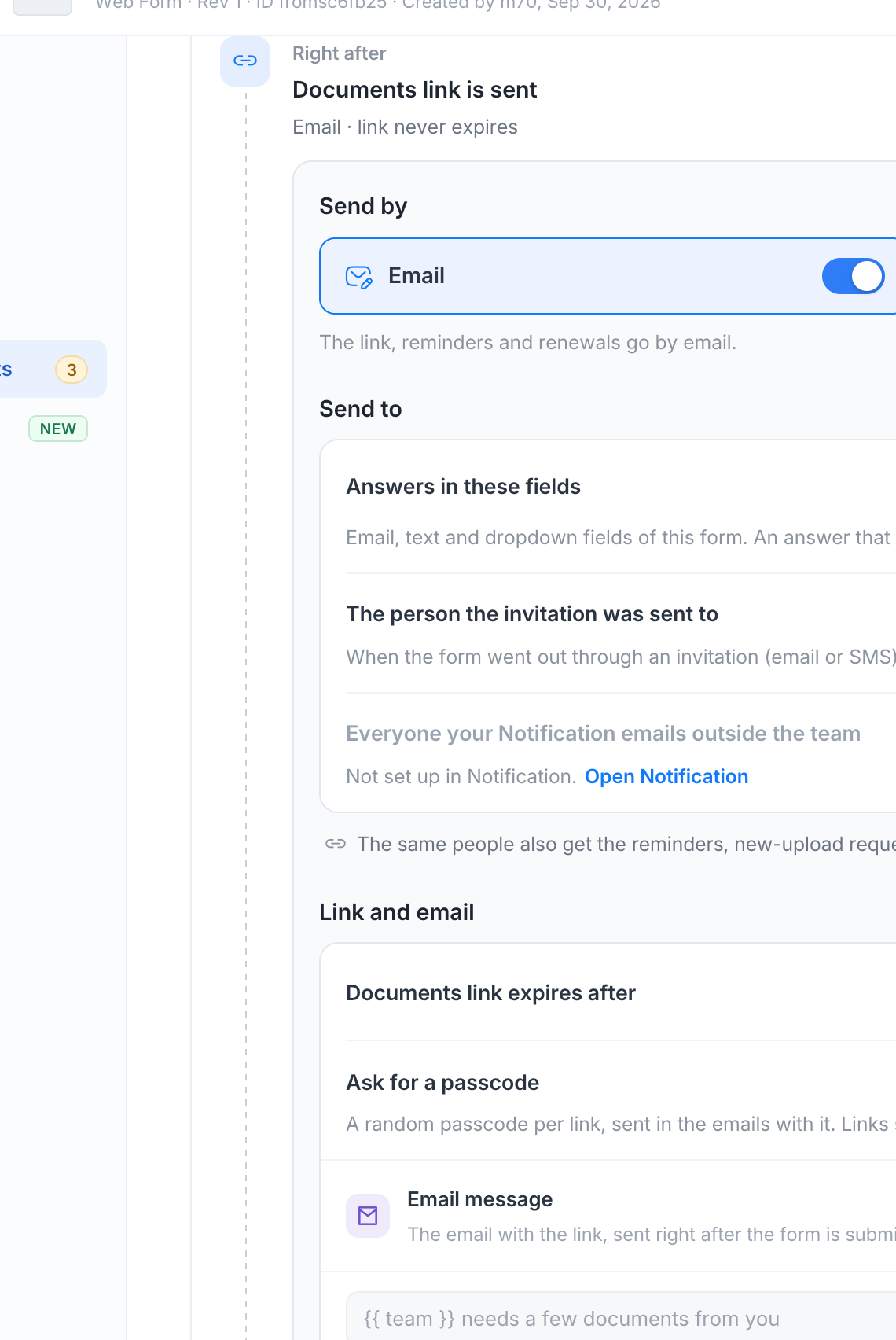
Send by adds text messages. Choose the phone field that holds the mobile number; the link, reminders and renewals then go by SMS as well as email, or by SMS alone. Texts are paid from your messaging balance, every text says who it is from and how to stop them, and you should tell people next to that field that the number is used for texts about their request.
Link settings
- Documents link expires after: a number of days, or never. A person who opens an expired link sees a message and your team can reissue it. On HIPAA teams links always expire within 30 days.
- Ask for a passcode: a random passcode per link, printed in every email that carries the link and asked for when the page opens. Links sent before you turned this on keep opening without one.
Tell your team
Three notices go to the team members who can view the form’s submissions (set under Permissions):
- When a document is uploaded and needs review: one email per person, sent shortly after their last upload, so several files in a row make one email.
- When a rejected document is uploaded again.
- When every document is accepted.
Reminders
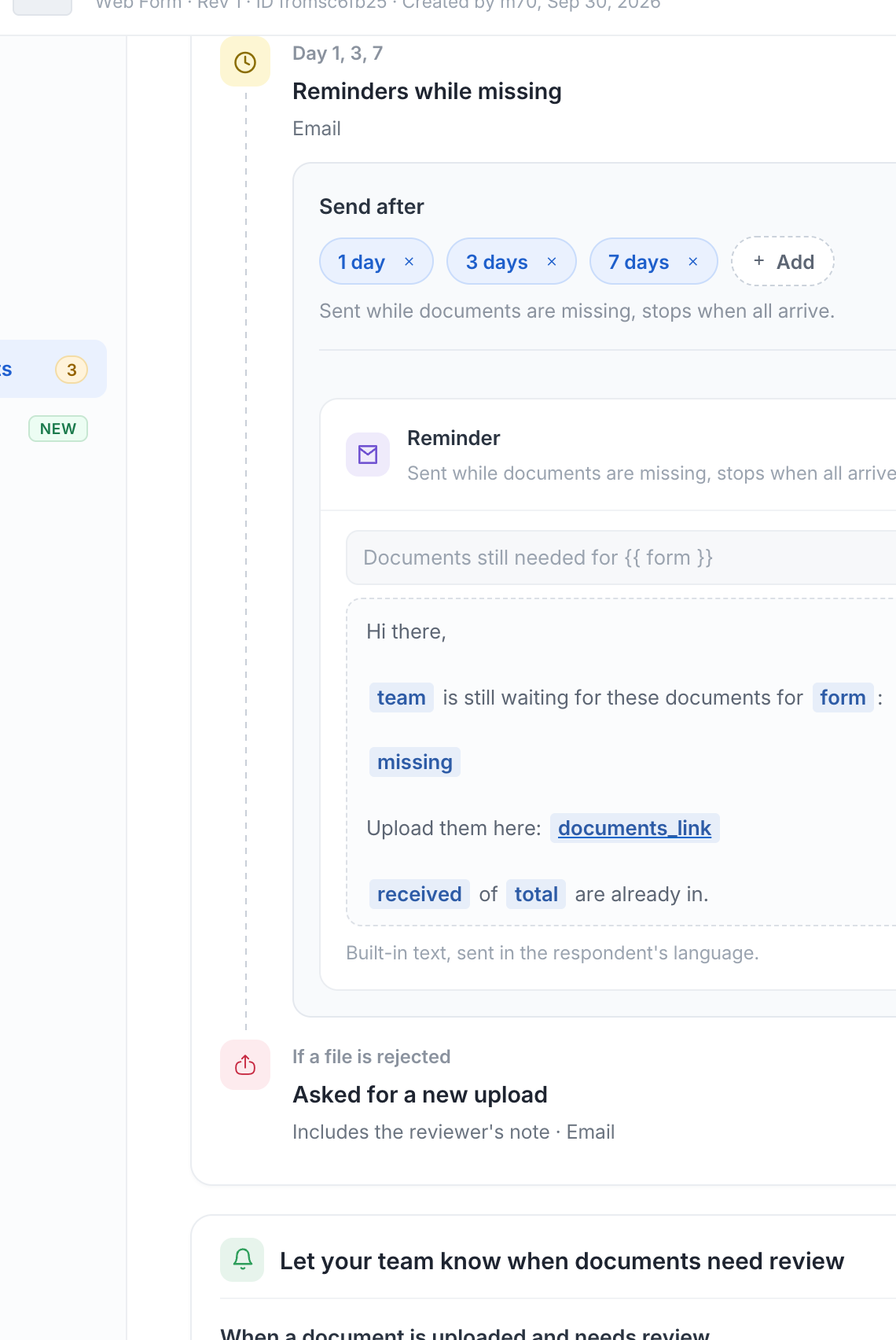
Reminders go to the person while documents are missing and stop as soon as everything is in. The default schedule is 1, 3 and 7 days after the request; add or remove days as you like. Each reminder lists only what is still missing.
Messages
Every email has a built-in text in the language of the submission. Click Customize to write your own subject and body, with variables for the team name, the form name, the person’s name, the list of missing documents and the link. An email always carries the link, even if your text leaves it out.
- Email message: sent right after the form is submitted, with the link.
- Reminder: sent while documents are missing.
- Needs a new upload: sent when a reviewer rejects a file, with the reviewer’s note.
Text messages have their own short texts, one for the US and Canada and one for other countries.
Filing
Accepted files are stored with the submission and included in its downloads. If the form has a cloud drive folder, each accepted file is also filed there next to the PDF, named Item_Person_Date.
Items you add later are not in the requests already open. Each of those shows Checklist changed since this request in its drawer, with an Apply new items button that adds them as missing and puts them in the next reminder.