
Import from paper
On this page
Some people will always fill in a form on paper: walk-ins at the front desk, field staff without a signal, a waiting room clipboard, or a box of old forms you want to digitize. Import from paper brings those copies into PlatoForms. You upload scans or phone photos, AI reads each copy into the form’s fields, someone on your team checks the answers the AI was unsure of, and each copy becomes an ordinary submission next to the ones made online.
In this chapter
- Import paper copies: what the paper must be, the files you can upload, how pages are split into copies, and the Import page.
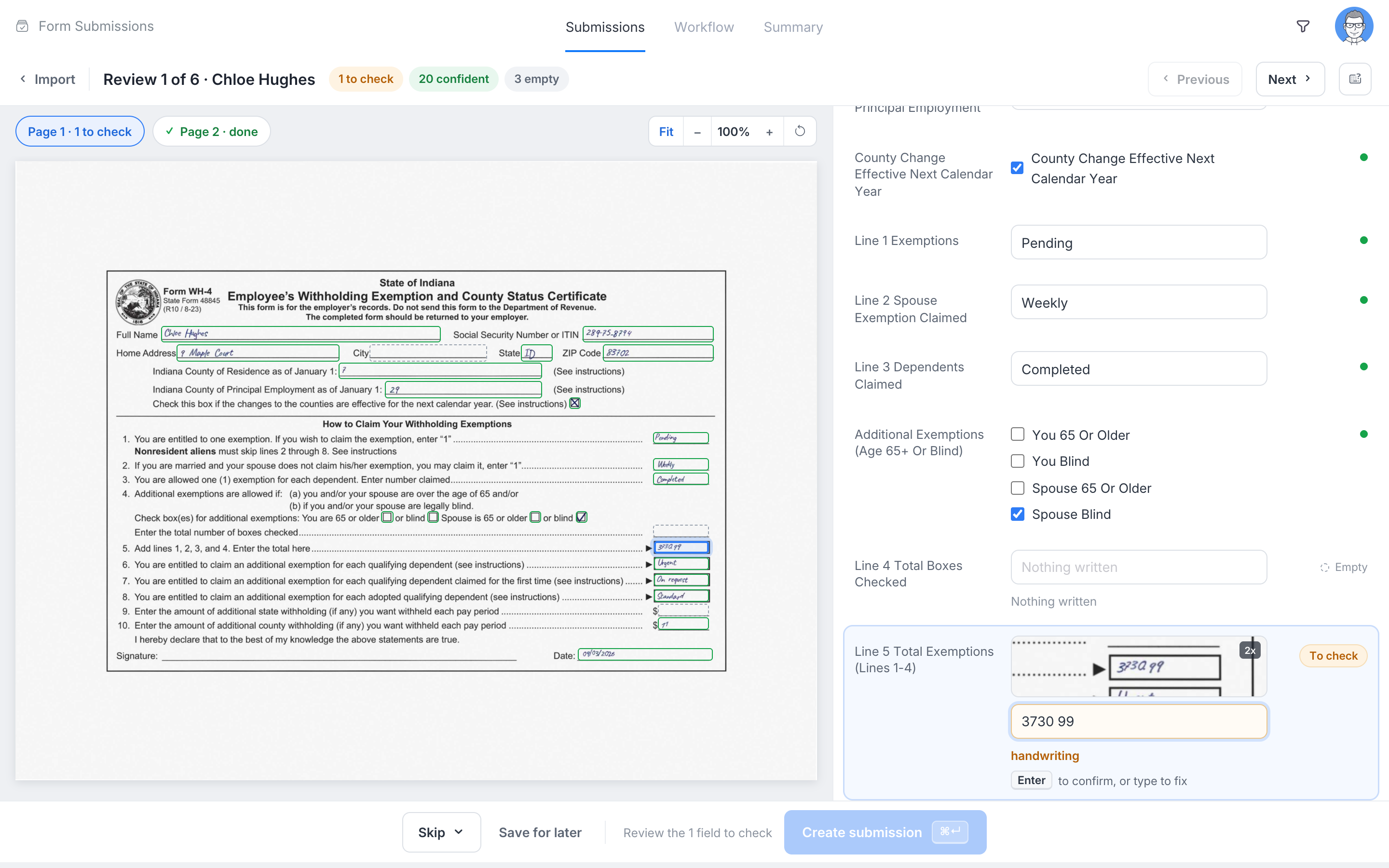
- Review and create submissions: check each copy on the Review page, create the submissions, create the clean copies in one go, and the review queue.
- Settings, plans and privacy: the team settings, pages included in each plan, the emails, and how long scans are kept.
How it works
- Open the form’s Submissions page and click Import from paper, then New import.
- Drop your scans or photos: PDF, JPG, PNG or HEIC. One scan can hold many filled copies.
- PlatoForms matches each page to the form, splits the pages into copies and reads the answers. You can leave the page; you get an email when the import is ready.
- Each copy is marked Ready (every answer read with confidence) or To check (some answers need a look). On the Review page you see the scan and the fields side by side, confirm or fix each answer, and create the submission.
- Ready copies can be created in one go with Create N submissions. The new submissions are marked Paper, get their completed PDF, and are filed and sent to your integrations like any other submission.
Which forms can import paper
Import from paper works with forms built from a PDF: a PDF Fillable Form or a Web PDF Form. The form must be published.
The paper must be the same document the form was built from: the paper form you already use, if you uploaded its PDF to create the form, or a printout of the form’s PDF. Each page is matched against the form’s own pages. Pages from another form, or from an older version of the paper, are not read, and a file with no matching page at all is marked Not this form.
Forms made with Web Form (Classic or Conversational) and Master Forms cannot import paper. If your paper form exists as a PDF, upload it with Start to build > PDF → Online Form to build a form that can.
Where to find it
- Per form: the Import from paper button on the form’s Submissions page, with New import, Review queue and your Recent imports. The form’s Manage form page points there from its Share section.
- Team settings: Team menu > API and Webhooks > Paper intake: turn it on or off and choose who can import. See Settings, plans and privacy.
Import from paper is part of every plan, including Free, with a number of pages each month that depends on the plan.