










Notifications and emails
On this page
A workflow sends its own emails. Each step’s Notification tab says who is told when that step is ready, and the completion notification says who is told when a run is done. The forms’ own notification settings are not used for workflow submissions, so nobody gets the same submission twice.
Which email goes to whom
| When | Who | Where to set it | |
|---|---|---|---|
| Step notification | The step before it is submitted or approved | The people named on the step | The step’s Notification tab |
| Reminder | N days after the step was assigned and it is still open | The same people, or a separate list | The step’s Notification tab |
| Approval request | The step before the approval is submitted | The approvers (with Send to team members on, every team member who can view the previous form’s submissions) | The approval’s Notification tab |
| Decision email | An approver decides | The person who filled in the reviewed form | The approval’s Decision emails tab |
| Completion notification | Every path of the run has finished | Anyone you name, including the person who started | The workflow panel, When a run completes |
When a form is used as a workflow step, submissions made through the workflow do not send the form’s own notification emails or reminders. Its webhooks, Slack and Google Sheets integrations and logic-rule emails still run, and submissions made through the form’s own link, outside any workflow, still send its notification.
Step notifications
A notification belongs to the step it announces. On the step’s Notification tab you set:
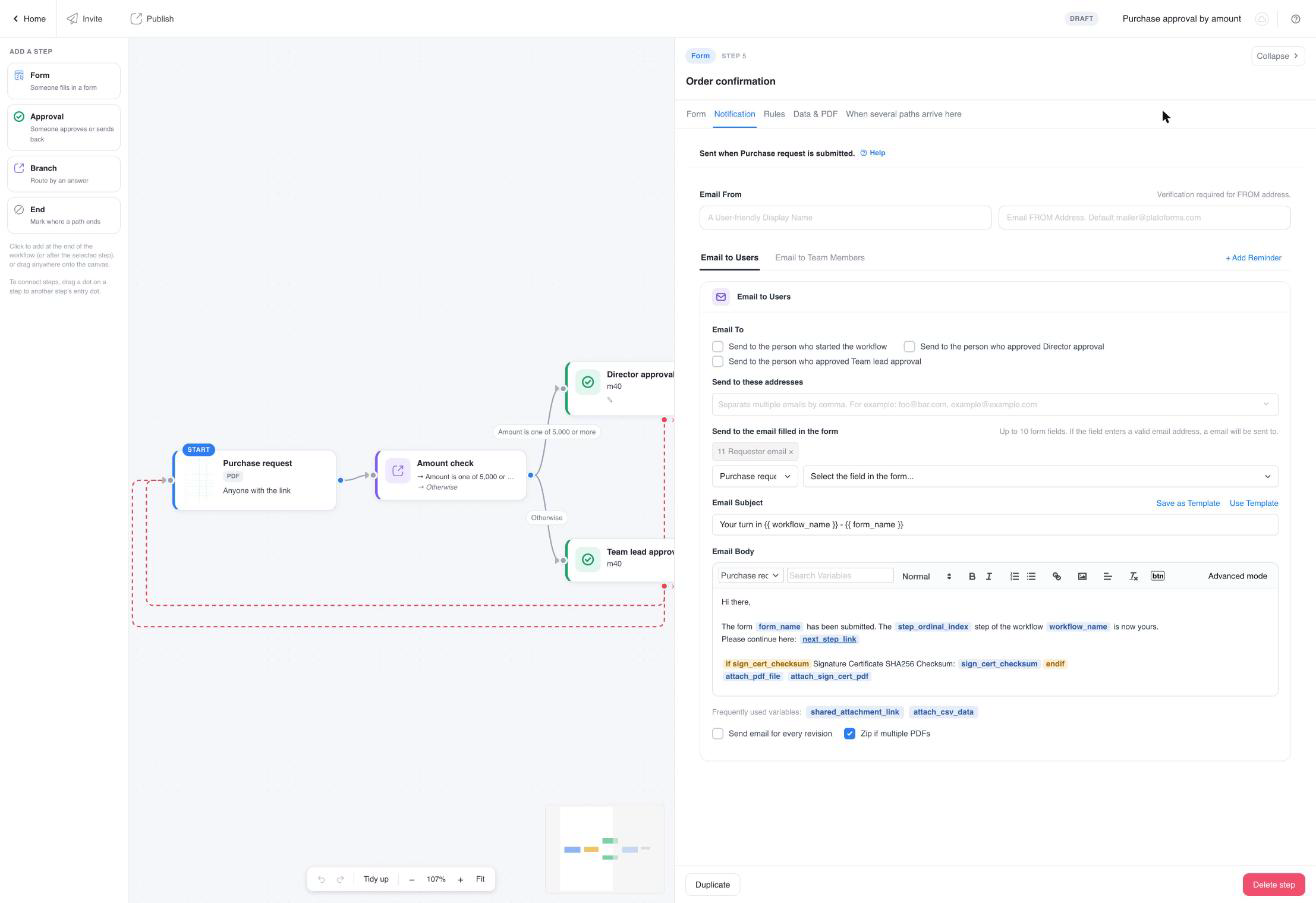
Email To. Any mix of:
- Send to these addresses: fixed addresses, comma separated.
- Send to the email filled in the form: an answer from an earlier step, for example the “Manager email” field on the start form. Pick the step, then the field.
- Send to the person who started the workflow: the address from Who hears back or the invitation.
- Send to the person who approved “X”: the approver of an approval that comes before this step; with several approvals before it, Send to the approver of and a pick list. One approval per form step: two approvers on one form would be one shared task that the first to open claims, so two signatures are two form steps. This is how a form reaches the approver who has to sign, and it is what makes a form step “the approver’s form”: ticked, the step shows a green edge and a ✓ Approver of “X” chip on the canvas; unticked, it is an ordinary form step. A form added on an approval’s Approved path comes with it ticked, and a form added after an approver’s form is addressed to the next approver whose form is still missing. See Let the approver fill in a form.
- Notify Team Members with Send to team members on: every team member who can view the submissions of the previous form becomes a recipient, with their own subject and body if you like. On an approval each of them becomes an approver; on a form step they share the step’s task.
Subject and body. The editor is the same one as a form’s notification. The variable menu lists the fields of every earlier step by step name, the workflow variables, and the attachments:
| Variable | What it inserts |
|---|---|
workflow_name |
The workflow’s name. |
step_ordinal_index |
“1st”, “2nd”, … the position of the step that sends the email. |
step_name |
The step’s name (Step name). |
due_date |
When the task is due; empty without a deadline (Due date). |
assignee_name |
The person the task is for; empty for a task shared by several people (Recipient name). |
initiator_name |
The email address of the person who started the run, when known (Started by). |
previous_step_summary |
The form step before this one and who submitted it (Previous step). |
next_step_link |
The link the recipient must open to do their step. Also available as a clickable link. Every step notification should contain it. |
workflow logic block |
A block that is only rendered for workflow emails. |
attach_pdf_file, shared_pdf_link |
The PDF of the form that was just submitted, attached or as a download link. |
| Fields from earlier steps | Pick a step in the menu, then the field. The step whose submission sends the email is marked “submitted”. |
Reminders. Add reminders, each N days after the step was assigned, with its own subject, body and optional separate address list. A reminder stops once the step is done.
Send email for every revision. When the previous form is edited and resubmitted, the step’s people are told again. Off by default.
Who is told, in words. The step’s Form tab summarises the recipients, and the step before it shows them under When this form is submitted, so you can check the chain without opening every tab.
The default email text
There is no separate Edit message control. The Notification tab is the form’s Notifications screen in its workflow version, and each new step starts with its own default text, “Your turn in …”, which you edit directly. Its variable list has Workflow name, Step name, Due date, Recipient name, Started by and Previous step, plus the next-step link and answers from earlier steps. A standard PlatoForms task email is only a fallback, used for a step whose people do not come from its Notification tab.
Decision emails
An approval’s Decision emails tab holds two emails to the person who filled in the reviewed form: When approved and When sent back. Both come pre-filled and translated; edit them freely. Variables: workflow name, step name, the decision, the approver’s comment, the approver, and the link, which opens the form for revision after a send-back or offers Start again after a rejection that ended the run.
A decision email goes out the moment the approver decides. It does not contain the signed PDF: that comes with the completion notification once every step is done.
The completion notification
The workflow’s own email when a run completes, set under When a run completes on the workflow panel. Click Set up (or Change) to open the same screen as a step notification: addresses, an answer from any step, the team members who can view the last form’s submissions, and the person who started the workflow. The header reads “Sent when
The built-in text attaches the completed PDF and links it, in the language of your team. Variables specific to this email:
| Variable | What it inserts |
|---|---|
completed_at |
When the run completed. |
attach_pdf_with_approval_record_file |
The final PDF with the approval record page appended, as an attachment. |
pdf_with_approval_record_link |
The same document as a download link, also available as a clickable link. |
attach_pdf_file, shared_pdf_link |
The last form’s own PDF, without the record page. |
A run with no approval decision, or with the record page switched off, has no record page: the “with approval record” variables then attach and link the last form’s PDF, so the email always carries the completed document.
If the record page could not be generated when the run completed, the email waits a few minutes and tries again. Should it still be missing, the email goes out with the plain PDF attached and a one-line note saying so; the download link includes the page once it is ready, and the tracker can rebuild it.
The checklist warns with “No one is told when a run completes” when a form step ends the run and the completion notification names nobody.
Reminders, nudges and expiry
- Reminders are automatic, from the step’s Notification tab.
- Nudge in the tracker resends a task’s email on demand, at most once an hour per task.
- Links expire after the number of days set for the workflow or the team; an expired link says so and asks the person to request a new one. Reassigning a task from the tracker issues a fresh link. Expiry is separate from a step’s deadline: an overdue task can still be submitted, an expired link cannot.