
Review and track documents
Tabs
The Documents column
On the Submissions page, a form with a checklist gains a Documents column. Each submission shows where its request stands: Documents missing, Needs review, Needs a new upload, Complete, or Marked complete by the team. Filter chips above the table narrow the list to submissions that are missing documents, need review, have a rejected file waiting, are expiring, or are complete.
A submission that got no request because the plan’s monthly number was reached shows No request with an upgrade link.
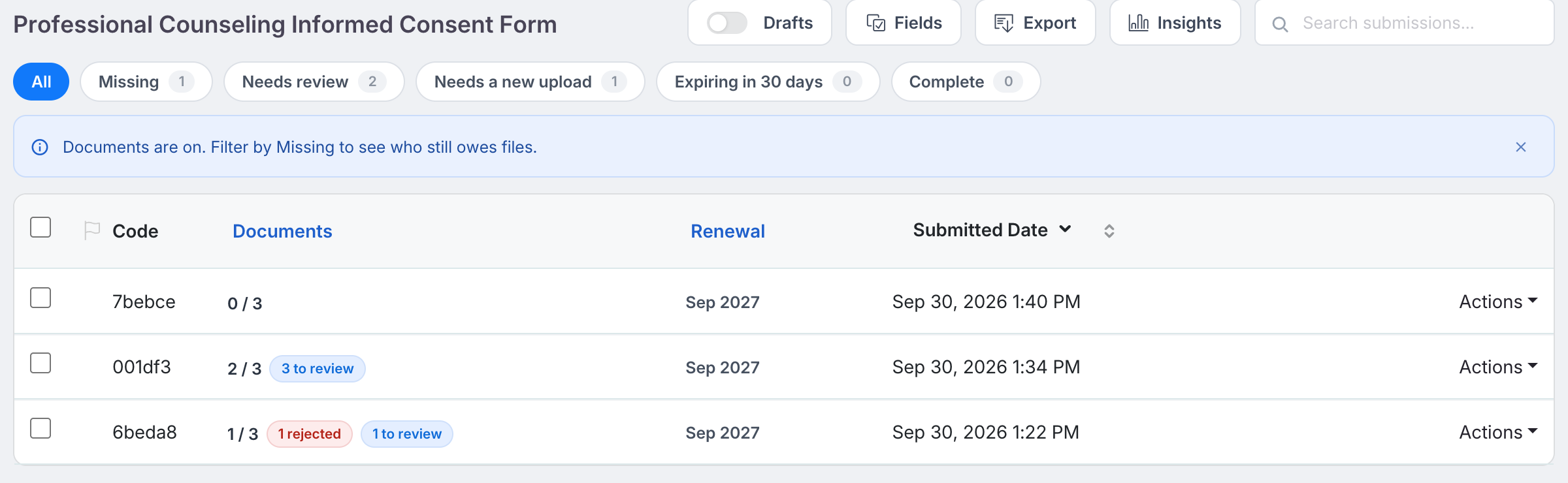
Click the column to open the Documents drawer.
The Documents drawer
The header shows how many required files have arrived, when the link was sent and to whom, how many reminders went out and when the next one is due. Below it, one row per item with its files, and the person’s reason if they declined an item.
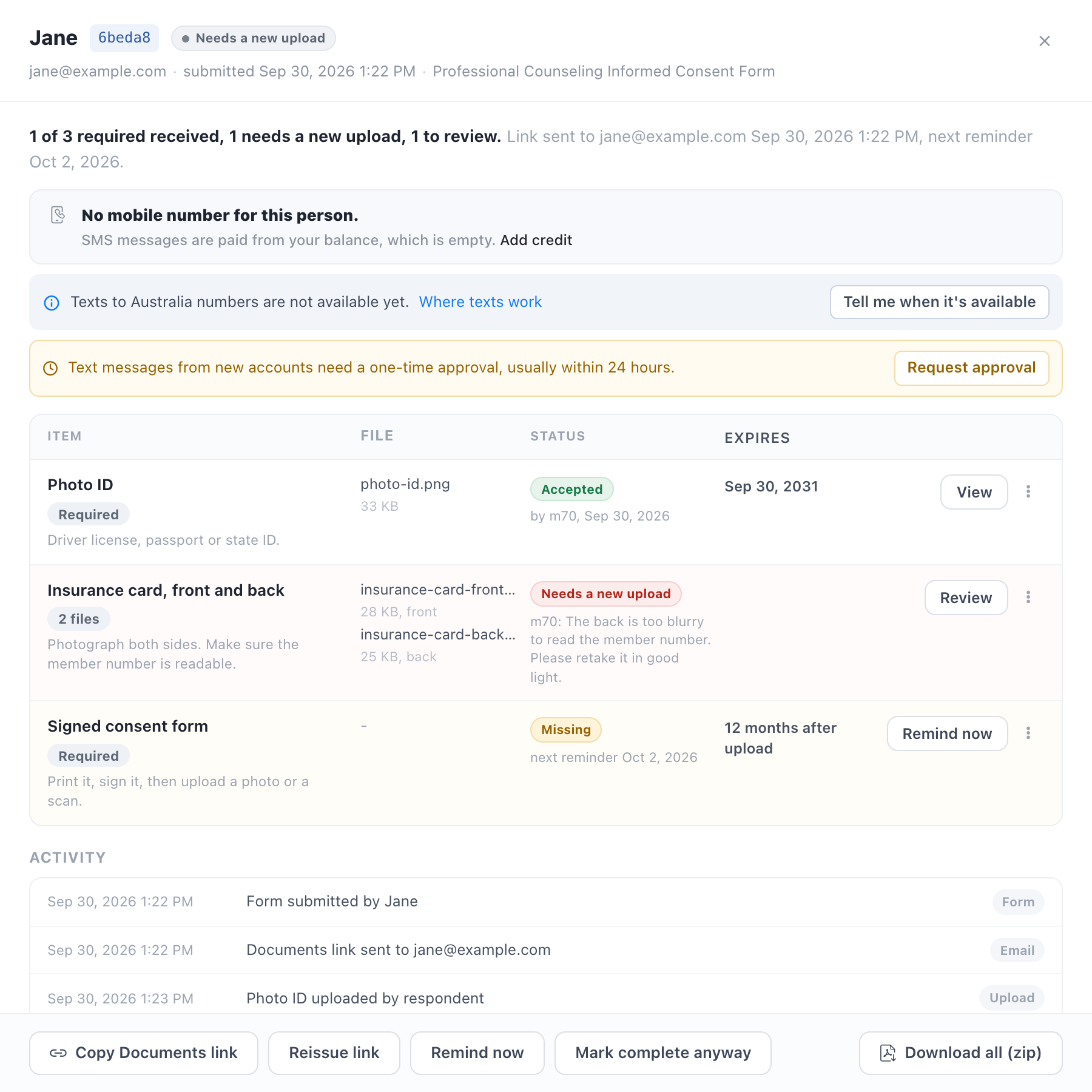
| Action | What it does |
|---|---|
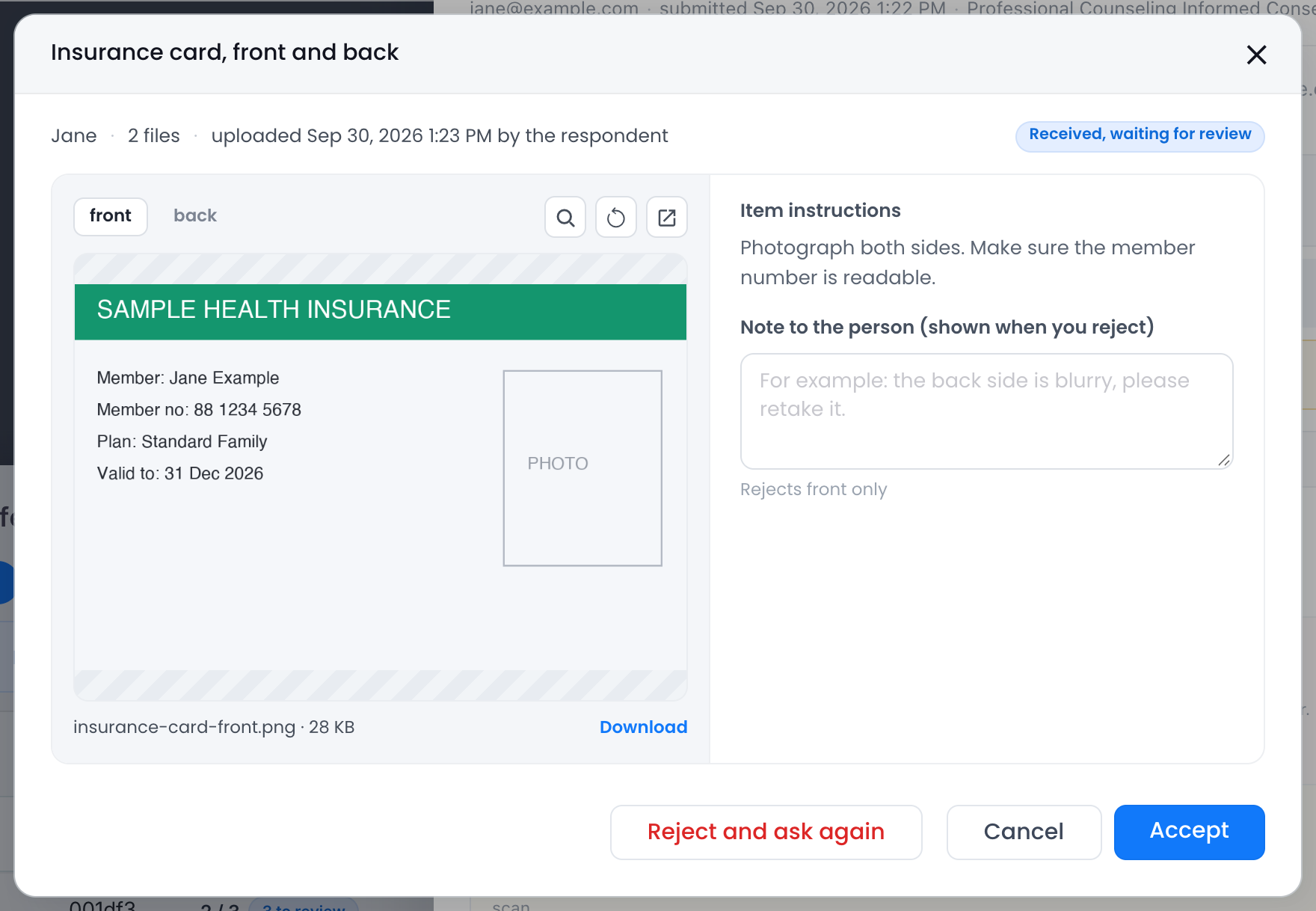
| View | Opens the file with zoom and rotate. PDFs open in a new tab. On HIPAA teams there is no preview; download the file instead. |
| Accept | Marks the file accepted. If the item has an expiry rule, the expiry date is prefilled from it (months after upload, or the form’s date field); change it if the document says otherwise. |
| Reject and ask again | Marks the file rejected with a note the person sees, and emails them to upload it again. Reminders start again. |
| Request again | Sends the email for that item once more and restarts the reminders. |
| Waive | Excuses the item for this person, with an optional reason. It is no longer counted. Remove waiver undoes it. |
| Upload for them | Uploads a file you received another way, for example by post. Files uploaded by the team are accepted at once. |
| Remind now | Sends a reminder immediately. One reminder every 12 hours, and only when there is an email address. |
| Copy Documents link | Copies the link, with its passcode when there is one, to send yourself. |
| Reissue link | Replaces the link with a new one and emails it, for a link that expired or was forwarded. |
| Mark complete anyway | Closes the request without the missing items. The person is not told. Reopen undoes it. |
| Download and Download all (zip) | One file, or every current file for this submission. |
When no email is on file, the drawer offers Add an email and then sends the link; the same for a mobile number when the form sends texts.
A request is complete when every required item is accepted or waived. Accepted files are then filed in the form’s cloud drive folder, if it has one, and the team notice goes out. A new file uploaded on a required item after that reopens the request until it is reviewed.
The Document Requests page
Document Requests in the left navigation lists every request across all the forms you can view.
The Requests tab opens with four tiles that also act as filters: Waiting for review, Missing documents, Rejected and waiting, and Complete this month. Search by person, narrow to one form, or use the status chips. Each row shows the person, the form, when they submitted, the documents received, the last activity and the reminders sent. Review opens the drawer for that submission, Remind sends a reminder, and Copy link copies their Documents link.
The badge on the Document Requests menu item counts the files waiting for review across the forms you can view.
Everything that happens to a request is listed at the bottom of its drawer: uploads, reviews, emails sent, link changes. Uploads and views of the Documents link are also written to the team’s activity log.