
Set Square Payment properties
On this page
The Square Payment field lets you accept payments directly inside your form — the respondent enters their card details on the form itself and never leaves the page.
This is one of two ways to collect Square payments in PlatoForms. The two behave differently: this field keeps the respondent on your form throughout and doesn’t send a Square email receipt after payment. Square Checkout, configured from your form’s Integrations page, redirects the respondent to a Square-hosted page and sends a Square email receipt. Not sure which to use? See Stripe vs. Square vs. PayPal.
Use only one payment method per form. Don’t add this field to a form that’s already using Square Checkout (or another provider’s payment method) — running both can cause the payment amount, currency, or confirmation status to behave unpredictably.
Add field
In the form builder, open the Widget Panel on the left and select Square to add it to your form.
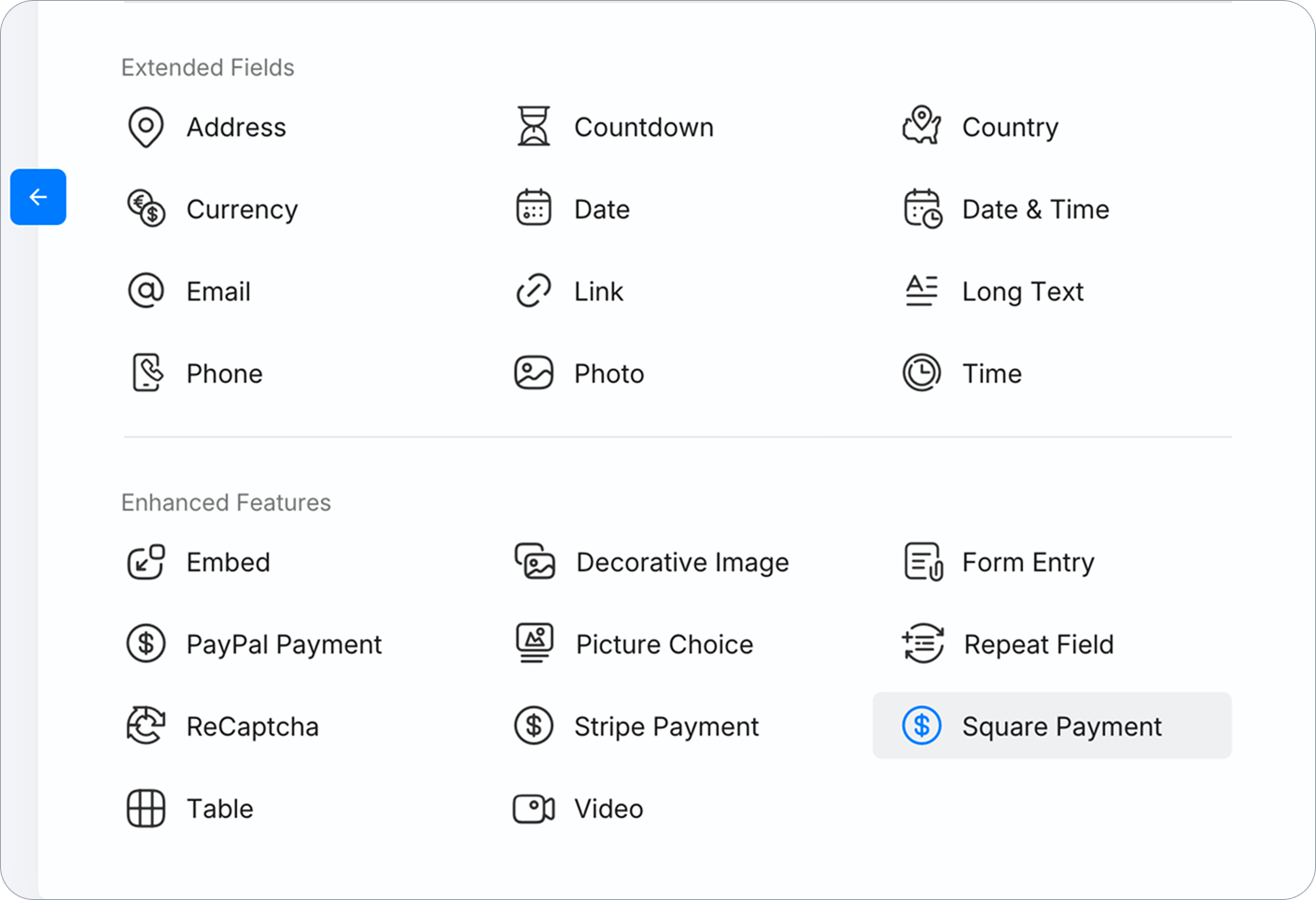
Connect your Square account
Click the field, then click Connect with Square and follow the prompts to authorize your Square account. Once authorized, the button changes to Revoke Connection [merchant name], confirming the account is linked.
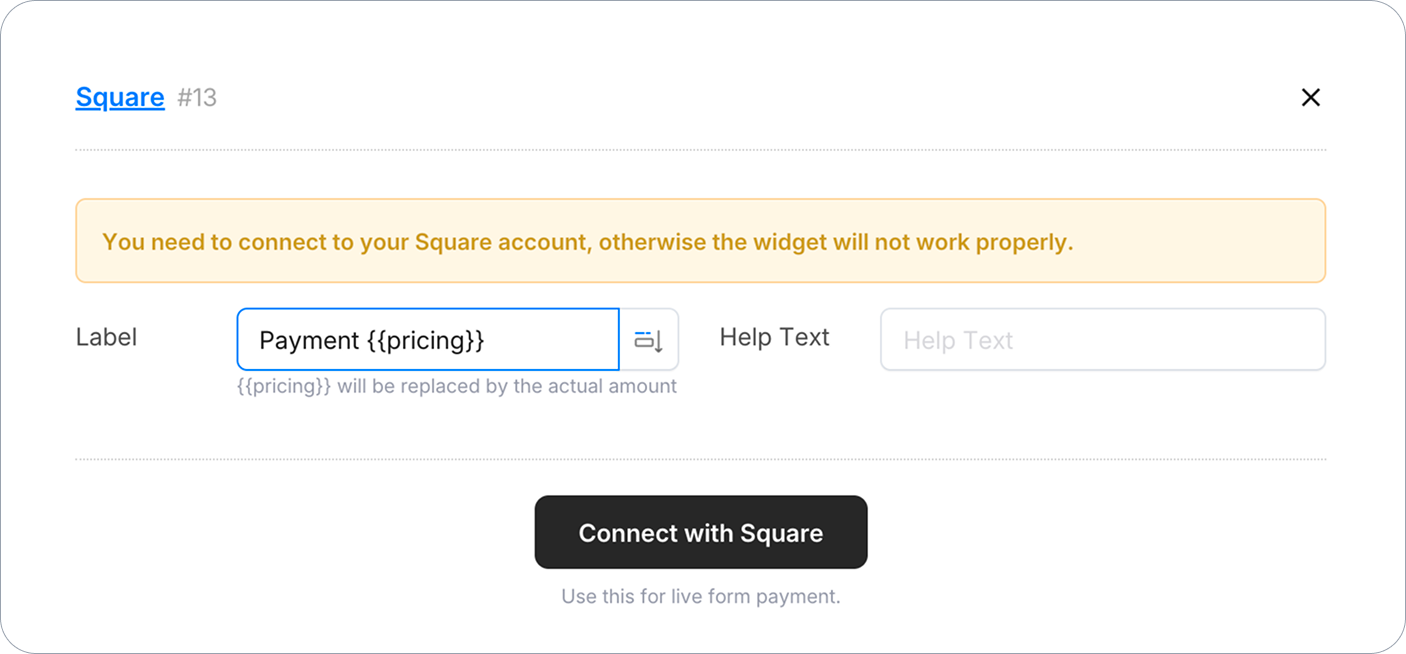
Square currently supports live payments only for this field — there’s no sandbox/test mode. Any test submission charges a real card.
Configure payment amount
The field supports two ways to set the payment amount.
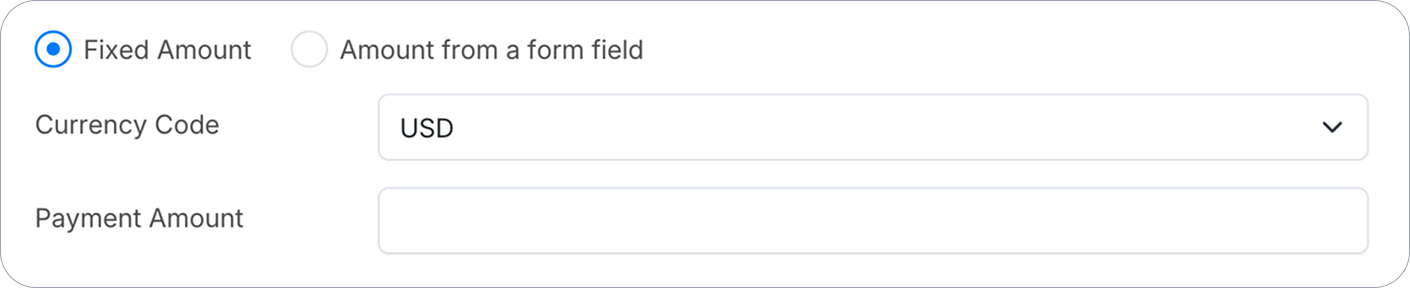
Fixed Amount
Select Fixed Amount and enter a number directly. Every submission charges the same price.
Amount from a form field
Select Amount from a form field to link the payment to a value calculated elsewhere in the form. For example:
-
Add a Number field to hold the price (labeled
Price), and set an Initial Value for it — a fixed value, or one calculated by form logic. Mark it Hidden on Form if respondents shouldn’t see or edit it directly.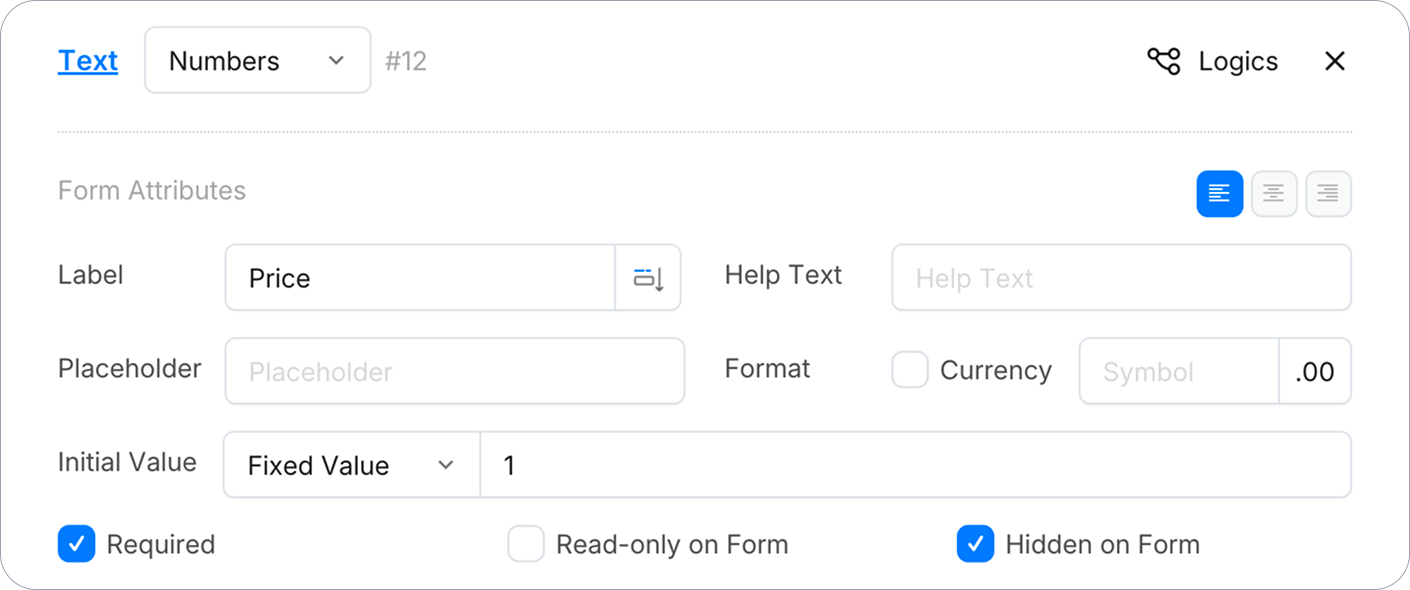
-
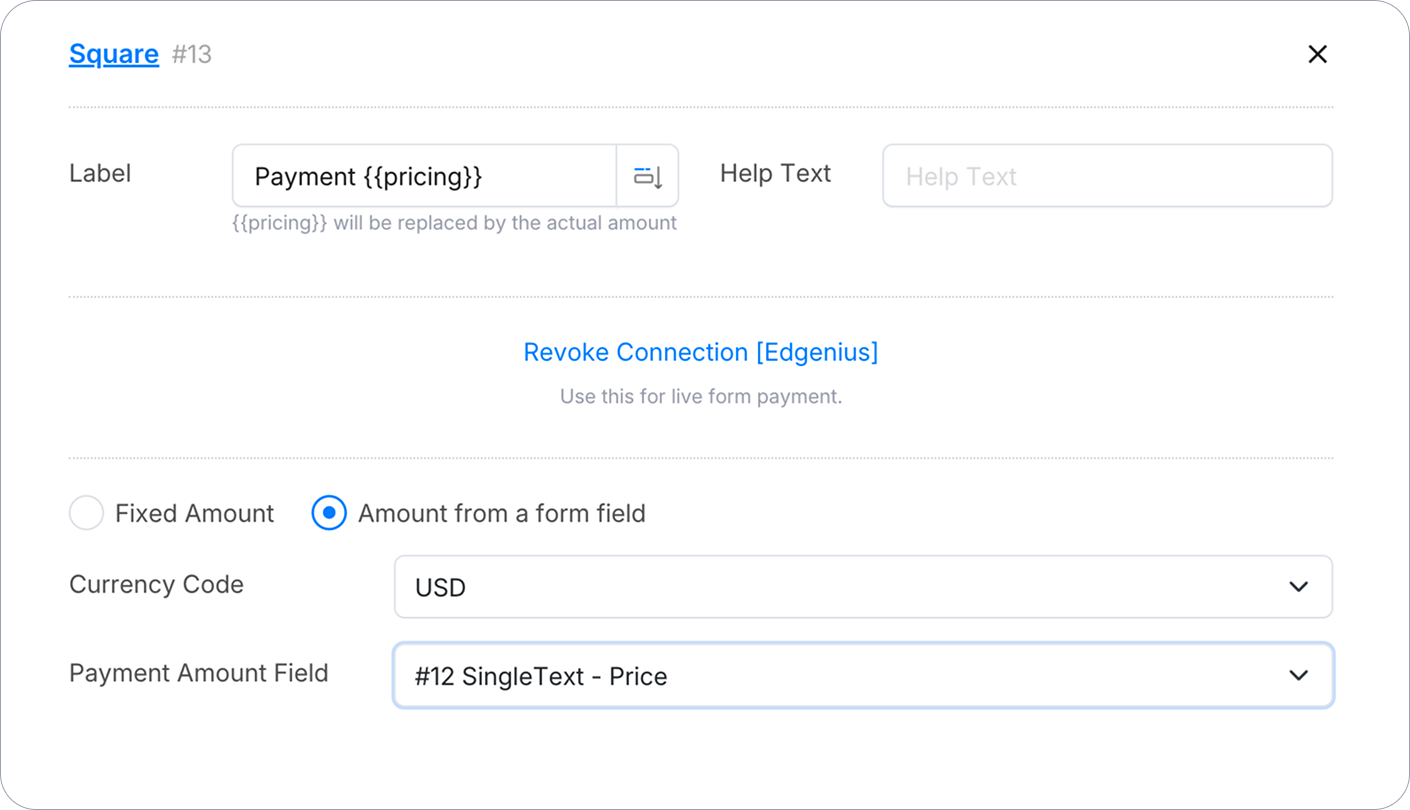
In the Square field properties, set Payment Amount Field to that field.
-
Optionally, include
{{pricing}}in the field Label to show the live amount as it updates.
Point Payment Amount Field to a field that actually holds a number, not the Square payment field itself. Also confirm that field’s Initial Value is genuinely set — describing the price in its Help Text isn’t enough, and a field left Unset will charge $0.
Dynamic pricing based on user selections is typically handled with form logic — for example, updating the price field depending on which product or option a respondent chooses.
IF (product is “Coffee”) THEN (set Price field) to “2”.
Currency Code
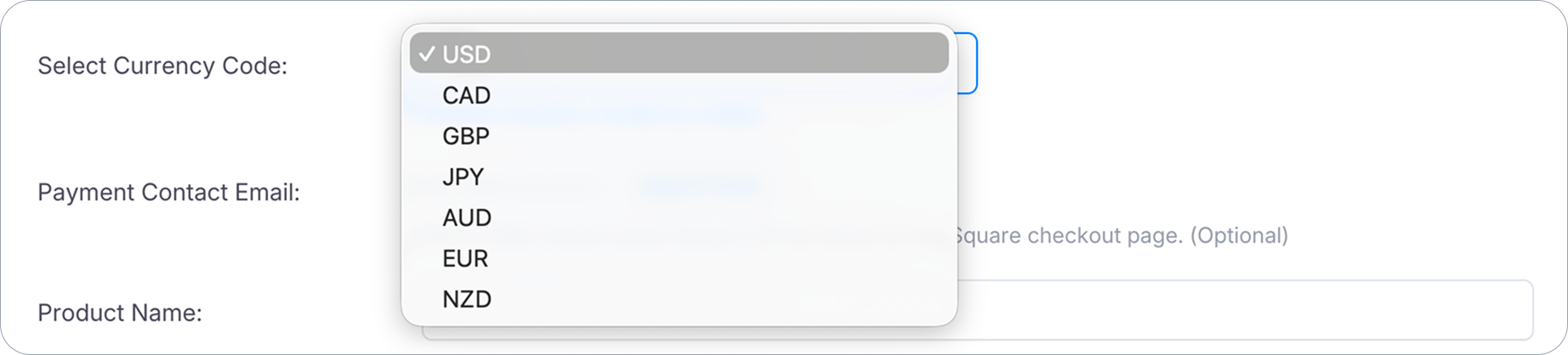
Set the currency for the transaction. This must match the settlement currency of your connected Square account — this is a restriction on Square’s side, tied to the country your account was registered in, not something PlatoForms controls. If they don’t match, Square will reject the payment with an error like “This merchant can only process payments in [X] but amount was provided in [Y].” Check your Square Dashboard if you’re unsure which currency applies.
Payment process
-
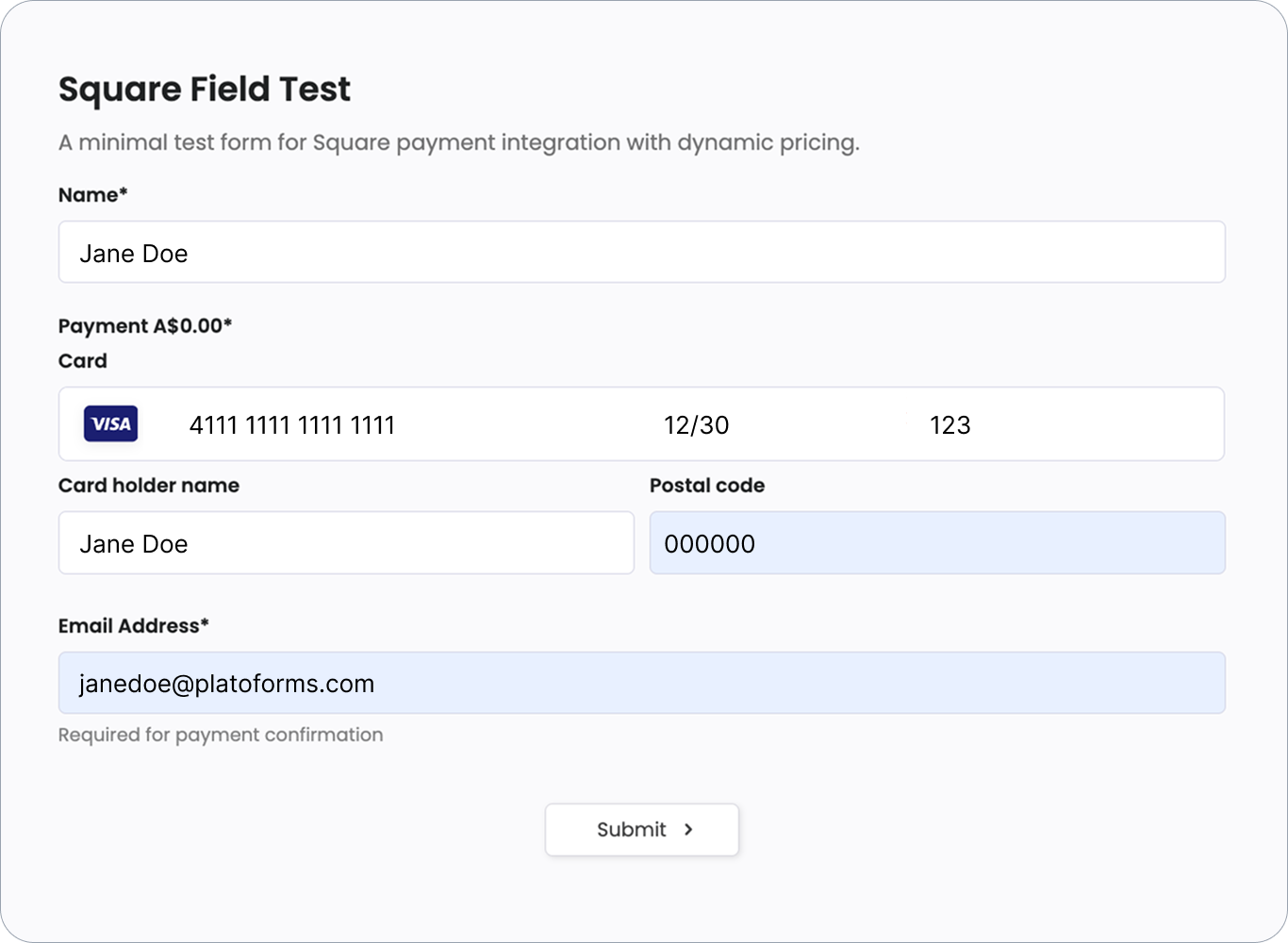
The respondent fills out the form, including entering their card details in the Square field.
-
They submit the form without leaving the page — there’s no redirect to Square.
-
PlatoForms shows its standard thank-you page. This page is generic — it doesn’t reference the payment or amount.
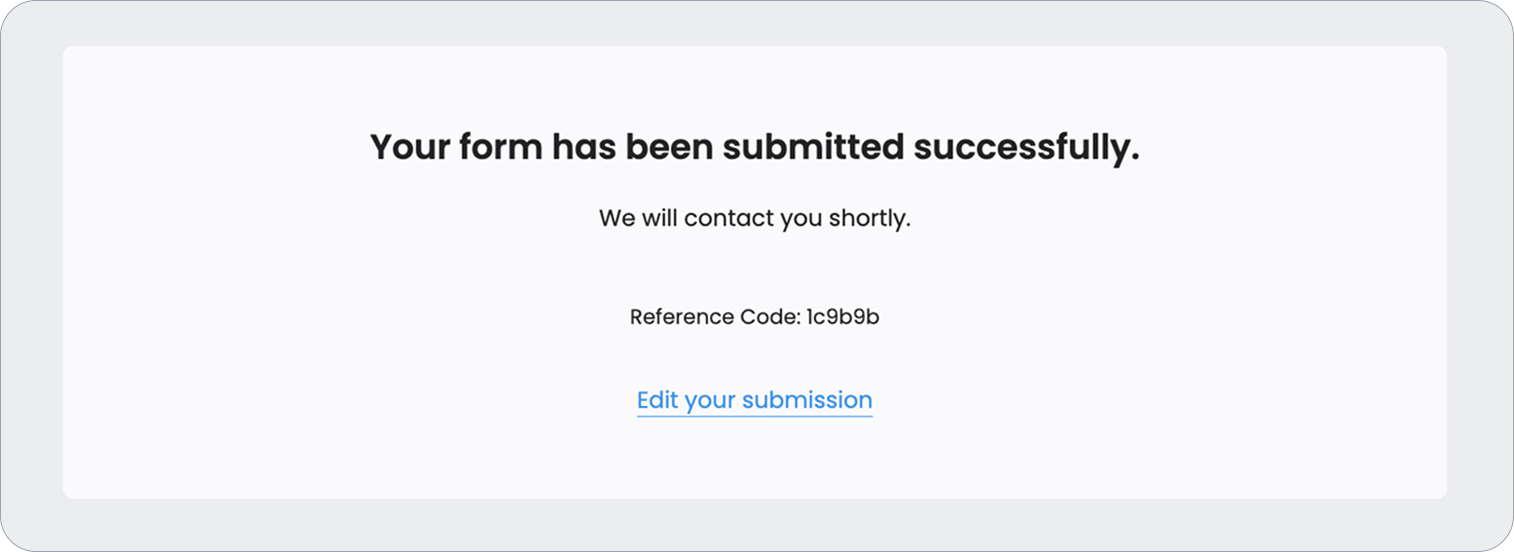
Unlike Square Checkout, this field does not trigger a Square email receipt. To confirm a payment went through, check your Square Dashboard for the transaction. Since there’s no email receipt as a fallback here, it’s worth customizing your form’s Thank-you page settings — either edit the thank-you message to explicitly mention the payment (e.g. “Thanks — your payment has been received”), or set a redirect link to a dedicated payment confirmation page. Otherwise, the respondent’s only feedback is the generic thank-you page.
Validation and security
- Pre-payment validation: Payment only processes after all required fields in the form pass validation.
- Secure card processing: Card details are handled directly by Square’s encrypted infrastructure. PlatoForms never stores card details.
Review payments
Log in to your Square Dashboard to see all transactions processed through this field, including the form name and submission tracking code in the transaction description.
PlatoForms does not charge any transaction fees for this integration. All payments are processed directly through your connected Square account — PlatoForms is not a party to these transactions and is not responsible for payments, refunds, chargebacks, or disputes.